The screen recorder market is saturated with numerous options, each promising unique features and benefits.
Finding the best YouTube screen recorder will take you hours. This comprehensive guide will make things a lot easier for you and save you ample time.
In this guide, we will cover a detailed overview of the 10 best screen recorders you must check out for recording YouTube videos.
Quick Look: Best Screen Recorders for YouTube
This table is a summary of the screen recorders reviewed in this guide:
| Screen Recorder | Best For | Core Features (Top 3) | Free Plan | Paid Plan |
| dadan | AI-powered content creation & collaboration | AI-generated transcriptions, Interactive elements, Unlimited video hosting with lead forms | Available (5 min/video, 25 videos max) | $8/month |
| OBS Studio | Professional live streaming & advanced control | Unlimited watermark-free recording, Multi-source input, Customizable scenes | Available (Completely free) | Free |
| Camtasia | Comprehensive video editing & tutorials | Multitrack recording, AI-powered workflows, Cursor editing & annotations | Available (Limited free trial, export requires purchase) | $179.88/year |
| Movavi Screen Recorder | User-friendly recording with basic editing | High-quality recordings, Scheduler, Built-in drawing & annotation | Available (7-day trial, watermark) | $34.95/year |
| Loom | Quick video messages & asynchronous communication | Easy to use, Instant sharing, Cloud storage | Available (25 videos, 5-min limit) | $18/user/month |
| EaseUS RecExperts | High-quality screen & game recording | 4K UHD game recording, Task scheduler, Annotation & trimming | Available (Watermark in free version) | $19.95/month |
| ScreenPal | Simple screen recording & quick sharing | Easy screen/webcam/audio recording, Built-in video editor, Unlimited hosting | Available (15-min limit, no system audio/editing) | $4/month |
| Bandicam | High-performance game recording | High-quality video capture (4K), Lightweight performance, DirectX/OpenGL window recording | Available (Watermark, 10-min limit) | $49.95 (Lifetime Personal) |
| ShareX | Advanced screenshotting & power users | Extensive capture methods, Customizable workflows, Automated uploads | Available (Completely free) | Free |
| Vimeo Record | Professional video hosting & secure sharing | AI script generation, Text-based editing, Secure collaboration | Available (Limited to 3 videos, 30 min/video) | $12/month |
What must you look for in a screen recorder?
We thought it’s a good idea to tell you what we looked for in a screen recorder before shortlisting it. The purpose is to be transparent with you and encourage you to follow the same process if you evaluate a few more screen recorders on your own.
- High-Quality Video and Audio Capture: Visual and audio recording clarity are the foundation of a screen recorder. We always recommend screen recorders capable of recording high-definition visuals, ideally 1080p or 4K and clear, synchronized audio from both the system and microphone.
- Intuitive Interface and Ease of Use: A straightforward and user-friendly design minimizes the learning curve. This means you can focus more on content creation rather than spend time on figurinreout the software.
- Built-in Editing and Annotation Tools: Look for screen recorders that have minimum editing features such as trimming, cutting, adding text, shapes, arrows, or blurring sensitive information. Even better if the editor is built in.
- Advanced AI-Powered Features: This category can be huge. We suggest you check for the basic ones like automatic transcription, generation of video summaries, or optimization of video metadata like titles and tags.
- Easy Hosting and Sharing: Screen recorders with hosting feature give you instant access to secure cloud storage. It’s also easy to create quick shareable links and direct integration with social media platforms means you can share your work seamlessly.
10 Best Screen Recorders – The 2026 List
1. dadan
dadan is a versatile screen recorder that emphasizes seamless collaboration and AI-powered enhancements. It simplifies the process of creating tutorials, demos, and feedback videos by integrating real-time annotations. The platform also offers advanced video hosting capabilities, including higher playback bit rates and the unique ability to incorporate forms directly into videos.

Best Features for YouTube:
- AI-Generated Transcriptions and Video Optimization: Dadan automatically transcribes audio content with up to 99% accuracy. This feature is complemented by its ability to generate SEO-friendly video metadata, including titles, tags, descriptions, and summaries.
- Interactive Elements: dadan allows for the creation of auto-generated chapters and the integration of interactive elements such as quizzes, polls, and Calls to Action (CTAs) directly within the videos.
- Integrated Editing Suite: dadan provides an integrated editing suite that enables you to polish your recordings without the need for third-party tools. This streamlines the post-production workflow, allowing creators to efficiently refine their content before publishing to YouTube.
- Password-Protected Sharing and Collaboration: The software supports secure sharing of videos via password-protected links and facilitates real-time collaboration through timestamped comments. This is invaluable for creators working in teams or sharing private content with specific audiences before public release on YouTube.
- Unlimited Video Hosting with Lead Forms: dadan offers unlimited video hosting. You can also add forms to videos, capture viewer information and convert them into leads.
Limitations:
- The free plan imposes limitations, allowing recordings of only 5 minutes per video and a maximum storage of 25 videos in the free library.
- dadan is incompatible with older versions of Microsoft Windows, specifically those earlier than Windows 10.
Pricing:
- Free Plan: Available, with limitations of 5 minutes per video, a maximum of 25 videos stored, and 720p recording resolution.
- Pro Plan: Starts at $8 per month
Reviews:
- G2: 4.8/5
- GetApp: 5.0/5
“Really useful for customer support, dev debugging and help video creation using screen recording. It is simple to use and has features competing with loom etc and much lower price point” — Mallik G, G2
2. OBS Studio
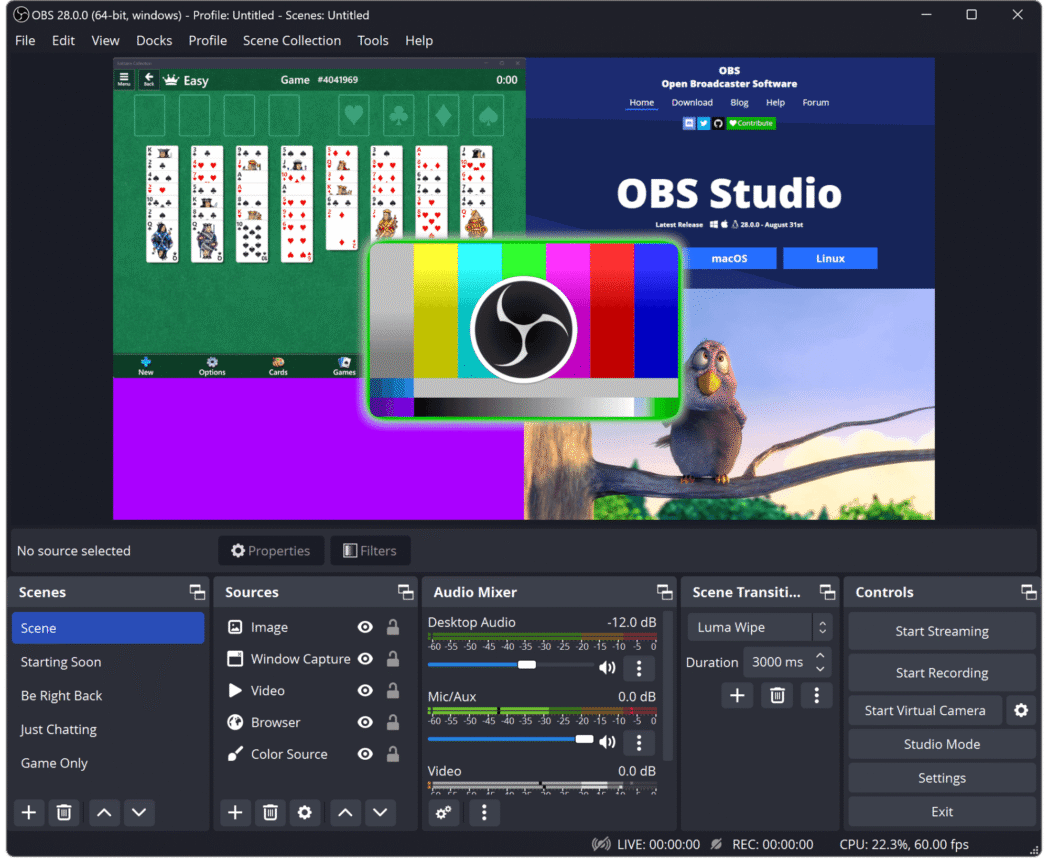
OBS Studio (Open Broadcaster Software) is a widely recognized, free, and open-source software for screen recording and live streaming. It is a preferred choice for millions of creators globally, including gamers, streamers, educators, and content producers. It offers flexibility and advanced capabilities in real-time video and audio capture and mixing.
Best Features for YouTube:
- Unlimited, Watermark-Free Recording: OBS Studio allows unrestricted recording duration without any watermarks
- Multi-Source Input & Customizable Scenes: The software facilitates real-time video mixing from multiple sources, such as screens, webcams, overlays, images, and text. It also offers customizable transitions and scene presets.
- Cross-Platform Compatibility: OBS Studio is available across Windows, Mac, and Linux operating systems
- Powerful Live Streaming Features: OBS Studio provides integrated support for direct broadcasting to major platforms like YouTube and Twitch
- Customizable Controls and Hotkeys: Tailor controls and settings to your preferences and access frequently used features via quick keyboard shortcuts
Limitations:
- Steep Learning Curve: New users find it complex and often get overwhelmed with interface and settings
- Lack of Built-in Video Editing Tools: While OBS Studio offers powerful capture and mixing capabilities, it provides only very basic editing functionalities, such as scene transitions, audio mixing, and on-the-fly color correction. Comprehensive post-production typically necessitates the use of third-party software.
- The interface is not generally considered intuitive or aesthetically modern.
Pricing: Free
Reviews:
- G2: 4.6/5
- Capterra: 4.5/5
“Bit confusing at first but with time very powerful. Open broadcaster is a powerful piece of software for doing streaming and screen recording. I can now do quite complex live screen recordings.” — Richard S, G2
3. Camtasia
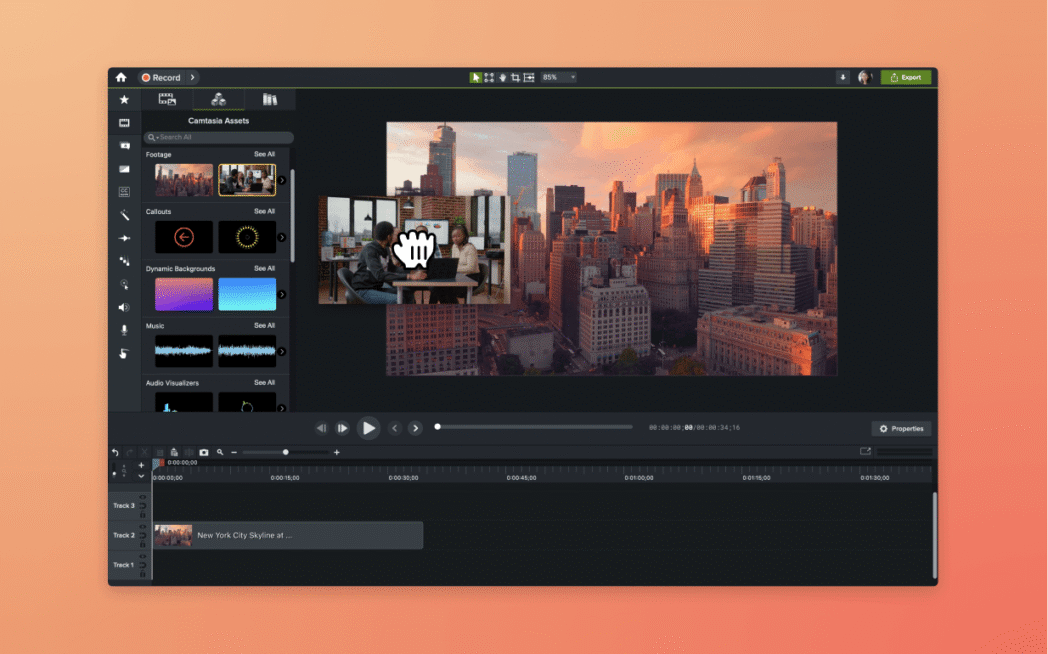
Camtasia screen recorder is great for creating professional-quality videos such as tutorials, demos, and training content. It offers a comprehensive suite of tools that cover recording, editing, and enhancing video content.
Best Features for YouTube:
- Multitrack Recording & Streamlined Editing: Camtasia allows recording of the screen, camera, system audio, and microphone on separate tracks. It offers a drag-and-drop interface and powerful editing tools including trimming, cutting, combining, and adding effects
- AI-Powered Workflows: Camtasia offers realistic AI presenters, text-based video editing, and automatic caption generation.
- Cursor Editing & Annotations: With Camtasia you can have precise control over cursor appearance, movement, and effects. It offers comprehensive annotation tools like callouts, arrows, shapes, and motion blur
- Premium Stock Assets & Cloud Sharing: You will also have access to a library of high-quality, royalty-free music, footage, and visuals to enrich your videos.
Limitations:
- High Cost: Camtasia is frequently cited by users as expensive, particularly given its subscription-only model.
- Limited Free Trial: While a free trial is available, users report that it can be misleading, as exporting or finalizing videos typically requires a purchase.
- Occasional Performance Issues: Some users have experienced slow performance, software freezes, and audio issues, especially with newer versions or on less powerful computer systems.
Pricing:
- Camtasia Starter: Free (with limited functionality, export requires purchase).
- Camtasia Essentials: $179.88 per year.
- Camtasia Create: $249.00 per year.
- Camtasia Pro: $499.00 per year.
- Perpetual licenses are also available, starting at $299.00 for a one-time fee. Specific discounts are available for business, education, and government organizations.
Reviews:
- G2: 4.6/5 (based on 1,566 reviews)
“User friendly and short learning curve. It’s designed to be user friendly, and they nailed it. The learning curve is short and the features needed to produce a quality video are readily available.” — Doug G, G2
4. Movavi Screen Recorder
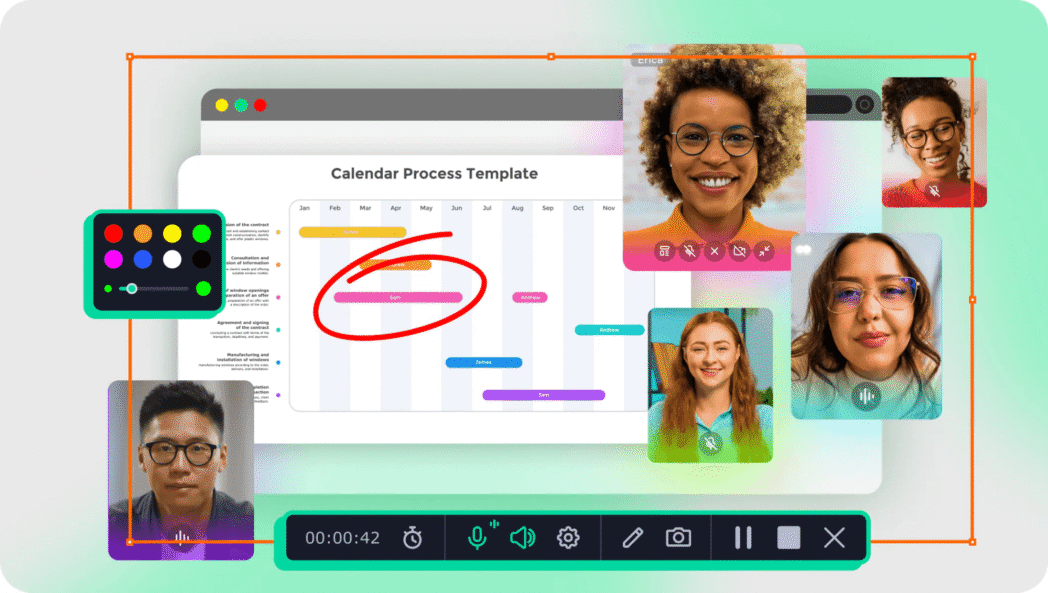
Movavi Screen Recorder is a user-friendly screen recorder application. It provides a comprehensive suite of tools for capturing screen activity, webcam footage, and audio. Movavi is specifically designed to assist users in creating professional-looking videos for various purposes, including YouTube content, tutorials, and webinars.
Best Features for YouTube:
- High-Quality Recordings: Movavi excels at capturing crisp, clear, and professional high-definition videos. It maintains sharpness and clarity even when recording fast-moving visuals or intricate details.
- Flexible Recording Parameters: With Movavi, you can precisely define the recording area, whether it’s a specific program, the entire screen, or a custom region. It also supports simultaneous capture of webcam feed along with both system and microphone audio
- Scheduler for Automated Recording: The integrated recording scheduler enables you to program recordings for YouTube videos even when you are not actively present at your desk.
- Built-in Drawing and Annotation Tools: During recording, you can use the annotation feature to directly add notes, visual aids, and highlight elements on the screen.
- Basic Editing & Multiple Export Formats: Movavi includes a basic built-in editor for trimming clips before export. It supports various popular file formats such as MP4, AVI, and MOV, and facilitates direct sharing to YouTube
Limitations:
- Limited Free Version: The 7-day free trial of Movavi Screen Recorder applies a watermark to all recordings and has time restrictions.
- Occasional Performance Issues: Some users have reported intermittent lags and crashes, and the software requires a decent system configuration to operate smoothly.
- Compared to more comprehensive video editors, Movavi lacks some advanced editing features.
Pricing:
- Free Trial: A 7-day trial is available, but recordings will include a watermark.
- Yearly Subscription: $34.95 per year.
- Lifetime Plan: $49.95 for a one-time payment, which includes the current version of the software only.
- Movavi Video Suite: A bundle priced at $79.95 (one-time payment), which includes Movavi Screen Recorder, Movavi Video Editor, and Movavi Video Converter.
Reviews:
- G2: 4.5/5
“Easy-to-use interface and its wide range of features. Simple learning curve and ease of taking screenshots to then, for example, publish on YouTube” — Enrique G, G2
5. Loom
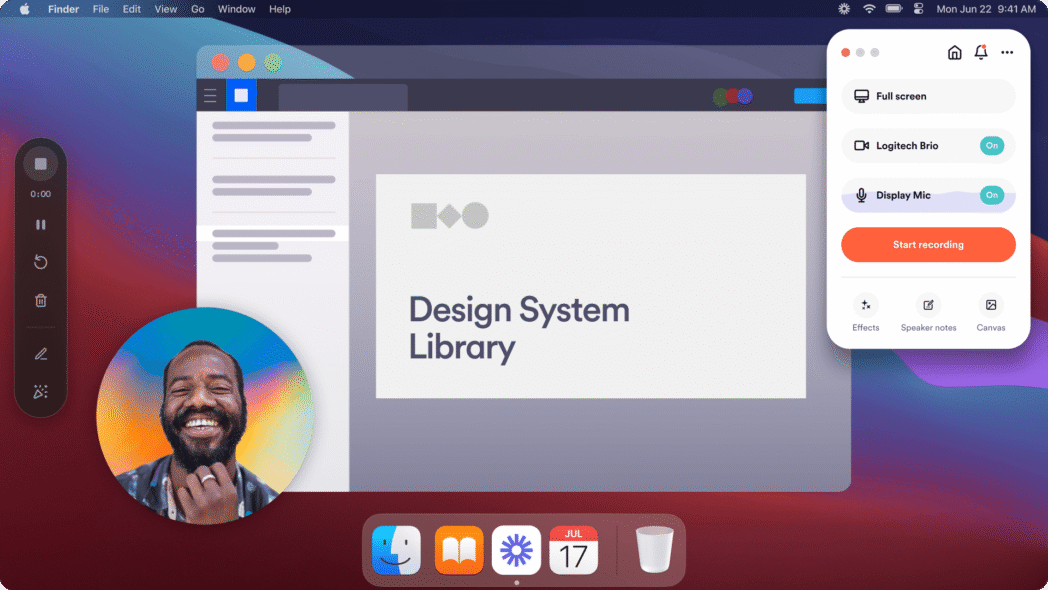
Loom functions primarily as a video messaging tool. It is designed for quick and effortless screen, camera, and voice recording, with immediate sharing via a link. Loom got popular as a tool for asynchronous communication, creating bug reports, and delivering swift explanations.
Best Features for YouTube:
- Super Easy to Use & Instant Sharing: Loom’s primary advantage is its simplicity. Recordings are automatically uploaded to the cloud, and a shareable link is generated instantly. This is particularly valuable for creators who want to record quick YouTube videos showing behind-the-scenes content or tutorial videos.
- Quick Viewer Interaction: With Loom you can add viewers to add comments and reactions directly on the video timeline. It’s easy to get rapid feedback, which is useful for working on collaborative YouTube projects.
- AI Features: Loom includes AI capabilities in its paid plans to generate video titles, summaries, and chapters. It can also remove filler words and awkward silences to make your videos more polished.
- Custom Branding & Team Workspaces: With custom branding, you can maintain a consistent styling across all your videos. Team workspaces make it easy to collaborate with your team and execute team projects before the deadline
Limitations:
- Limited Video Editing: Loom provides only basic trimming capabilities. It lacks advanced editing tools, adding complex text overlays, zooming in on specific areas, or other professional enhancements.
- The platform is not ideal for complex, long-form projects or detailed tutorials that require extensive post-production.
- Some users have reported frequent crashes of the desktop application.
Pricing:
- Starter Plan (Free): Includes 25 video recordings, a 5-minute time limit per video, and 720p quality.
- Business Plan: Starts at $18 per user per month (billed annually). This plan offers unlimited videos, no recording time limit, 4K quality, custom branding, and basic editing features.
- Business + AI Plan: Starts at $24 per user per month (billed annually), adding Loom AI features to the Business plan.
- Enterprise Plan: Custom pricing is available for larger organizations.
Reviews:
- G2: 4.7/5
- Capterra: 4.6/5
“The best part is easily being able to create and distribute videos, with a smooth interface, online hosted. You can see who has watched the video. You can easily edit or add notes. It is a life saver trying to convey complex items without having to write 1100 word long emails with bullets, numbers and Bold/Italics.” — Duncan S, G2
6. EaseUS RecExperts
EaseUS RecExperts is compatible with both Windows and Mac operating systems. You can capture videos by recording full screen, specific region, webcam footage, and audio. The software is designed to produce professional-looking videos and is well-suited for recording YouTube videos, webinars, and even gameplay.

Best Features for YouTube:
- 4K UHD Game Recording Mode: This feature is particularly beneficial for gaming YouTubers, as it can capture popular 2D/3D games with high-resolution 4K UHD quality.
- Simultaneous Multi-Source Recording: EaseUS RecExperts records webcam footage, system audio, and microphone audio concurrently, with the option to overlay webcam footage onto the screen recording.
- Task Scheduler: The integrated task scheduler allows you to automate recordings for live streams or online events.
- Editing Features: The software includes basic editing tools such as annotation, trimming, and watermark placement. It supports multiple export formats, including MP4, AVI, and WMV, and offers direct sharing capabilities to YouTube
- Customizable Hotkeys: You have the flexibility to assign hotkeys for quick start and stop actions.
Limitations:
- The free version may include a watermark and impose time limits on recordings.
- Some users have found the application complicated to use for the first time.
Pricing:
- Monthly Subscription: $19.95 for one user.
- Annual Subscription: $39.95 for one user per year.
- Lifetime License: $69.95 for a one-time payment. This plan includes unlimited recording time, no watermark, video editing features, and 24/7 technical support.
Reviews:
- Crozdesk: 4.6/5 (based on 192 reviews)
- G2: 2.0/5 (based on 2 reviews)
“It enables me to record my online course and capture my screen effortlessly. That would be better if it adds some simple video editing features.” — Jason, Mac App Store
7. ScreenPal
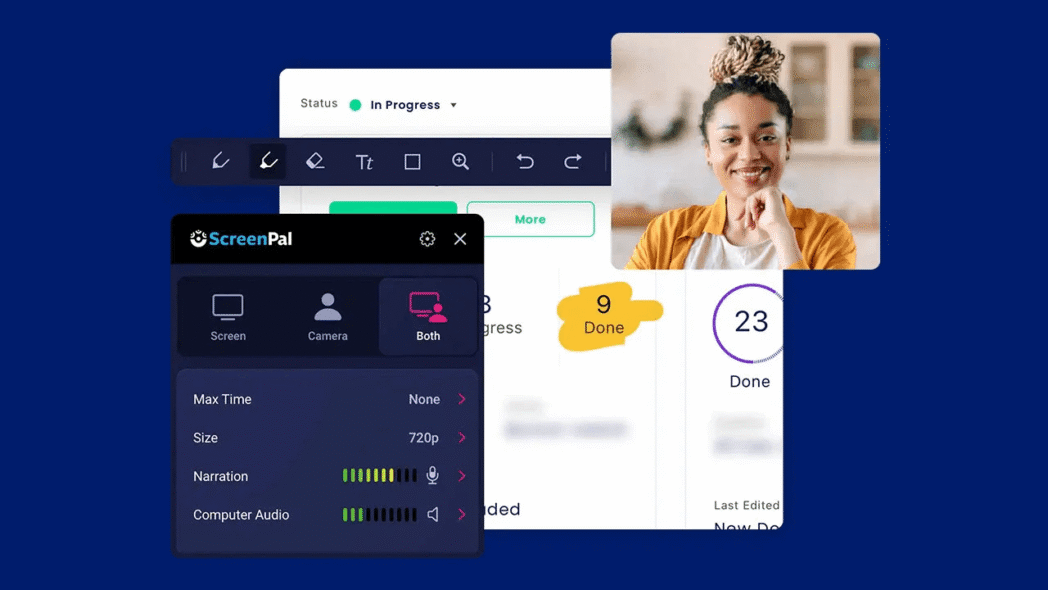
ScreenPal, formerly known as Screencast-O-Matic, offers screen recording, video editing, and content management. It is available as both a web-based and desktop application and is widely recognized for its ease of use and quick recording capabilities.
Best Features for YouTube:
- Easy Screen, Webcam, and Audio Recording: ScreenPal provides an intuitive interface for simultaneously capturing the screen, webcam, and audio. This simplicity makes it a great choice for beginners looking to record YouTube videos.
- Built-in Video Editor: ScreenPal also has a built-in, easy-to-use video editor. You can trim, cut, and resize your video. Also, add text, shapes, images, animations, and music to make your videos more engaging.
- Unlimited Video Hosting & Sharing: ScreenPal supports hosting and sharing an unlimited number of videos. You can create custom video links and embeddable videos, for distributing content on YouTube or other platforms and websites.
- AI Speech-to-Text Captions & Narration: ScreenPal automatically generates speech-to-text captions and offers AI text-to-speech narration.
- Interactive Video Quizzes & Polls: In the paid plan, you also get the feature to embed interactive video quizzes and polls directly into their content.
Limitations:
- Limited Free Version: The free plan has significant restrictions, including a 15-minute recording limit per video, the absence of system audio recording, and a complete lack of advanced video editing features.
- Many desirable advanced features, including scrolling screenshots, automated captions, and detailed analytics, are exclusively available in paid plans.
Pricing:
- Free Plan: $0 per month, with a 15-minute recording limit per video and basic editing capabilities.
- Deluxe Plan: $4 per month (billed annually). This plan includes unlimited recording time, a full video editor, audio recording and editing, and AI speech-to-text captions.
- Max Plan: $10 per month (billed annually). This tier adds ScreenPal AI features (such as auto-generated titles, summaries, quizzes, translation, background removal, and text-to-speech), unlimited stock assets, unlimited quizzes and polls, 4K playback, and advanced analytics.
- Team Business Plan: $8 per month per user (billed annually, with a minimum of 3 users). This plan includes all Max features along with collaboration tools, team management, and advanced integrations.
Reviews:
- G2: 4.7/5
“ScreenPal has been a valuable tool in our work place that allows us to easily record our screen to make videos for other staff members. It’s very easy to use and is high quality recording that can be done within minutes.” — Ollie N, G2
8. Bandicam
Bandicam is a lightweight yet powerful screen recording software. It is particularly favored by gamers due to its ability to record gameplay footage with minimal impact on system performance. Its design philosophy focuses on efficient recording without incorporating unnecessary features that could slow it down.

Best Features for YouTube:
- High-Quality Video Capture: Bandicam is capable of recording high-quality video footage in full HD resolution, supporting various codecs, and offering 4K video capturing.
- Game Recording Mode: The software is specifically optimized for recording gameplay. It includes a “DirectX/OpenGL window recording” feature that allows users to capture specific game windows
- Lightweight & Stable: Bandicam supports low-powered PCs and consumes minimal system resources. This characteristic is crucial for maintaining smooth recording quality even if you don’t have a sophisticated PC setup.
- Flexible Recording Options: You can record the entire screen or specific areas, and it captures audio from both the microphone and the system.
- Annotation during Recording: Bandicam supports real-time annotation while recording. This is a useful feature if you plan to create tutorials and explanatory videos from YouTube videos.
Limitations:
- Watermark in Free Version: The free version of Bandicam includes a watermark on all recorded videos, which cannot be removed.
- Limited Editing Capabilities: The built-in video editor is quite basic, and more advanced editing features are either available only in the paid version or require the use of third-party software.
- No macOS Version: Bandicam is exclusively compatible with Windows operating systems
- Some users have reported occasional system lags during recording and issues with the noise cancellation feature.
- Limited format support can sometimes cause difficulties when importing recorded files into other video editing software.
Pricing:
- Free Version: Available, but includes a watermark and a 10-minute recording limit.
- Lifetime Personal License: $49.95 (one-time payment for 1 PC). This includes unlimited screen recording, no time limit, and no watermark.
- Annual Personal License: $36.95 per 1 PC, billed yearly.
- Various multi-PC and business licenses are also available, with pricing varying based on the number of licenses.
Reviews:
- G2: 4.4/5 (based on 42 reviews)
“It allows for recording audio and video, capturing images, and recording large files. It provides many good features like different types of effects. It has minimal UI and is easy to use. It offers various output formats, which is helpful. ” — Bhupendra Singh R, G2
9. ShareX
ShareX is a completely free and open-source screen capture and file-sharing software designed specifically for Windows users. It offers extensive customization options and a broad array of tools for screenshots, video recording, and comprehensive file management.

Best Features for YouTube:
- Completely Free & Open Source: ShareX provides full functionality without any cost, subscription fees, or advertisements. This makes it an incredibly accessible option for all creators
- Extensive Capture Methods: The software offers a wide variety of screen capture options, including full screen, active window, specific regions, scrolling capture, and screen recording, including GIF creation
- Advanced Image & Video Editing/Annotation: ShareX includes built-in tools for editing captured images, adding annotations, and the ability to blur sensitive information.
- Customizable Workflows & Automated Uploads: Users can set up personalized workflows for tasks performed after capture and after upload. This includes automatic uploading to various cloud services like Imgur, Dropbox, and Google Drive.
- Productivity Tools: Beyond basic recording, ShareX integrates useful productivity tools such as Optical Character Recognition (OCR) for text extraction from screenshots, a color picker, a ruler, and a video converter.
Limitations:
- Steep Learning Curve: The user interface could feel cluttered and complex for beginners
- Windows Only: ShareX is exclusively available for Windows operating systems and does not support macOS or Linux.
- Some users have reported occasional software bugs, such as settings reverting to factory defaults or the recording button disappearing unexpectedly.
- Audio recording is not a default setting and needs to be manually configured
Pricing: Free Forever.
Reviews:
- G2: 4.8/5
“The UI is really simple to use, and it comes with a bunch of cool features like taking screenshots, recording your screen, setting up workflows.” — Yashovardhan S, G2
10. Vimeo Record
Vimeo Record screen recorder seamlessly integrates with the broader Vimeo video hosting platform. It allows users to record their screen, webcam, or both, and leverages Vimeo’s robust features for hosting, collaboration, and privacy.

Best Features for YouTube:
- AI Script Generation & Text-Based Editing: With Vimeo, you get the AI-powered script generation ability and the power to edit videos by cutting or moving text directly from auto-generated transcripts.
- Secure Collaboration & Privacy Controls: You can organize recordings into folders, set precise permissions, and facilitate collaboration through time-coded comments.
- Integrated with Vimeo Hosting: The tool benefits from Vimeo’s high-quality, ad-free video hosting. You can offer a professional playback experience to your audience and have extensive control over the viewer experience.
- Live Streaming & Webinars: Advanced plans include the capability to host live broadcasts and webinars, and to stream content to multiple destinations.
- Analytics Dashboard: You will have access to detailed analytics on video engagement metrics. This way you always stay on top of the viewer behavior, identify popular content, and optimize their YouTube strategy for better performance.
Limitations:
- Limited Free Version: The free plan is quite restrictive, allowing only up to 3 videos with a 30-minute recording limit per video and limited storage (1GB)
- Higher Price Tag: Vimeo Record, especially for its advanced features, is considered expensive
- No Screenshot Functionality: The tool is primarily focused on video recording and does not offer screenshot capabilities.
- For desktop use, it relies on a Chrome browser extension. There is no native desktop application for other browsers.
Pricing:
- Free Plan: $0 per month (includes up to 3 videos, 1GB total storage, screen recorder, and basic editing).
- Starter Plan: $12 per month (billed annually).
- Standard Plan: $25 per month (billed annually).
- Advanced Plan: $75 per month (billed annually).
- Enterprise Plan: Custom pricing is available.
Reviews:
- Google Chrome Web Store: 4.5/5
“Great program, easy to use and very helpful for visual learners” — Tauris Nelson, Google Chrome Web Store
Ready to Start Recording?
We hope you find this guide useful, and it has given some you some direction in terms of picking up the right software to record YouTube videos. We know it’s still a long list, but it is a great place to start. By going through the core functionalities, advantages, and limitations of these ten leading options, you know which one is the closest to your needs. But, by no means we’re saying that this is the only list you must refer to. Do your own research, and in fact, we welcome you to try our approach to get the holistic view on the best screen recorders in the market.
Recommended Readings:
-
- 10+ YouTube video ideas for beginners
- How to record YouTube videos with audio
- 10 Best Screen Recorder for Gamers: Capture Gameplay Like a Pro
- 10 Best Webcam Recorders in 2026 by Cost and Ratings
- 5 Best Screen Recorder Chrome Extension – Free + Paid
- 12 Best Screen Recorders for Mac & Windows PC [Compare]
- How to Transcribe a YouTube Video using AI in Minutes