You record a tutorial on a Mac and the client can’t open the MOV file. You download footage and the editing tool won’t import MKV. You record a meeting and realize you only need the audio. The file is fine but the format is the issue.
Format mismatches are one of those small problem points that can stop a workflow dead. This guide covers which formats to use when, what each free online converter does, and how to get from any format to the one you actually need without downloading anything.
What is a Video Converter?
A video converter changes a file from one format to another. Format here means the container, the file type (.mp4, .mov, .webm, .mkv, and so on) that determines which players can open it, which platforms will accept it, how the file compresses, and how large it ends up being.
Some formats are built for broad compatibility. Others are built for specific use cases like web delivery, archiving, audio extraction, short-form visual content. Converting between them means making the same file usable in a different context.
All Available Video Converters
Dadan’s free converter tools cover the most common format conversions, all from your browser with no signup required.
1. MP4 to WebM
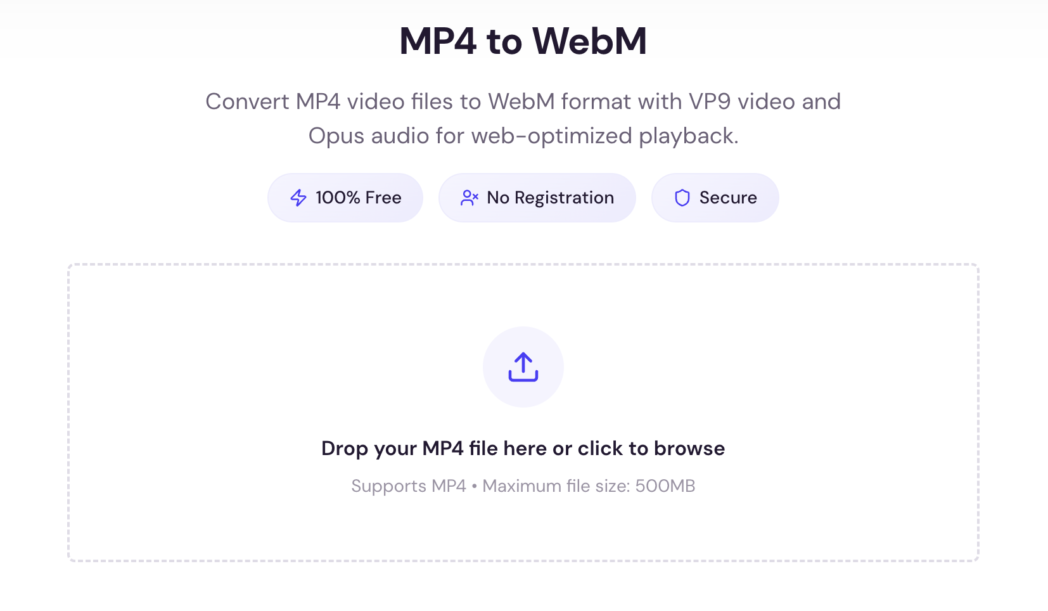
Convert an MP4 file to WebM for web delivery. WebM uses VP9 video and Opus audio, which compresses efficiently for browser playback without the licensing requirements that come with MP4.
2. WebM to MP4
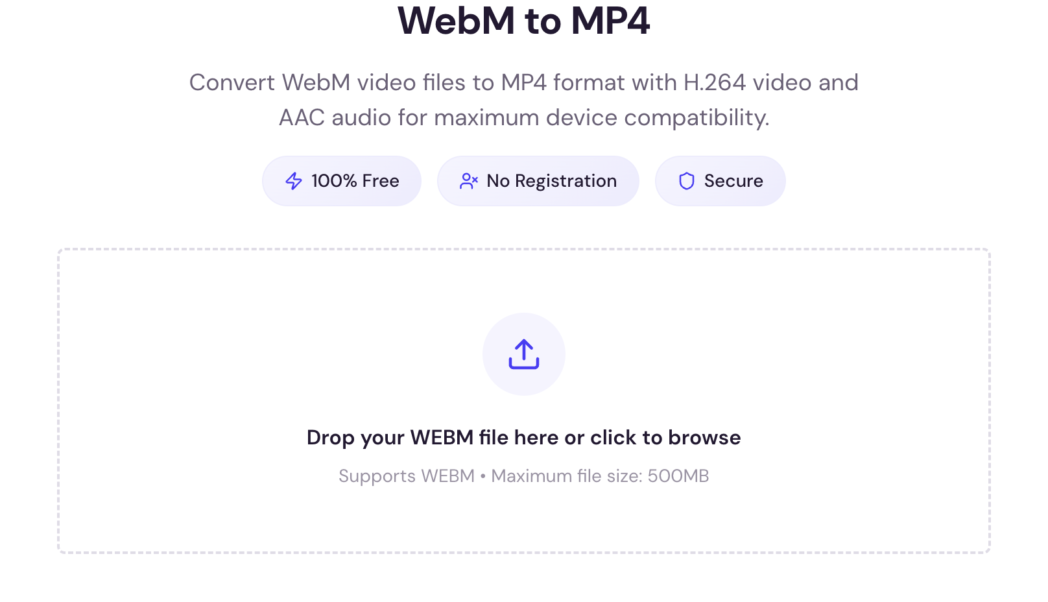
Convert a WebM file to MP4 for broader compatibility across devices, editing tools, and sharing platforms. MP4 plays everywhere WebM doesn’t.
3. MOV to MP4
Convert an Apple MOV file to MP4 so it opens on Windows devices, social platforms, and tools that don’t natively support QuickTime format.
4. MKV to MP4
Convert an MKV file to MP4 for easier sharing and playback. MKV stores high-quality video with multiple tracks, but most streaming platforms and mobile devices don’t support it directly.
5. AVI to MP4
Convert an older AVI file to MP4 to reduce file size and make the video compatible with modern platforms. The converted MP4 retains the original resolution, frame rate, and audio quality.
6. MP4 to GIF
Convert a short video clip to GIF. The tool lets you select the specific portion of the video you want, so the output is a tight, looping GIF ready to embed in emails, chats, or web pages without needing a video player.
7. Video to MP3
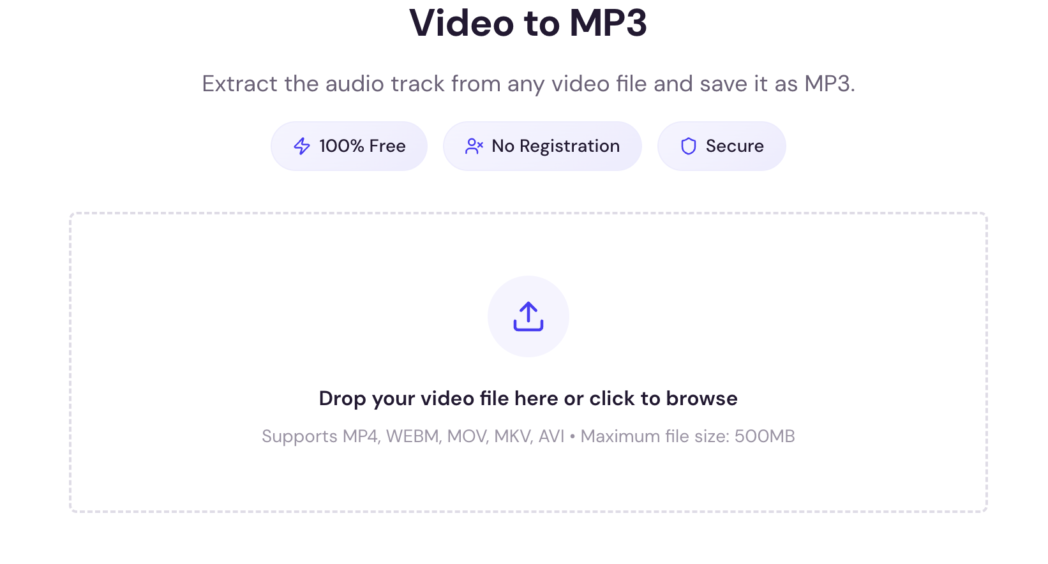
Extract the audio from a video and save it as an MP3 file. Useful for pulling a voiceover, interview, lecture, or podcast recording out of a video without any additional editing software.
8. Video to WAV
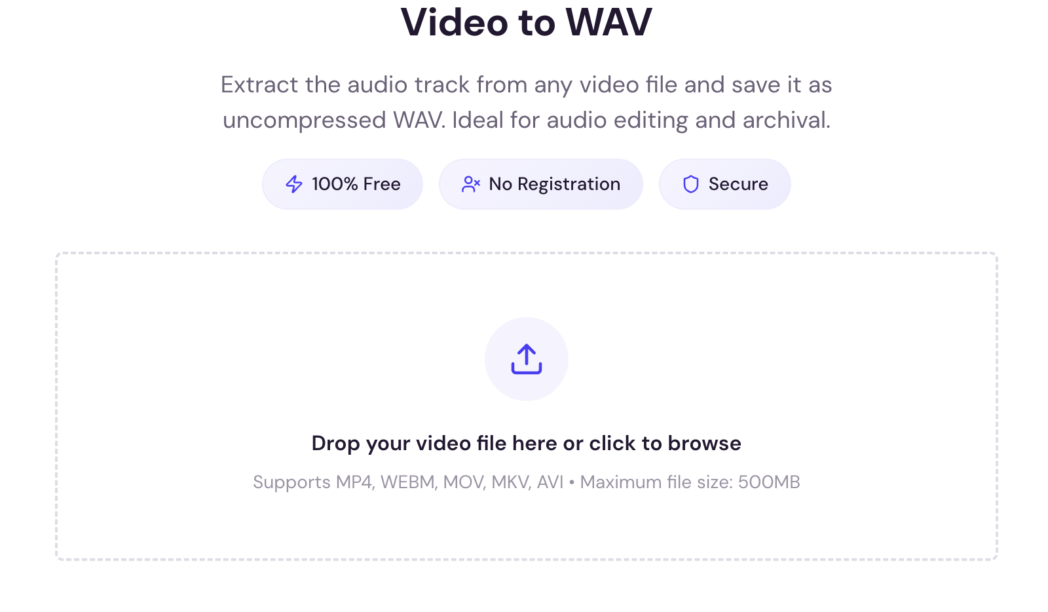
Extract uncompressed audio from a video and save it as a WAV file. WAV preserves the audio without additional compression, which is important when you’re editing the track further in audio software.
9. Video to AAC
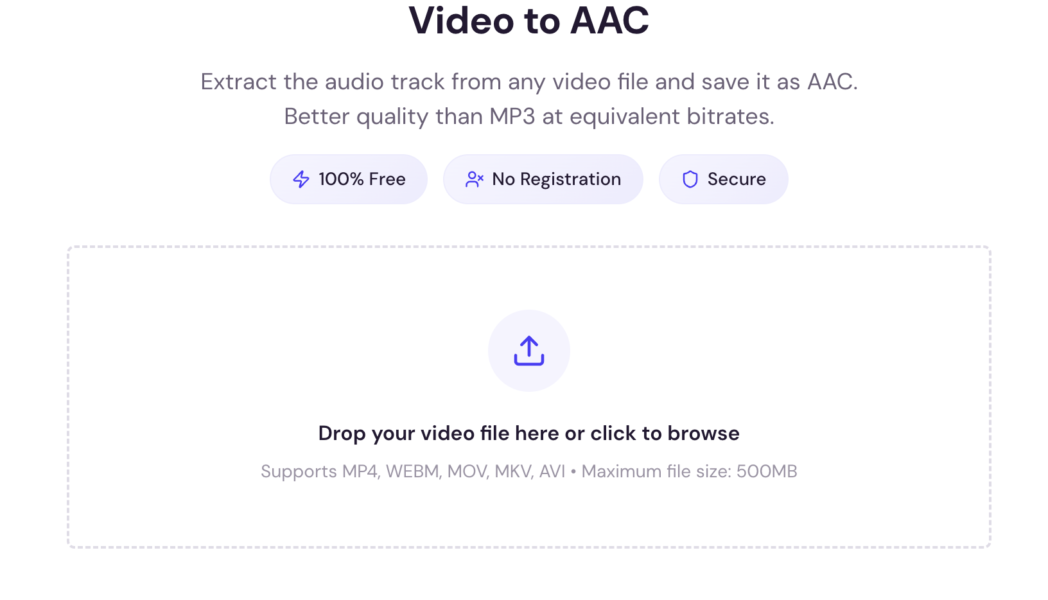
Extract audio from a video and save it in AAC format. AAC delivers good audio quality at smaller file sizes than WAV, making it practical for playback and storage on Apple devices and platforms like YouTube.
Bonus Read: How to Convert Video Size for Instagram, TikTok, YouTube
When to Use Each Format
Choosing the wrong format means it won’t open where you need it to, won’t upload where you want it to, or will be larger than it needs to be. Here’s what each format is actually built for.
MP4: Best For Compatibility
MP4 is the default for a reason. It plays on every major device, browser, social platform, and editing tool.
The H.264 codec it typically uses keeps file sizes manageable without a visible quality drop for most use cases. When you’re unsure which format to export or share in, MP4 is the right answer.
WebM: Best For Web Performance
WebM is Google’s open-source format built specifically for web delivery. It compresses more efficiently than MP4 at comparable quality, which is great for videos embedded on websites where page load time is a factor.
Chrome and Firefox support it natively, Safari added support from macOS 14 onward. Outside the browser, it has limited use.
MOV: Apple Ecosystem
MOV is QuickTime’s native format and the default output from iPhones, iPads, and many Apple apps. The quality is high, but compatibility drops significantly on Windows devices and non-Apple platforms.
If you’re sending a MOV file to someone on a different system, or uploading to a platform that doesn’t handle QuickTime, convert to MP4 first.
MKV: High-Quality Storage
MKV (Matroska) is built for archiving high-quality video with multiple audio tracks, subtitle streams, and chapter markers in one file. It’s common in downloaded content and long-term storage workflows.
Most desktop media players handle it without issues, but streaming platforms, editing tools, and mobile devices typically don’t. Convert to MP4 to make an MKV file practical to share or publish.
AVI: Older Systems
AVI was the standard Windows video format through the 2000s and is still produced by some older cameras and legacy software. It opens on most media players but produces large files relative to the quality.
Converting AVI to MP4 reduces the file size and brings the video into a format that modern platforms and devices handle without issues.
GIF: Short Loops
GIF has no audio and runs at a limited frame rate, but it plays inline in emails, chat apps, social posts, and websites without requiring a video player.
For short clips showing a reaction, a product interaction, or a quick process step, GIF makes the content viewable anywhere with no extra load on the viewer’s end.
MP3/WAV/AAC: Audio Extraction
Sometimes the video itself isn’t what you need. MP3 is compressed and universally supported. It’s the practical choice for sharing audio, uploading to podcast platforms, or keeping a recording you’ll listen to later.
WAV is uncompressed. So, file sizes are larger, but the audio is preserved exactly as recorded. This is important when the audio track will go through further editing, because each round of lossy compression compounds any quality loss.
AAC is the compressed format used by Apple devices and YouTube. It generally delivers better audio quality than MP3 at the same file size, making it a sensible choice when the audio needs to stay clean after compression.
How to Convert Videos Online
Every Dadan converter follows the same four steps.
Step 1: Upload File
Go to the tool page for the conversion you need. Click to browse your files or drag and drop the video directly onto the page. No account or sign-up required.
Step 2: Choose Format
The output format is fixed on each tool page. The MKV to MP4 converter outputs MP4. The MP4 to GIF converter outputs GIF. Navigate to the right tool for the format you need.
Step 3: Convert
Click Convert. The file processes in the browser. Most conversions complete in seconds, depending on file size and length.
Step 4: Download The Converted File
Once the conversion is done, download the file. Files are processed securely and not stored after conversion.
Why Use Online Converter Instead of Software
Desktop conversion software gives you control over codecs, bitrates, and frame rates. For individual conversions where you need a clean file in a different format quickly, that level of control adds steps without adding value.
An online converter removes all setup. Nothing to install, no license to purchase. For pulling audio from a recording, making a MOV file shareable, or turning a screen clip into a GIF, a browser-based tool gets it done faster.
The practical limit is file size. Very large files or batches of files are better suited to local software. For the file sizes most people work with day to day, the online approach is sufficient and faster.
Conclusion
Formats feel minor until they’re not. A MOV file that won’t open on a client’s Windows machine, an MKV that a platform refuses to upload, an MP4 that loads slowly because it should have been WebM, these are small problems that waste real time.
Knowing which format fits which situation means you make the call once and move on. When you do need to convert, Dadan’s free tools handle it in the browser without an account or software install. Try Dadan’s video converter tools.
FAQs
How to convert video format online for free?
Go to the relevant Dadan tool page, upload your file, and download the converted version. No sign-up is needed and the tools are free to use.
Which format is best for video?
MP4 is the most widely compatible format for most situations, including social uploads, file sharing, and storing recordings. WebM is a better choice specifically for video embedded on websites.
How to convert video to MP3?
Upload your video to Dadan’s Video to MP3 converter. The tool extracts the audio track and saves it as an MP3 file you can download immediately, with no account required.
Does converting reduce quality?
Converting between formats involves re-encoding, which can introduce minor quality changes. A well-built converter keeps the output clean and usable. Converting from a compressed format like MP4 to a lossless format like WAV does not recover quality that was already lost, it preserves what’s there without adding further compression.
Is an online video converter safe?
Dadan’s converters process files securely in the browser. Files are not stored or shared after the conversion is complete.