Most video editing tools ask you to choose between capability and convenience. Desktop software like Camtasia gives you depth but demands installation, a learning curve, and a budget. Quick-fix apps handle one task but leave you switching tabs every time you need something different.
Online video editors solve this specific problem, they offer fast, functional edits without the overhead. No installation or project files or timeline you have to learn how to navigate. You open a browser, upload your video, make the change, and download the result.
This guide covers what online video editors actually do, breaks down each individual tool, and explains how to use them step by step.
What is an Online Video Editor?
An online video editor is a browser-based tool that lets you make changes to video files without installing software on your device. You upload a clip, apply edits through the interface, and export the result.
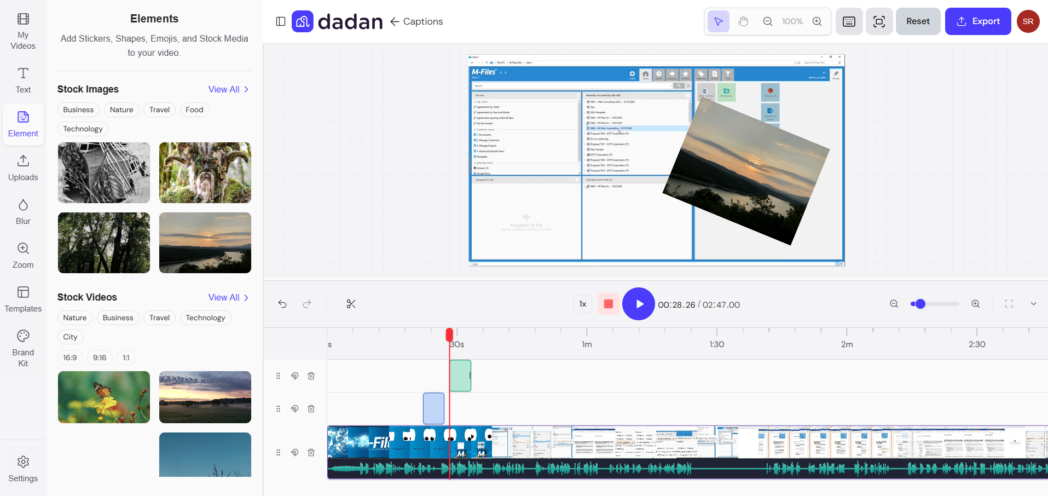
The category covers a wide range of tasks, from removing unwanted seconds at the start of a clip to changing the file’s dimensions for a specific platform. Some tools handle one task, while others let you combine operations in a single session.
For the majority of everyday edits like trimming a recording, resizing for Instagram, removing audio before sharing internally, an online tool is faster and requires nothing you don’t already have.
All Video Editing Tools
Dadan’s free online video editing tools cover every common quick-edit use case. Each tool runs in the browser with no account required. Here’s what’s available:
Compress MP4
Reduce the file size of an MP4 video by adjusting resolution and audio bitrate without manually touching codec settings. Useful when a file is too large to email, upload, or share through a platform with size limits.
Trim Video
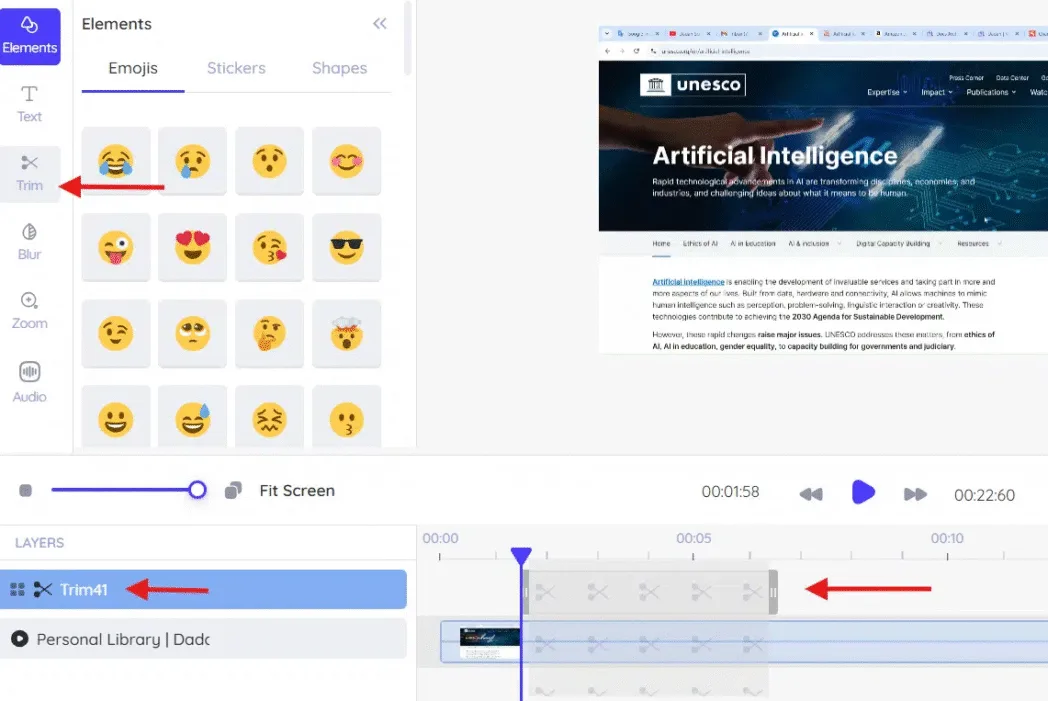
Remove footage from the beginning or end of a video by setting a new start point, a new end point, or both. The trimmed portion is discarded and the remaining clip is exported as a clean file.
Cut Video
Remove a specific segment from the middle of a video like a mistake, a pause, an irrelevant section without affecting the footage before or after it. Works with MP4, WEBM, MOV, MKV, and AVI files.
Split Video
Divide one video file into two or more separate clips at points you choose. Each segment saves at the same resolution and quality as the original. Supports MP4, WEBM, MOV, MKV, and AVI.
Merge Videos
Combine multiple video clips into a single continuous file. Reorder them before merging by dragging clips into the sequence you want.
Crop Video
Change the visible frame of a video by removing the edges. Crop freely to any dimensions or choose a standard aspect ratio to match platform requirements.
Resize Video
Change the pixel dimensions of a video file. Resizing is different from cropping, it scales the entire frame rather than cutting from the edges. Includes platform presets for YouTube, Instagram, TikTok, and LinkedIn, plus custom dimension input.
Rotate Video
Correct the orientation of any video by rotating 90°, 180°, or 270°. The most common use case is phone footage that is saved sideways or upside down. Rotation does not affect resolution, bitrate, or any other quality setting.
Flip Video
Mirror a video horizontally (left to right) or vertically (top to bottom). Useful for correcting front-facing camera recordings where text or faces appear mirrored, or for matching the direction of motion between two clips being joined. Preview the result before downloading.
Convert Aspect Ratio
Switch between aspect ratios, 16:9, 9:16, 1:1, 4:3, or custom dimensions, using platform presets for YouTube, Instagram Reels, TikTok, Facebook, and more. Reposition the content within the new frame after the ratio is applied to keep the important parts visible.
Mute Video
Strip the audio track from any video file and download a clean, silent version. The video stream is not re-encoded, so resolution, frame rate, and file length stay exactly as they were. Supports MP4, MOV, MKV, AVI, and WEBM.
How to Edit Videos Online (Steps)
The process is consistent across all of Dadan’s tools. Here’s the general workflow:
Step 1: Choose The Right Tool
Identify what the video actually needs before opening anything. Selecting the wrong tool means re-doing the work.
Step 2: Upload Video
Drag your file onto the tool or browse your device to find it. Dadan accepts MP4, MOV, MKV, AVI, and WEBM across its tools. For large files, the compressor is worth running first, a smaller source file uploads faster and processes more quickly.
Step 3: Apply Edits
Each tool surfaces only the controls relevant to what it does. For trimming, drag handles to mark the new start and end points. For cropping, move and resize the frame. For rotation, select a degree. For aspect ratio changes, pick a preset or enter custom dimensions, then reposition the content if needed. The flip tool lets you preview the result before committing.
Step 4: Export And Download
Once the edit is correct, download the file directly to your device. No account required, no watermark added, no email link to wait for.
Why Use Online Tools
Online tools earn their place for a specific kind of work. Here’s when they’re the right call.
No Installation
Every tool runs in the browser. There’s nothing to download, no license to activate, no system requirements to check.
Task-Specific
Each tool does one thing precisely. That precision is the point. If you need to trim three seconds from the end of a clip, you don’t need to open a full editing suite to do it.
Free
Dadan’s editing tools are free to use without requiring an account. For quick, single-task edits, there’s no cost involved.
Works On Any Device
Because the tools are browser-based, they run on Windows, Mac, Chromebook, or any device with a modern browser, including phones and tablets.
No Learning Curve
The tools are designed for people who need to make a specific edit, not for people learning video production. The interface surfaces only the controls you need.
Conclusion
Trimming a recording, resizing for a platform, muting audio before sharing, these take minutes with the right tool, and Dadan’s suite covers all of them without installation, accounts, or cost.
For more involved work, editing by transcript, adding interactive elements, auto-generating short clips from long recordings, Dadan’s full platform handles the complete workflow from record to share. Start for free at dadan.io.
FAQs
How to edit video online for free?
Go to Dadan’s free editing tools, choose the tool that matches what you need, trim, cut, crop, resize, and others, upload your file, make the edit, and download the result. No account is required.
Can I trim video without losing quality?
Trimming removes footage from the start or end of a clip without re-encoding the remaining content. The quality of the video you keep stays the same.
How to resize video for Instagram or YouTube?
Use the Resize tool for specific pixel dimensions, or use the Aspect Ratio tool to switch formats, 1:1 or 4:5 for Instagram feed posts, 9:16 for Reels and Stories, 16:9 for YouTube. Both tools include platform presets so you don’t have to look up the specs manually.
Is online video editing safe?
Dadan processes files directly in the browser and does not store videos on its servers after the edit is complete. For highly sensitive content, review the platform’s privacy policy before uploading.
Which tool is best for quick edits?
Dadan. Every tool on this page is free, runs in the browser, and requires no account.