Do more with Dadan. Record your screen, edit by transcript, convert MKV to MP4, extract audio, and now compress videos. All in your browser.
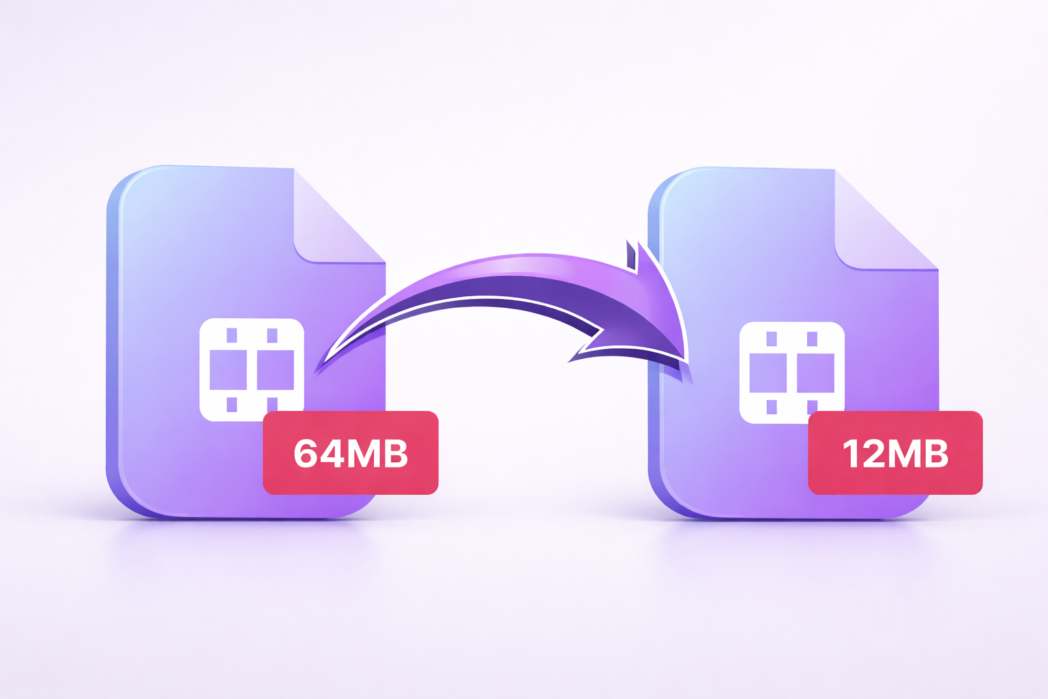
https://tools.dadan.io/compress-mp4
How to Compress MP4 Video without losing quality?
1
Step 1:
Upload your MP4 file.
2
Step 2:
Adjust resolution and audio settings.
3
Step 3:
Compress and export your video.
Smaller File, Better Control
Resolution Control
Reduce file size while keeping the video clear for sharing, uploads, and playback.
Audio Bitrate
Cut unnecessary file weight without making speech or music sound rough.
Free & Secure
Compress MP4 files quickly and keep your videos ready for work, teaching, content, or client sharing.
Explore More Tools
- Posted:
- Posted:
- Posted:
- Posted:
- Posted:
- Posted:
- Posted:
- Posted:
- Posted:
FAQs
Upload your file, choose the compression settings you want, and export the smaller version. For most videos, slightly lowering resolution and adjusting the audio bitrate will reduce size quickly without making the result look rough.
It can, but it doesn’t have to reduce it in a noticeable way. The key is choosing settings that match the video’s purpose.
Start with resolution and bitrate. Lower them carefully instead of crushing everything at once. That usually gives you the best balance between a smaller file and a video that still looks clean.
Yes. Compression is one of the simplest ways to make large MP4 files easier to upload to websites, send to teammates, or share with clients without long transfer times.
Resolution, video bitrate, and audio bitrate have the biggest impact. If you want a smaller file that still looks good, reduce those settings gradually and check the output before exporting the final version.