How to Extract a Thumbnail from YouTube or any Video?
1
Step 1:
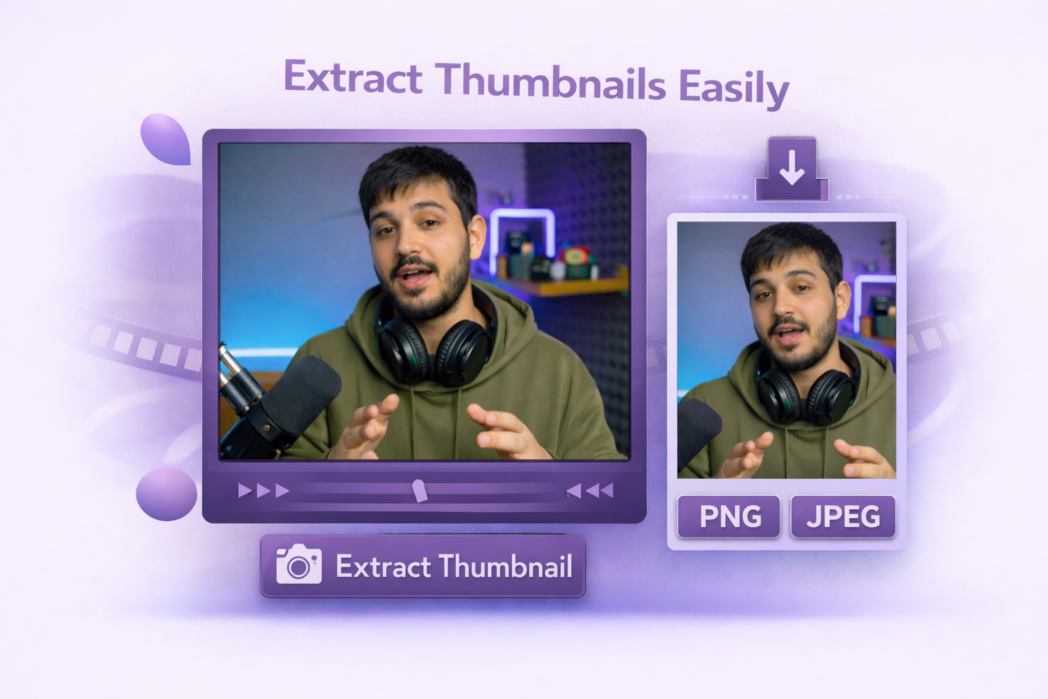
Drop an MP4, WEBM, MOV, MKV, or AVI file into the uploader.
2
Step 2:
Move through the video and select the exact moment you want as a thumbnail.
3
Step 3:
Choose your format and save the image.
One Tool, Fewer Steps to a Usable Thumbnail
Supports All Video Formats
Upload MP4, WEBM, MOV, MKV, or AVI files directly from your device. No conversion step and no codec error. Works with footage from phones, DSLRs, screen recorders, and editing software exports.
Multiple Frame Selection
Move through the timeline and grab any frame you want. Pull several stills from the same video without re-uploading, which is useful when you are testing thumbnail options or picking a hero image from a longer clip.
No Signup Required
The tool runs in the browser. No account, no email. Upload, extract, download, and close the tab.
Download the YouTube video first, then upload the file to the tool. Move the slider to the frame you want and save the image. Unlike YouTube’s three auto-generated thumbnails, you can pick any frame in the video.
Yes. The extracted image is saved at the resolution of the uploaded video, with no forced compression.
MP4, WEBM, MOV, MKV, and AVI. If your file is in a different format, convert it to MP4 first, and the tool will handle it.
Yes. Move to any point in the video and capture that exact frame. More precise than a screenshot, which often includes browser UI or playback bars.
Free, with no signup. There is no watermark on the extracted image. For full video recording, editing, hosting, and sharing, Dadan’s main platform also offers a free plan.