
A raw screen recording or a clip off your phone can balloon to hundreds of megabytes, which is enough to bounce off an email, stall a WhatsApp upload, or fill your drive.
You can compress a video down to a fraction of that size and still hand someone a copy they can’t tell apart from the original. What makes a clean result different from a blurry one is knowing which settings to change and which to leave as it is.
What Is Video Compression?
Video compression shrinks a file by dropping data the codec decides you will not miss, either detail your eyes never register or information that repeats from one frame to the next.
There are two ways to do it, and the difference matters for anyone chasing the phrase “without losing quality.”
Lossy compression permanently discards data, which is how a file gets dramatically smaller, and modern codecs are good enough that at sensible settings you can’t see what was removed.
Lossless compression keeps every pixel intact but barely reduces the size of real footage, so almost nobody uses it to share or send video.
That is the promise.
When people say they want to compress a video without losing quality, what they actually want is no visible quality loss, and that is very achievable. A well handled export can cut a file by more than half while looking identical on the screen someone will watch it on.
One more distinction saves a lot of confusion later. MP4 is a container, the actual work is done by the codec inside it, usually H.264, and the size and quality you end up with depend on the codec and its settings far more than on the file extension.
When Should You Compress Videos?
You compress a video when its size gets in the way of sending, uploading, or storing it. You skip it when the file already fits and plays fine, or when squeezing it would cost the quality you actually need.
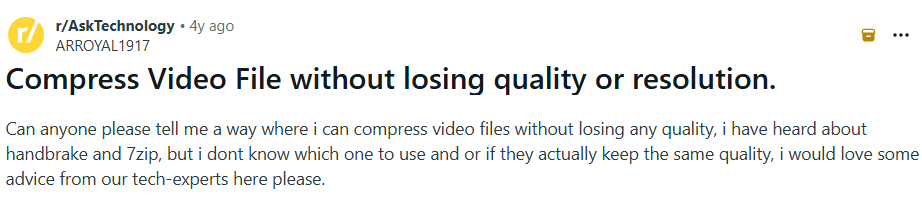
The situations below cover almost every reason you would reach for it.
- You need to attach a video to an email and it will not fit. Gmail caps sending at 25 MB, and after encoding overhead the real ceiling sits closer to 18 MB. Outlook stops at 20 MB, and many corporate mail servers cut off around 10-15 MB.
- You are sending a clip through WhatsApp or another messaging app that recompresses or rejects large files.
- You are uploading to a website, a learning platform, or a client portal with an upload limit.
- You are backing up or archiving footage and want to reclaim drive space without deleting anything.
- You want a share or download to finish faster for the person on the other end.
There is also a case for leaving a video alone. If you are uploading to YouTube, you generally should not compress beforehand, because the platform re-encodes everything you send and a heavily squeezed file gives its encoder less to work with.
More on that in the platform section below.
How to Compress Videos Without Losing Quality: Step-by-Step
The fastest free route is a browser tool that lets you drop the resolution and audio to a sensible level and export, with no install and no account. Dadan’s free MP4 video compressor does exactly that, and it runs entirely in your browser.
Work in small moves and check the result before you commit. Crushing every setting at once is what produces the blurry files people complain about, so the process below lowers one thing at a time.
Step 1: Open The Compressor And Upload Your File
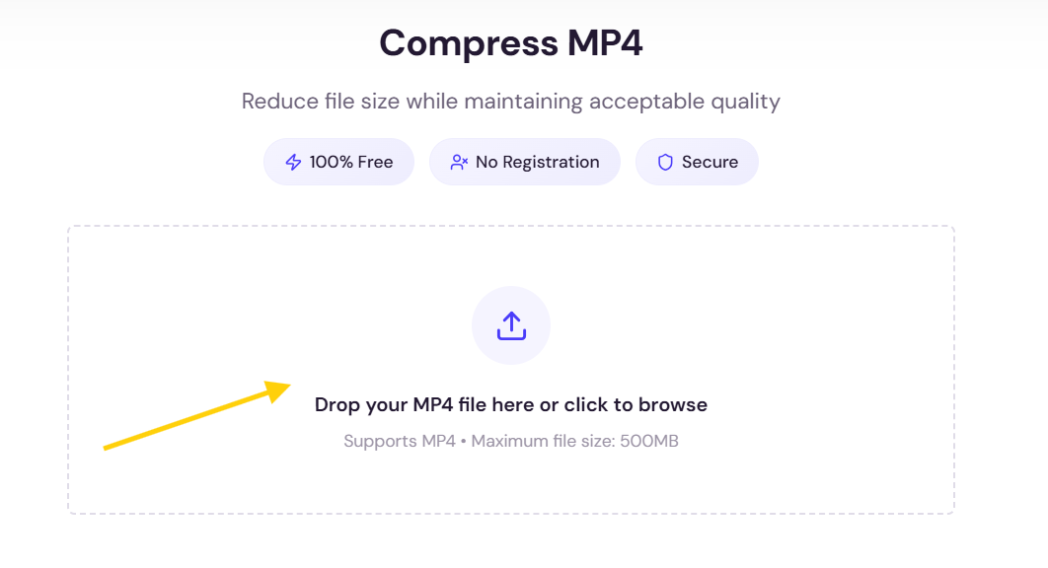
Go to the Dadan MP4 compressor and drag your video into the upload area. Nothing installs and you are not asked to sign up.
Step 2: Set The Resolution
This is the single biggest lever you have. A 4K file viewed on a laptop, in a chat window, or inside an email is carrying pixels nobody sees, so stepping it down to 1080p can roughly quarter the size with no visible change on those screens.
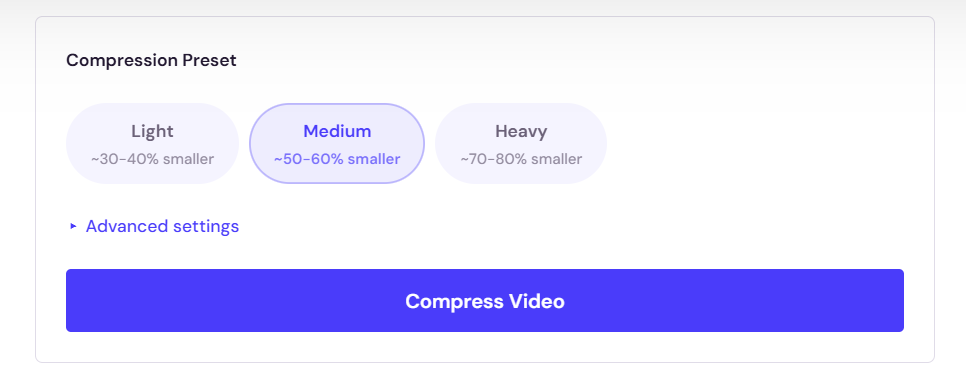
Leave resolution alone only when the viewer really will watch at full size.
Step 3: Bring The Audio Down
Speech and most background music sound clean well below the bitrate a raw recording ships with, so trimming audio removes weight without anyone noticing.
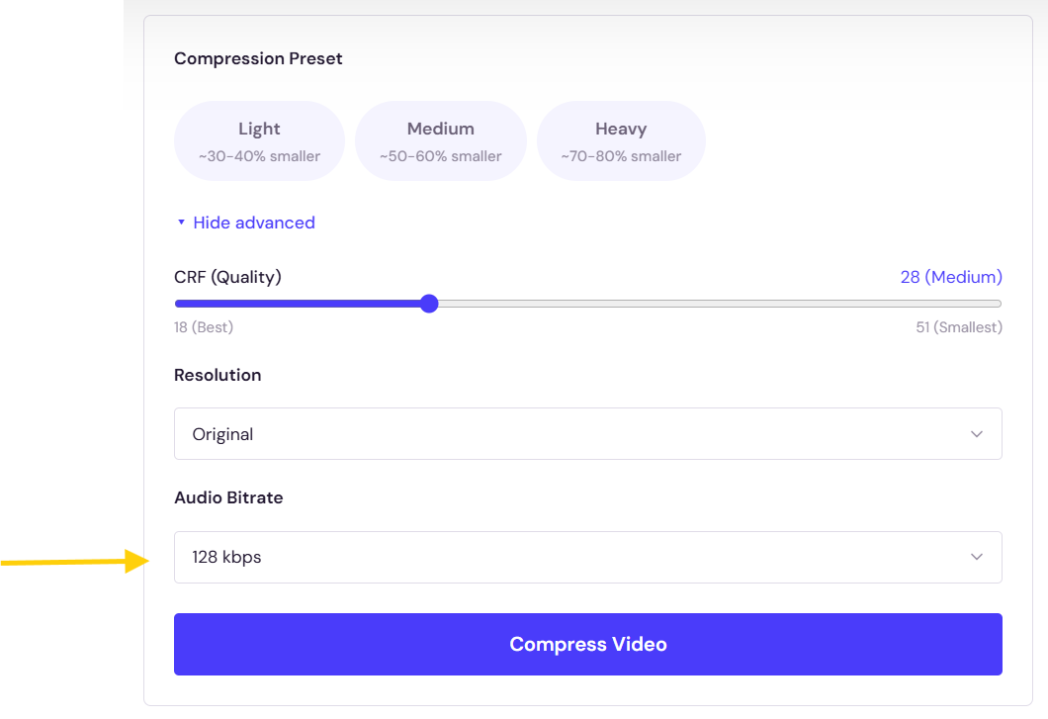
Keep it higher only if music quality is the point of the video.
Step 4: Compress And Export
Run the export, then look at the new file size and, more importantly, play it back. If it still looks sharp and is small enough, you are done. If it is still too big, drop the resolution one more step rather than hammering the audio.

Best Settings for High-Quality Video Compression
The settings that keep quality intact are the same whether you use a browser tool like Dadan or a desktop encoder like HandBrake.
What changes is how many of them a given tool exposes, so treat the list below as the full menu and use whatever your tool offers.
Resolution
Resolution decides how many pixels the file has to store, so it moves size more than any other setting. Downscaling a 4K recording to 1080p is often the cleanest large cut you can make, because most people watch on screens that cannot show 4K anyway.
Only hold the resolution high when full detail genuinely reaches the viewer, such as a 4K tutorial someone will open on a 4K monitor.
Bitrate Setting
At a fixed resolution, bitrate is the amount of data spent on each second of video, and it is the biggest factor in how the result looks. Too low and the picture goes soft or blocky, too high and you are storing data no eye can use.
If your tool offers a quality slider instead of a raw bitrate, that is usually a CRF control, where a lower number means higher quality and a larger file.
Around CRF 20 to 23 is a safe balance for most footage, and CRF 18 is close to visually lossless.
Codec
H.264 inside an MP4 is the safest choice for anything you are sharing, because nearly every device and browser plays it. H.265, also called HEVC, produces a smaller file at the same quality, but not every device decodes it as reliably, so it fits best when you control where the video will be played.
AV1 is more efficient still and royalty free, though it encodes slowly and older devices may not support it yet.
Original Frame Rate
Match the frame rate of the source rather than changing it. Converting 24 frames per second up to 30 adds frames that carry no new information while inflating the file, and dropping frame rate to save size usually looks worse than a small bitrate reduction would.
Leave this setting where the recording puts it.
Two-Pass Encoding
If you need to hit a specific file size, two-pass encoding gives a cleaner result than a single pass at the same target.
The encoder studies the video on the first pass and spends its data budget where the footage is most complex on the second. It takes longer, but for a size ceiling like an email limit it is worth the wait.
How to Compress Videos for Different Platforms
Every destination sets its own limits and handles video differently, so the right setup for email is the wrong one for YouTube.
Here is how to handle the places people send video most.
For email, aim under the limit rather than right at it, and switch to a link once the file gets large. Gmail’s real ceiling is around 18 MB after encoding, Outlook sits at 20 MB, and corporate servers are often tighter, so 720p with a modest bitrate is usually the safe target.
Past roughly 25 MB, compressing harder starts to cost visible quality, and the better move is to host the video and send a link instead.
Dadan hosts your uploads and gives you a shareable link, which sidesteps the attachment limit entirely and lets the recipient watch without downloading anything.
WhatsApp accepts up to 100 MB when you send a video as regular media, capped at 720p, and up to 2 GB when you send it as a document, which skips WhatsApp’s own recompression. So you have two clean paths.
Compress to fit under 100 MB and send it as media for convenience, or send a well compressed file as a document to keep your own export instead of WhatsApp’s.
Dadan’s WhatsApp video compressor lets you set a target file size or optimize automatically, and it exports in the format WhatsApp handles best.
YouTube
Don’t compress hard before uploading to YouTube, because the platform re-encodes every file and a squeezed source produces a worse final stream. YouTube’s own upload guidance points to MP4 with H.264, and recommended bitrates of roughly 8 Mbps for 1080p at 30 fps, 12 Mbps for 1080p at 60 fps, and 35 to 45 Mbps for 4K at 30 fps.
Give the encoder a high quality source at your native resolution, and never upscale 1080p footage to 4K, since YouTube detects it and you gain nothing but upload time.
Websites and Social Feeds
For embedding on a site or posting to a feed, 1080p with H.264 in an MP4 covers almost every case and plays everywhere.
Keep the file lean so the page loads quickly, and let the platform do its own final pass rather than compressing twice yourself.
Compressing Different Types of Videos
Not every video responds to compression the same way, because the codec works by finding detail and motion it can economize on. Knowing what kind of footage you have tells you how far you can push it.
Screen Recordings and Tutorials
Screen recordings compress unusually well, since much of the frame is flat interface that barely changes between moments.
You can lower the bitrate more aggressively here than with camera footage, but keep the resolution high enough that on screen text stays crisp, because soft text is the fastest way a tutorial looks broken.
Talking Head and Webcam Videos
A person against a fairly static background is easy footage for a codec, so these files shrink well without much visible loss.
Protect the face and the audio first, and take your savings from resolution and a modest bitrate cut rather than from anything that muddies speech.
High Motion and Gameplay Footage
Fast movement, particles, and constant scene changes give the codec far less to reuse, so these files need a higher bitrate to stay clean.
Compress them the same way you would anything else, just expect a larger result at the same quality, and lean on H.265 or AV1 if the size still bothers you and you control playback.
4K and High Resolution Footage
With 4K, the biggest and cleanest saving is usually downscaling to 1080p when the viewer will not watch at full resolution.
If you need to keep 4K, a more efficient codec like H.265 buys back a lot of size at similar quality, at the cost of longer encoding and narrower device support.
Phone Videos
Phone clips are often recorded at high bitrates and sometimes in formats that don’t play everywhere, so re-exporting to H.264 MP4 at 1080p both shrinks the file and makes it more shareable. This is frequently all you need to clear an email or messaging limit.
Conclusion
You keep a video sharp and small by matching the file to its destination, changing resolution and bitrate deliberately, and checking the output before you send it.
Start with the free MP4 compressor at dadan.io, drop the resolution a step, export, and confirm it still looks right. When a file is too big to squeeze without hurting it, host it on Dadan and share a link instead.
FAQs
How can I compress a video without losing quality?
Lower the resolution to match where it will be watched and reduce the bitrate in small steps, checking the result each time. You cannot avoid all data loss with real compression, but done carefully the change is invisible on screen.
What is the best free video compressor?
The best one is whichever fits your workflow, so a browser tool like Dadan works when you want speed and no signup. Dadan runs in the browser and needs no download, which makes it the easiest starting point for most people.
Can I compress MP4 videos online?
Yes, and MP4 is the most common format to compress online. Dadan’s MP4 compressor runs entirely in your browser, so you upload the file, adjust the settings, and export a smaller version without installing anything.
Does video compression reduce quality?
Any meaningful compression removes some data, but at sensible settings the loss is not something you can see. Quality only becomes visible when you push the bitrate too low or drop the resolution below what the screen needs.
How do I reduce video file size for email?
Compress to 720p with a modest bitrate to land well under your provider’s limit, since Gmail effectively caps around 18 MB and Outlook around 20 MB. For anything larger, host the video and send a link instead.
What is the best format for compressed videos?
MP4 with the H.264 codec is the safest choice, because it plays on nearly every device and browser. H.265 gives you a smaller file at the same quality when you control where the video will be played.
How can I compress a 4K video?
The cleanest saving is downscaling to 1080p when the viewer will not watch in 4K, which can quarter the size with no visible change on most screens. If you need to keep 4K, a more efficient codec like H.265 reduces the size at similar quality.
How do I compress videos for YouTube?
For YouTube you generally should not compress hard, because the platform re-encodes every upload and a squeezed file looks worse afterward. Upload MP4 with H.264 at your native resolution and a healthy bitrate, around 8 Mbps for 1080p or 35 to 45 Mbps for 4K, and let YouTube do the rest.
Can I compress videos directly from my browser?
Yes, browser based tools compress video without any download, and Dadan’s compressor works this way. You upload the file, choose your settings, and export the smaller version from the same page.
How much can a video be compressed without quality loss?
It depends on the footage, since screen recordings and talking head videos can often shrink by more than half with no visible loss, while high motion or gameplay footage needs more data to stay clean. The practical answer is to compress, watch the result, and stop the moment you notice any softening.