Every video has a frame that works better as a still image than anything you could stage separately. Extracting that frame and saving it as an image file is what a thumbnail extractor does.
The reason this matters for anyone publishing video content is that thumbnails are the single biggest visual factor in whether someone clicks. YouTube’s own data has consistently shown that the vast majority of top-performing videos use custom thumbnails rather than auto-generated ones.
On platforms like LinkedIn, embedded blog posts, and course portals, the thumbnail is often the only visual a potential viewer sees before deciding to watch or scroll past.
This guide walks through how to extract a thumbnail from a video online, for free.
Why Thumbnails Matter
Thumbnails are the primary visual signal a viewer uses to decide whether to click on your content, and that decision happens in under a second.
Custom Thumbnails Outperform Auto-Generated Ones
YouTube’s guidance says that most top-performing videos use custom thumbnails rather than the auto-generated frames the platform offers by default. Those frames are selected based on visual variety in the footage, instead of what actually represents the video’s value to the viewer.
If your video is getting impressions but not clicks, the thumbnail is the first place to look.
Custom Thumbnails Outperform Auto-Generated Ones
Anywhere a video is embedded or shared, the thumbnail is the first thing a potential viewer sees. Social media feeds, email campaigns, course platforms, internal knowledge bases, sales outreach messages. On LinkedIn, the thumbnail appears as the full preview image when a video link is shared. In email outreach, it is often the only visual element before the body copy. A frame that shows a relevant moment sets the right expectation. An algorithmically chosen frame rarely does.
The Click-Through Impact Extends Beyond YouTube
Anywhere you share or embed a video, the thumbnail is what a potential viewer sees before deciding whether to click.
On LinkedIn, it fills the full preview card. In email outreach, it is often the only image before the body copy. On a course platform, it is what students use to navigate between lessons.
A frame you have chosen and positioned deliberately sets the right expectation. An auto-selected one typically does not.
Thumbnail Specs Affect Display Quality
For YouTube, the recommended size is 1280 x 720 pixels at a 16:9 aspect ratio, with a file size under 2 MB. Uploading below the minimum width of 640 pixels triggers upscaling that introduces visible blur, which hurts perceived quality before a viewer has watched a single second.
Extracting a frame from a 1080p or 4K source file gives you a high-resolution starting point that holds up whether the thumbnail is displayed at mobile preview size or in a large embedded player.
How to Extract Thumbnail from Video – Step-by-Step
Dadan’s thumbnail extractor runs entirely in the browser. No account, no software to install, and the video file never leaves your device.
Step 1: Upload Your Video File
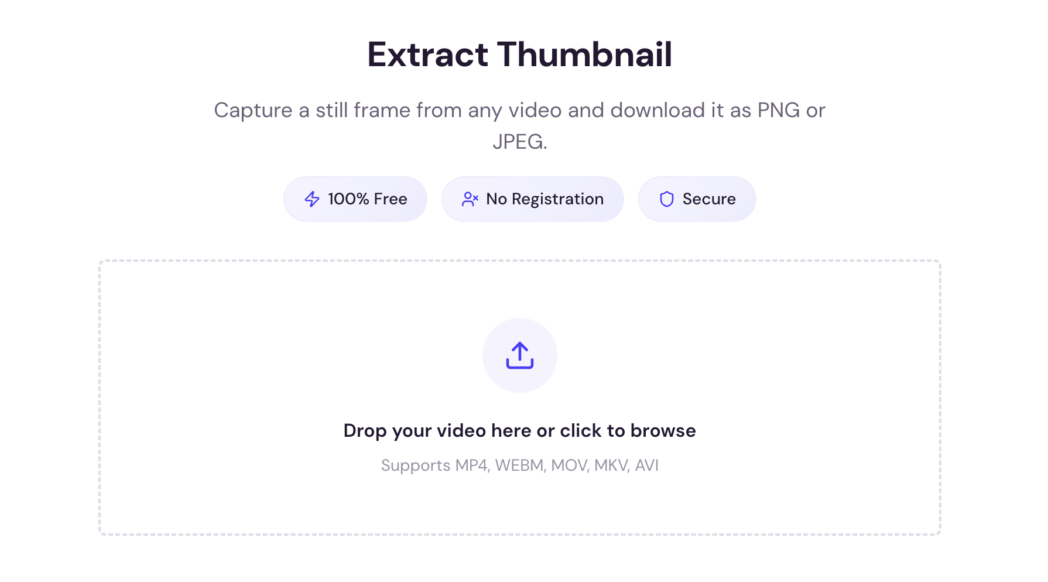
Open the Thumbnail Downloader and drop your file into the uploader. It accepts MP4, WEBM, MOV, MKV, and AVI files directly.
No format conversion needed beforehand. If the file plays in your browser, the extractor can pull frames from it.
Step 2: Select the Exact Frame You Want
Move through the timeline to the moment you want to capture. Scrub the slider, enter a specific timestamp, or click a preview frame from the generated timeline.
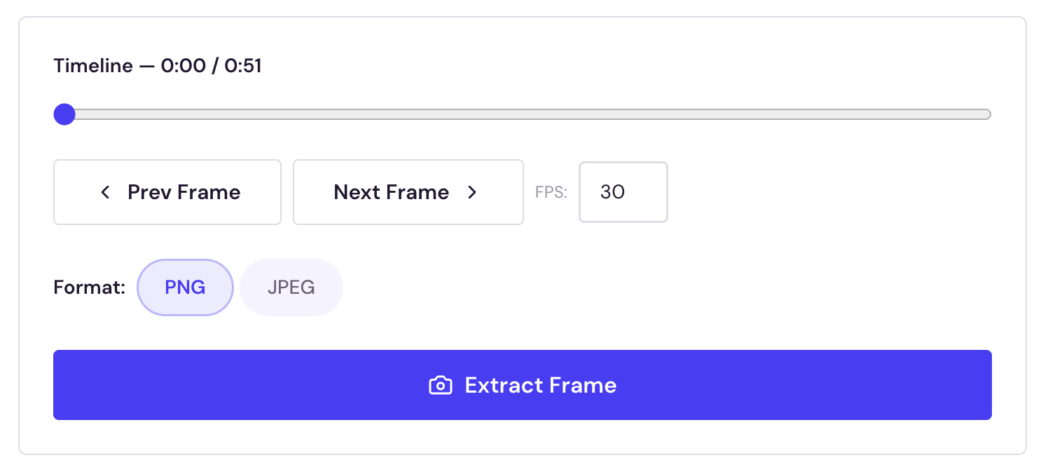
This gives you frame-level precision that pausing a video player cannot match, since players round to the nearest keyframe rather than landing on the exact frame you are targeting.
Step 3: Choose Your Format and Download
Select PNG or JPEG, then save the image.
PNG is the right choice for frames with text overlays, UI elements, or sharp edges. JPEG works better for photo-heavy frames and produces smaller files, which matters for YouTube’s 2 MB thumbnail upload limit.
The image downloads at the native resolution of the source video, with no watermark applied. You can extract multiple frames from the same video without re-uploading, which is useful when testing thumbnail options or pulling stills for different platforms.
Benefits Of Using A Thumbnail Extractor
Taking a screenshot of a paused video is the most common workaround, and it produces worse results across every dimension that matters for a thumbnail you are going to publish.
Full Native Resolution, Not Screen Resolution
A screenshot captures whatever the video player is rendering on your screen at that moment, capped by your monitor’s resolution and the player’s window size.
But an extractor pulls the frame directly from the video file at its source resolution. If you recorded in 1080p, you get a 1920 x 1080 pixel image. If you recorded in 4K, you get 3840 x 2160. No downscaling from your display.
No Playback UI in the Frame
Screenshots of a paused video almost always include playback controls, progress bars, volume sliders, or browser chrome along the edges. Cropping those out reduces your usable image area and adds a step.
An extractor gives you the raw frame with nothing overlaid on top of it, ready to use or edit without cleanup.
Frame-Accurate Control
Video players do not pause on the exact frame you are aiming for. They round to the nearest keyframe, which can land several frames off from your target moment. An extractor lets you position precisely within the timeline and capture that specific frame.
For content where the exact moment matters, the right expression or the right slide state, this precision makes a difference.
Multiple Frames Without Re-Uploading
If you want to test two or three thumbnail options before committing, re-pausing and screenshotting each time is slow and produces inconsistent sizing.
The extractor lets you move to a new point in the video and download immediately, at the same resolution and format settings, without reloading the file.
Conclusion
The difference between a chosen frame and an auto-generated one shows up in clickthrough rates and in how professional your content looks to the people deciding whether to watch.
Use Dadan’s thumbnail extractor to pull the exact frame you want, free, with no account required. For everything beyond the thumbnail, sign up for a free Dadan account to record, edit, host, and share video in one place.
FAQs
How do I extract a thumbnail from a video?
Upload the video to Dadan’s thumbnail extractor, move the timeline to the frame you want, choose PNG or JPEG, and download. No account required. To extract a thumbnail from a YouTube video specifically, download the video file first, then upload it to the tool.
Can I convert video to image online?
Yes. A thumbnail extractor captures individual frames from a video file and saves them as still images. The process runs in the browser, so the video file stays on your device and is not uploaded to a remote server.
What format is best for thumbnails?
PNG for frames with text, UI elements, or sharp edges. JPEG for photo-heavy frames where a smaller file size matters. For YouTube, keep the file under 2 MB at 1280 x 720 pixels in either format.
Does thumbnail quality affect CTR?
Yes. Blurry or auto-generated thumbnails receive fewer clicks than custom thumbnails chosen intentionally. YouTube’s own guidance confirms that most top-performing videos use custom thumbnails, and the thumbnail is the primary visual cue a viewer uses to decide whether to click.
Can I extract frames without losing quality?
Yes, when using a tool that pulls the frame from the video file rather than screenshotting a player. Dadan’s extractor outputs the frame at the native resolution of the uploaded video, with no compression or watermark applied.