If you work with video long enough, transcription becomes a practical need. You might want to pull quotes from a YouTube interview or convert a tutorial into written notes. Or simply scan content faster instead of replaying the same 30 seconds again and again.
That’s why people keep searching for how to transcribe a YouTube video, because reading is often faster than listening.
The good news is that transcription doesn’t require any paid software or manual typing. In many cases, YouTube already gives you a transcript. And when it doesn’t, AI tools can generate one in minutes.
This guide walks you through the most reliable ways to transcribe a YouTube video, starting with the simplest option that’s already built in.
Method 1: Use YouTube’s Built in Transcript When Available
Before using any AI tool, it’s worth checking whether YouTube has already generated a transcript for the video.
YouTube automatically creates captions for many videos. When captions are available, you can view them as a transcript directly on the video page. It’s not highlighted, and it’s easy to miss, but it’s often there.
Step 1: Open the Transcript
YouTube doesn’t make the transcript option very obvious, so the first step is knowing where to look.
- Open the YouTube video on the desktop.
- Scroll below the video title.
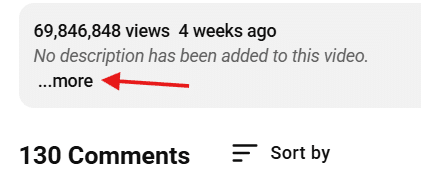
- Click on ‘more’ in the description.
- Select ‘Show transcript’
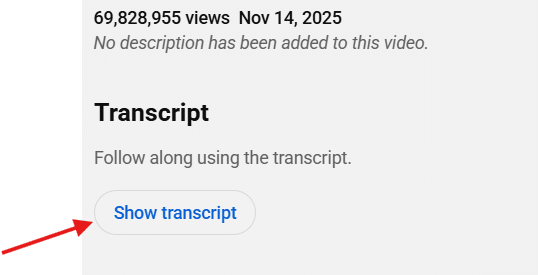
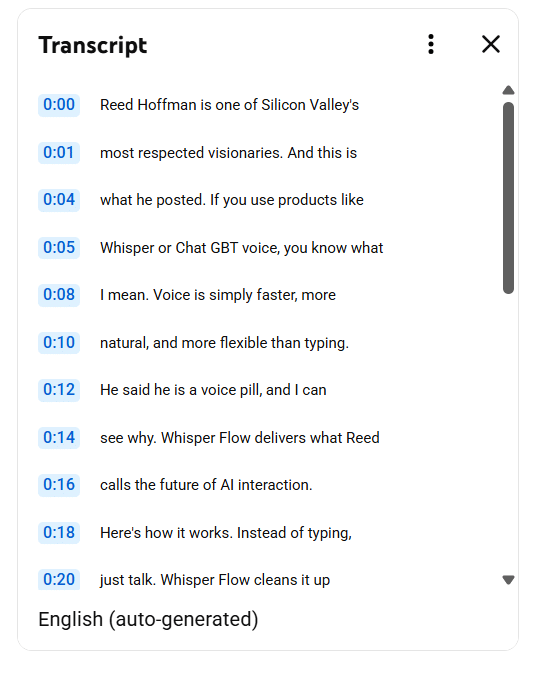
If the option is available, a transcript panel opens beside the video, displaying the spoken text in short lines with timestamps.
Step 2: Use the Transcript to Find Specific Parts
The transcript works best as a way to navigate the video. You can scroll through the text to spot keywords or phrases, then click a line to jump the video to that exact moment.
This is useful when you remember what was said but don’t want to scrub through the timeline again. For quick reference or pulling a short quote, this often gets you what you need.
Step 3: Copy the Text You Need
YouTube doesn’t offer a clear export or download option for transcripts. So, most people simply:
- Highlight the lines they need
- Copy
- Paste them into a document or notes app
If you copy a longer section, timestamps will come along with the text. Removing them takes a bit of cleanup, but it’s still faster than typing everything manually.
Because the transcript is auto-generated, you may notice missing punctuation, odd line breaks, or names that aren’t quite right. For notes or internal use, that’s usually fine. If you plan to reuse the text more widely, expect to spend a few minutes editing.
When the Transcript Option Is Missing
Sometimes the Show transcript option isn’t there at all. This usually means captions were disabled by the uploader, YouTube couldn’t generate them due to audio quality, or the video language isn’t supported.
If there are no captions, there’s no transcript to pull from YouTube. In that case, you’ll need a tool that generates text directly from the video’s audio using an AI transcription tool.
Method 2: Use a Free Online Transcription Tool (dadan)
If the transcript option doesn’t show up on YouTube, or if the text you get is too messy to reuse, the only way forward is to generate the transcript directly from the video’s audio.
For this, you can use an AI transcription tool. Instead of depending on captions that may or may not exist, these tools listen to the audio itself and produce editable text you can actually work with.
Dadan is one such option, and it works well when you want a quick transcript without setting up a complicated workflow.
Step 1: Log In to Dadan and Add the Video
First, go to dadan.io and sign up to Dadan.
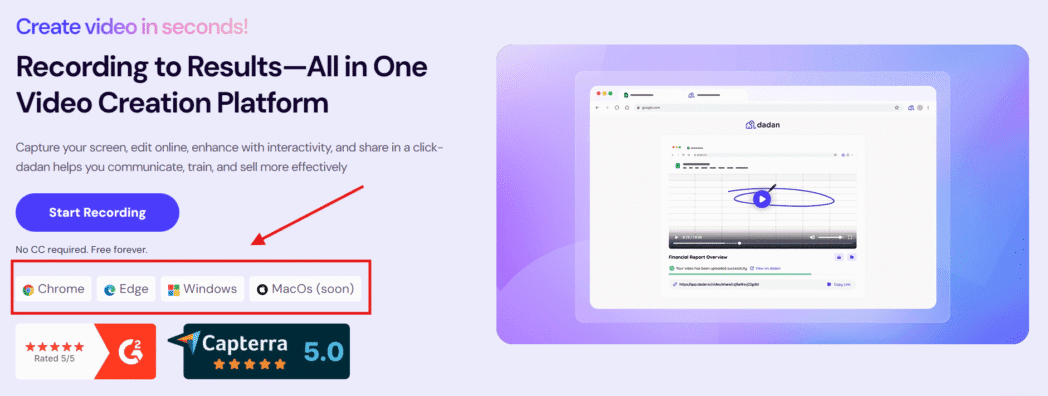
You can bring the YouTube video in a couple of ways:
- Upload the video file if you already have it, or
- Record it directly using Dadan’s YouTube screen recorder if you’re capturing content as you watch
As soon as the video shows up in your library, you don’t need to do anything else. Processing begins automatically.
Step 2: Wait for the Transcript to Be Generated
Once the upload or recording is complete, Dadan generates the transcript on its own.
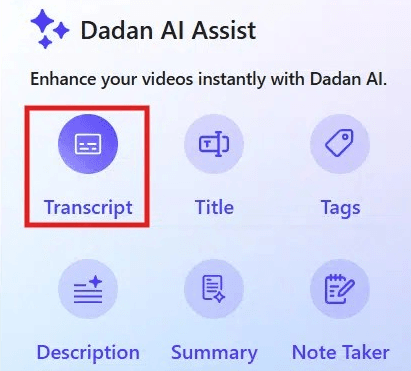
There’s no separate button to click and no settings to configure. The transcript appears alongside the video after processing finishes, which usually takes a few minutes depending on the video length.
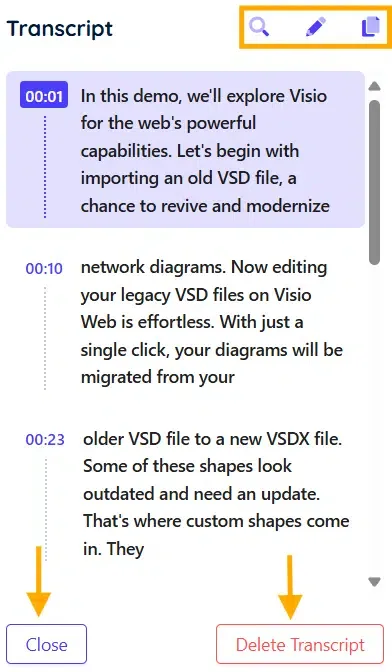
Because the text is generated from the audio itself, this works even when the YouTube video has no captions at all.
Step 3: Review and Edit the Transcript
The transcript is fully editable. You can correct names, adjust punctuation, remove filler words, or clean up formatting directly inside the text-based video editor.
If you’re planning to reuse the text for notes, captions, or documentation, this saves a lot of back-and-forth compared to copying from YouTube.
Step 4: Use the Transcript Beyond Just Reading
Once the transcript is ready, you’re not limited to plain text. Inside Dadan, you can:
- Copy the transcript into your documents or notes
- Generate summaries or key points
- Break longer videos into smaller chapters
- Keep the video, transcript, and notes together in one place
This is useful if you regularly transcribe YouTube videos for work and want everything in one place instead of scattered across tabs and files.
Next, it helps to understand how to get better results from any transcription tool, which comes down to a few practical details around audio quality and setup.
Tips for Better Transcription Accuracy
No matter which method you use, transcription quality depends largely on the source video. That said, a few small things can make a noticeable difference, regardless of whether you’re using YouTube’s transcript or an AI tool.
- Clear audio makes the biggest difference. Background music, echo, or low-volume recordings will almost always lead to mistakes.
- Videos in which people talk over each other often produce messy transcripts, especially in casual discussions or panels.
- Names, brand terms, and technical words are often misheard. It’s normal to correct these manually afterward.
- If you have multiple versions of the same video, choose the one with cleaner sound, even if the visuals are lower quality.
- When recording content yourself, using a basic external microphone can noticeably improve the audio quality.
- Very fast speech or unfinished sentences can lead to dropped words or incorrect phrasing.
Finally, treat transcripts as a draft instead of a finished document. The real value is that you’re starting with most of the text already in place. Cleaning up a transcript is still far quicker than typing everything from scratch.
Why Transcribing YouTube Videos Helps
Once you’ve gone through the trouble of turning a video into text, the benefit shows up almost immediately.
It’s Faster to Read Than Rewatch
The most obvious one is speed. Reading is faster than listening, especially when you’re revisiting something for a second or third time. A transcript lets you scan for the exact part you need instead of replaying entire sections just to catch one sentence.
It Makes the Video Searchable
The next best thing is searchability. With text, you can quickly find keywords, phrases, or concepts using a simple search. That’s something video players still don’t handle well, no matter how familiar you are with the content.
It Makes Reuse Much Easier
Transcripts also make reuse much easier. A single YouTube video can be transcribed into written notes for students or teammates, or into scripts for short-form content.
This matters even more if you work with content regularly. Educators don’t have to rewrite lessons. Creators don’t have to start captions from scratch.
It Helps With Accessibility and Sharing
Not everyone prefers or processes audio well. Some people understand information better when they can read it, skim it, or revisit it later without audio.
It Creates a Record You Can Come Back To
And finally, transcripts create a record. Videos get buried in playlists, folders, or chat links. Text is easier to store, tag, and come back to when you actually need it.
Once you get used to having transcripts, going back to video-only feels unnecessarily slow.
Conclusion
YouTube’s built-in transcript is useful when it’s there, but it’s limited by design. It gives you a rough reference, not something you can comfortably reuse or rely on if you work with video often.
AI transcription tools make more sense if you need transcription regularly. They don’t depend on captions being available, they generate text directly from the audio, and they give you something you can edit, store, and reuse properly.
More importantly, they remove the friction that shows up when you’re doing this more than once or twice. Instead of replaying videos or hunting for timestamps, you start with text and work forward from there.
FAQs
Can I transcribe a YouTube video for free?
Yes. YouTube’s built-in transcript is free when it’s available. Some AI transcription tools also offer free plans or limited usage.
Why can’t I see the transcript option on some videos?
This usually means the uploader disabled captions, or that YouTube didn’t generate them due to audio quality or language limitations.
What’s the fastest way to transcribe a YouTube video?
If a transcript is available on YouTube, that’s the fastest option. If not, using an AI transcription tool is usually quicker than manual methods.
Can I download a YouTube transcript?
YouTube doesn’t always provide a direct download option. Most people copy the text manually or use a transcription tool that allows them to export it.
Will transcription tools work if the YouTube video has no captions?
Yes. AI transcription tools generate text directly from the audio, so captions aren’t required.
Is it legal to transcribe any YouTube video?
Transcribing videos for personal use, study, or internal reference is generally fine. Sharing or publishing transcripts may require permission from the content owner.
How accurate are auto-generated transcripts?
Accuracy depends on audio quality, speaker clarity, and accents. Most auto-generated transcripts are good enough for drafts but may need light editing.
Can I edit the transcript after generating it?
Yes. Most transcription tools allow you to edit the text once it’s generated.
Recommended Readings:
- How to Record YouTube Videos with Audio [Step by Step]
- 10+ YouTube Video Ideas for Beginners For 2026
- Best YouTube Screen Recorders in 2026
- How to Edit Screen Recording for YouTube (No Experience Needed)
- How to Monetize YouTube Channel with Screen Recorded Content
- How to Collaborate with Other YouTubers and Record Video
- How to write a YouTube Script that Engages and Converts (with Free Template)