
How Do You Blur Faces and Sensitive Info in a Video Before You Share It?
If you have recorded a screen share, a product demo, or a quick team update, there is a decent chance something showed up on screen that you did not mean to share.
Blur tool for video
byu/Big_Cauliflower8631 ininstructionaldesign
An open inbox tab, a Slack notification, a customer’s account number sitting in a dashboard behind you. Blurring is how you cover that up without re-recording the whole thing.
This guide covers what video blurring actually does, what you should and should not blur, how to do it step by step, and when a blur is not enough and you need a solid redaction box instead.
TL;DR:
To blur part of a video, open it in an editor with a region-based blur tool, draw a box or circle over the area you want to hide, set how strong the blur is and how long it stays on screen, then export.
In Dadan, that tool lives directly inside the browser editor, so you never have to move the file somewhere else to do it.
What Is Video Blurring?
Video blurring is applying a blur effect to a specific part of the frame, either for the whole clip or for a set stretch of time, instead of blurring the entire video.
Under the hood, most editors do this by softening the pixels inside a shape you draw on the canvas, usually a box or a circle.
You control three things, where the shape sits, how long it’s active on the timeline, and how strong the blur is.
People use it for two different reasons that get lumped together. One is privacy or security, hiding a face, a password field, or an account number. The other is purely visual, drawing the eye to a subject by softening the background, or covering a distracting element so it doesn’t pull focus.
The technique is the same. The intent is not, and it changes how careful you need to be with the settings.
What Can You Blur in a Video?
Anything you can draw a box or circle around, but most requests fall into a handful of categories:
- Faces of people who did not consent to appear on camera
- Passwords, login screens, and two-factor codes
- Account numbers, card details, and other financial information
- Names, email addresses, and other personal identifiers in a dashboard or spreadsheet
- Internal business data that shouldn’t leave the company, like pricing sheets or customer lists
- License plates and street signs that could reveal a location
- A competitor’s product or a client’s confidential UI caught in the background of a demo
If it identifies a person or exposes information someone else has a claim over, treat it as a candidate for blurring rather than assuming it’s fine because it was only on screen briefly.
Why Blurring Is Important Before Sharing Videos
Screen recordings leak information by accident more often than on purpose. You’re focused on narrating a demo, not on the six background tabs and the Slack toast that popped up at second 47.
There’s also a legal dimension to it. Under GDPR, a person’s face in video counts as personal data, and publishing footage that identifies someone without a legal basis for it is the kind of thing that draws complaints.
If the recording touches healthcare information, HIPAA adds its own restrictions on what patient-identifying details can appear, blurred or not.
Please educate me on how NOT to accidentally expose sensitive information
byu/the_supernoob inTwitch
Beyond the legal case, there’s a practical one. A recording with someone else’s personal data sitting in frame is not something you can un-send once it’s live. Blurring before you publish is the cheap fix. Re-recording, or worse, pulling a public video down after the fact, is the expensive one.
How to Blur Part of a Video: Step-by-Step Guide
This is how you can blur a part of a video using Dadan’s built-in video editor, since it covers recording, editing, and blurring in the same place without exporting to a separate app.
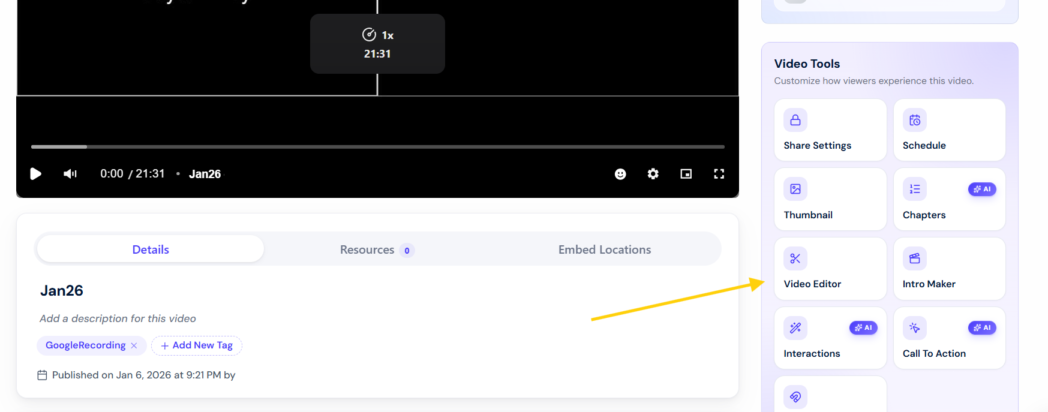
Step 1: Open the Video in Dadan Studio
From your video’s playback screen, click the Video Editor button. This opens Dadan’s in-browser editor.
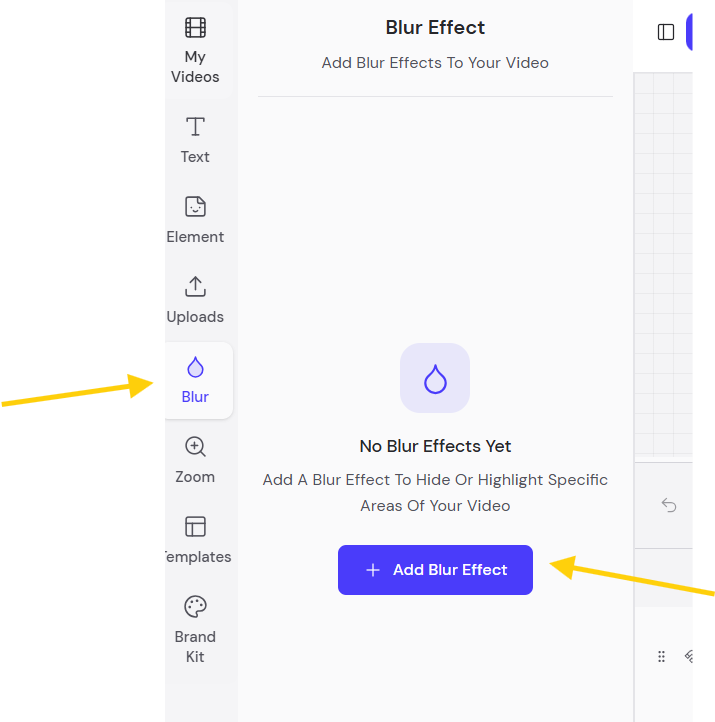
Step 2: Open the Blur Effect Panel
In the left sidebar, find the Blur Effect section, marked with a water drop icon, and click + Add Blur Effect.
Step 3: Position and Shape the Blur Area
A blur shape appears on the canvas. Drag it over whatever you’re hiding, then choose Square or Circle depending on what you’re covering, a circle for a face, a square for a text field or a chat window.
To resize, grab a vertex to keep the shape’s proportions, or grab an edge if you need to stretch it without keeping the aspect ratio.
Step 4: Set the Blur Intensity
In the control panel, drag the Amount slider. It runs from 0px to 50px, and defaults to 10px. Higher values blur harder.
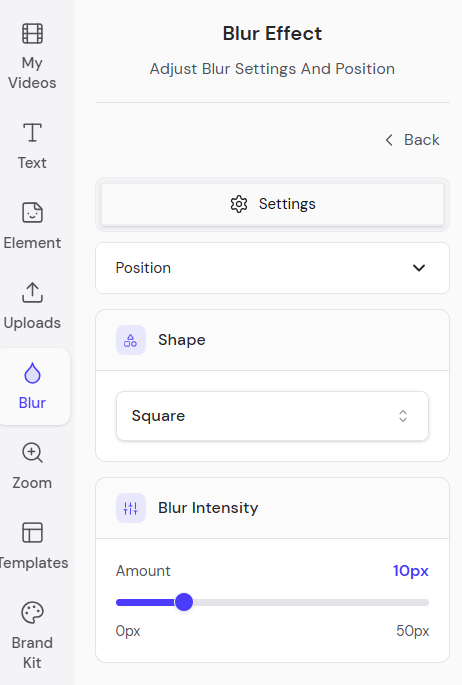
For anything genuinely sensitive, err toward the stronger end. A light blur over large, high-contrast text can sometimes still be partially read, especially after re-export or compression.
Step 5: Add More Blur Layers If You Need Them
If you have to hide more than one thing, whether that’s two faces or a password field and a dashboard, click + Add Blur Effect again for each area.
Every layer gets its own position, shape, and timing, so they don’t have to match. You can also delete a blur layer at any point before exporting if you added one by mistake or the framing changed.
Step 6: Export
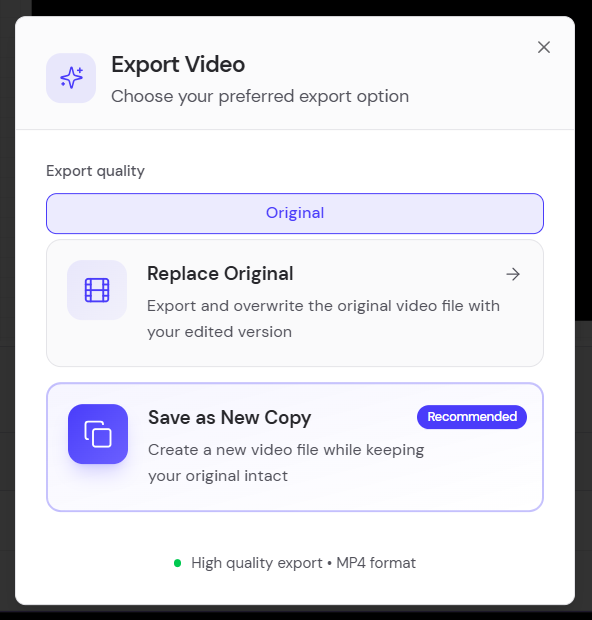
Click Export. You’ll get two options: Replace Original, which overwrites your source file, or Save as New Copy, which keeps the original intact and exports the edited version separately.

Save as New Copy is the safer default, especially the first few times you’re doing this.
One thing worth knowing going in, Dadan’s blur is positioned manually rather than auto-tracked. If your subject moves around the frame a lot, like someone pacing during a webcam recording, you may need to reposition the blur shape at a few points rather than set it once and forget it.
Best Practices for Blurring Videos
In a snapshot, match blur strength to sensitivity, extend coverage past the edges, and always re-watch the full clip before you export.
- Match the blur strength to what’s actually underneath it.
- Extend the blur area slightly past the edges of what you’re hiding. Compression and re-encoding can soften the boundary and expose a sliver of the original.
- For maximum-sensitivity data like card numbers or account credentials, use a solid opaque box instead of a blur.
- Recheck a blur’s position against the full clip before exporting.
- Get consent before publishing footage that shows other people’s faces, even if blurring feels like it covers you legally.
- Watch the whole exported clip once before you publish it. It’s the only way to catch a blur layer that’s off by a second or two.
Why Dadan Makes Video Blurring Easy
Most screen recorders make you export the file and open a separate editor to blur anything. Dadan’s blur tool is inside the same browser editor you use to record, trim, and share, so there’s no round trip through another app.
A few specifics worth knowing if you’re deciding whether to use it:
- Blur is part of the free plan.
- You get a choice of Square or Circle blur shapes with an adjustable 0 to 50px intensity slider.
- Dadan recordings don’t carry a watermark on any plan.
- Dadan is rated 4.8/5 on G2, which is more a signal that the editor around it is generally well reviewed.
Conclusion
Blurring is a small step that saves you from a much bigger problem, whether that’s an exposed password, a face that shouldn’t be public, or a client’s dashboard sitting in the background of your demo.
Draw the shape, set the strength, match the timing to how long it needs to stay covered, and check the whole clip before you hit publish.
If you’re recording and editing in the same place already, the blur tool is right there in Dadan’s editor with no extra export step. Try Dadan free and blur your next recording before it goes out.
FAQs
How do I blur part of a video?
Open Dadan, draw a box or circle over the area, set the intensity and how long it should stay on screen, then export.
Can I blur sensitive information in a screen recording?
Yes, and it’s one of the most common reasons people use a blur tool. Passwords, account numbers, and dashboards that show up during a screen recording can be covered after the fact with a region-based blur applied directly to the footage.
How do I blur faces in a video?
Use a circular blur shape sized to the face and positioned for as long as the person is on screen. Most in-browser editors, including Dadan’s, position blur manually rather than tracking a moving face automatically.
What is the best way to hide confidential information in a video?
It depends on how sensitive the information is. Blur works for most cases, but for maximum-sensitivity data like card numbers or login credentials, a solid opaque box is safer.
Can I blur a video online for free?
Yes. Dadan’s free plan includes the full browser video editor, blur included, alongside limits like 25 videos and 720p resolution.
How much blur should I apply?
Enough that the underlying text or detail is unreadable at the video’s actual resolution. In Dadan, the blur intensity slider runs from 0 to 50px, and for anything genuinely sensitive, it’s safer to lean toward the stronger end rather than the lightest setting that looks fine on your screen.
Can I blur multiple areas in the same video?
Yes. Add a separate blur layer for each area you need to cover. Each layer has its own position, shape, and timing, so you can blur a face for the first ten seconds and a dashboard for a different stretch of the same clip without them interfering with each other.
Is blurring videos important for privacy?
Yes. A person’s face counts as personal data under regulations like GDPR, and screen recordings routinely capture information nobody meant to share on purpose.
What types of information should be blurred?
Faces of anyone who hasn’t consented to appear, passwords and login screens, account and card numbers, personal identifiers like names or emails on a dashboard, confidential business data such as pricing or customer lists, and anything that could reveal a location, like a license plate or street sign.
What is the best video editor for adding blur effects?
If you’re recording the video and want to record, edit, blur, and share from one place, Dadan’s browser editor covers that whole workflow without switching tools.
How do I blur a watermark in a video?
If it’s your own footage, you can cover a watermark the same way you’d blur anything else. Dadan doesn’t add a watermark to your recordings in the first place, on any plan, so this is usually a workaround for tools that stamp a logo onto free exports rather than something you’d need to do in Dadan itself.