To create impactful YouTube videos, you need to learn to edit screen recording in the best format. This is especially true for screen recordings, where your viewers depend almost entirely on what’s shown on your screen and your voice to understand the message.
Most successful YouTubers admit that they spend a significant amount of their time perfecting the editing process. They do that because it is the step for taking your video from good to great. Editing eliminates confusion, removes awkward pauses, and helps your audience follow along smoothly from one section to the next.
In this blog, we’ll guide you step by step on how to edit screen recording videos even if this is your very first time editing.
Choose a Beginner-Friendly Video Editor
When starting, picking the right video editor can make the entire editing process far less intimidating. Here’s how to spot a beginner-friendly option and why it matters:
- Simple, Intuitive Interface: Look for editors with clean layouts, drag-and-drop features, and clearly labeled tools. This minimizes the learning curve and lets you focus on the content instead of figuring out complex menus.
- Essential Editing Features: A good beginner editor should offer basics like trimming, splitting, adding text, resizing, cropping, merging, and simple transitions. It’s alright if it lacks advanced effects, they are not a priority when you’re starting out. You can choose another tool for advanced editing once you gain more experience
- Helpful Tutorials & Support: Editors that provide built-in guides, tooltips, or easy-to-find tutorials are ideal. They help you learn as you go, so you’re never stuck or frustrated during your first projects.
Import Your Screen Recording
This is the first step you must take to edit your video. Most editors have a simple workflow to upload a video saved on your desktop. Look for an Upload a video option, you might spot on the top, right or left part of the editor. A few video editors also allow you to upload the video directly from another app, like Dropbox.
Let us show you how dadan does it so you can follow these steps in your app (if you choose to use a different one). In case you haven’t heard about dadan, it is an advanced screen recorder with a built-in video editor. With dadan, you can record, edit, and publish your video on YouTube without depending on any other tool.
- Download the dadan app from the website or install the Chrome extension. You only need your email address to do that
- After the installation process is complete, visit the website again, and tap on the Sign In button at the top. You will be automatically navigated to your video library, which looks like this
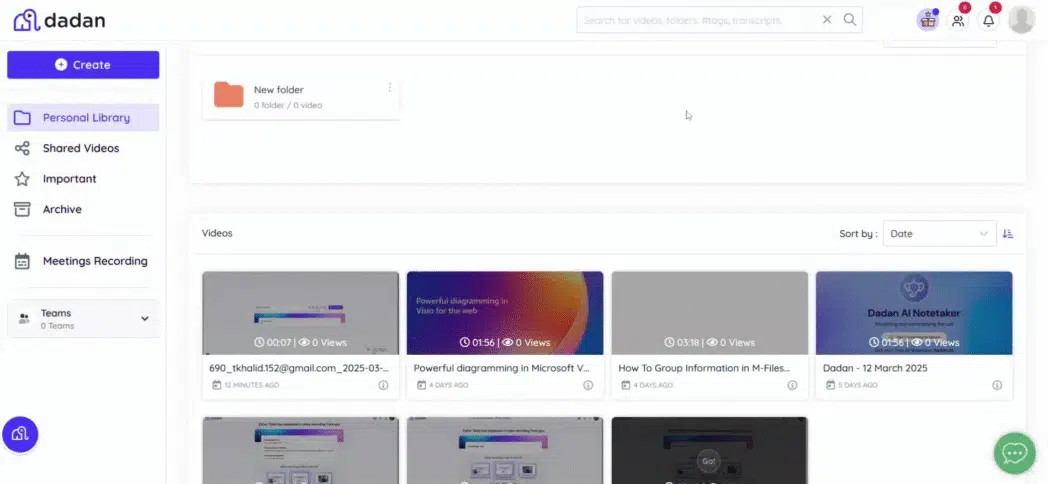
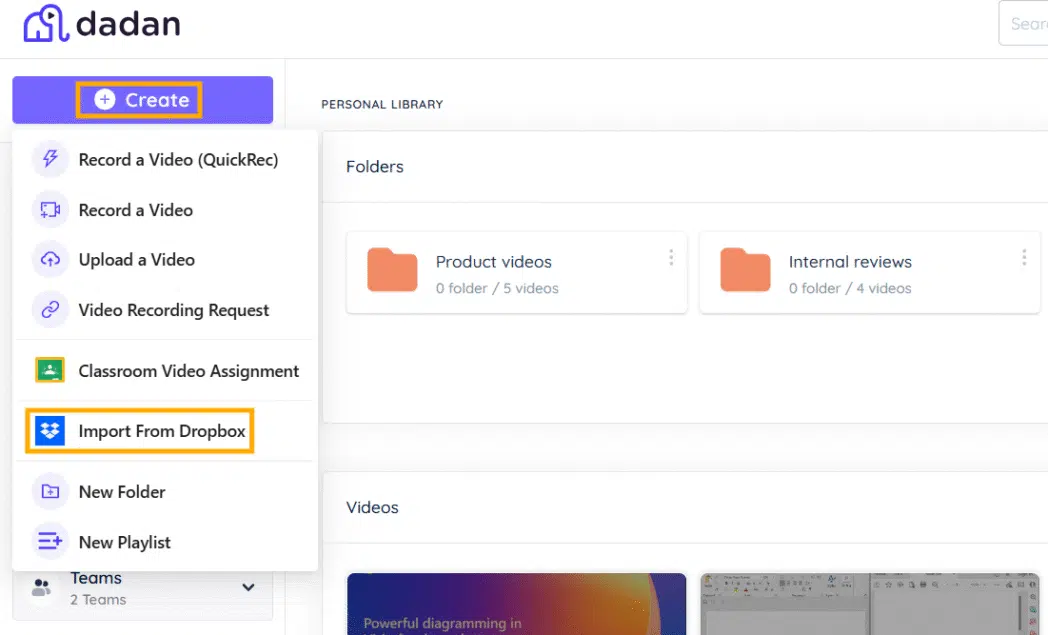
- Tap on the Create button and click on the Import from Dropbox option. If you have videos saved on your PC, you can upload them too by choosing the Upload a Video option

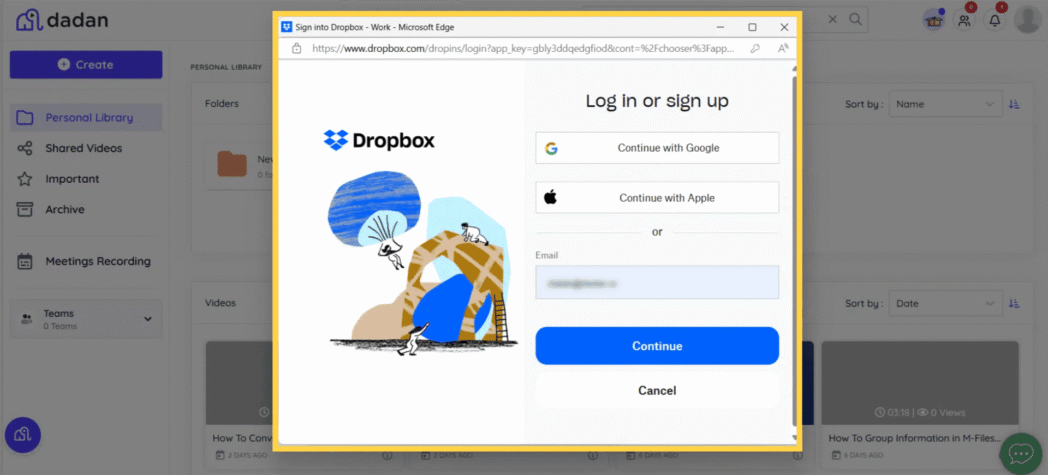
- Sign in to your Dropbox account
Enter your Dropbox account details
- Dropbox My Files section
After you log in, you will be automatically directed to the My Files section
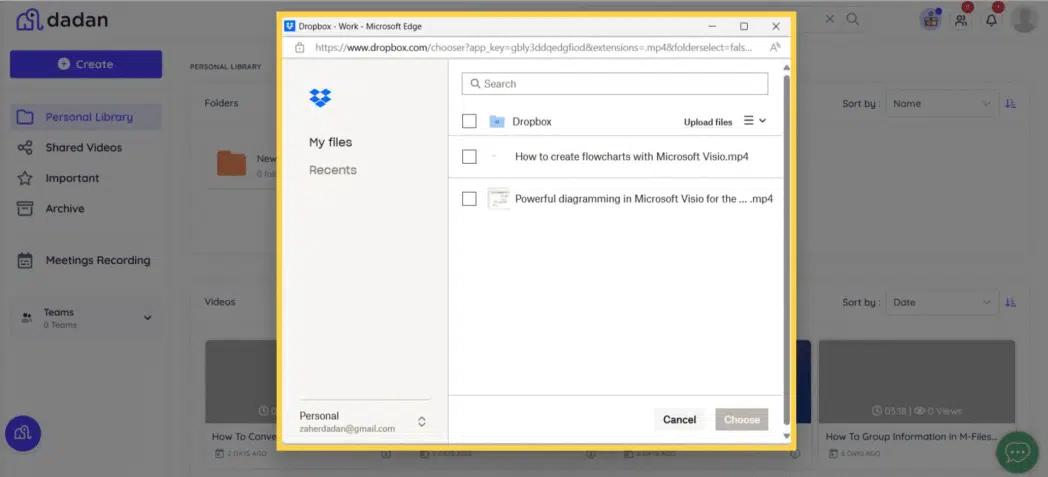
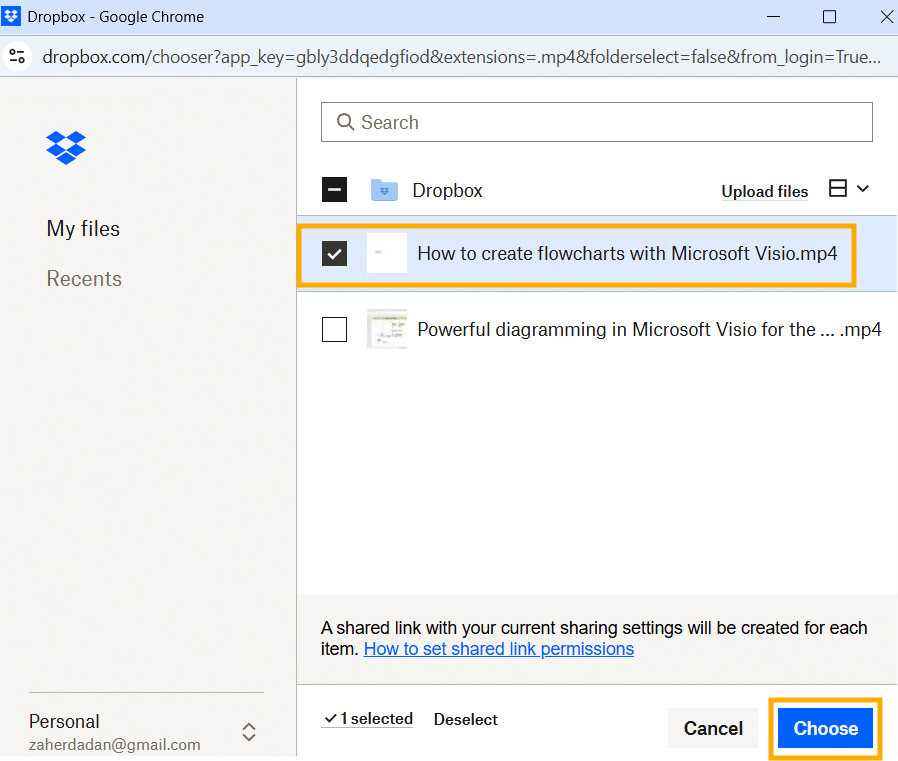
6. Select the video
Browse through your video collection, and check the box right next to the video you want to upload. Once you have done that, tap on the Choose button at the bottom
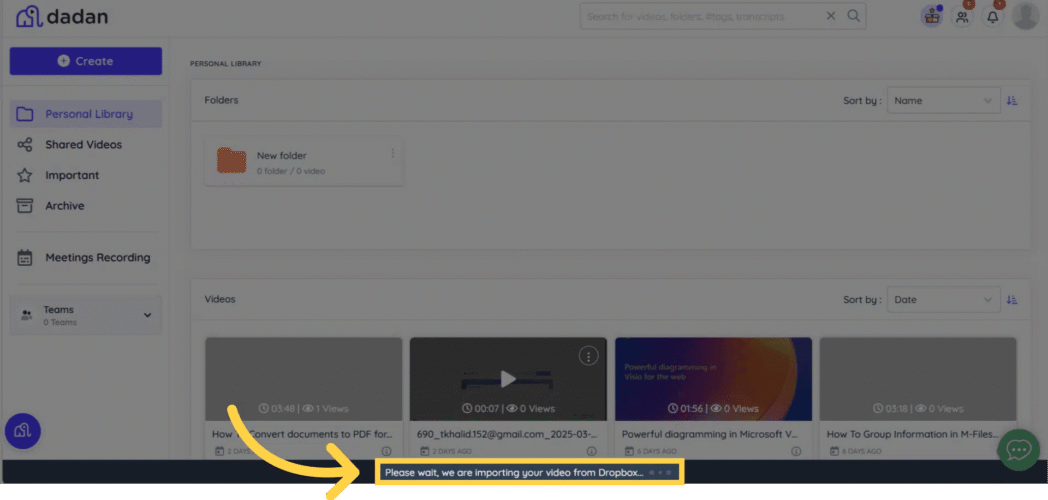
- Wait for the video to get uploaded
The upload process might take a while, depending on the file size.
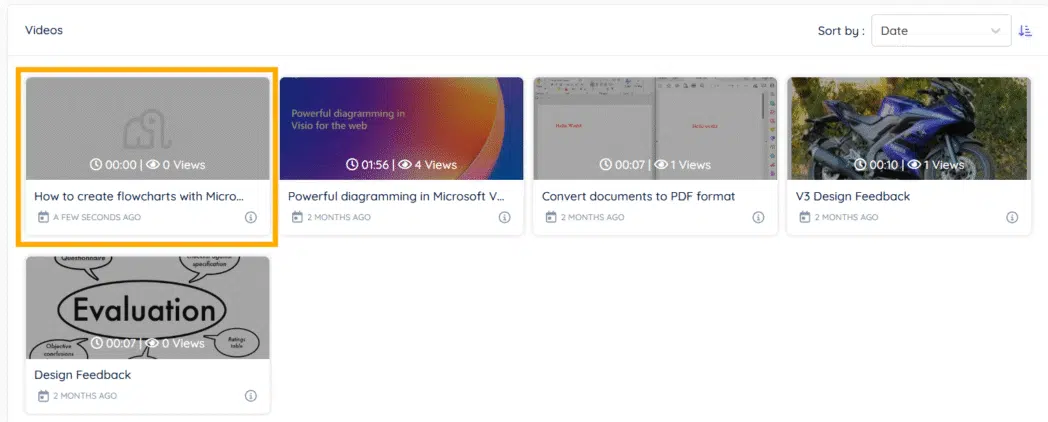
Once the video gets uploaded, you will find it in your video library
Bonus: Try our Free Text-based Video Editor
How to edit screen recording video for YouTube (Step-by-step guide)
The editing guide also lists down the various editing options dadan offers to users. You can use another screen recorder, but ensure that it has these features to make your video YouTube-ready.
- Access the editor
After you have uploaded the video, tap on it, and you will see the edit option on the right side of the screen
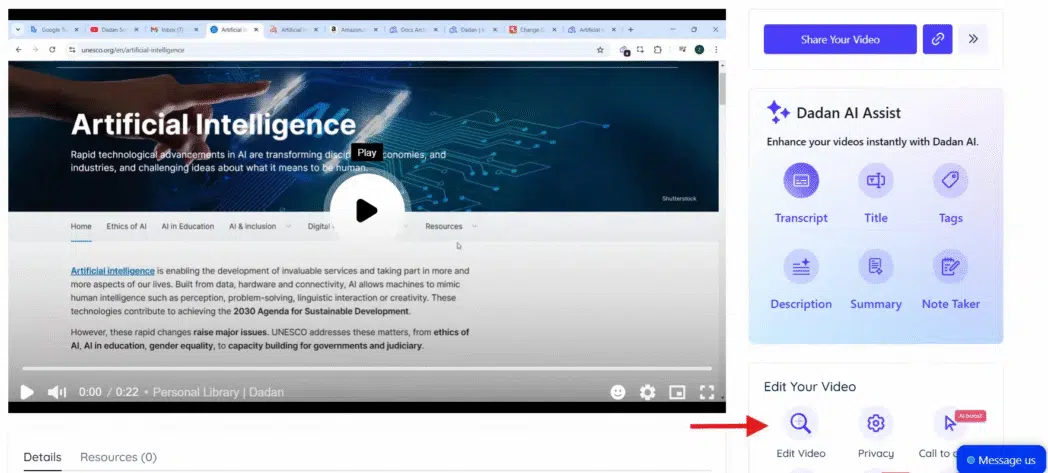
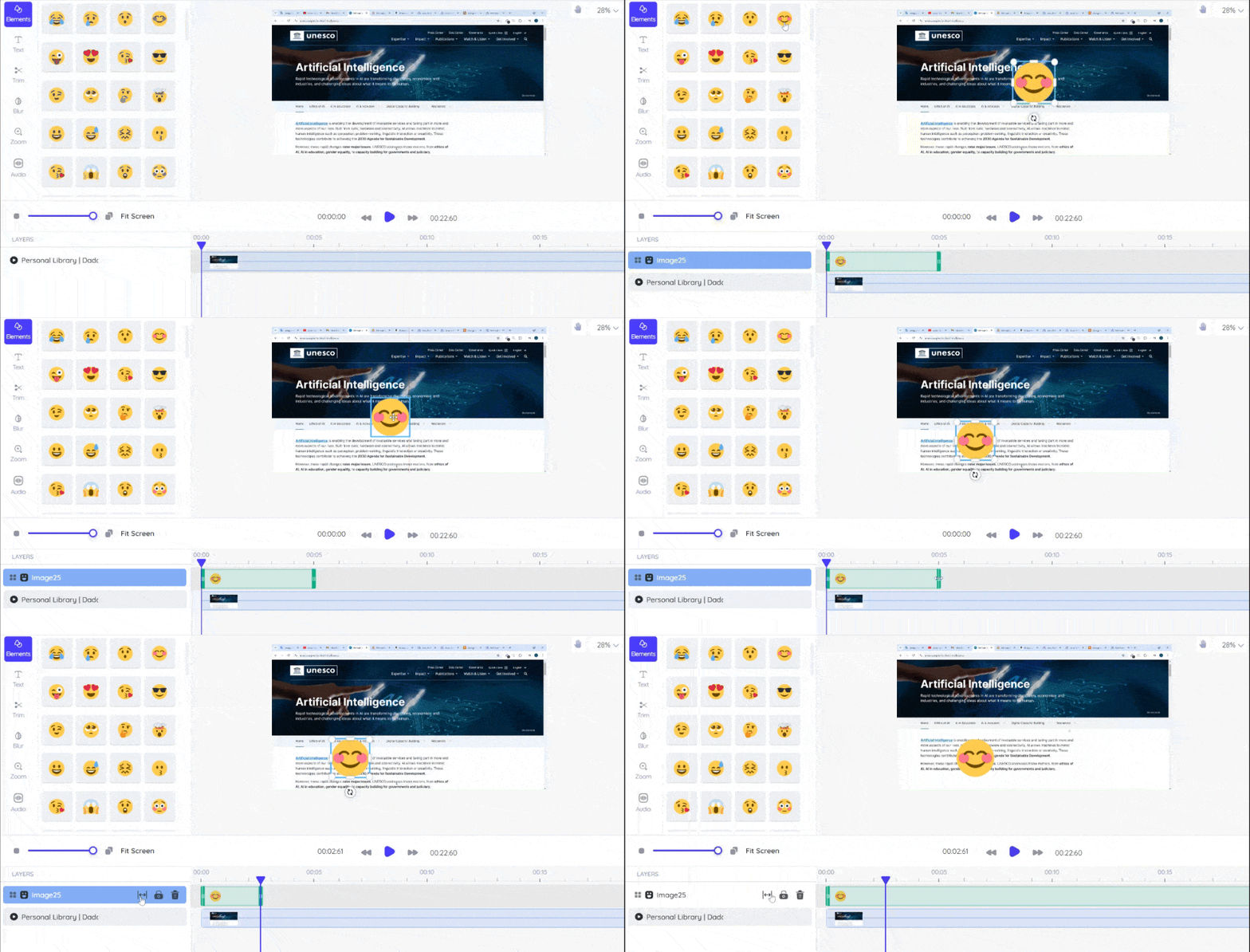
- Add elements like reactions and shapes
Elements make your videos more interesting and engaging for your audience. Like you add a smiley for a split second when you say something funny. Similarly, you add an arrow to point at something you want to highlight

- Blur sensitive information
This feature is especially useful if you’re editing a tutorial video. While recording, you might show users how to log in to a specific platform using your credentials. With blur, you can mask your credentials and avoid sharing them with others
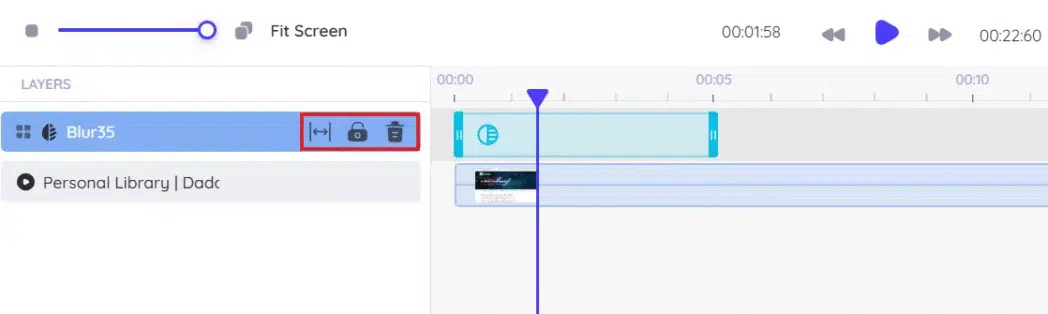
You can drag the blur box to the area you don’t want to share, and decide how long you want to keep it on the screen with the help of the sliders below
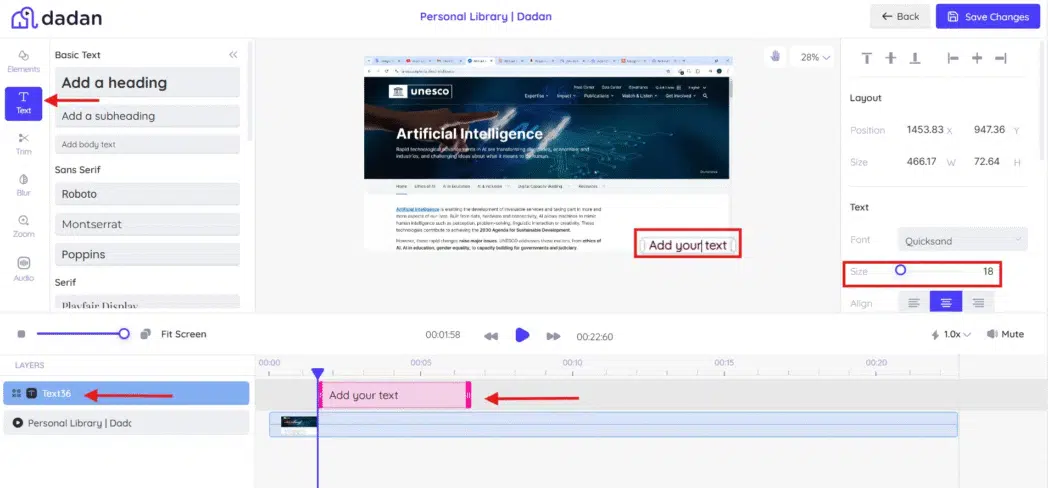
- Add text to your video
There are multiple ways to use text. You can add it to make a correction or add a note like “Important” so your audience knows that
- Trim video length
The trim is the most important feature in this list. The features we have covered already are optional. But using trim is non-negotiable. We say so because trim allows you to remove the unwanted stuff in the video, like awkward pauses. Remember, your audience has a short attention span, and by keeping the video to the point, you’re helping them focus.
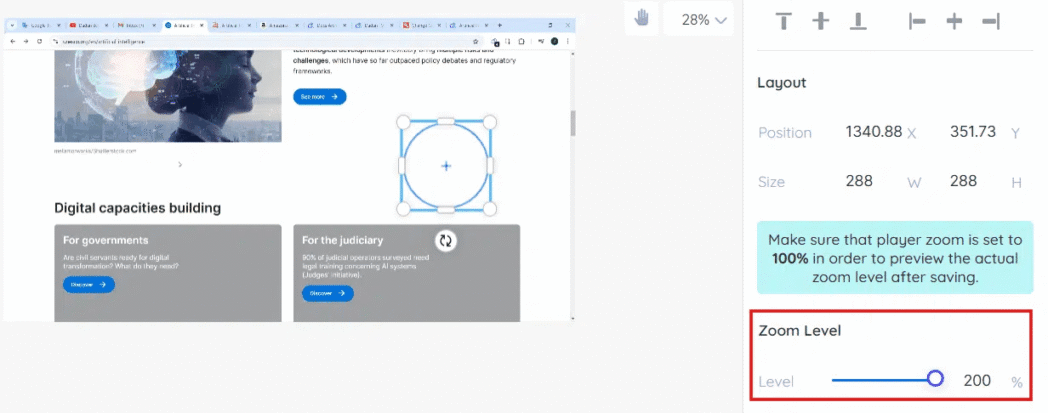
- Add zoom
The zoom feature helps you to zoom areas that your user might skip otherwise. Drag the zoom box to the area you want to zoom and choose the appropriate zoom level. From the sliders below, decide how long you want the zoom effect to stay on the screen
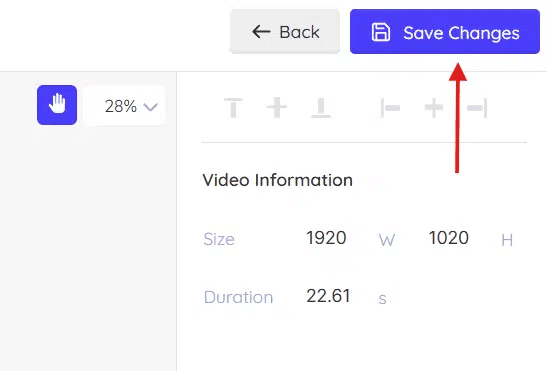
- Save the changes
Click the Save Changes button to apply all the edits to your video.
Uploading Your Video to YouTube
With dadan, you can directly upload your video to YouTube without switching platforms. Here are the steps to do that:
- Upload your video directly
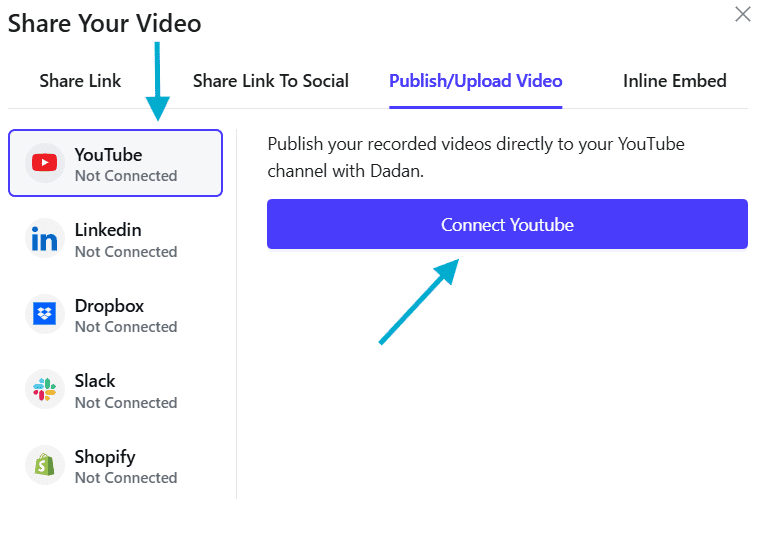
Tap on the Share Your Video button in the top-right corner
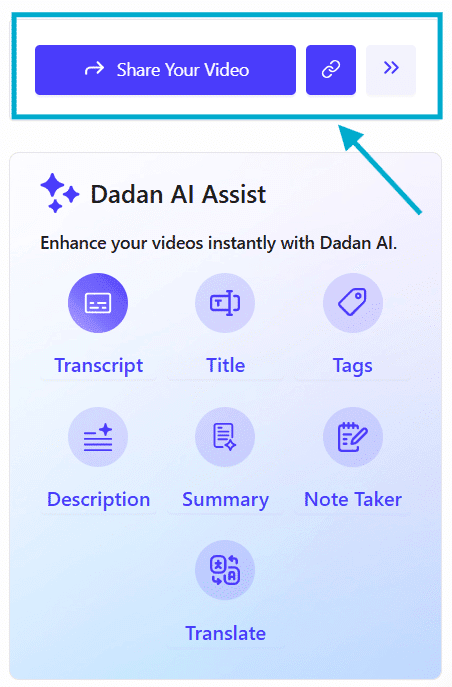
Click on the Publish/Upload Video option, and then select YouTube from the left panel. dadan will ask you to connect your YouTube account by logging in to it. After you log in, you can follow the steps to upload a video to your YouTube channel.
Start Editing
We designed this guide to help you get started with editing. The steps and features we share are basic ones that you can do on your own. The only thing that is stopping you from editing your video is a decent video editor. We suggest signing up and using a few editors to see how it works for you. We showed you how dadan works, and if you want to start with that, we invite you to a 14-day free trial.
Click on this Sign Up link to get started.
FAQs
1. What is the easiest way to edit a screen recording for YouTube?
Use a simple video editor that lets you cut, trim, and add basic effects. Most editors offer easy drag-and-drop interfaces.
2. Do I need professional software to edit my videos?
No, basic video editing tools can handle most YouTube editing needs. Professional software is only necessary for complex effects or high-end production.
3. Can I edit YouTube videos for free?
Yes, there are many free video editors that provide enough features for YouTube editing, including trimming, adding text, and basic adjustments.
4. Which video editor is best for beginners?
Editors with intuitive interfaces, such as dadan, iMovie, Clipchamp, or OpenShot, are ideal for beginners due to their ease of use.
5. How do I trim or cut parts of my screen recording?
Import your video into an editor, select the unwanted parts, and use the trim or cut tool to remove them. Then save or export your edited video.
6. Can I add text or captions to my video easily?
Yes, most editors have a text or captions tool, allowing you to add simple titles, explanations, or subtitles directly onto your video.
7. How do I remove background noise from my voice recording?
Use the noise reduction or audio enhancement feature commonly found in video editors. Some tools also allow you to edit audio tracks separately for better results.
8. What’s the best export format and resolution for YouTube?
Export your video in MP4 format with H.264 encoding. For most YouTube uploads, 1080p (1920×1080) resolution is recommended.
9. Can I edit videos on my phone or just on a desktop?
You can edit videos on both phones and desktops. Many mobile apps offer touchscreen-friendly editing features similar to desktop editors.
10. How do I add music or voiceover to my screen recording?
Import your audio or music track into the video editor and place it on the timeline. Adjust the volume or trim it as needed to match your video
Recommended Readings:
- How to Record YouTube Videos with Audio [Step by Step]
- 10+ YouTube Video Ideas for Beginners For 2026
- Best YouTube Screen Recorders in 2026
- How to Edit Screen Recording for YouTube (No Experience Needed)
- How to Monetize YouTube Channel with Screen Recorded Content
- How to Collaborate with Other YouTubers and Record Video
- How to write a YouTube Script that Engages and Converts (with Free Template)
- How to Transcribe a YouTube Video using AI in Minutes