If you’ve ever tried recording a Google Meet with a regular Gmail account, you’ve probably had to look for the record button only to realize it’s simply not available. It’s a small thing, but it always shows up at the worst time.
Google restricts the built-in recording feature to specific Workspace plans. Most people using Google Meet aren’t on those tiers.
But that doesn’t mean you can’t record your meeting. You absolutely can. Most remote teams, educators, creators, and client-facing professionals already rely on external tools anyway because they’re faster, easier, and free.
This guide walks you through the simplest ways to record Google Meet without premium, using tools you already have or can access instantly.
Why Google Meet Recording Requires Premium
Let’s clear up something that confuses almost everybody at first: Google Meet can record calls, but it doesn’t offer built-in recording to every user.
That’s because the feature is designed as a paid, value-added tool inside Google Workspace. When you use Google’s native recorder, the platform automatically handles storage, permissions, and meeting assets, things that only make sense inside a managed, paid environment.
Google ties the recording feature to higher-tier subscriptions, such as Business Standard, Business Plus, Enterprise, and others, because recordings are stored directly in Google Drive and fall under organizational compliance rules.
Because of this design, personal accounts and lower-tier Workspace plans won’t ever see the record button.
How to Record Google Meet Meetings Without Premium and Without Permission as an Attendee (Step by Step With Screenshots)
Here are three simple methods to record Google Meet sessions without Premium and without permission as an attendee.
Method 1: Use a free screen recorder (Dadan)
Method 2: Use built-in screen recording on your device
Method 3: Automatically record Google Meet sessions using an AI meeting note taker
Method 1: Use A Free Screen Recorder (Dadan)
For most people, the easiest way to record a Google Meet without a premium plan is to use a screen recorder.
Dadan gives you a few ways to do that right in your browser, through its Chrome extension, or with the desktop app (both Windows/OS).
It works on any Gmail account, doesn’t depend on Workspace restrictions, and gives you full control over what gets captured, like screen, audio, webcam, or all three. And since everything runs inside your browser or app, there’s nothing to configure.
Most users start with the browser version because it opens instantly, but the app and extension are great when you want recurring recordings, hotkeys, or more consistent audio capture.
Here’s how to record your Google Meet using Dadan:
Step 1: Create Your Free Account on Dadan
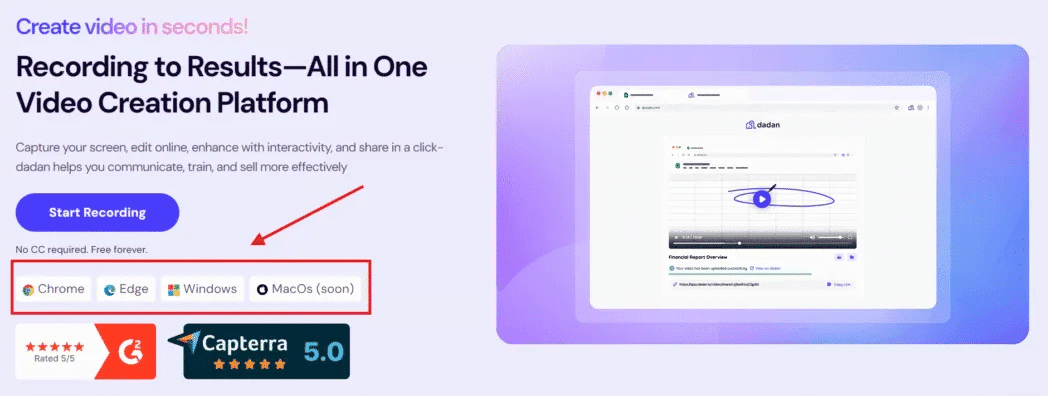
Visit dadan.io and download the Mac or Windows app. If you’d rather record directly from your browser, open the Chrome Web Store and install the Dadan Chrome extension.
You’ll see the option to Start Recording or Sign In, but Dadan will prompt you to log in first using:
- Google account
- Microsoft account
- Apple
- Email + password
Create your free account to proceed.
Step 2: Choose How You Want to Record
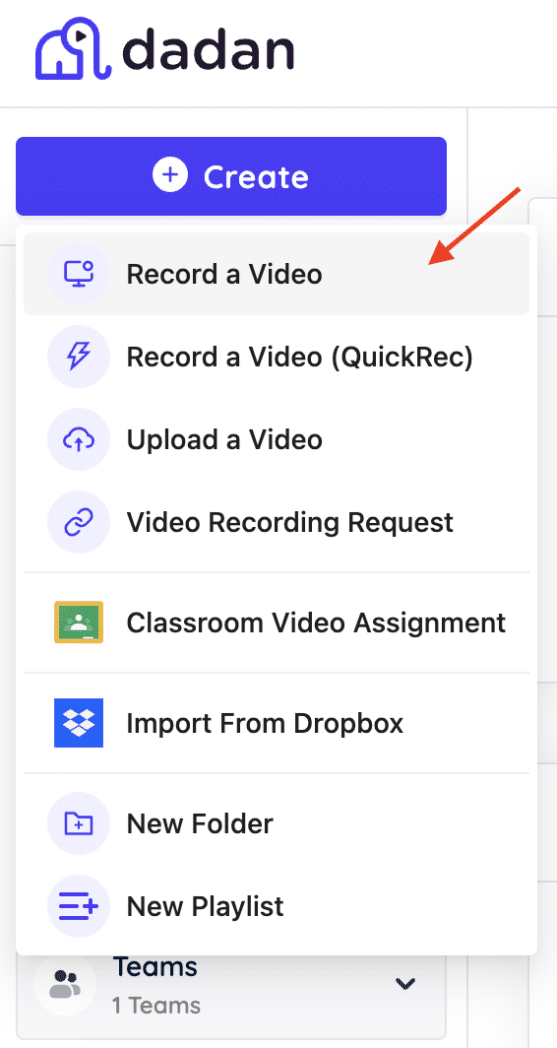
Tap on Create on the top left and select Record a Video.
Choose how you want to record:
- Screen only
- Webcam only
- Screen + Webcam together
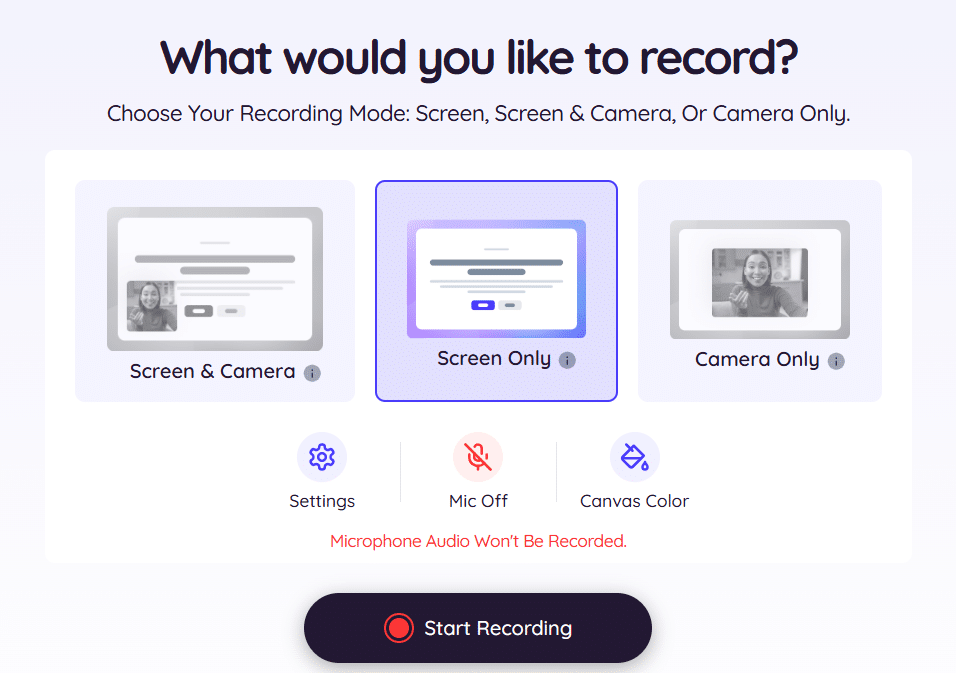
This determines what Dadan captures when you’re recording.
Step 3: Allow Camera and Microphone Access
When Dadan asks for permissions, allow access so audio and video can be captured correctly.
Step 4: Start Recording
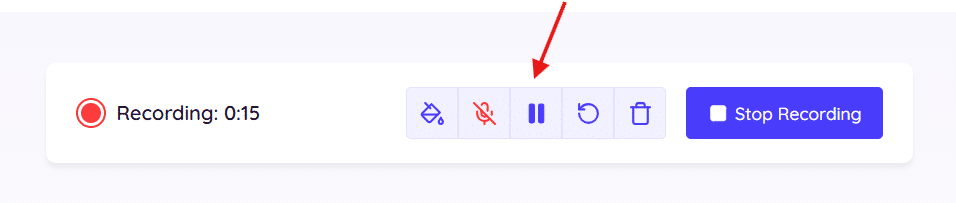
Start recording. A short countdown appears, and Dadan starts recording immediately afterward. A small indicator or browser icon will show that the recording is active.
Step 6: Stop the Recording
Click the stop button when your meeting ends. The file is automatically uploaded to your library.
Step 7: Edit Your Recording
Once processing is done, you’ll be able to download, duplicate, and edit your video. On the sidebar, Dadan AI Assist gives you a set of automated tools to speed up your workflow.
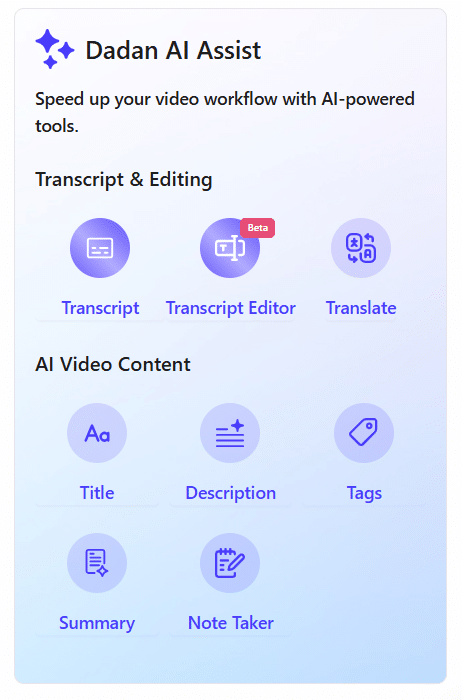
You can click Transcript (or other options) and let Dadan generate a transcript, metadata, description, summary, meeting notes, etc.

You can then edit video by transcript, trim video, add annotations, embed interactive elements if you like, and share.
Step 8: Get Your Meeting Recap
Once your meeting recording is processed, Dadan turns it into a structured meeting recap so you can quickly understand what happened without going through the entire recording.
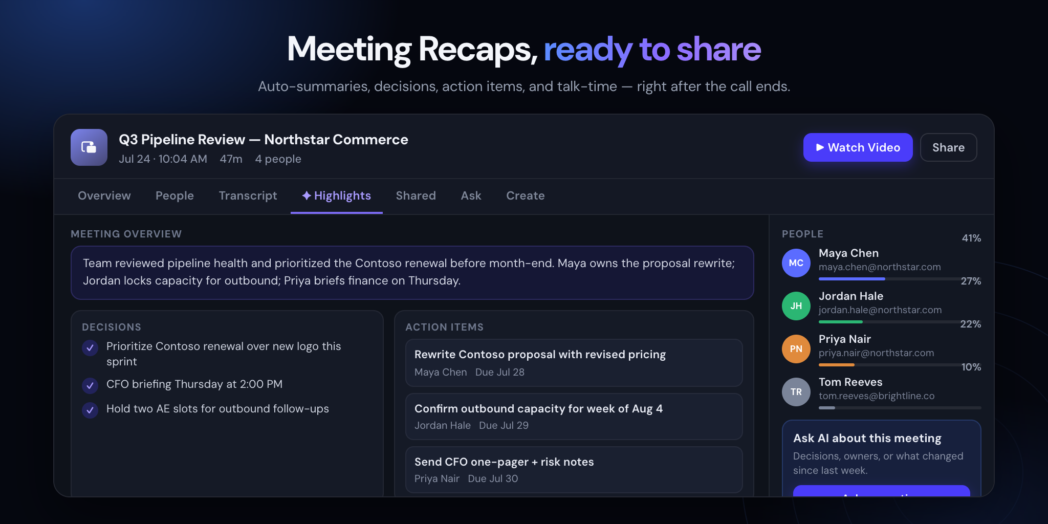
Your recap brings the important information together in one place:
- Meeting Overview: Get a quick summary of the main topics discussed.
- Highlights: See the most important moments and takeaways from the meeting.
- Decisions: Review key decisions made during the conversation.
- Action Items: See tasks that need to be completed and who is responsible for them.
- Transcript: Read the complete meeting transcript and find specific parts of the conversation.
- People: See meeting participants and their talk-time breakdown.
- Ask AI: Ask questions about the meeting and quickly find relevant information.
- Watch & Share: Go back to the recording when you need more context and share the meeting with others.
No need to replay the entire meeting. Dadan gives you the key takeaways, decisions, and next steps in one easy-to-review recap.
Method 2: Use Built-In Screen Recording On Your Device
Not everyone wants to install an app immediately, and both Windows and macOS do include simple screen recorders. These tools work in most everyday situations, though they’re fairly limited compared to a dedicated recorder, especially if you need editing, sharing, or AI-powered features afterward.
Still, if you only need a quick recording and don’t require any meeting insights or automation, the built-in options can handle the basics.
Windows (Xbox Game Bar)
Xbox Game Bar is built into Windows 10 and Windows 11 and can record most Google Meet sessions in a browser. Before recording, make sure the feature is enabled in Windows Settings.

To record a Google Meet using Game Bar:
- Press Windows + G to open the Xbox Game Bar overlay.
- If needed, open Settings to check audio options.
- Start recording with Windows + Alt + R.
- Toggle your mic with Windows + Alt + M if required.
- Stop recording using Windows + Alt + R again.
Your file is automatically saved in Videos, under the Captures folder as an MP4. If you’re using a Mac instead of Windows, macOS has two built-in recording options.
macOS (QuickTime + Screen Capture Shortcut)
macOS provides two native ways to record your screen. Both work well for simple captures.

QuickTime Player
- Open QuickTime Player → File → New Screen Recording
- Choose audio input if needed
- Select full screen or a specific area
- End the recording using the Stop button in the menu bar
- Save the file via File → Save
Screen Capture Shortcut
- Press Shift + Command + 5 to open the Screenshot Toolbar.
- Choose a recording option: Record Entire Screen, Record Window, or Record Selected Portion.
- Click Options to set save location, microphone input, pointer visibility, timer, or floating thumbnail.
- Click Record. When you’re done, stop the recording from the menu bar.
- If the floating thumbnail appears, you can save the file directly from the preview.
macOS saves recordings as .mov files named “Screen Recording 2026 [time].mov”.
➤ Bouns Read: QuickTime Player vs Dadan Comparison
Method 3: Record Google Meet Session Automatically Using AI Meeting Note Taker
Some meetings are easy to remember to record. Others aren’t, especially when your day is full, and calls overlap. Dadan’s Meeting Recorder solves that problem by capturing your Google Meet sessions automatically once your calendar is connected.
You don’t need to start a recording manually, Dadan joins the meeting for you and saves the file to your library, ready for processing.
After the meeting ends, AI Assist organizes the recording into a format you can review quickly, such as a transcript, notes, summary, chapters, topics, and more.
Below is the complete step-by-step flow.
Step 1: Connect Your Calendar to Enable Automatic Recording
When you open Dadan, the Meeting Recorder option appears in the left menu. Once your Google Calendar is connected:
- Dadan detects upcoming Google Meet sessions.
- It joins them automatically.
- The meeting is recorded and saved automatically without you pressing any buttons.
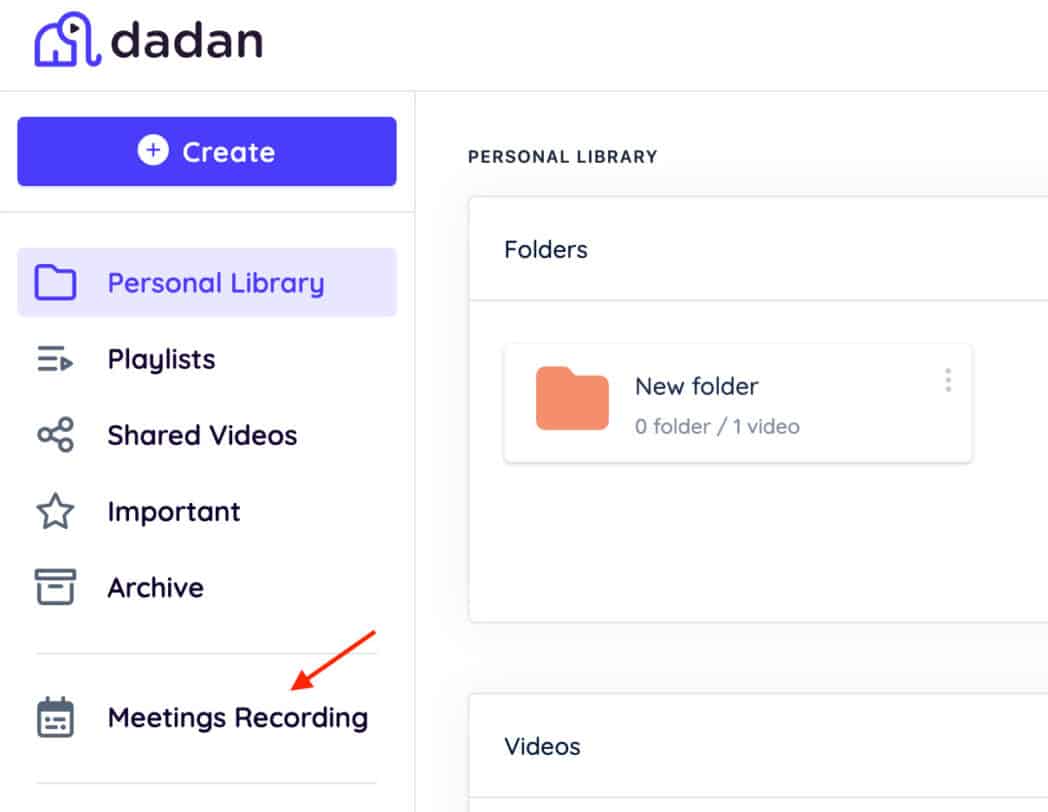
Your recordings stay inside your Dadan workspace, where you can edit, organize, and process them.
Step 2: Let Dadan Record and Upload the Meeting Automatically
When the meeting starts:
- Dadan joins as a participant.
- The session is recorded automatically.
- The file appears in your Dadan library after the meeting ends.
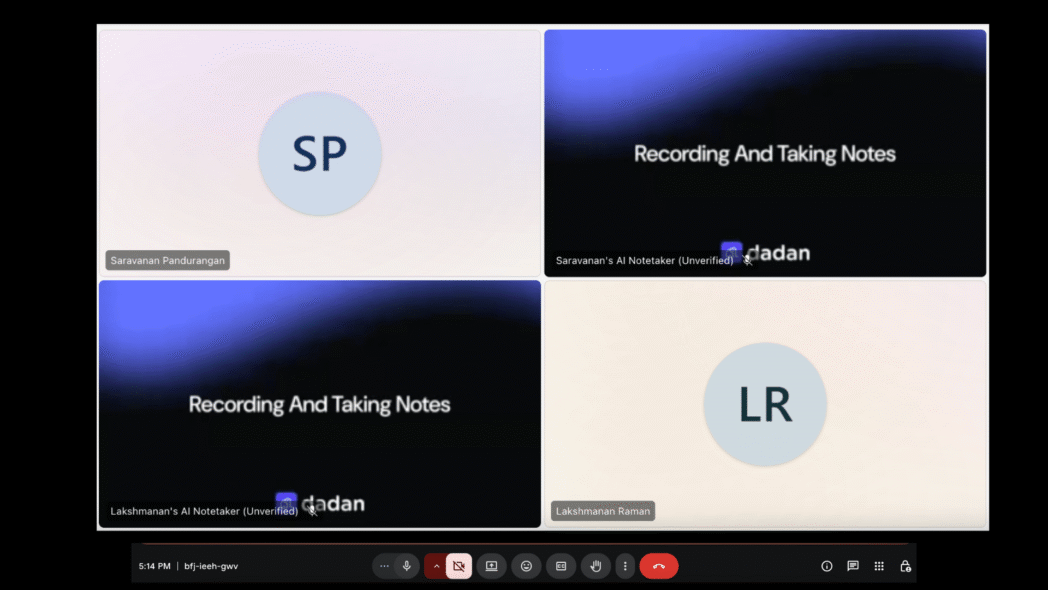
There’s no need to click “Record,” no extensions required during the call, and no risk of forgetting to capture it.
Step 3: Transcribe the Recording Automatically
Once the meeting ends and the recording appears in your Dadan library, the transcript will be generated automatically. There’s nothing to configure, and no extra step is required to trigger it.
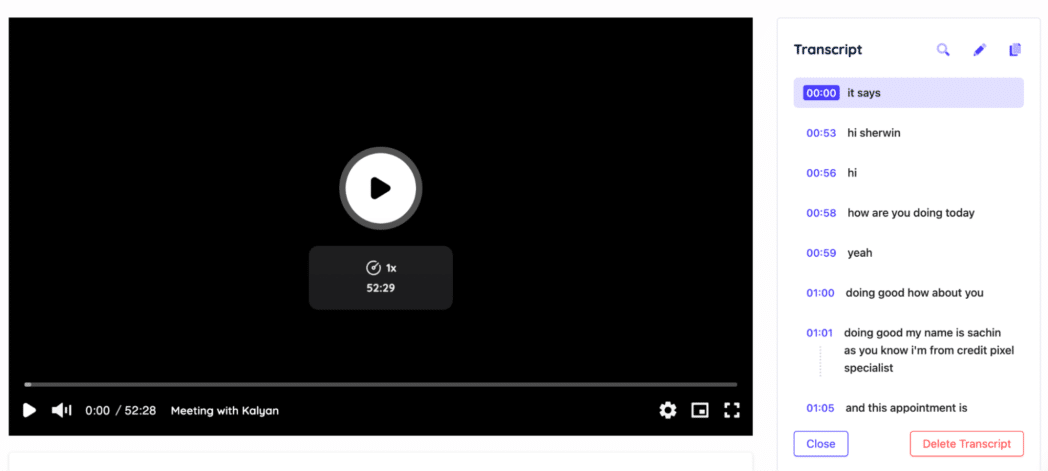
As soon as processing starts, you’ll see the transcript appear in the workspace, ready for review or editing.
Automatic recording and AI notes simplify the entire workflow, but it’s still important to record meetings responsibly. The next section covers the basics to keep in mind before you hit record or before Dadan joins a meeting on your behalf.
Privacy And Legal Tips
Even though Google Meet allows external recording, you still need to handle it responsibly. Most teams follow one simple rule, which is to make sure everyone in the meeting knows a recording is happening. It keeps expectations clear and prevents complications later.
A few practical points help you stay on the safe side:
- Always inform participants before recording a meeting. A quick note before the call starts keeps everyone on the same page.
- If your team is spread across different regions, recording expectations and laws might differ. Keep that in check.
- Anything you share on screen becomes part of the recording, including documents, notifications, and open tabs. So, review the video if something sensitive pops up.
- Transcripts, summaries, and AI-generated notes come from the same recorded conversation, so treat them with the same level of care.
- Share recordings or generated notes only with people who need access, especially when discussions involve internal or confidential material.
- If you’re sharing the file externally, use privacy controls or password protection to limit who can view the content and keep the file secure.
Conclusion
Recording Google Meet without a premium plan is not complicated. You can use a dedicated recorder when you want more control, fall back on built-in tools when you need something quick, or let AI handle the parts you don’t have time to revisit.
Each method serves a slightly different purpose, and once you’ve tried them, you’ll instinctively know which one fits you better.
The real advantage comes from having options. Some days you only need a clean recording. Other days, you want the recording to be something more usable, like notes, a transcript, a summary, anything that helps you recall what actually happened on the call.
FAQs
Can I record Google Meet without a premium Google Workspace plan?
Yes. Google reserves its built-in recorder for certain paid Workspace tiers, but you can still record the meeting externally using tools like Dadan or by using screen-recording features on your device.
What is the easiest way to record Google Meet for free?
Most people prefer a dedicated recorder because it keeps everything in one place and removes manual steps. But if you only need a simple capture, your computer’s built-in screen recorder works too.
How can I record Google Meet on Windows without premium?
Press Windows + G to open Xbox Game Bar, start recording, and your meeting will be saved in the Captures folder.
Do I need the host’s permission to record externally?
External tools don’t require permission from Google’s side, but you should still let participants know you’re recording. It keeps the meeting transparent.
Will the host get notified if I use an external recorder?
No. External recording doesn’t trigger a Google Meet notification.
Can I record both audio and video without premium?
Yes, but it depends on your setup. Most external recorders can easily capture your mic and screen, but system audio behaves differently across devices. If you’re using Dadan, the app records your mic and screen, but system audio support depends on your device settings.
Will my recording include the chat, captions, or participant tiles?
If they appear on your screen, they’ll be part of the recording. If not, they won’t.
What is the free Chrome extension to record Google Meet?
Dadan offers a free Chrome extension you can install from the Chrome Web Store. It records your meetings directly from the browser and uploads them to your Dadan library.
Sign up now.
Recommended Readings:
- 5 Best Screen Recorder Chrome Extension – Free + Paid
- 9 Best Webcam Recorders in 2025 by Cost and Ratings
- How to record a webinar without host permission
- How to Record a Zoom Meeting as a Participant – 4 Easy Ways
- How to Record GoToMeeting as Attendee Without Permission
- How to Write Minutes of Meeting Easily using AI
- How to Record Skype Calls on Windows and Mac for Free
- How to Record a Microsoft Teams Meeting in Simple Steps
- Best Way to Capture Meeting Notes in 2026: AI vs Manual