You can record a Zoom meeting as a participant and there are several ways to do that. It depends on whether you have the host’s permission or not. With permission, you can use Zoom’s built-in recording feature. Without it, third-party screen recorders offer a reliable alternative
In this blog, we’ll share 3 easy ways to record Zoom meeting as a participant. Whether you have the host’s permission or not, you will find this blog useful.
- Recording Zoom Meetings as a Participant with Host’s Permission
- Recording Zoom Meetings Without the Host’s Permission
- How to Record Zoom Meetings as a Participant Using Screen Recorders
- Bouns: How to Record Zoom Meetings automatically using AI Meeting Note Takes
1. Recording Zoom Meetings as a Participant with Host’s Permission
Recording a Zoom meeting as a participant is straightforward when the host grants you permission. Once the host allows it, you’ll see the recording option appear in your Zoom controls. After you tap on the recording button, everyone in the meeting is notified that recording has started. This ensures that there is full consent and accountability among participants.
Here are the steps you need before you start recording a Zoom meeting as a participant with host approval.
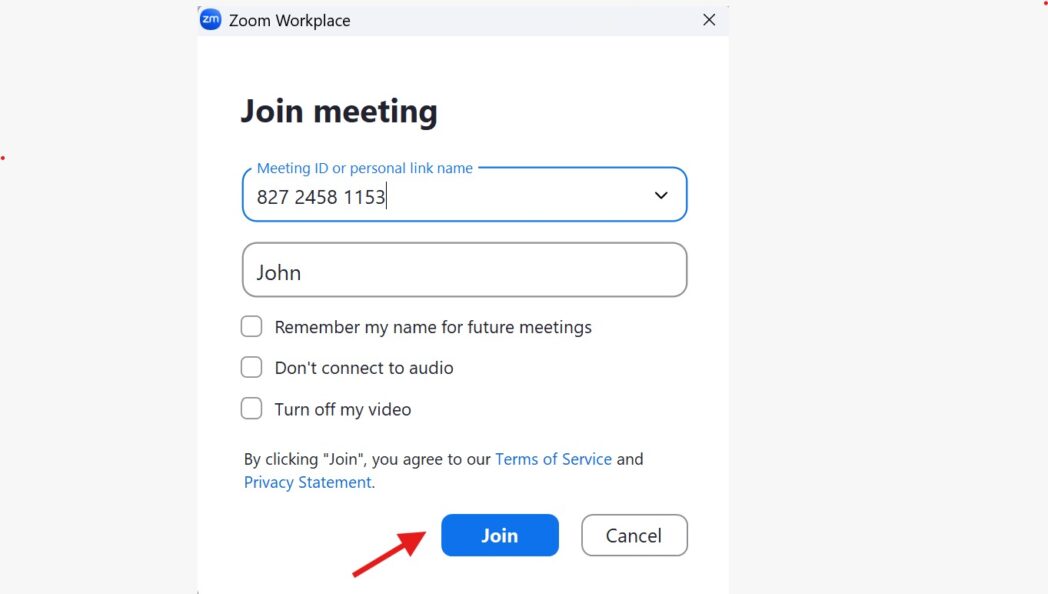
Step 1: Join the Zoom meeting.
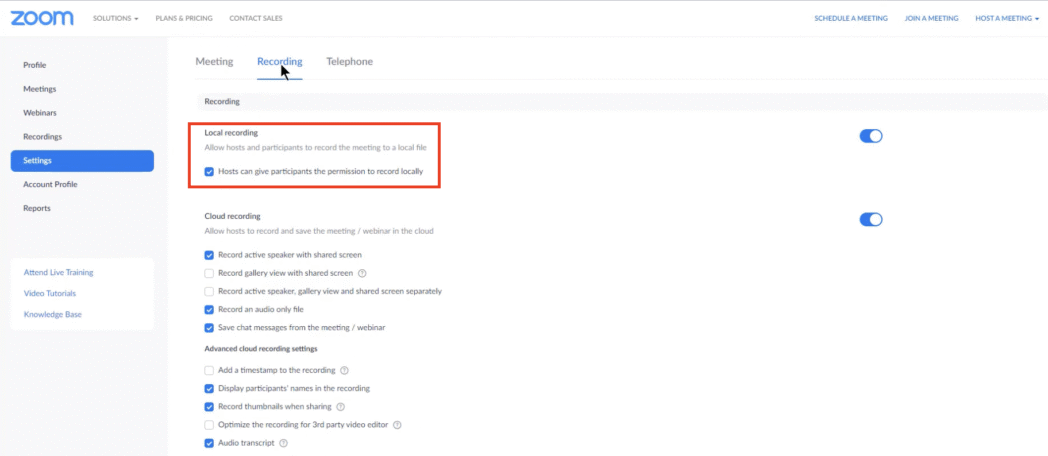
Step 2: Request the host to grant you recording permission.
Note: The host must enable the option “Host can give participants permission to record locally” before the meeting, so you can request recording access during the session.
Click on the Participants button at the bottom of the Zoom window.
Hover the mouse pointer over your name in the participant list, click More, and select Allow Record
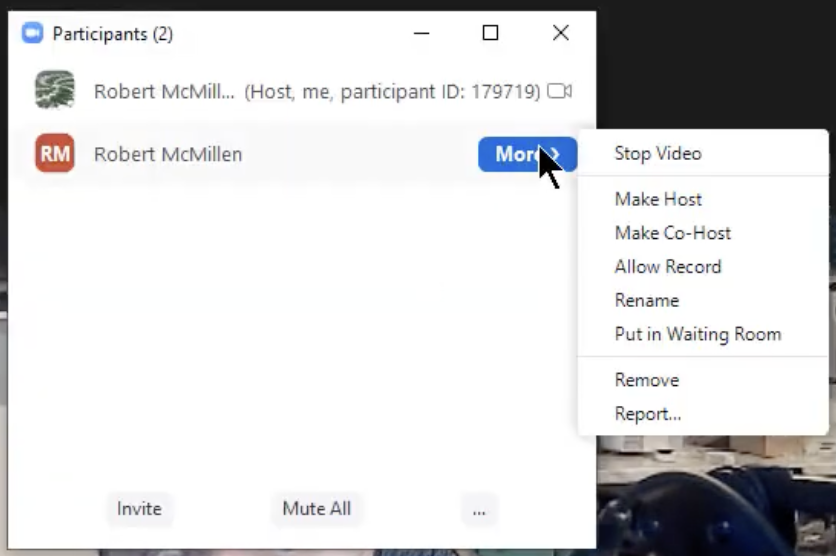
Here’s what happens after the permission is granted:
Step 3: Once you have permission, a Record button will appear in your Zoom toolbar.
Step 4: Click the Record button to start recording the meeting
Step 5: You can pause or stop the recording at any time using the controls in the toolbar.
When the meeting ends, Zoom will process and save the recording to your computer
2. Recording Zoom Meetings Without the Host’s Permission
If you don’t have the host’s permission to record a Zoom meeting, you can still record it using a third-party meeting recorder like dadan.
This approach is useful when the host is unable or unwilling to grant recording rights. Or simply you want to record the entire session discretely. dadan records your screen, audio, and even your webcam without sending any notifications to other participants.
Here are the simple steps to record a Zoom meeting using a third-party screen recorder like dadan:
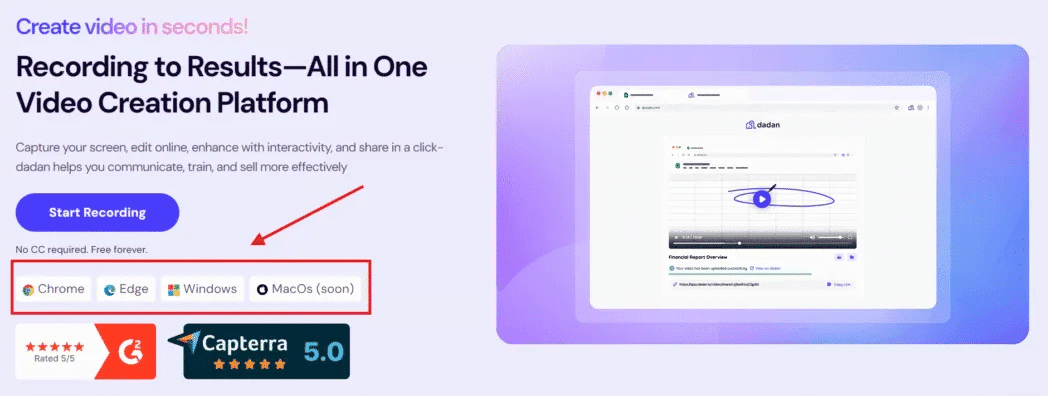
Step 1: Download and install dadan on your Mac or Windows PC, or add it as a Chrome extension.
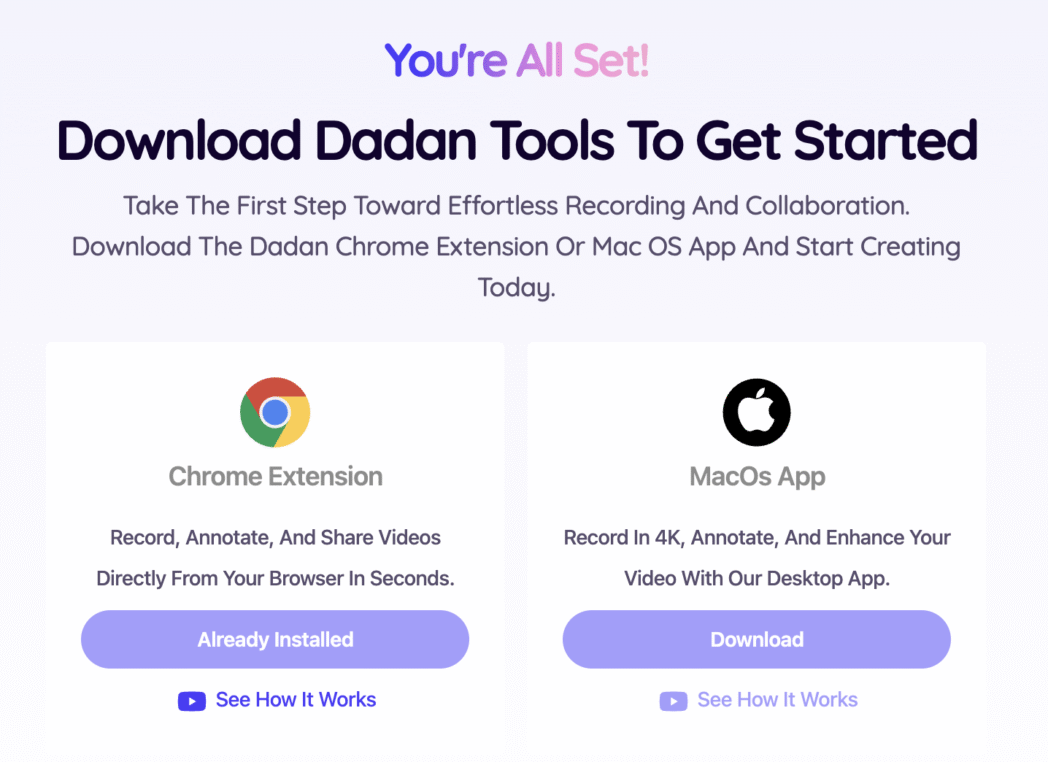
Step 2: Sign up with your email address and join your Zoom meeting as usual
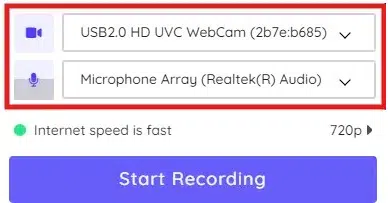
Step 3: Select the option to record your screen.
Enable microphone recording to capture your own voice
Step 4: In the next screen you will be asked to choose the recording area. Choose to record the entire screen, a specific window, or a browser tab. We suggest you choose the recording a tab option, so that nothing else on your screen gets recorded even when you switch windows
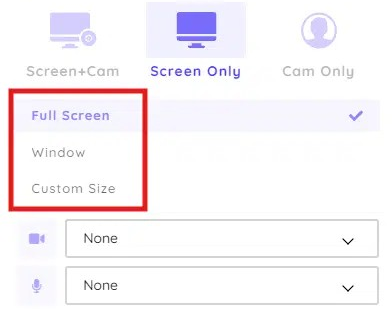
Tap on the “Also share audio option” if you want to record everyone else’s voice (this option is visible only for tab and entire screen recording mode) and click on
Step 5: Click Start Recording in Dadan moments before your Zoom meeting starts.
When your meeting is over, click “Stop Recording” in Dadan.
Your recording will be saved to your Dadan library, where you can edit, trim, annotate, and share it instantly via a secure link or download it for offline use

3. How to Record Zoom Meetings as a Participant Using Screen Recorders
You can use screen recording software like Dadan or Loom to record your meetings as a participant without needing the host’s permission.
Screen Recording Software: Dadan
Steps:
Step 1: Install and launch the Dadan app or Dadan’s Chrome Extensions on your computer.
Step 2: Select whether you want to record the full screen, a specific window, or a custom region.
Step 3: Turn on system audio and microphone based on what you want to capture from the Zoom call.
Step 4: Join the zoom meeting as usual.
Step 5: Click the Start Recording button to begin capturing your screen while the Zoom meeting is running.
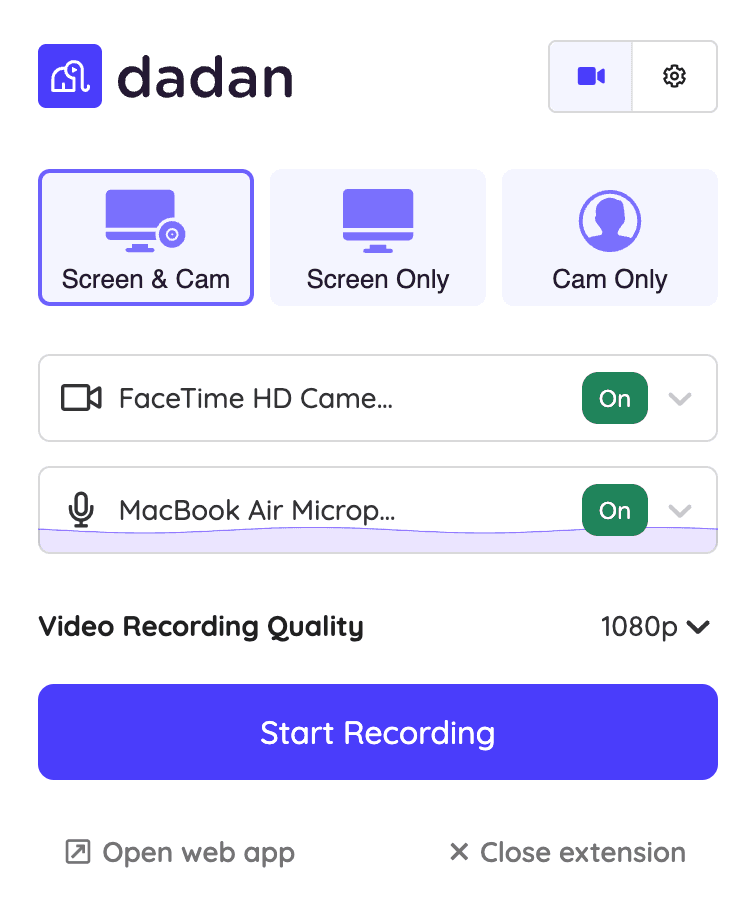
Step 6: Pause or resume the recording anytime, if needed.
Once the meeting ends, stop the recording in Dadan. Your video will be saved automatically, and you can edit or share it from the Dadan dashboard.
If you don’t want to rely on third-party tools, both Mac and Windows provide built-in screen recording options. Here’s how you can use them-and what you should know before you start.
For Mac: QuickTime Player
Steps:
Step 1: Open QuickTime Player from your Applications folder.

Step 2: Click File > New Screen Recording.
Step 3: In the recording toolbar, click Options to select your microphone if you want to capture your own voice.
Step 4: Start your Zoom meeting and click Record in QuickTime to begin capturing your screen.
What you must know:
By default, QuickTime Player only records external audio. Meaning only your voice through the microphone. It does not capture the internal audio of other Zoom participants.
To record both your voice and the meeting audio, you’ll need to install a virtual audio driver such as Soundflower or BlackHole and route your system audio through it. Yeah, that’s a bit of a work, but if you’re comfortable with that, QuickTime Player could be a good choice.
For Windows: Xbox Game Bar
Steps:
Step 1: Start your Zoom meeting.

Step 2: Press Windows + G to open the Xbox Game Bar.
Step 3: Click the Record button in the Capture widget or press Windows + Alt + R to start recording
Step 4: To include your microphone audio, press Windows + Alt + M during recording.
What you must know:
- The Xbox Game Bar is primarily designed to record games and may not always work reliably with Zoom. We did a bit of a research on Reddit and found some significant issues users faced while recording Zoom meeting using GameBar:
- Not recording system audio (other participants’ voices) .
- The recording stops if you switch to another window
- A few users faced this issue where GameBar stopped recording when a participant started sharing their screen during the meeting
4. How to Record Zoom Meetings automatically using AI Meeting Note Takes
Here’s how you can let Dadan’s AI Meeting Note Taker automatically record and capture your Zoom meetings with zero manual effort.
Step 1: Install the Dadan app or Chrome extension, then open Dadan and go to the Meetings Recordings section.
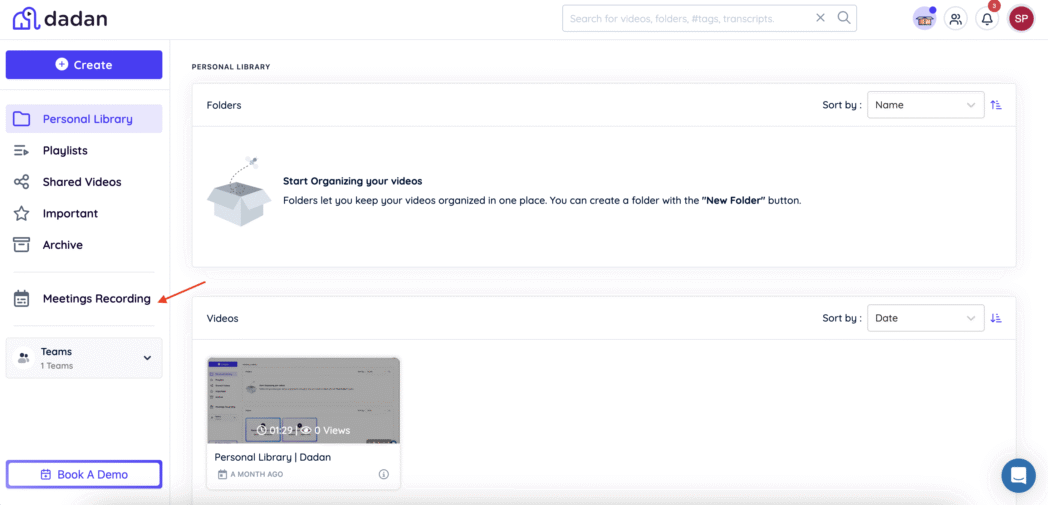
Step 2: Click on Manage Calendar and connect your calendar to Dadan.
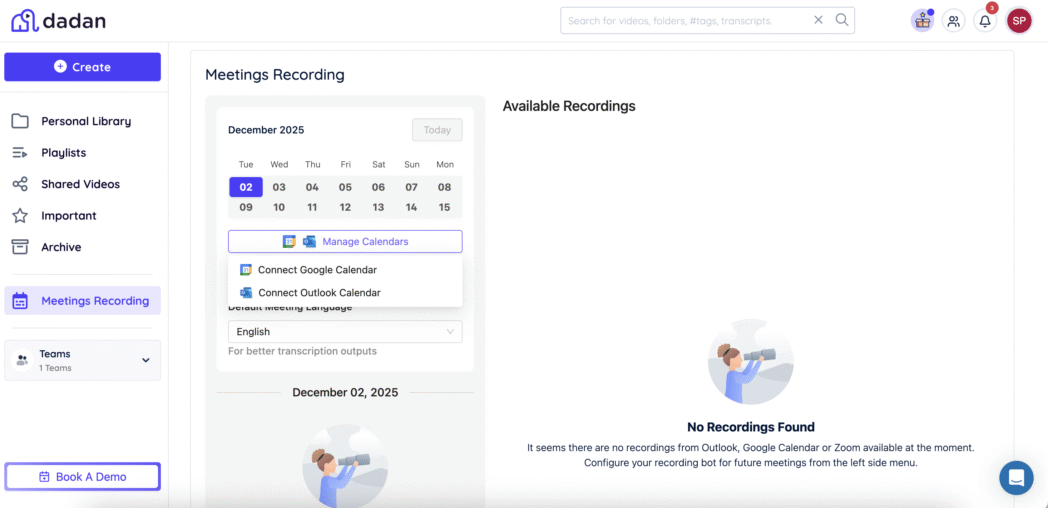
Step 3: Once connected, it will show the list of meetings in your calendar. You just need to click Record. If the meeting is not listed in your calendar, you can simply copy and paste the meeting link.
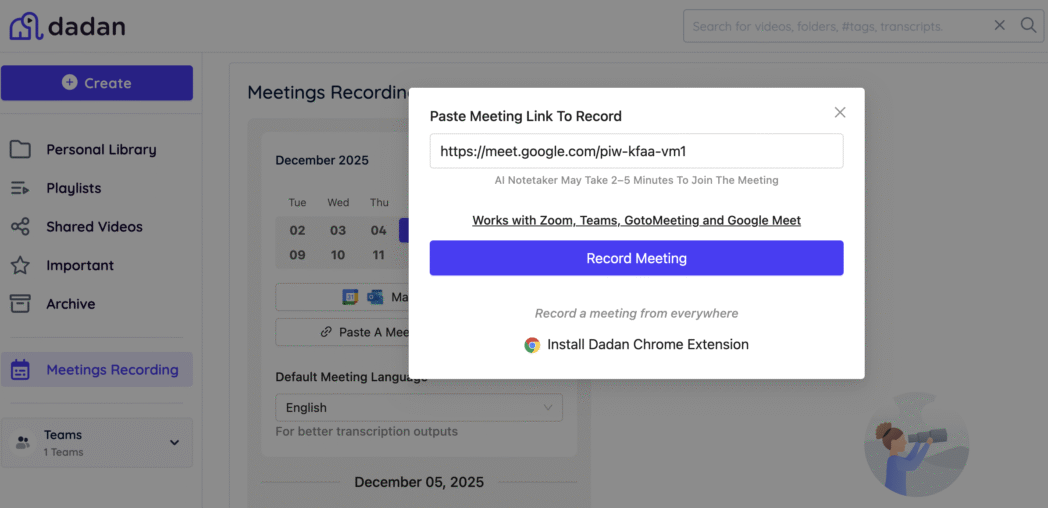
Step 4: Choose the meeting language. Dadan supports 35+ languages.
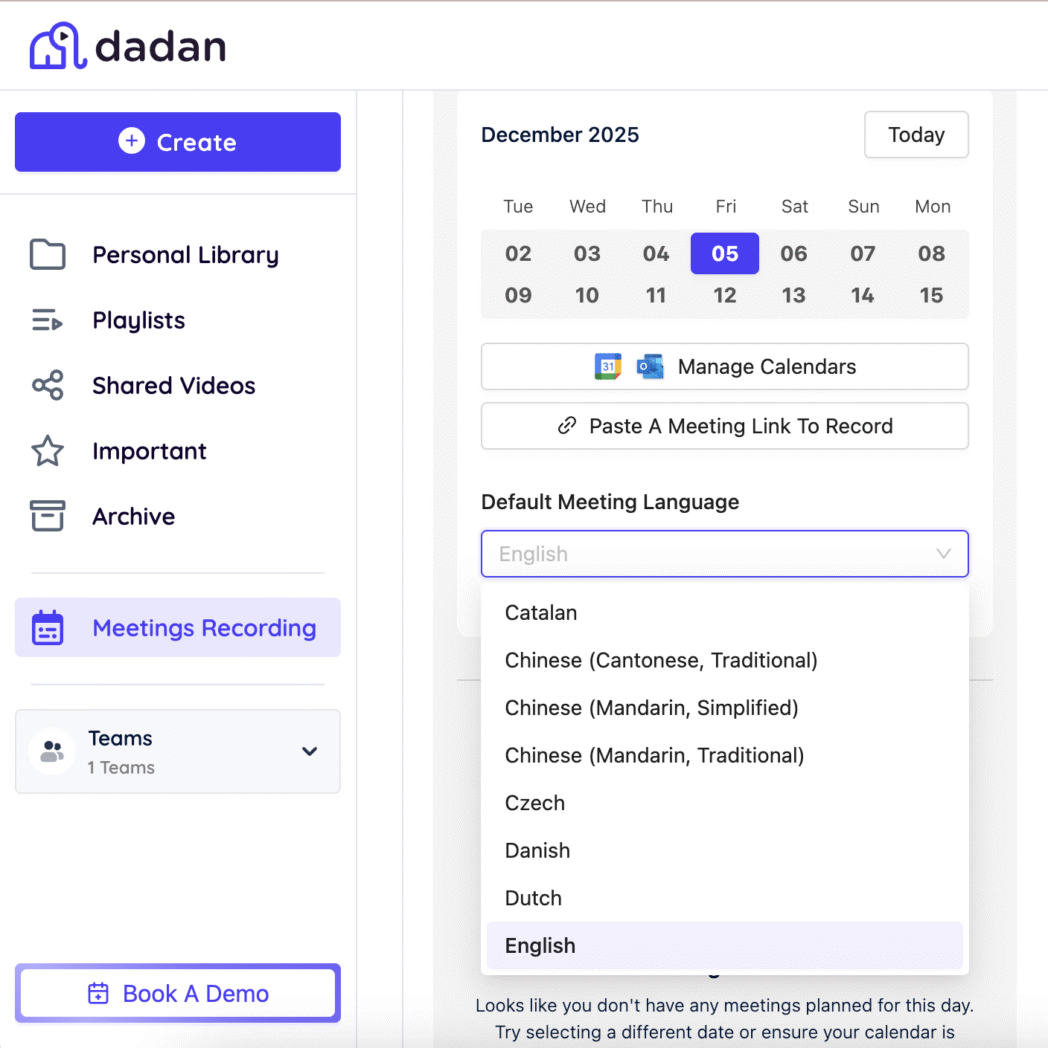
Step 5: That’s it. Dadan’s AI Meeting Recorder will automatically join the call at the scheduled time, even if you don’t join, and will start recording once the host allows it.
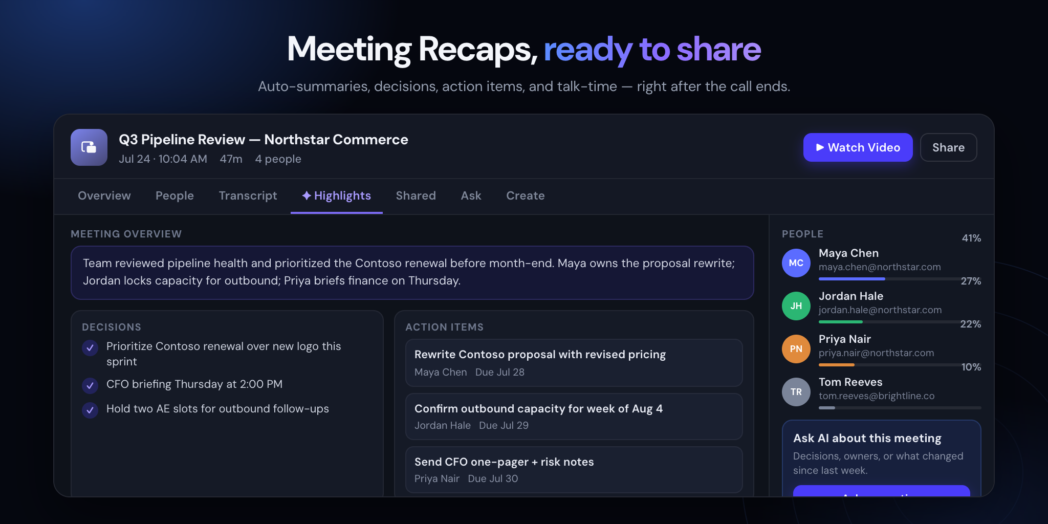
Step 6: Once your meeting is recorded, Dadan automatically creates an AI-powered recap with highlights, decisions, action items, and a summary. You can also search the transcript, see who said what, and quickly catch up without watching the full recording.
Once the meeting ends, the recording is saved automatically, and you can access it anytime from Dadan’s dashboard.
So, what you must do now?
Simple. Use Zoom to record the meeting when you have the host’s permission. For those looking to upgrade from the free version to access longer meeting times and cloud storage, finding a Zoom discount through annual billing or nonprofit programs can make the Pro and Business plans much more affordable.
Use a third-party screen recorder like dadan when you don’t have the permission. QuickTime and Xbox GameBar provide the advantage of a built-in tool, but both are not very reliable. It’s hard to suggest them for long term usage.
Why not you go ahead and record your next Zoom meeting with dadan like a test run? dadan offers a free trial with access to all its features. You don’t have to share your credit card information at the time of creating an account, so no amount will be deducted after the trial period is over. You will be automatically switched to the free plan.
Here’s the link to sign up dadan’s meeting recorder for free.
FAQs
Can a participant record a Zoom meeting?
Yes, but only if the host gives you recording permission. You can also use an AI meeting recorder or a screen recorder to capture Zoom meetings without permission.
Why don’t I see the Record button as a participant?
The host hasn’t enabled participant recording in their settings.
Can I record a Zoom meeting without the host’s permission?
Yes, you can use third-party screen recorders like Dadan or Loom. Make sure you use these tools ethically and responsibly for professional and internal purposes.
How do I record internal audio from a Zoom meeting?
Enable system audio in your screen recorder before starting the recording.
Can I automatically record all my Zoom meetings?
Yes, you can use AI tools like meeting note-takers that join the call and start recording on their own.
Do I need the Zoom desktop app to record?
For host-granted recording, yes. External screen recorders work on both desktop and browser.
Where are my Zoom recordings saved?
Cloud recordings are stored in your Zoom account, and local recordings are saved on your device.
Recommended Readings:
- How to Record GoToMeeting as Attendee Without Permission
- How to Record Google Meet Meetings without Premium
- How to Write Minutes of Meeting Easily using AI
- How to Record Skype Calls on Windows and Mac for Free
- How to Record a Microsoft Teams Meeting in Simple Steps
- Best Way to Capture Meeting Notes in 2026: AI vs Manual
- Alternatives to Zoom and Video Conferencing