
Skype is no longer a standalone product in active development. Microsoft has been moving users to Microsoft Teams, and for many people, Skype calls now effectively mean Teams calls, whether they planned for that shift or not.
That change is important if you’re trying to record calls. Recording was once a basic feature in Skype. In Teams, it’s tied to subscriptions, storage rules, and account types. Some users still see a record option while others don’t. And the difference usually comes down to the plan level, rather than the device.
This article explains how call recording works today across Skype and Microsoft Teams, what’s available without upgrading, and the practical ways to record calls on Windows and Mac when built-in options aren’t accessible.
Can You Record Skype Calls Legally?
The legality of recording a Skype call doesn’t depend on Skype. It depends on consent. In most cases, recording a Skype call is legal as long as everyone on the call knows it’s being recorded.
That’s why Skype’s built-in recorder shows a visible notification to all participants the moment recording starts. So, Skype handles disclosure for you.
The complication happens when you use external recorders. Screen recorders and meeting tools don’t automatically notify participants. In those cases, it’s your responsibility to inform the people on the call before recording begins.
Also, consent laws are different by region. Some countries and states follow one-party consent, where only one person on the call needs to agree. Others require consent from everyone involved. If you’re recording calls for work, training, interviews, or documentation, the safest option is to tell participants upfront.
How to Record Skype Calls on Windows and Mac
There isn’t one single way to record a Skype call. What works depends on what you need from the recording and how long you need it for.
Method 1: Record Skype Calls Using Skype Built-In Recorder
Skype’s built-in recorder is the easiest option because it doesn’t require any setup outside the app. It works the same way on Windows and Mac, and it’s meant for situations where you just need a reference copy of the call.
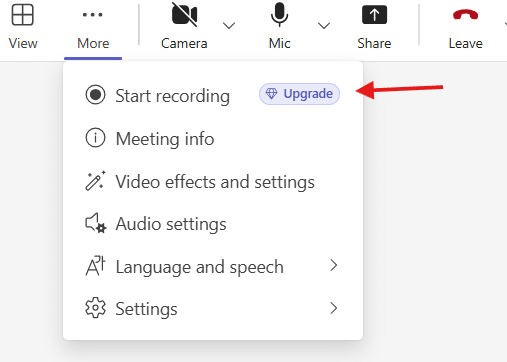
But this method only applies if you’re still using Skype’s legacy app and the recording option is available to you. It does not apply to Microsoft Teams Free, where built-in recording is locked unless you are on a paid plan.
To start recording a Skype call:
- Step 1: Join the call as usual
- Step 2: Click the three-dot menu during the call
- Step 3: Select Start recording
As soon as the recording begins, Skype shows a notification to everyone on the call. There’s no separate permission step and no way to turn that notice off. When the call ends, the recording stops automatically.
After the call, the recording is uploaded to Skype’s cloud and made accessible from the conversation interface. From there, you can play it back or manually download the file to your device. These recordings remain accessible for a limited period (typically around 30 days). If the file isn’t downloaded within that window, it’s automatically removed.
If Skype has already transitioned to Microsoft Teams in your region and you’re a paid user, you’ll find the built-in recording option during calls and meetings, with recordings saved to OneDrive or SharePoint, depending on the meeting type.
Method 2: Record Skype Calls Using Screen Recording Software for Free
When Skype’s built-in recorder isn’t available, or when you need a recording you can keep and reuse, a screen recorder is the most dependable option. It doesn’t rely on Skype or Teams features at all. It simply records what’s happening on your screen along with audio.
Dadan works as a screen recorder rather than a Skype-specific tool. It captures your screen, webcam, or both, with microphone and system audio, and saves the recording to your library so you can download, edit, or share it.
Below is the process for recording a Skype call using Dadan.
Step 1: Create a Free Dadan Account
Sign up on Dadan using your email or any other login option. Once signed in, you can:
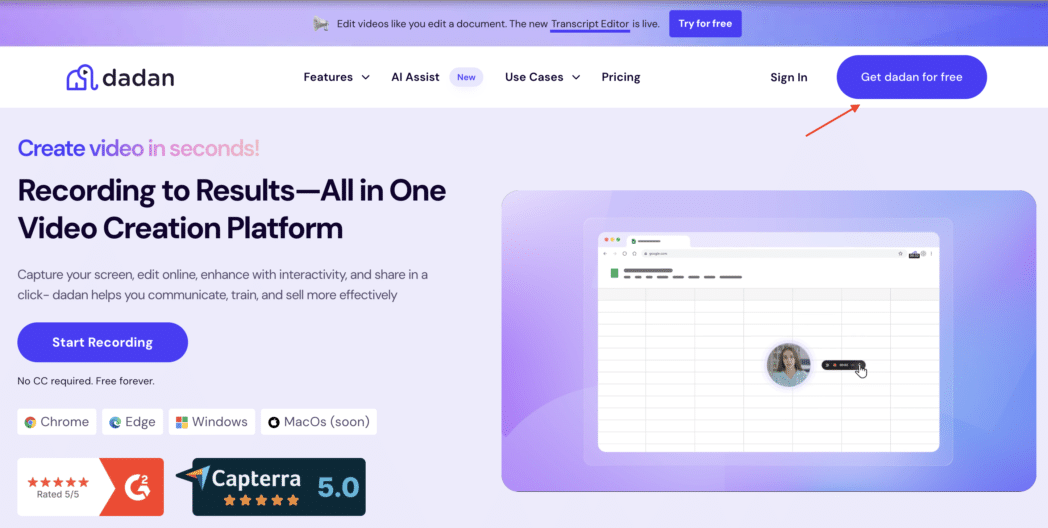
- Record directly online without downloading anything
- Install the Mac or Windows desktop app
- Use the Chrome or Edge extension to record from the browser
All three options work for recording Skype calls.
Step 2: Choose What You Want to Record
Before starting the call, select your recording mode:
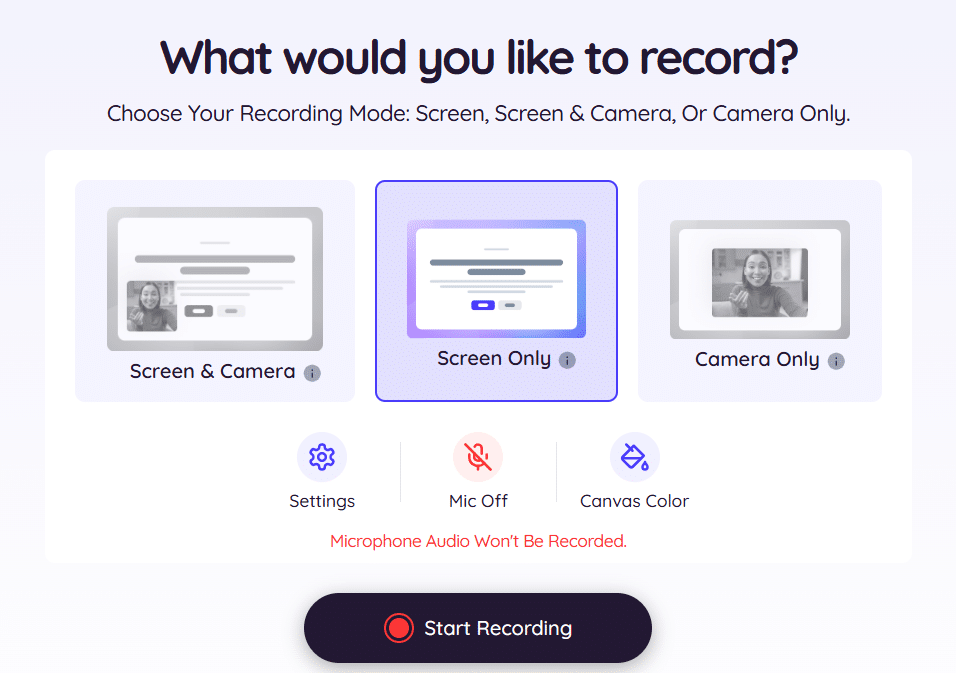
- Screen only
- Webcam only
- Screen + webcam
Turn on your microphone if you want your voice captured. If system audio is available on your setup, enable it so the other side of the Skype call is recorded as well.
Step 3: Start the Recording
Click Start Recording before or as the Skype call begins. Dadan immediately starts capturing based on the options you selected.
While recording, you can use on-screen annotations or highlights if needed, especially for walkthroughs or explanations.
Step 4: Stop the Recording
When the call ends, stop the recording. The video is automatically uploaded to your Dadan library.

There’s no manual saving step and no temporary chat-based storage. The file stays in your workspace until you choose to delete it.
Step 5: Edit or Share the Recording
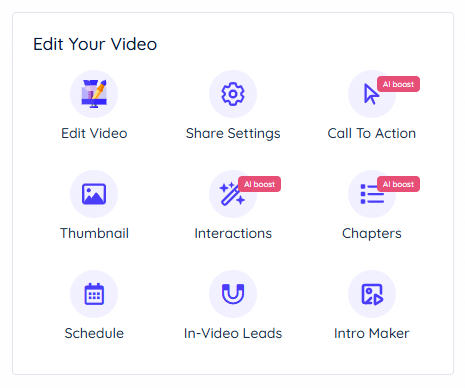
Once processing is complete, you can:
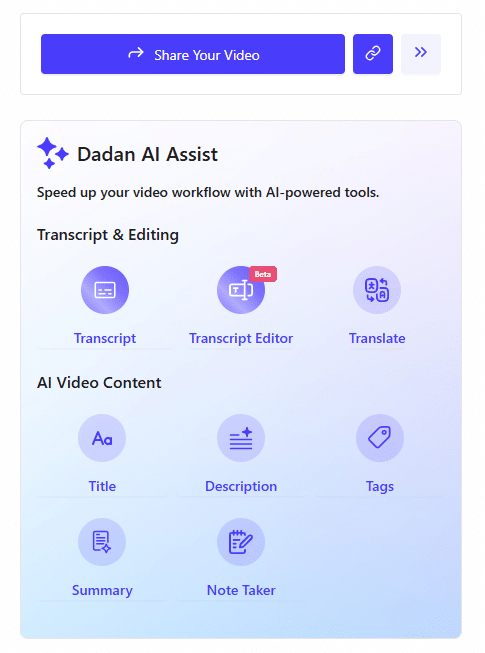
- Download the video file
- Trim or edit it using the built-in editor
- Generate a transcript or captions
- Share the recording via a link
- Add interactions like text, quizzes, or forms if needed
On the free plan, recordings are available at standard resolution. Higher resolutions and advanced features are available on paid plans.
This method works consistently on both Windows and macOS, and it’s not affected by whether Skype recording is enabled or whether you’re using Teams Free or a paid plan.
Method 3: Record Skype Calls Automatically Using AI Recording Tools
Dadan also offers an AI meeting recorder that connects to your calendar and joins meetings automatically. It supports platforms like Microsoft Teams, Google Meet, Zoom, and others. Once connected, recording happens automatically without you needing to start or stop anything during the call.
Dadan’s basic free plan supports manual screen and webcam recording, but automatic meeting recording, where Dadan joins scheduled calls and captures the session, is available only on paid plans that include the AI Assist suite.
Step 1: Sign Up and Install Dadan
Create a free Dadan account. To use the meeting recorder, you’ll need either the Mac or Windows desktop app or the supported browser setup as required by your meeting platform.
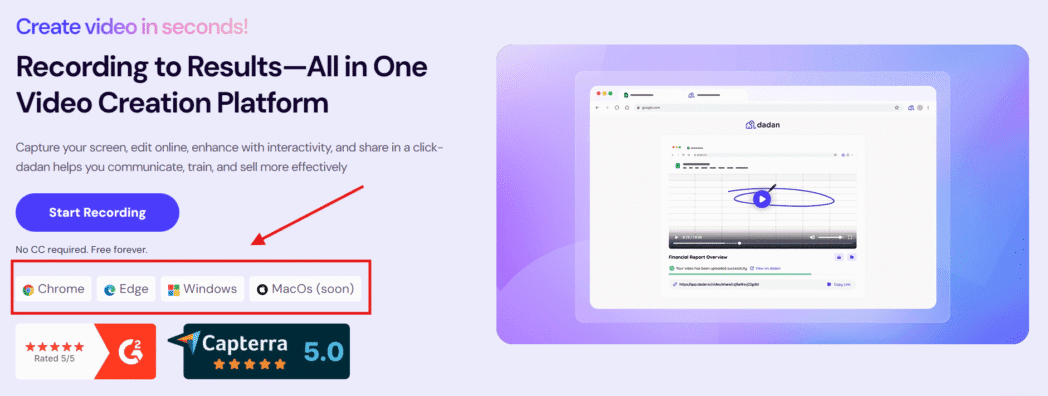
The meeting recorder does not run purely as a passive background feature. You need to set it up so that Dadan can join meetings and capture audio and video correctly.
Step 2: Connect Your Calendar
From the Dadan dashboard, open the meeting calendar section and connect your Google or Outlook calendar.
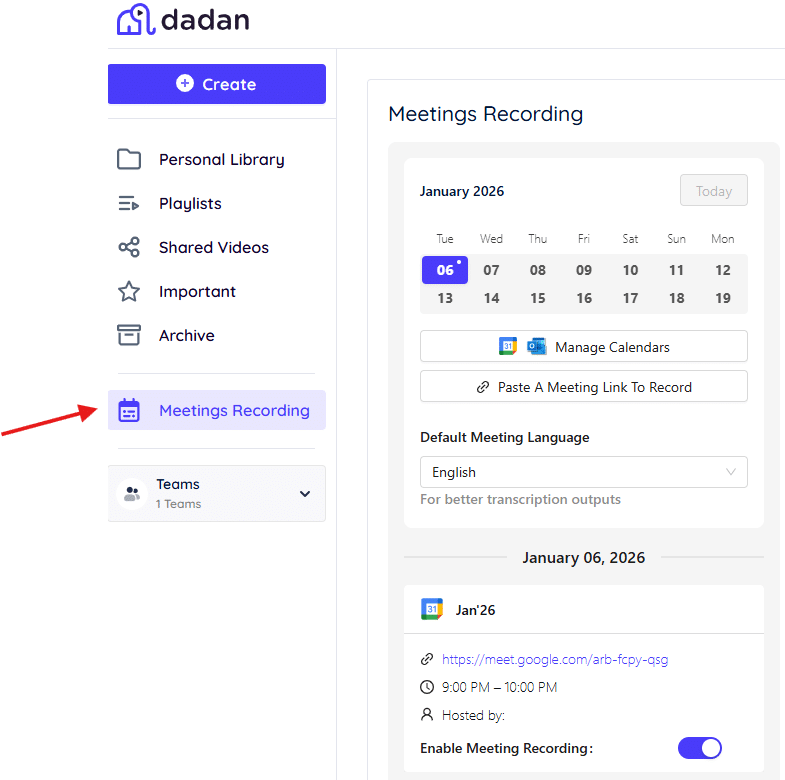
Once connected, scheduled meetings are automatically detected, supported meeting links (Teams, Google Meet, Zoom, etc.) are synced into Dadan, and no meetings are recorded until recording is explicitly enabled.
Step 3: Enable Recording for Meetings
For each meeting (or meeting type), enable recording using the toggle next to the meeting details.
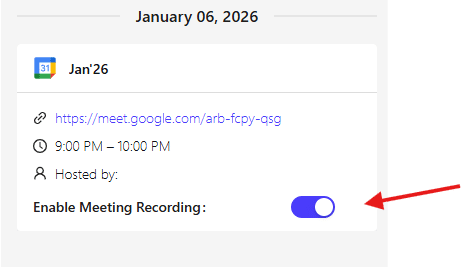
This step controls whether Dadan will join and record the session. You can leave recording disabled for meetings you don’t want captured.
Step 4: Automatic Join, Recording, and Upload
When the meeting starts:
- Dadan joins the meeting as a participant
- Audio and video are recorded automatically
- No manual action is required during the call
After the meeting ends, the recording is automatically uploaded to your Dadan dashboard.
Step 5: Review, Transcribe, and Generate Notes
Once the recording is available in your dashboard, you can:
- Play back or download the full recording
- Generate a transcript with timestamps
- Create AI-generated meeting notes
- Generate a one-page meeting summary with discussion points and action items
- Add subtitles and translate them if needed
All of this happens after the recording is complete. So, this method is best for recurring meetings, client calls, internal syncs, and situations where recordings and notes are expected every time. It removes the risk of forgetting to record and ensures the file is available in a central workspace after the call ends.
Best Practices for High Quality Skype Call Recordings
Regardless of which recording method you use, the quality of the final file depends less on the tool and more on how the call is set up. These small checks prevent most of the issues people run into later.
- Make sure your microphone is selected correctly and, if you’re using a screen recorder, that system audio is enabled where supported.
- Use headphones if possible. Headphones reduce echo and prevent your microphone from picking up speaker output, especially on Mac setups.
- Begin recording before the call officially starts.
- Screen recorders capture exactly what’s visible. Close sensitive tabs and silence notifications to avoid distractions or accidental exposure.
- On macOS, screen recording and microphone access must be explicitly enabled in System Settings.
- Built-in Skype recordings expire. External tools store files longer, but it’s still good practice to download or organize important recordings soon after the call.
- Rename files with the meeting name, date, and purpose. It saves time later when you’re searching for a specific conversation.
Following these steps keeps recordings usable, regardless of whether you’re relying on Skype’s native recorder, system tools, or a dedicated recording platform.
Where Are Skype Call Recordings Saved?
The location of your recording depends on how the call was recorded. Skype, Microsoft Teams, system screen recorders, and third-party tools all handle storage differently, which is why recordings often seem to disappear.
Skype Built-In Recorder (Legacy Skype)
When you use Skype’s built-in recorder, the call is stored in the cloud and made visible in the conversation chat. You must download it to keep it permanently, because it is automatically removed after about 30 days.
Microsoft Teams (Paid Plans)
Recordings are saved to OneDrive or SharePoint, depending on the meeting type. Access and retention are controlled by the organization’s settings, and not by individual users.
System Screen Recording on Windows
Recordings made with Xbox Game Bar are saved locally as MP4 files in the Videos → Captures folder by default.
System Screen Recording on macOS
Recordings created using the built-in screen capture tools are saved as .mov files. The save location depends on your macOS settings and can be changed from the screenshot toolbar.
Dadan Screen Recorder
Recordings are uploaded to your Dadan library once the recording stops. From there, you can download the file, edit it, or share it using a link, depending on your plan.
Dadan Meeting Recorder
Automatically recorded meetings are uploaded to your Dadan dashboard after the meeting ends. If enabled on your plan, transcripts and AI-generated notes are created from the same recording.
Common Issues and How to Fix Them
When a Skype or Teams recording goes wrong, it’s usually for a predictable reason. The platform behaves a certain way, the OS behaves another way, and the mismatch shows up only after the call is over.
These are the issues that come up most often.
The Record Option Isn’t Visible
This usually means you’re on Microsoft Teams Free or a version of Skype where built-in recording isn’t available. In Teams, recording requires a paid plan. If you don’t see the option, you’ll need to use a screen recorder tool or a meeting recorder instead.
Audio Is Missing Or Only One Side Is Captured
This happens when system audio is not being captured. On macOS in particular, screen recorders require explicit permission to capture your system sound. Without it, the recording will include your microphone but not the other participants.
The Recording Stopped When The Call Ended
This is expected behavior for Skype’s built-in recorder or any other meeting recorder. Recording automatically stops when the call ends, and there’s no way to continue it afterward.
The Recording Can’t Be Found Later
With Skype’s native recorder, recordings are only accessible for a limited time. If the file wasn’t downloaded, it may have expired. With system or any best third-party screen recorders, check the default save location or cloud library associated with the tool.
Notifications Or Private Content Appeared In The Recording
Screen recorders capture exactly what’s visible. Close unnecessary tabs, mute notifications, and review the recording before sharing, especially if sensitive information was on screen.
Permissions Were Denied On MacOS
If the recording is blank or silent, macOS permissions are often the cause. Check Screen Recording, Microphone, and Camera permissions under Privacy & Security, then restart the recording tool.
Conclusion
Recording Skype calls is not complicated, but it is conditional. What you can do depends on whether you’re still using consumer Skype, whether your calls have moved to Microsoft Teams, and whether you’re on a free or paid plan.
Skype’s built-in recorder works for short-term reference, but it’s limited by retention and access. In Teams, recording is tied to paid subscriptions. That’s why many people rely on screen recorders or meeting recording tools when they need files they can keep, share, or work with later.
You can choose the setup that matches the call, record it, and move on without surprises afterward.
FAQs
Can I record Skype calls for free?
Yes. If you’re using the consumer version of Skype and the built-in recorder is enabled, you can record calls at no cost. The recording is available for a limited time and must be downloaded to keep it. If you’re on Microsoft Teams Free, built-in recording isn’t available, so you’ll need an external recorder.
Does Skype notify participants when recording starts?
Yes. Skype’s built-in recorder shows a visible notification to all participants as soon as recording begins. This notification can’t be turned off.
Can I record Skype calls without permission?
Recording without disclosure can be illegal depending on where participants are located. Skype handles disclosure automatically when you use its built-in recorder. If you use an external recording tool, you’re responsible for informing everyone on the call before recording.
How do I record Skype calls automatically?
Skype itself doesn’t support automatic recording. For scheduled calls, automatic recording is only available through external tools that connect to your calendar and join meetings on your behalf. These features typically require a paid plan.
Can I record Skype calls on mobile?
On mobile, recording options are limited. Skype’s built-in recorder may be available in some cases, but external screen recording tools vary by device and operating system.
Is it possible to record a Skype voice call only?
Yes. Skype’s built-in recorder captures both voice and video, but if the call is audio-only, only audio is recorded. External screen recorders can also be configured to capture audio without video if needed.
Disclaimer: Skype and other product names mentioned are trademarks of their respective owners and are used only for identification purposes, and Dadan Screen Recorder is an independent tool that can be used legally to record calls where permitted by law.
Recommended Readings:
- How To Record Google Meet Meetings Without Premium
- How to Record a Zoom Meeting as a Participant – 4 Easy Ways
- How to Record GoToMeeting as Attendee Without Permission
- How to Write Minutes of Meeting Easily
- How to Record a Microsoft Teams Meeting in Simple Steps