
Recording a Microsoft Teams meeting isn’t available to everyone by default. The option depends on your role in the meeting, your organization’s settings, and how the meeting was created. For many participants, the record button never appears.
When a meeting is recorded, the file is saved to cloud storage rather than the local device. Private meetings store recordings in the organizer’s OneDrive. Channel meetings store them in SharePoint. Access is controlled by the same permissions that govern those locations.
Because of this, Teams recording often doesn’t work the way people expect it to. Some meetings are recorded without issue. Others aren’t recorded at all, or the file isn’t accessible afterward.
In this article, we’ll outline the practical ways to record a Microsoft Teams meeting, including options that work even when the built-in recorder isn’t available.
Things to Know Before Recording a Teams Meeting
Before you try to record a meeting in Microsoft Teams, there are a few constraints you need to know about. They’re how Teams recording works by design.
- Only meeting organizers and certain presenters can start or stop a recording. If you’re an attendee, the option won’t appear.
- Recording can be disabled entirely at the organization level. When that happens, no one in the meeting can record, regardless of role.
- Recordings aren’t saved to your device. Teams stores them in the cloud.
- Private meetings save recordings to the organizer’s OneDrive. Channel meetings save them to the team’s SharePoint site.
- Access to the recording follows storage permissions. Being in the call doesn’t guarantee you can view or download the file later.
- Teams recordings have a time limit. A single meeting can be recorded for up to four hours.
- Everyone in the meeting is notified when the recording starts.
You can record a Microsoft Teams meeting in three different ways:
Method 1: Record a Microsoft Teams Meeting Using the Built-in Recording Feature
Method 2: Record a Microsoft Teams Meeting When You Are Not the Host
Method 3: Automatically Record a Microsoft Teams Meeting Using an AI Meeting Notes Taker
Method 1. How to Record a Microsoft Teams Meeting Using the Built-in Feature
The built-in recording feature isn’t available on all accounts. Recording requires an eligible Microsoft 365 Business or Enterprise license. Free Teams accounts and some lower-tier plans don’t support meeting recording at all.
When recording is enabled, and you have permission, Microsoft Teams handles recording natively. There’s nothing to install and no setup required before the meeting.
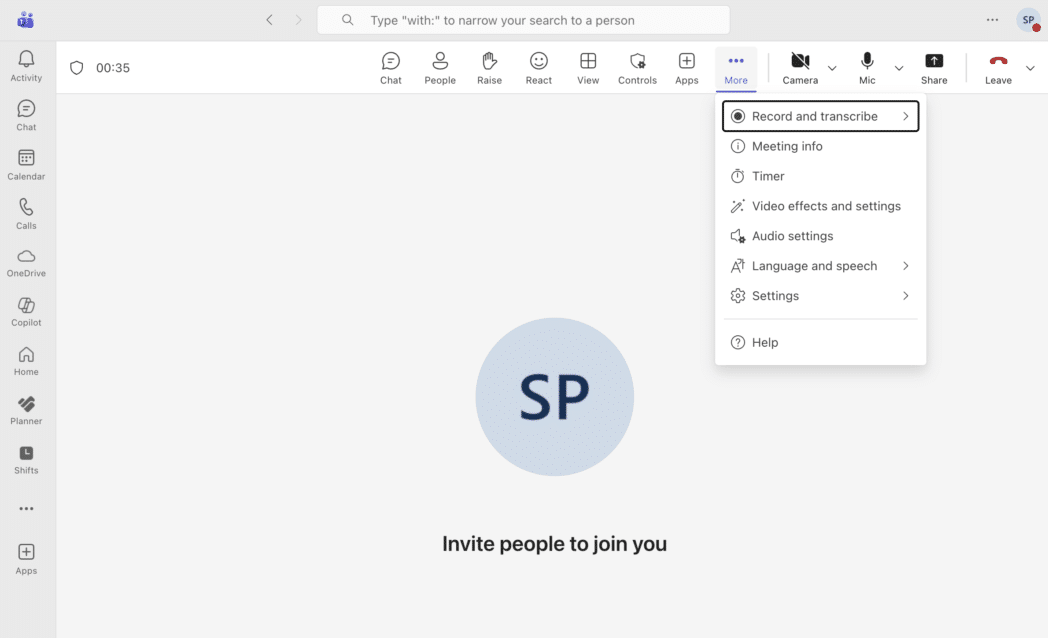
To start recording a Teams meeting:
- Join the meeting as the organizer or as a presenter with recording rights.
- Open More actions (three dots) in the meeting controls.
- Select Start recording.
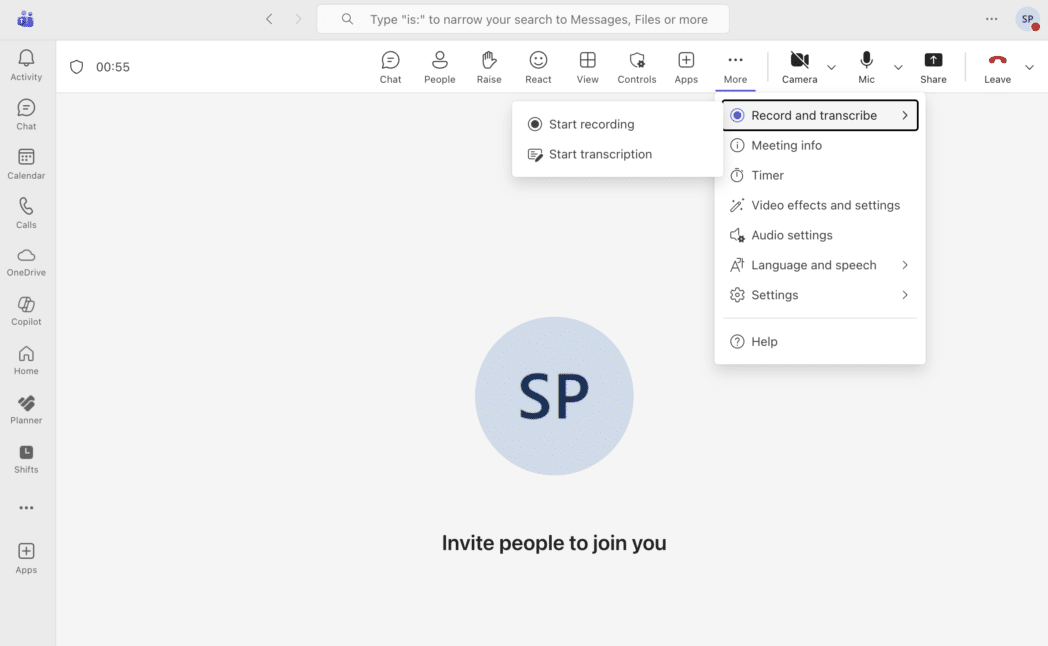
Teams immediately shows a notification to everyone in the meeting. Recording starts at once and runs in the background without further input.
To stop the recording:
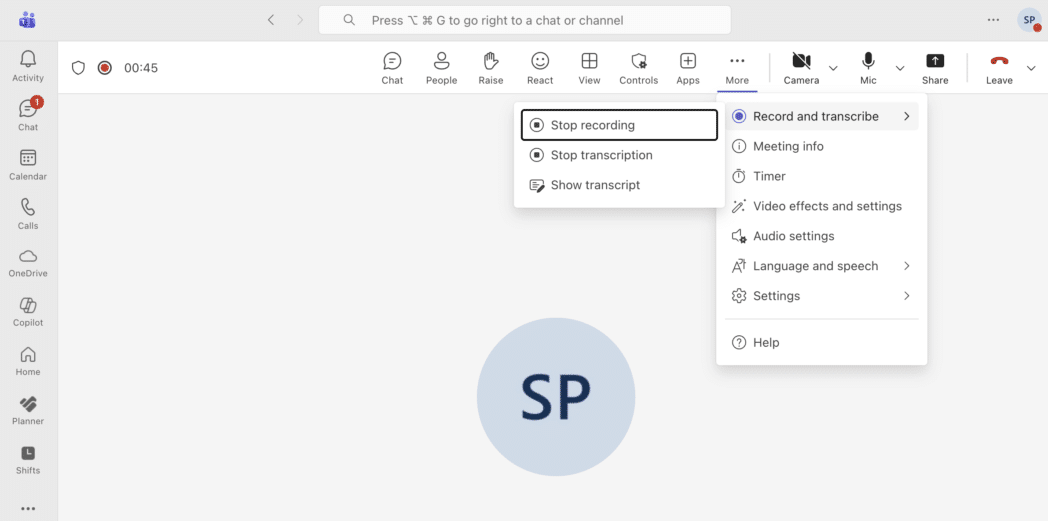
- Open More actions again.
- Select Stop recording, or simply end the meeting.
- After the meeting ends, Teams automatically processes the file. Once it’s ready, a recording link appears in the meeting chat.
Where the recording is saved depends on the meeting type:
- Scheduled or private meetings are saved to the organizer’s OneDrive, under a folder named Recordings.
- Channel meetings are saved to the channel’s SharePoint site, also under Recordings.
The built-in recorder works well when you’re running the meeting and recording is allowed. When you’re not the organizer or when recording is restricted, Teams doesn’t offer another option.
Method 2. How to Record a Microsoft Teams Meeting When You Are Not the Host
When Teams doesn’t give you the record option, you can still capture the meeting by recording your screen with Dadan. This works even if you’re an attendee, an external guest, or on an account that doesn’t support Teams recording.
Step 1: Open Dadan and Start a Screen Recording
Sign up Dadan and Open (desktop app, web app, or Chrome extension) and choose Screen Recording.
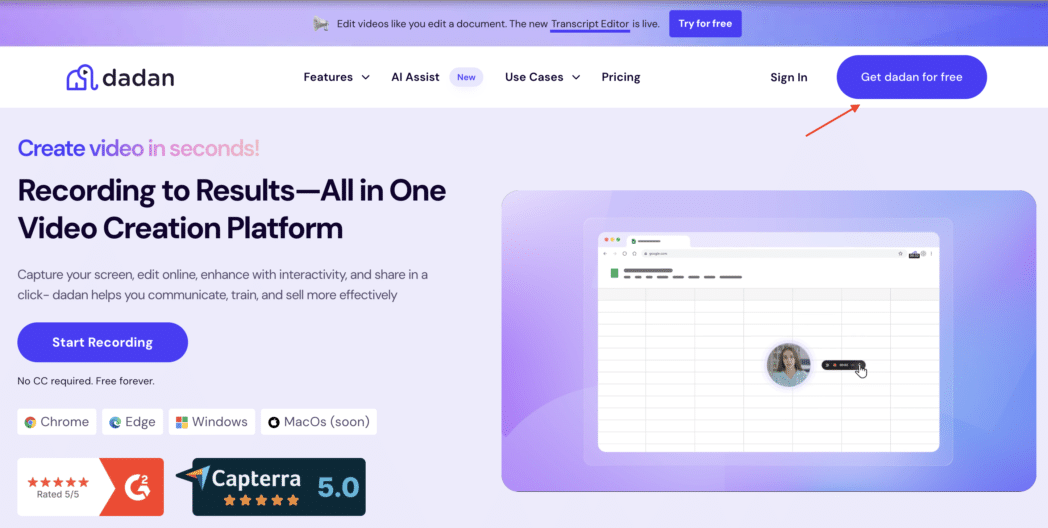
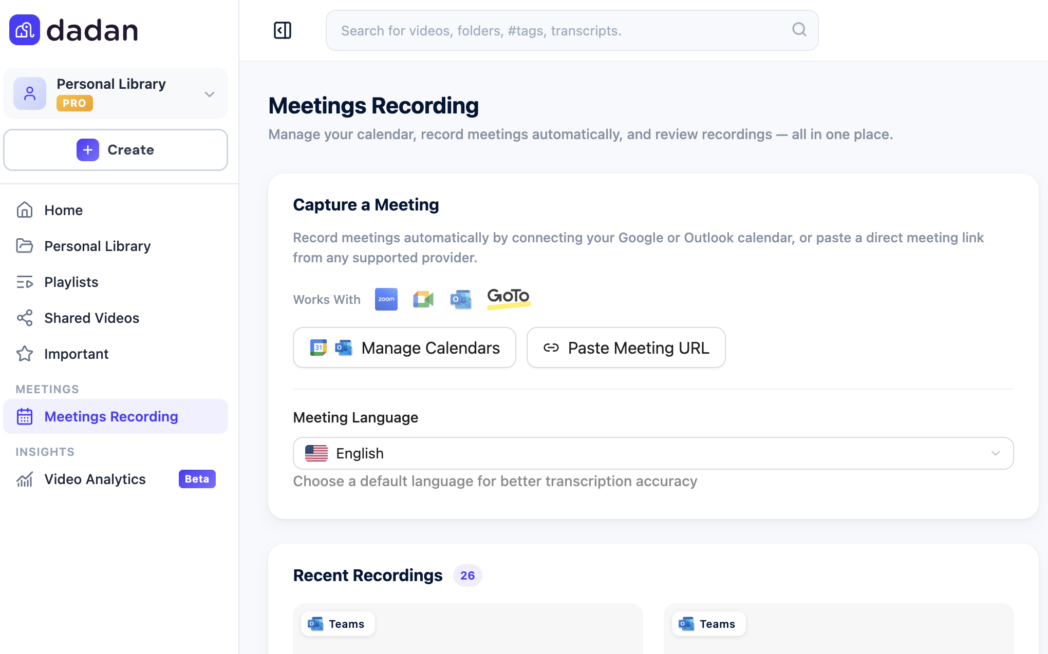
Step 2: Connect your Teams calendar
You can connect your Teams meeting with Dadan. Once connect Dadan’s AI bot automatically joined the call and start recording.
Step 3: Save, Trim, or Share
Once recording is competed, you can find the recorded meeting in Dadan’s Library.
From your library, you can:
- Download the file
- Trim the start/end
- Generate a transcript or summary
- Share a link without needing Teams access
This gives you a reliable recording even when Teams doesn’t allow it. If you want the recording to happen automatically without thinking about it, the next method covers that.
Step 4: Get Your Meeting Recap
Once your meeting recording is processed, Dadan turns it into a structured meeting recap so you can quickly understand what happened without going through the entire recording.
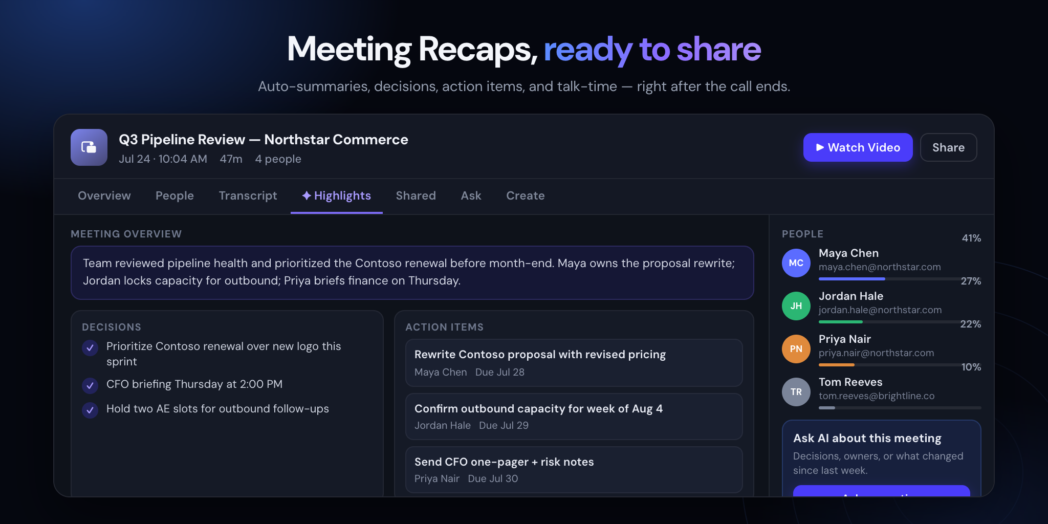
Your recap brings the important information together in one place:
- Meeting Overview: Get a quick summary of the main topics discussed.
- Highlights: See the most important moments and takeaways from the meeting.
- Decisions: Review key decisions made during the conversation.
- Action Items: See tasks that need to be completed and who is responsible for them.
- Transcript: Read the complete meeting transcript and find specific parts of the conversation.
- People: See meeting participants and their talk-time breakdown.
- Ask AI: Ask questions about the meeting and quickly find relevant information.
- Watch & Share: Go back to the recording when you need more context and share the meeting with others.
No need to replay the entire meeting. Dadan gives you the key takeaways, decisions, and next steps in one easy-to-review recap.
Method 3. How to Record Microsoft Teams Meeting Automatically Using an AI Meeting Note Taker
Automatic recording removes the need to start or stop recording during a meeting. Once it’s set up, recording occurs automatically without any action in Teams.
An AI meeting note taker records the meeting for you, without relying on the Teams record button. It joins the meeting, captures audio and video, and automatically saves the file.
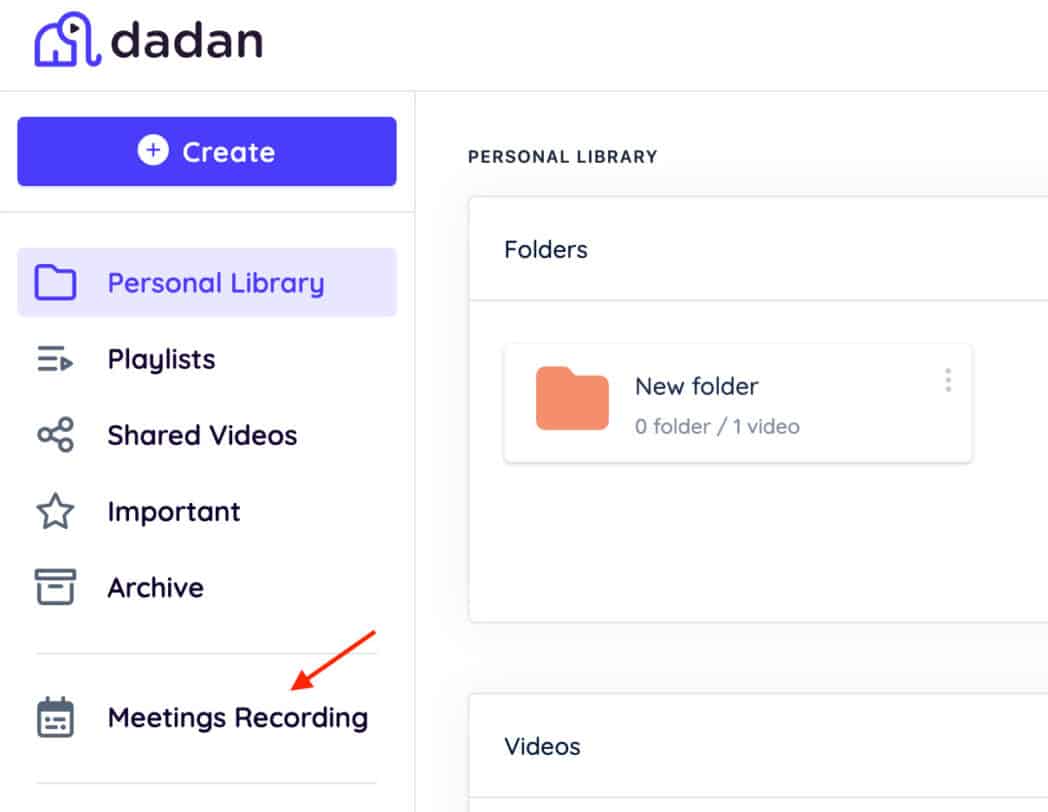
Step 1: Connect Your Calendar
Open Dadan and connect the calendar you use for Teams meetings (Microsoft Outlook or Google Calendar). This allows Dadan to detect upcoming meetings that include a Teams link.
Step 2: Enable Automatic Meeting Recording
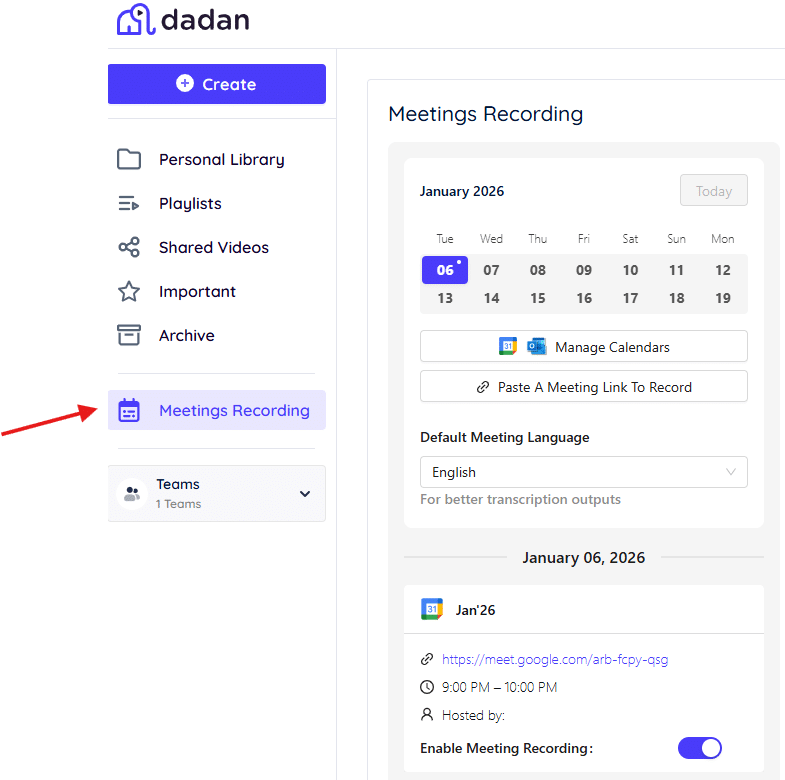
In the Meeting Recorder section, turn on automatic recording. Once enabled, Dadan monitors your calendar for scheduled Teams meetings.
Step 3: Let Dadan Join the Meeting
When the meeting starts, Dadan joins as a participant. You don’t need to click anything in Teams. Recording begins automatically.
Step 4: Recording Runs in the Background
The meeting is recorded from start to finish. You can focus on the call instead of checking whether the recording is active.
Step 5: Access the Recording After the Meeting
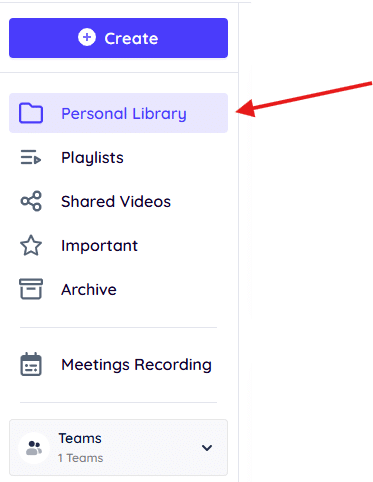
When the meeting ends, the recording is uploaded to your Dadan library.
Step 6: Review Notes and Transcript
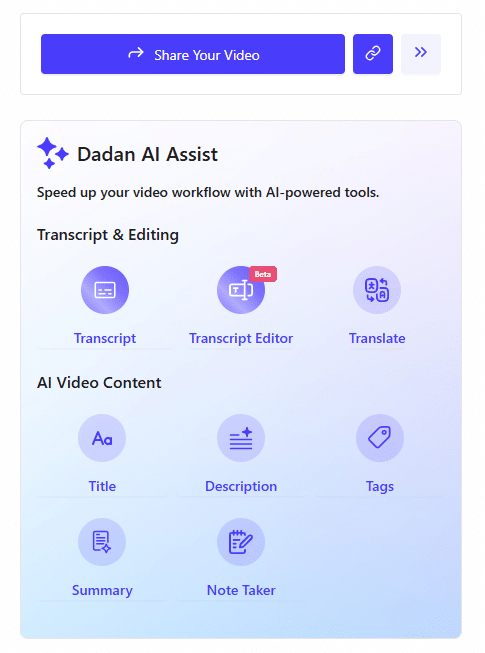
Once processing completes, the transcript is generated automatically. You can review the recording, skim the transcript, or use summaries and notes to find specific moments.
Automatic recording eliminates two common problems at once. One is forgetting to hit record and losing access due to Teams permissions. Second is that it’s useful for recurring meetings, interviews, and internal calls where consistency matters more than control.
Common Problems and Fixes
A few issues come up repeatedly when recording Microsoft Teams meetings. They’re usually predictable once you know how Teams handles recording.
- The record option doesn’t appear. This happens when you’re not the organizer or presenter, when the organization disables recording, or when your plan doesn’t support native recording.
- The meeting was recorded, but the file can’t be found. Teams saves recordings to OneDrive or SharePoint, not to your local device or chat downloads.
- People who attended the meeting can’t access the recording. Access is controlled by OneDrive or SharePoint permissions, not by meeting attendance. Being on the call doesn’t guarantee viewing or download rights.
- Recording stopped partway through the meeting. Teams stops recording automatically when everyone leaves or when the four-hour limit is reached.
- Audio is missing from the recording. This usually happens with external screen recorders when system audio isn’t enabled. Teams’ built-in recorder captures audio automatically, but third-party tools require manual setup.
- The recording expired or was deleted. Many organizations use automatic expiration policies. Once a recording expires, it’s removed unless someone extended or downloaded it earlier.
Most of these are side effects of how Teams treats recordings as managed company files rather than personal captures.
Best Practices for High Quality Teams Recordings
Once recording is available, quality depends less on Teams and more on how the meeting is run.
- Start recording after the meeting begins, not before, to avoid capturing silence and setup chatter.
- Check audio early. If a microphone is distorted or too low, the recording won’t recover later.
- Keep screen sharing focused. Rapid window switching or tab hopping makes recordings hard to follow.
- Avoid people talking over each other.
- Call out context when switching topics. Recordings are often watched without a live context.
- Stop the recording intentionally. Ending the meeting abruptly can cut off audio or delay processing.
- Verify access after the meeting. If others need the recording, confirm OneDrive or SharePoint permissions while it’s fresh.
- Download or duplicate important recordings. Expiration policies apply regardless of whether the recording is useful.
Conclusion
Microsoft Teams recording is designed around organizational control. Who can record, where files are stored, and how long they remain available are all governed by licenses, roles, and admin policies.
That model works well in tightly managed environments, but it doesn’t work in mixed settings where meetings include external participants, rotating hosts, or people without recording permissions.
This is why Teams recording feels inconsistent in day-to-day use. As a result, teams rarely rely on a single method. Native recording is used when it’s available.
Screen recording fills the gaps when permissions get in the way. Automatic tools are used when meetings need to be captured reliably without manual steps. The difference is predictability.
FAQs
What is an AI meeting note taker in Microsoft Teams?
An AI meeting note taker is a tool that joins a Teams meeting as a participant, automatically records the session, and processes the recording into transcripts or notes after the meeting ends.
Can an AI note taker join my Teams meeting automatically?
Yes. Most tools integrate with your calendar and join scheduled Teams meetings without requiring manual invites or actions in Teams.
Where are Microsoft Teams meeting recordings saved?
Recordings from private or scheduled meetings are saved to the organizer’s OneDrive. Recordings from channel meetings are saved to the team’s SharePoint site.
Can participants access the recording automatically?
No. Access is controlled by OneDrive or SharePoint permissions. Attending the meeting doesn’t guarantee access to view or download.
How long can you record a Microsoft Teams meeting?
A single Teams meeting can be recorded for up to four hours. Recording stops automatically once the limit is reached.
How do you share or download a Teams recording?
Recordings are shared through OneDrive or SharePoint. The organizer or file owner can adjust permissions and download the file from there.
How can you record a Teams meeting without using Teams recording?
By using a screen recorder or an automated online meeting recorder that captures the meeting independently of Teams’ built-in feature.
Disclaimer: Microsoft Teams and other product names mentioned are trademarks of their respective owners and are used only for identification purposes, and Dadan Screen Recorder is an independent tool that can be used legally to record calls where permitted by law.
Recommended Readings:
- How to Record Skype Calls on Windows and Mac for Free
- How to Record GoToMeeting as Attendee Without Permission
- How to Record a Zoom Meeting as a Participant – 4 Easy Ways
- How To Record Google Meet Meetings Without Premium
- How to Write Minutes of Meeting Easily
- Best Way to Capture Meeting Notes in 2026: AI vs Manual