The person who knows how to run your billing process is on vacation. Now three people need to search through Slack to figure out what to do.
That’s the problem process documentation is supposed to solve. The trouble is that documenting a process often takes almost as much effort as performing it. You have to remember every step, take screenshots, write explanations, format the document, and keep everything updated when the software changes.
AI process documentation software helps reduce that work. Some tools capture your screen as you perform a task and turn your clicks into a written guide. Others generate video walkthroughs, help draft SOPs, or organize documentation into a training library.
But these tools don’t all solve the same problem. The right tool depends on what you need to document, how your team works, and where the finished documentation needs to live.
This guide compares 10 AI and AI-assisted process documentation tools, including their core capabilities, use cases, limitations, and pricing considerations.
What Is AI Process Documentation Software?
AI process documentation software helps you create and maintain instructions for recurring tasks. Depending on the product, it can capture screen activity, generate written instructions, create video guides, or help organize existing SOPs.
The tools in this category serve two different needs.
- Documentation creation helps you capture a process and turn it into a guide.
- Documentation management helps you organize, share, assign, and maintain those guides.
The amount of automation depends on the product. A tool that captures screenshots isn’t necessarily capable of understanding why you performed a task. Likewise, an AI-generated SOP may need someone familiar with the process to check its accuracy.
Comparison Table
| Tool | Starts From | Main Output | Free Plan |
|---|---|---|---|
| Dadan | Clicks during a screen recording | Step-by-step guide plus the original video | Yes, 2 guides per month, up to 5 steps each |
| Scribe | Clicks | Screenshot guide | Yes, browser capture only |
| Tango | Clicks | Screenshot guide, in-app guidance on Enterprise | Yes, capped workflows |
| Guidde | Clicks and screen capture | AI-narrated how-to video | Yes, up to 25 guides |
| Glitter AI | Screen recording with voice, or existing video | Written guide plus optional narrated video | Yes, 10 guides |
| Loom | Screen recording | Video, with AI-generated text on the AI tier | Yes, 25 videos, 5 minutes each |
| Trainual | Text prompts and manual building | SOP library with training paths | No, free trial only |
| Whale | Screen recording, prompts, documents | SOP library with training | Yes |
| Process Street | Prompts and manual building | Executable checklists and workflows | No, 14-day trial |
| Notion AI | Text prompts and existing pages | Wiki pages | Limited AI trial |
10 AI Tools For Process Documentation
1. Dadan
Dadan is a browser-based video platform, and its Guides feature turns a screen recording into a step-by-step guide.
You open the Dadan browser extension, select Guide, and click through the process. Each click becomes a numbered step with its own screenshot, and the original recording stays attached to the guide.
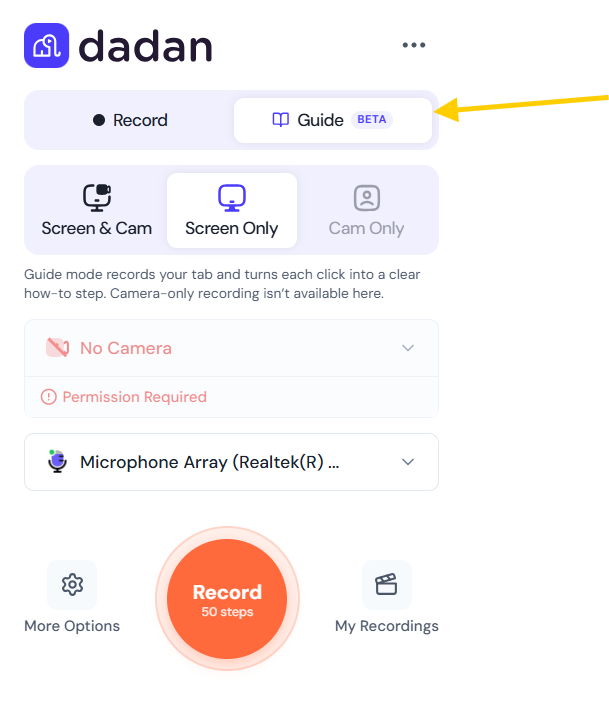
A practical use case is onboarding someone to your CRM. You record yourself logging a new deal once, tighten the step text where the AI draft is vague, and add a warning on the field people usually skip. The new hire reads the steps and plays the video for any step that still isn’t clear.
The benefit is that one recording gives you both formats. If you missed a step, you add it later with your own image instead of recording the whole process again.
Around the guide, Dadan adds translation into more than 180 languages, PDF export, guide analytics, and scored in-video quizzes for training. Request a Video lets a colleague who actually knows the process record it from a link, with no Dadan account needed on anonymous requests.
Key Features
- Click-to-step capture with automatic screenshots
- Original video attached to every guide
- Step editing, merging, reordering, and manual step additions
- Annotations, tips, and warnings
- Translation into 180+ languages
- PDF export and link sharing
- Guide views and engagement tracking
- Scored in-video quizzes
- Request a Video for collecting walkthroughs from others
- Privacy Guard to automatically blur sensitive information
Pros
- Written guide and video from one recording
- Missed steps can be added without re-recording
- Training, quizzes, and hosting in the same platform
- Guides available on every plan, including free
- Useful for both internal SOPs and customer guides
Cons
- Free plan limited to 2 guides a month at 5 steps each
Best For
- Software onboarding and SOPs
- Training that needs a knowledge check
- Collecting process walkthroughs from colleagues or clients
- Documentation shared across regions and languages
2. Scribe
You finish a task in your CRM. Now you need to explain how you did it to someone who has never opened the system.
You could take screenshots, paste them into a document, and write out every step. Or you could use Scribe to capture the workflow as you perform it. Scribe is built to capture functionality that turns supported screen activity into a step-by-step guide with screenshots and descriptions.
The useful part is the starting point. You don’t have to remember which buttons you clicked five minutes ago. Scribe records the workflow and gives you something to edit.
Scribe is particularly useful for digital tasks that follow a predictable sequence. It is less suitable when the main challenge is managing employee training or running complex workflows.
Key Features
- Automatic capture of supported browser and desktop workflows
- Step-by-step guides with screenshots
- Editable instructions and captured steps
- Sharing and embedding options
- AI-assisted documentation features
- Team and enterprise capabilities
Pros
- Saves time on repetitive screenshot work
- Easy starting point for software SOPs
- Useful for internal training and onboarding
- Makes digital processes easier to explain
- Offers a free plan
Cons
- Not every application or workflow is captured in the same way
- Generated steps need to be checked
- Advanced capabilities may require a paid plan
- It is not a full training management platform
Best For
- Teams documenting software workflows
- Customer support and operations teams
- Internal onboarding guides
- Businesses that want screenshot-based instructions
3. Tango
Tango is designed to make software instructions easier to create and use. It captures workflows in supported applications and generates step-by-step guides. Its product also includes digital adoption features that can help employees follow instructions within software, depending on the plan.
That second part is what makes Tango worth looking at. A guide that sits in a folder is useful. Guidance that appears while someone is working can be useful in a different way.
For example, you could document how to create a customer record and use the guide to help employees complete the task in the application.
Tango is worth considering if your documentation problem is closely tied to software adoption. If you simply need a written SOP library, you may not need all of its guidance features.
Key Features
- Workflow capture
- Step-by-step screenshots and instructions
- Guide editing and sharing
- In-app guidance on supported plans
- Digital adoption capabilities
- Team and enterprise features
Pros
- Useful for browser-based software workflows
- Can reduce repetitive documentation work
- Supports employee software guidance
- Suitable for onboarding and process standardization
- Offers a free plan
Cons
- Application support varies
- Advanced features may require paid plans
- May offer more functionality than a team needs for basic SOPs
Best For
- Teams documenting browser-based processes
- Software onboarding
- Digital adoption initiatives
- Companies creating interactive workflow guides
4. Guidde
Guidde focuses on visual documentation through AI-assisted video creation. The platform supports workflows involving screen capture, video guides, narration, and visual explanations. The exact capabilities depend on the product version and plan.
A practical use case is customer education. Your support team can create a walkthrough showing how to use a feature, then share it with customers who ask the same question.
The benefit is that the explanation can include what the user sees and hears. The downside is that videos still need maintenance. If the interface changes, the recording may no longer match the product.
Key Features
- AI-assisted video creation
- Screen capture
- Voiceover capabilities
- Step captions and visual explanations
- Branding features
- Video sharing and publishing
Pros
- Useful for visual how-to content
- Combines demonstrations with explanations
- Can reduce some manual video production work
- Suitable for customer education
- Useful for employee training
Cons
- Videos need to be reviewed for accuracy
- A video can be harder to scan than written instructions
- Features vary by plan
- May be unnecessary for simple software guides
Best For
- Customer education teams
- Software onboarding
- Visual training content
- Teams creating video-based documentation
5. Loom
Loom is a screen recording platform rather than a dedicated automatic SOP generator. You record your screen, explain what you’re doing, and share the video.
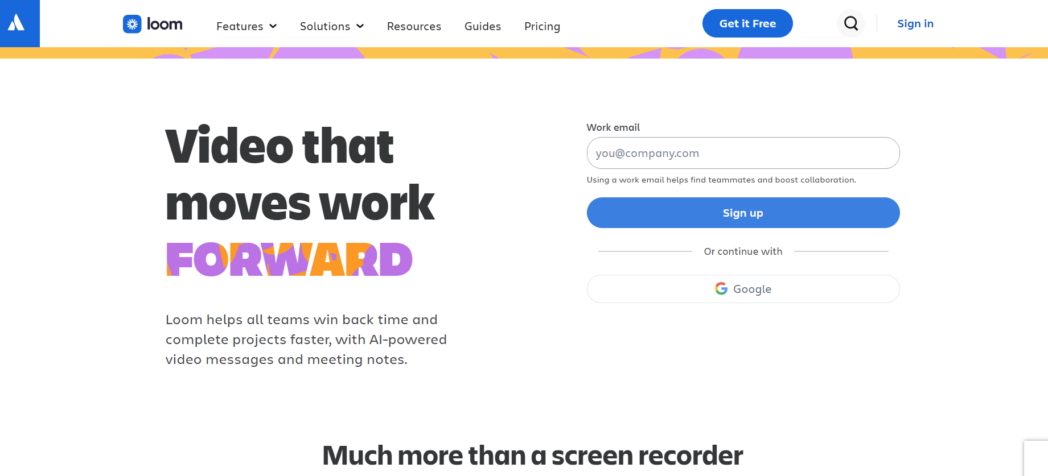
It’s useful when the person watching needs context. For example, a manager can show how to review a weekly report and explain which numbers deserve attention.
But video is not always the easiest format for repeatable instructions. Loom works well when the priority is explaining something quickly. If you need a structured library of searchable, step-by-step procedures, look at tools built specifically for that job.
Key Features
- Screen and camera recording
- Instant link sharing
- AI titles, summaries, and chapters on Business + AI
- Video-to-text automation on Business + AI
- Transcript-based editing on Business + AI
Pros
- Fastest way to record a quick explanation
- Familiar to most colleagues
- Works well inside Atlassian tools
Cons
- No step-by-step guides with screenshots
- AI features require the highest self-serve tier
- Free plan limited to 25 videos of 5 minutes
Best For
- Quick process handovers
- Async explanations
- Atlassian users
6. Glitter AI
Glitter AI asks you to talk through a process while you record your screen. It transcribes your narration, lines it up with screenshots, and writes a guide, so the context you say out loud ends up in the document. It can also convert videos you already have, including meeting recordings, into guides.
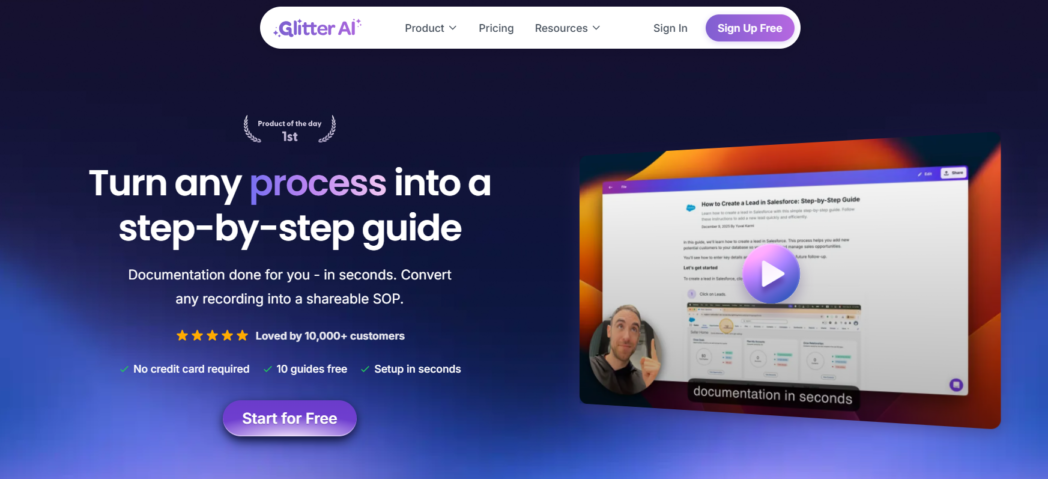
The benefit is that narration captures judgment calls that clicks miss. The downside is that most available detail comes from Glitter’s own materials, and Capterra listed no user reviews, so test before you commit.
Key Features
- Guides from screen recording plus voice
- Conversion of existing videos into guides
- Export to PDF, Word, and PowerPoint
- Sensitive data blurring
- Screenshot editing
Pros
- Captures the reasoning behind each step
- Turns old training videos into documentation
- Desktop capture on the free plan, per the company
Cons
- Few independent reviews to check claims against
- Narrating while working takes practice
- Vendor-reported feature claims
Best For
- Processes with exceptions and judgment calls
- Backlogs of recorded training sessions
- Operations and finance SOPs
7. Trainual
Trainual organizes documentation into a training system. You build SOPs into subjects and topics, assign them by role, and track who has completed what. Its AI drafts an SOP from a description you type.
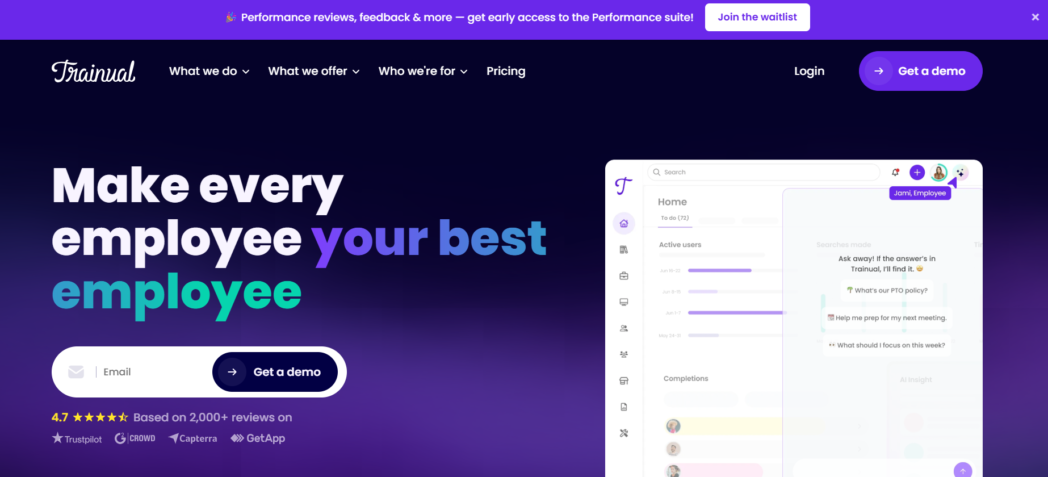
A practical use case is a franchise or multi-location business. You write the opening checklist, assign it to every new shift lead, and check completion before their first solo shift.
The benefit is accountability, and it works for processes that don’t happen on a screen. The downside is that AI drafts from a prompt are only as good as what you describe, so the process owner still has to review every one. There is no free plan, and pricing comes after a demo.
Key Features
- AI-drafted SOPs from text prompts
- Role-based assignments
- Completion tracking
- Tests and quizzes
- SOP templates
Pros
- Ties documentation to training accountability
- Works for off-screen processes
- Structured library by role
Cons
- No automatic workflow capture
- No free plan or public pricing
- A SoftwareSuggest reviewer notes search struggles without exact titles
Best For
- Repeated role-based onboarding
- Multi-location operations
- Proving completion of required SOPs
8. Whale
Whale combines an SOP library, a screen recorder, and training. Its AI can turn a video into an SOP, generate quizzes, and answer questions about your processes, and guides can appear in a browser sidebar while people work.
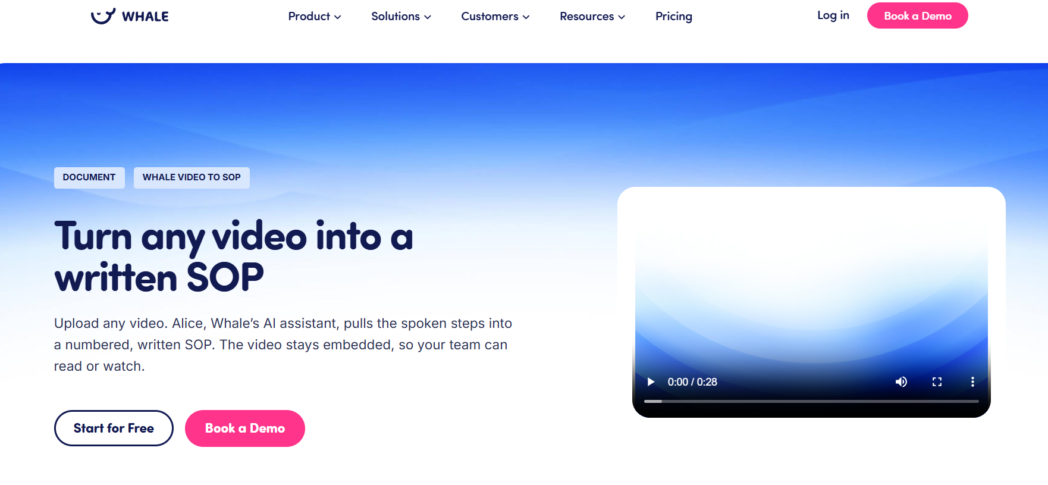
The benefit is flat pricing plus documentation and training in one place. The downside is AI usage limits.
A Capterra reviewer reported burning through the monthly allocation of 25 AI tokens within a week of paying, so check allowances before you commit.
Key Features
- Screen recorder with video-to-SOP conversion
- AI quiz generation
- AI assistant for process questions
- Browser sidebar guides
- Training assignments
Pros
- Flat pricing rather than per seat
- SOPs, training, and Q&A together
- In-context access through the sidebar
Cons
- AI features limited by token allowances
- Pricing tiers differ between sources
Best For
- SOP libraries with built-in training
- Growing headcount on a fixed budget
- Internal process Q&A
9. Process Street
Process Street treats an SOP as something to run. You build a process as a checklist with conditional logic, approvals, and forms, and every time someone runs it, Process Street records each completed step. AI helps generate workflows from a prompt and can handle data entry inside steps.
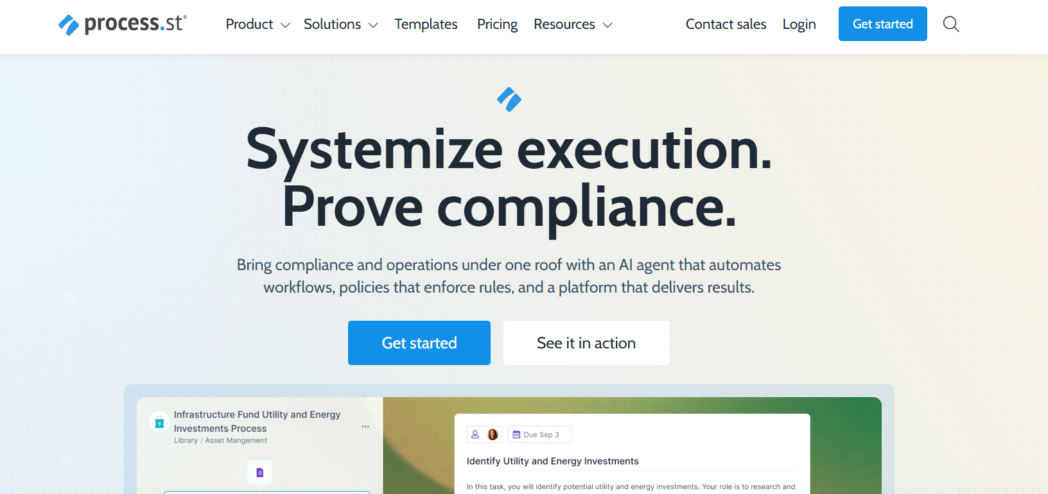
The benefit is an audit trail showing that each step happened. The downside is that it’s heavier than you need for a reference guide. There’s no free plan, and pricing requires a sales conversation.
Key Features
- Checklist workflows with conditional logic
- Approvals and forms
- AI workflow generation
- AI actions inside steps
- Integrations with business tools
Pros
- Documentation and execution in one place
- Completion records for compliance
- Shows where processes stall
Cons
- No screen capture for software walkthroughs
- No free plan
- Quote-based pricing
Best For
- Compliance-heavy processes
- Multi-person approvals and hand-offs
- Recurring operational checklists
10. Notion AI
Notion is a workspace for docs and wikis, and many companies already keep their SOPs there. Notion AI drafts process pages from a prompt, summarizes long documents, and answers questions across your workspace.
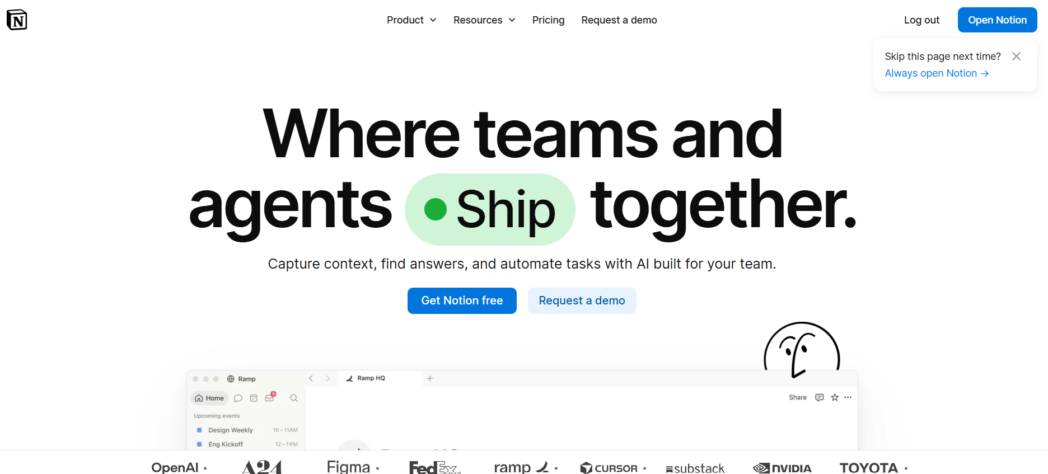
Now your SOPs sit next to everything else you document. The downside is that Notion captures nothing, so you still write the steps, take the screenshots, and update pages yourself. Full Notion AI now sits on the Business plan.
Key Features
- AI drafting and summarizing
- Workspace-wide AI answers
- SOP and wiki templates
- Databases for organizing processes
Pros
- Familiar to most people
- Pairs well with a capture tool that exports into it
- Documentation lives beside other company docs
Cons
- No workflow capture or automatic screenshots
- Full AI requires the Business plan
- Pages go stale without an owner
Best For
- Existing Notion wikis
- AI search across SOPs
- Text-based process documentation
How AI Makes Process Documentation Easier
AI saves the most time on the parts of documentation people avoid, such as capturing screenshots, writing step text, and keeping guides current. It does not replace the person who owns the process, and every tool on this list still needs a review pass before a guide goes out.
Capture While You Do the Task
Click-capture tools record each action and screenshot as you work, so you never pause to crop an image or note what you just clicked. A process you would spend an afternoon writing up now takes about as long as doing it once.
Narration Records the Judgment Calls
Clicks show what to do, but not when to do it differently. Tools that pair your screen with your voice, or keep the original recording attached to the guide as Dadan does, preserve the reasoning a new hire needs for the exceptions.
Replaces Rewriting the Whole Guide
When a field gets renamed, you update the affected step and screenshot instead of rebuilding the document. That lowers the cost of keeping SOPs accurate, which is why most documentation fails in the first place.
Turns One SOP Into Many
Several tools translate a finished guide automatically, so one recording serves people across regions. Dadan Guides translate into more than 40 languages from the guide editor.
Quizzes Show If Someone Learned the Process
Documentation only matters if people follow it. Tools with built-in quizzes, like Dadan’s scored in-video quizzes or Trainual’s tests, tell you whether a new hire understood the process or just opened the link.
Conclusion
The documentation that stays accurate is the documentation that is cheapest to update, so choose based on how often your processes change and who needs to read them.
If your SOPs mostly are in software and change every few months, a tool that re-captures a workflow in minutes will outlast any carefully written wiki page.
Dadan fits when you want the written guide and the video walkthrough from one recording, plus quizzes, analytics, and a way to collect walkthroughs from the colleagues who actually know the process. Record your first guide free at dadan.io.
FAQs
What is the best AI tool for process documentation?
It depends on your input and output. Dadan is the strongest choice when you want a step-by-step guide and a video from the same recording, with training and quizzes in the same place. Scribe and Tango suit screenshot-only guides, and Trainual suits role-based SOP training.
Can AI create SOPs automatically?
Yes, AI can generate a first draft of an SOP from your clicks, a recording, or a text prompt. You still need to review it, because AI drafts miss context such as exceptions, approvals, and why a step matters.
Can AI turn a screen recording into documentation?
Yes. Dadan Guides turns each click in a recording into a numbered step with a screenshot and keeps the video attached, while tools like Glitter AI and Whale can convert recordings into written SOPs.
What is the best AI tool for creating step-by-step guides?
For software workflows, click-capture tools produce the cleanest step-by-step guides. Dadan adds the original video to every guide and lets you add missed steps later, which helps when a process has steps that are hard to show in a screenshot.
Can AI help update existing process documentation?
Yes, mostly by making updates smaller. Instead of rewriting a whole SOP, you edit the affected step, replace a screenshot, or re-record a short section, and some tools can also convert existing videos into fresh guides.
Is AI process documentation suitable for employee training?
Yes, especially when the tool can check understanding as well as deliver steps. Dadan pairs guides with scored in-video quizzes, and platforms like Trainual add role-based assignments and completion tracking.