Canceling Loom seems easy enough until you open your library and tally up the recordings you’ll lose access to when your subscription lapses.
With Dadan, you can migrate your Loom recordings into your library so you can cancel Loom and keep them. How easy that is depends on your current Loom plan. Remember, Loom only allows you to export videos if you’re on a paid plan.
Getting video into and out of Loom trips people up, like this thread on uploading a prerecorded video to Loom or switching to an alternative.
Uploading Pre-recorded Video to Loom or Alternative to Loom
byu/ShaveMeGood inProductivityApps
Why Teams Are Moving From Loom to Dadan
Loom’s free plan stops at 25 videos and five minutes per recording. Its AI features, including summaries, chapters, and transcript editing, require the Business + AI plan at $24 per user each month.
Since Atlassian took over Loom’s billing after the 2023 acquisition, some workspaces have lost the free Creator Lite role in the migration, which turns previously free viewer seats into paid ones and pushes the real invoice above the sticker price.
You now need an Atlassian account to use Loom, and since billing and admin moved into Atlassian’s systems, users have reported more failed uploads and login problems.
Dadan’s Lite plan is $14 per user each month, or $8 billed annually, and includes AI credits, so transcription, summaries, titles, and chapters come with the plan instead of a separate AI tier. Pro also includes a full online video editor, in-video lead capture, and interactive quizzes and polls.
That leaves your library. A Loom account can hold hundreds of recordings, and none of them move over on their own.
What You Need Before Importing Loom Videos
First, you’ll need a Dadan account on a paid plan. Import is a paid feature, so sort your plan out before you start.
You need your Loom videos as share links. The direct method pulls each video from its link, so you don’t have to download anything first.
The most important part is you need a Loom plan that allows exports. Loom only lets you download or transfer recordings on its paid tiers, and since Dadan fetches the video from Loom, that restriction applies to the import.
On a free Loom account, many videos won’t move, and Dadan tells you a video needs a paid Loom plan at the point it fails. So, keep a Loom plan active until every video is across, then cancel.
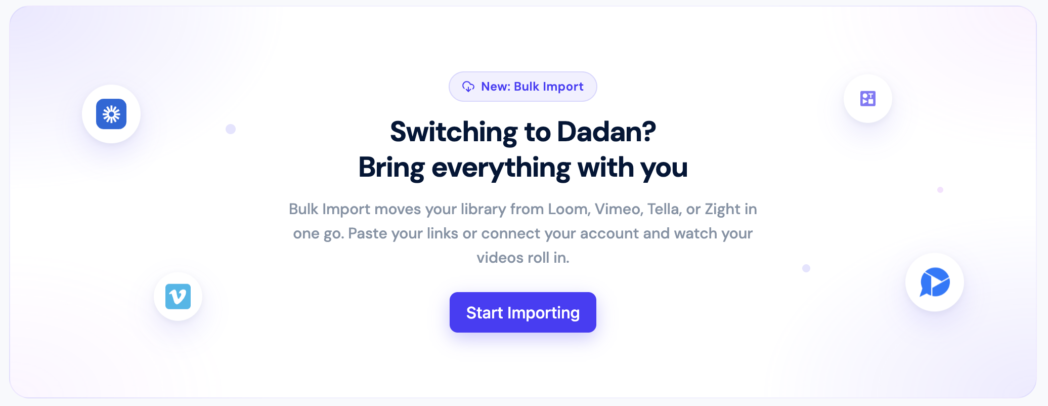
The importer handles standard MP4 video. It can’t pull recordings locked behind password protection or encrypted streaming, so a few videos may need to come over by hand.
How to Import Loom Videos to Dadan
You can import Loom videos by pasting their share links, and Dadan pulls each one into your library. This works for any video on a Loom plan that allows exports.
Step 1: Sign in to Dadan
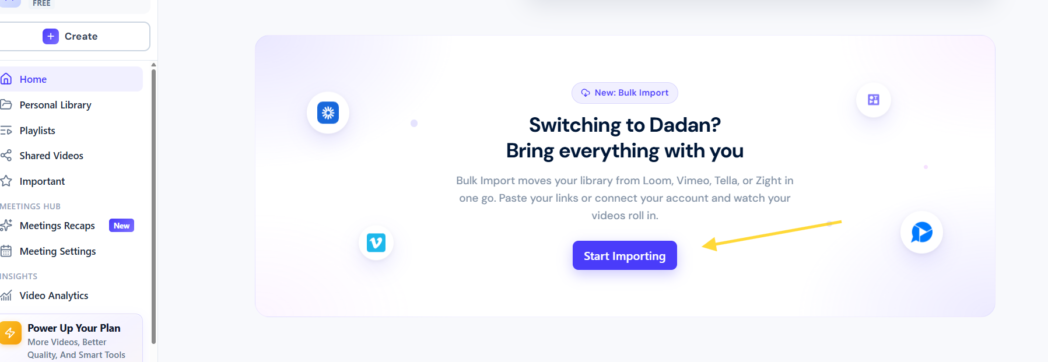
Sign up to Dadan and open the import area from your dashboard.
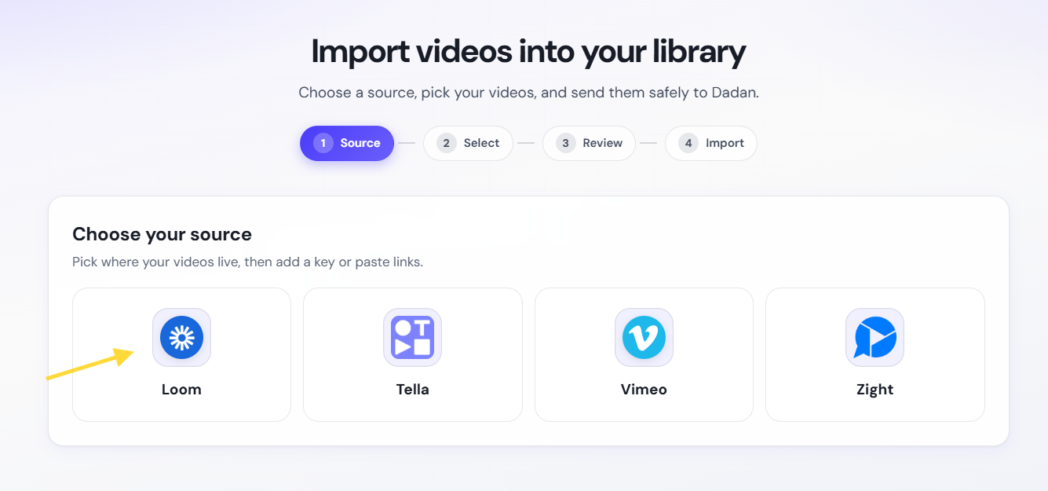
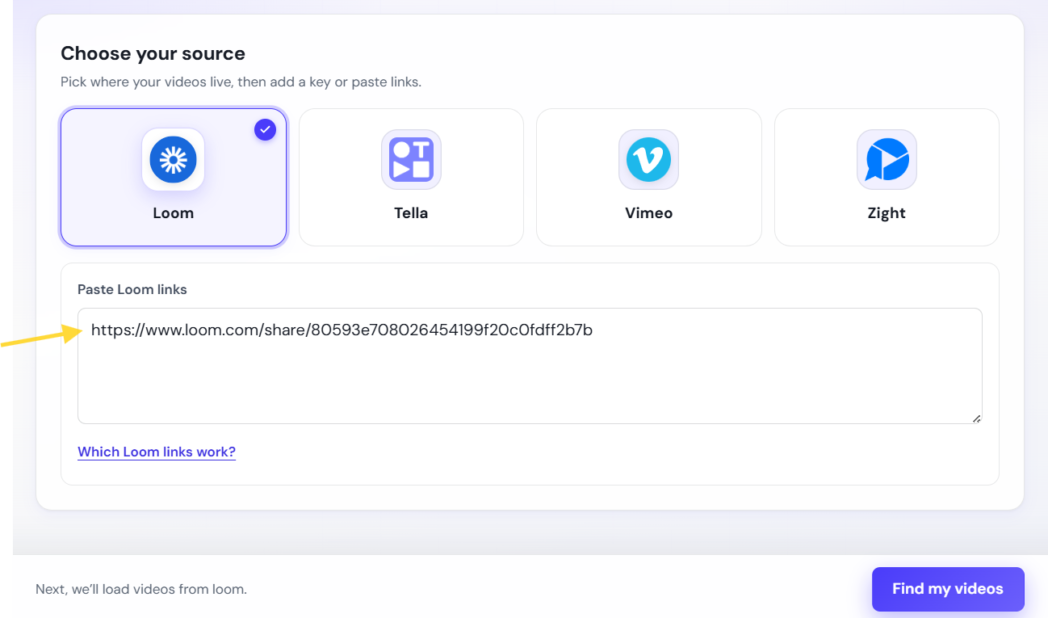
Choose Loom as your source.
Step 2: Find the Video to Be Imported
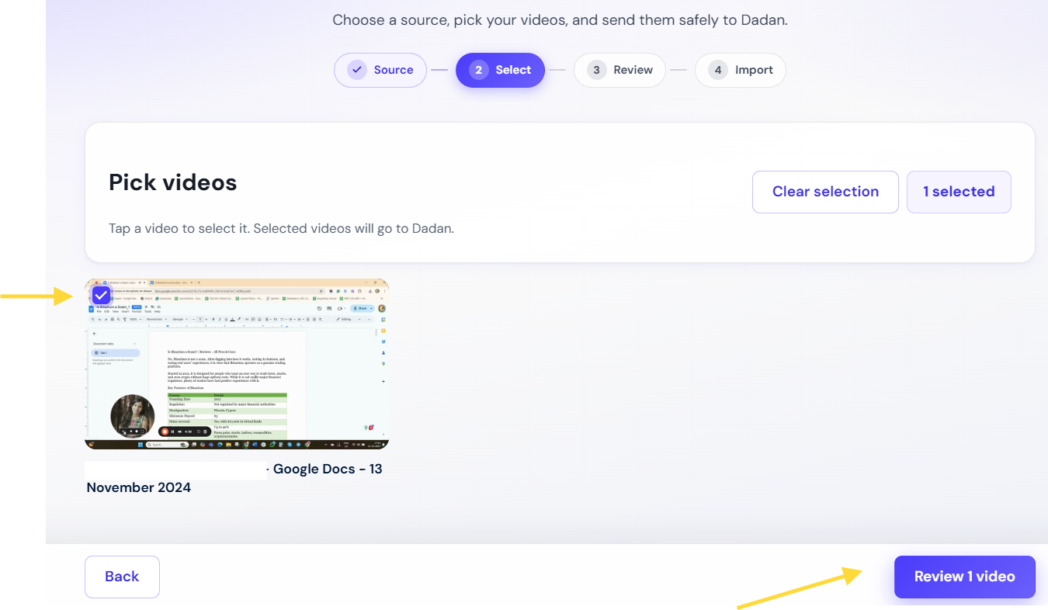
Paste the Loom share link. Dadan shows you a preview so you can check you’ve got the right video.
Step 3: Import
Hit import. Dadan pulls the video from Loom and re-hosts it in your library. If a video needs a paid Loom plan, Dadan tells you right here, so you know which ones still need sorting.
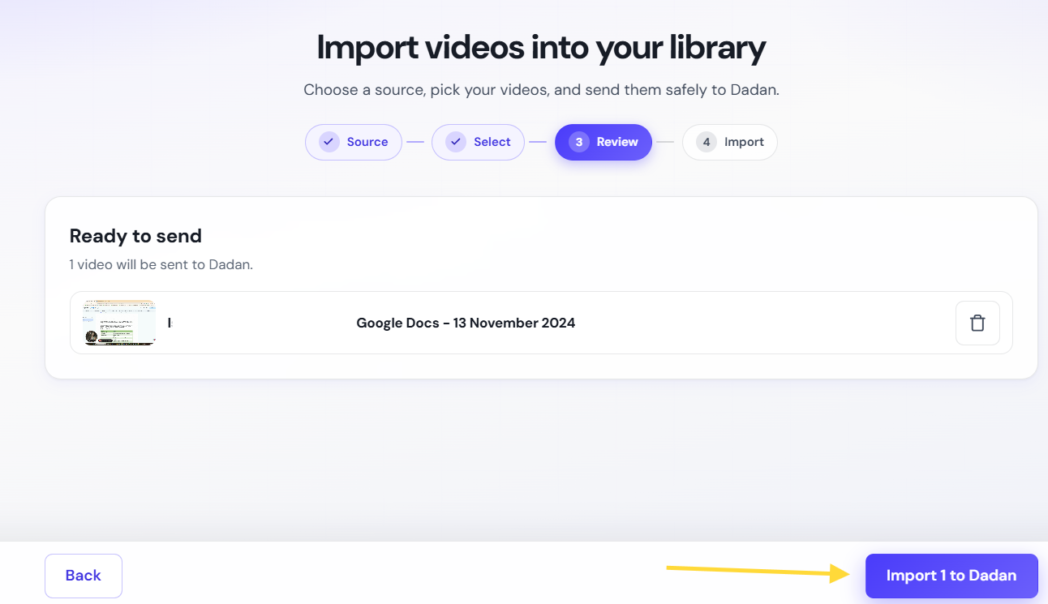
When it’s done, you’ll see the video in your dashboard next to your recordings. No separate imports folder to dig through.
Dadan imports from other tools as well. Connect Vimeo and you can pull your whole library at once with folder filters, and Tella and Zight work too. Loom’s export rules are why you add its videos link by link instead of grabbing them all in one go.
What Happens After Your Videos Are Imported?
Once a Loom video is in Dadan, you treat it like anything you recorded there.
Run transcription and you get a searchable transcript, plus a title, description, tags, and chapters built from it. Edit the video by editing the transcript, cut the dead air, and pull short clips out of a long recording.
Add a call to action, drop in a lead form, or add a quiz so a recorded demo starts collecting answers instead of just playing. You keep password protection and view permissions, so you decide who watches.
You don’t re-record anything. The video you already made in Loom does the extra work once it’s in Dadan.
Organize Your Imported Video Library
Your imported videos land in the dashboard, so a big migration shows up as one long list.
- Drop them into folders like onboarding, demos, and internal updates.
- Build playlists when you want videos to play in order, which works well for tutorials and onboarding.
- Mark the ones you use most as important so they stay up top.
And you can search across file names, transcripts, and tags.
Bonus Read: 10 Things You Can Do With Dadan MCP
Why Bulk Import Saves Hours During Migration
Without an importer, leaving Loom means you download every recording, upload each one into the new tool, then rename and refile it. Do that for a few hundred videos and you’ll lose days to it.
Importing from Loom cuts out that whole round trip for every video that qualifies. You hand Dadan the Loom links, it pulls and re-hosts them, and they show up ready to sort.
With a provider that allows a full library pull, like Vimeo, you bring everything over in one connection. Loom keeps its own flow tied to a paid plan, but even then, you set the queue up once and let Dadan do the fetching instead of moving files by hand for hours.
Conclusion
Order matters when you leave Loom. Keep an export-capable Loom plan running, move your videos into Dadan, check everything’s across and organized, then cancel Loom.
Do it in that order and you won’t lose a recording. See which Dadan plan fits your library at dadan.io/pricing and start moving your videos over.
FAQs
How do I import Loom videos to Dadan?
Open the import area in your dashboard, pick Loom, and paste the share link for each video. Dadan pulls it from Loom and re-hosts it in your library, and it shows up in your dashboard when it’s done.
Can I bulk import multiple Loom videos at once?
You can queue several Loom links and Dadan works through them one after another. A full one-connection library pull is a Vimeo thing. With Loom you add links individually, because of Loom’s export rules.
Do I need to download Loom videos before importing?
No. Dadan pulls each video straight from its Loom share link, so you don’t download anything first. Just make sure your videos are on a Loom plan that allows exports, since Dadan uses the same access Loom gives you.
Will my original Loom videos remain unchanged?
Yes. Importing copies each video into Dadan and leaves your Loom originals alone. Nothing leaves Loom until you delete it, so you can move everything first and cancel later.
Can I edit imported Loom videos in Dadan?
Yes. An imported video behaves like any Dadan recording, so you can edit it by transcript, trim it, add a call to action or a lead form, and cut shorter clips from it.
Does Dadan preserve video quality during import?
Dadan re-hosts your original file, so quality follows the source and your plan’s resolution cap. Free tops out at 720p, and paid plans go up to 4K.
Can I organize imported videos into folders?
Yes. Sort them into folders, group them into playlists, mark the ones you use most as important, and search across file names, transcripts, and tags to find anything fast.
Can I use Dadan MCP with imported Loom videos?
Yes. Once a Loom video is in your Dadan library, you can query it through MCP like any other recording, pulling its transcript, summary, or chapters from tools like ChatGPT and Claude.