An SOP is only useful if someone can follow it without asking you. Most guides on how to create SOPs focus on templates and formatting. That is rarely the problem. The problem is that the steps are wrong, the exceptions aren’t written down, or nobody can find the document when they need it.
TL;DR
The fastest way to build an SOP for anything you do on a computer is to record yourself doing the task, and let the recording turn each click into a written step with a screenshot. Then you edit the wording and add the bits a new person would trip over.
Dadan does this on the free plan and gives you the video as well. If the work happens off a screen, skip the recording and write a plain checklist with an owner and a clear starting point.
Scribe and Tango are fine if you only want the written doc, Trainual if you want training and tracking bolted on, and Notion if you just need a place to keep everything.
What Is an SOP?
An SOP is a written set of steps for doing a repeated task the same way every time, no matter who does it. It exists so the work doesn’t depend on one person’s memory. If the only person who knows how to run payroll leaves, the SOP is what keeps it running.
People muddle SOPs up with a few things they’re not. A policy is the what and the why. A process is how a handful of tasks string together across a workflow. A work instruction is one action inside a single step.
But an SOP is the thing someone can actually pick up and run, so it carries enough detail to get the job done and stops short of reciting company policy at you.
But not everything needs to be an SOP. The ones worth documenting are tasks you do often, tasks that cost you when they go wrong, and tasks only one person knows how to do. A task the whole team does once a year usually isn’t worth a formal SOP.
What Should an SOP Include?
A useful SOP answers the questions a new person has. Keeping that order the same across your SOPs means nobody has to search for the part they need.
Each item below covers one thing people ask or get wrong.
- Title and version: Use the words your team would search for. Add the version number and last-reviewed date.
- Purpose and scope: Explain what the SOP covers and where it begins and ends.
- Owner and trigger: Name the person responsible for keeping it updated and the event that starts the task.
- Tools and access: List the software, accounts, permissions, or materials someone needs.
- Numbered steps: Describe one action at a time, in the order it happens
- Decision points: Explain what to do when something does not go as expected.
- Review date: Give the team a clear point at which the SOP should be checked again.
A written step list is easy to skim and easy to update one line at a time. A recording shows what a step looks like and doesn’t miss a click you forgot to write down.
For a task on a screen, the best SOP is usually both a written step and a recording of the same step. It’s also the fastest to produce.
How to Create an SOP Step by Step
The template matters less than the process you use to create the SOP. Follow these steps to build something people can actually use.
Step 1: Start Guide
Install the Dadan browser extension (Dadan Guides coming soon to Mac app), then click the Dadan icon in your browser toolbar to open it. Select Guide as the capture type.
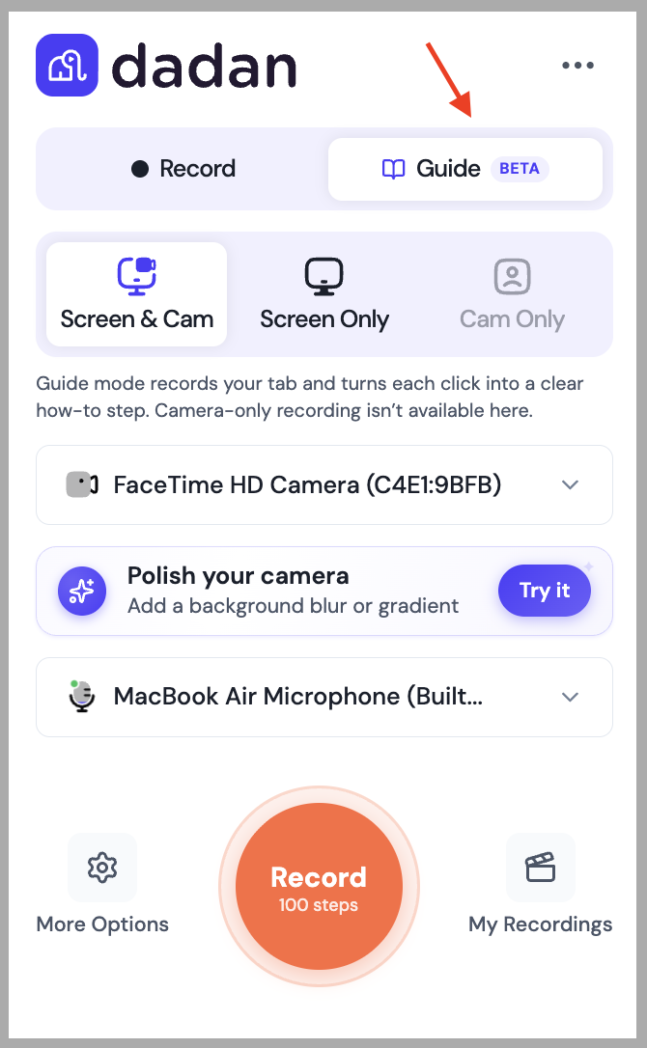
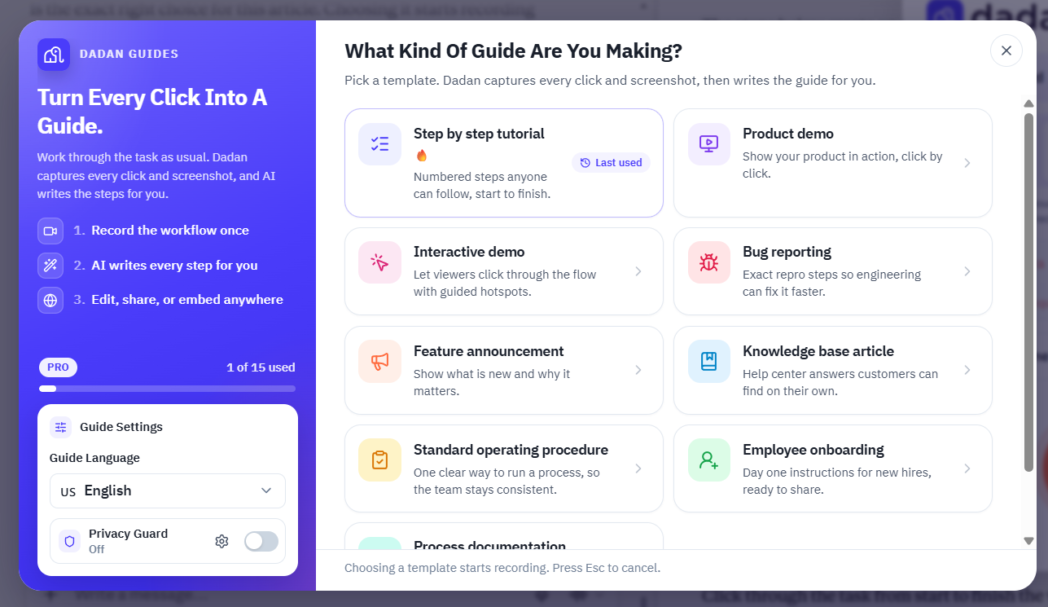
The Guides panel opens and asks what kind of guide you’re making. Pick the Standard operating procedure template, which is built for documenting one clear way to run a process. If your readers need another language, set the Guide Language before you start, and turn on Privacy Guard if the process will show anything sensitive.
Avoid documenting everything at once. Create one useful SOP, test it, and use what you learn to improve the format before building a full library.
Step 2: Record the Process
Click through the task from start to finish the way you normally do it. Dadan captures each click as a separate step and takes a screenshot of the screen behind it, and it keeps the full recording attached to the guide.
Go at a normal pace and don’t skip the small clicks, because those are the ones a new person needs.
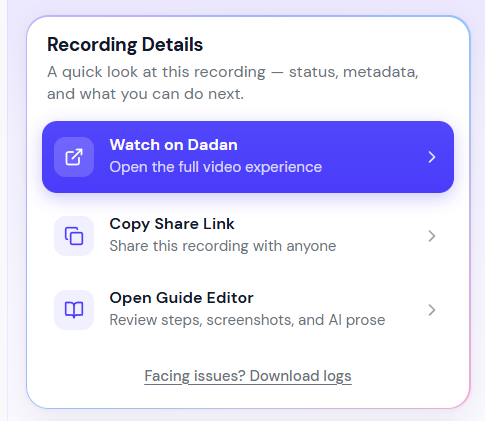
When you finish, stop the recording. Dadan’s AI turns the capture into a numbered guide with a title and a short description for each step.
Step 3: Review the Guide Dadan Generated
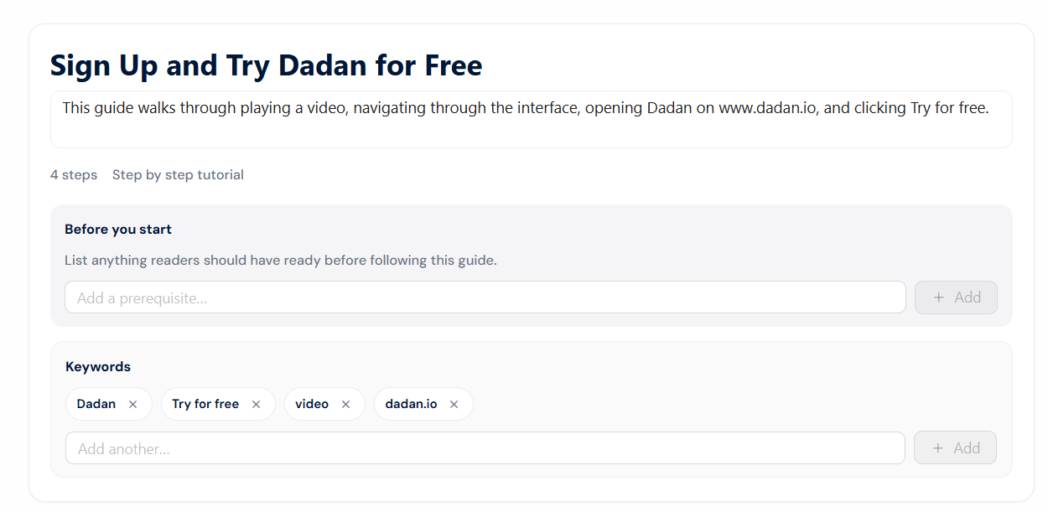
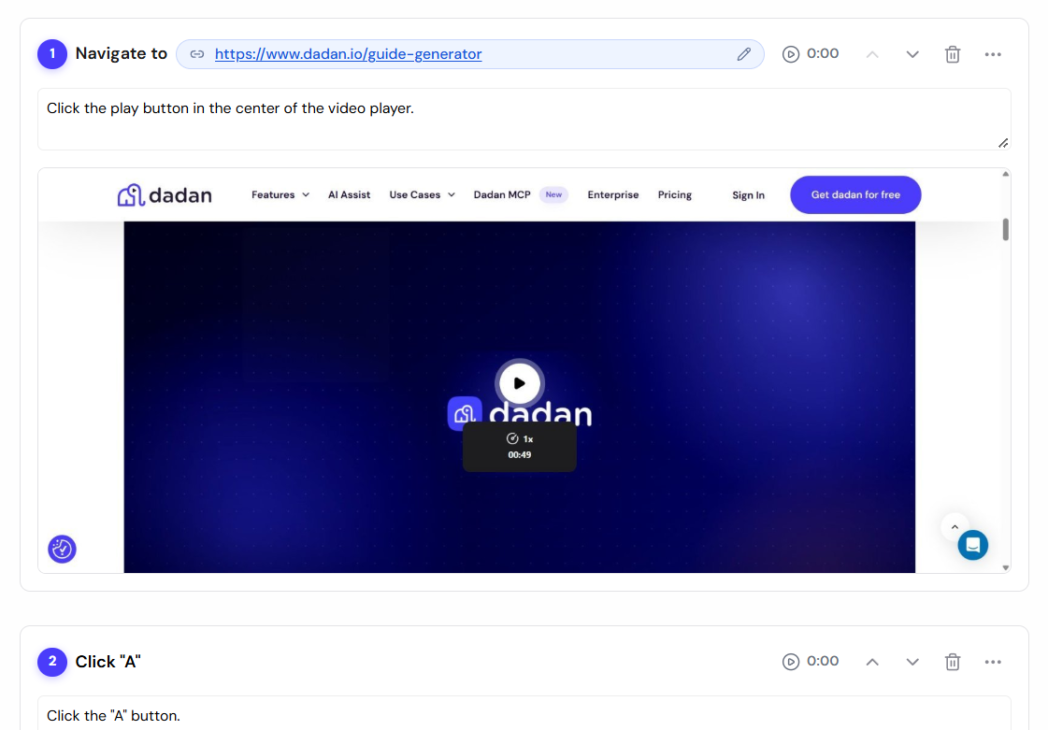
Open the guide in the Guide Editor. You’ll see the numbered steps, each with its screenshot and a description Dadan wrote. Read through it once as if you’d never done the task, and mark the steps where the auto-written text is vague or wrong.
The draft is a starting point. The next two steps are where you make it accurate.
Step 4: Rewrite the Steps If Needed
Edit the text on each step so it names the exact button or field the reader has to use. Cut any step that doesn’t matter, and merge steps that are really one action.
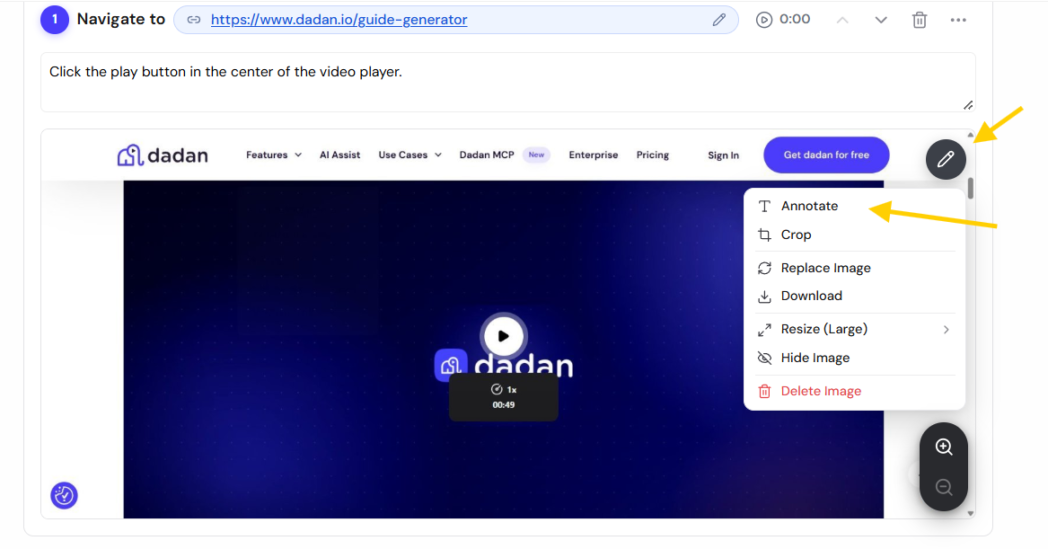
Then fix the screenshots. Annotate the ones that need a pointer, and blur anything sensitive that Privacy Guard didn’t already catch, like a customer name or an account number.
Step 5: Add the Exceptions Dadan Didn’t Capture
The recording only captured the version where nothing went wrong. Add the exceptions yourself. At each step where something could go differently, add a step or a note for what to do, such as a warning on the field people usually skip or what to do when an approval is missing.
You won’t catch every case the first time. Cover the few that come up most, and leave the guide easy to add to later.
Step 6: Test It, Then Share or Export
Give the guide to someone who has never done the task and watch where they slow down. Every pause or question is a gap to fix. Once it holds up, share it as a link, embed it, or export it to PDF for anyone who wants a file.
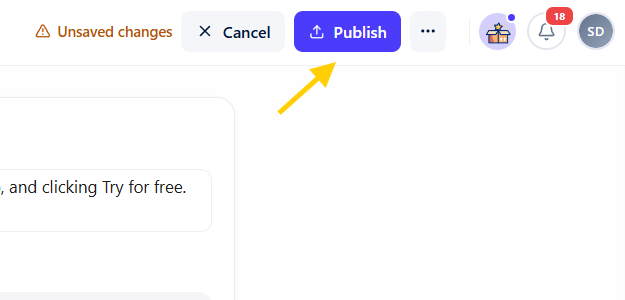
Dadan can also translate the finished guide into other languages. The recording stays attached, so a reader who gets stuck on the text can watch the step.
Set a review date and put the owner’s name on it, because a screen-based SOP goes out of date when the tool changes its interface.
Best Tools for Creating SOPs
The best tool depends on the kind of process you are documenting. Here are several tools to consider.
| Tool | What it produces | Auto-builds steps from a recording | Screenshots per step | Video included | Free plan |
|---|---|---|---|---|---|
| Dadan Guides | Written guide, screenshots, and video | Yes, each click during recording | Yes, captured automatically | Yes | Yes, 2 guides per month |
| Scribe | Written guide with screenshots | Yes | Yes | No | Yes |
| Tango | Written guide with screenshots | Yes | Yes | No | Yes, capped |
| Trainual | Written docs plus training and tracking | No | Manual | Embedded | No, trial only |
| Process Street | Runnable checklists you can track | No | Manual | Embedded | No, trial only |
| Notion | Flexible docs and wikis | No | Manual | Embedded | Yes |
1. Dadan
Dadan is a browser-based video recording platform, and its Guides Creator feature is what makes it a strong fit for creating SOPs. You record a workflow through the browser extension, and Dadan captures each click as a numbered step with the screen behind it, then assembles a doc-style guide you can edit.
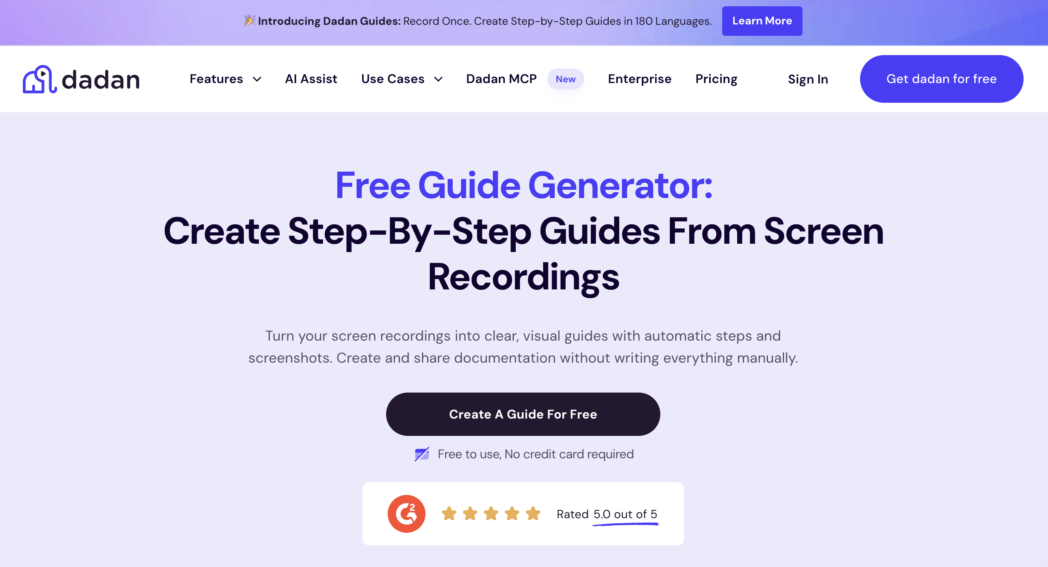
You record a workflow through the browser extension, and Dadan captures the clicks as numbered steps with screenshots. It then builds a guide that you can edit.
The useful part is that the recording stays attached to the written guide. Someone can read the instructions first and watch the video when they need more context. You do not have to create a separate document and video from scratch.
You can rewrite step text, annotate screenshots, and reorder, merge, or remove steps. Guides can be shared through a link or exported to PDF. Dadan also includes broader video features such as captions, transcripts, chapters, and password-protected sharing.
Best for
- Operations, support, and onboarding work where the process lives on a screen and you want both a written guide and a video without building each separately.
Key features
- Automatic step and screenshot capture
- Editable instructions and annotated screenshots
- Step reordering, merging, and deletion
- Video attached to the written guide
- Link sharing and PDF export
- Captions, transcripts, chapters, and other video tools
Pros
- One recording creates both a guide and a video.
- Readers can choose between scanning instructions and watching the process.
- It can handle documentation and broader video needs in one platform.
Cons
- The free plan has limits on the number and length of guides.
2. Scribe
Scribe turns a workflow into a written guide with screenshots. You install the extension, complete the process, and Scribe creates numbered instructions for the actions you take.
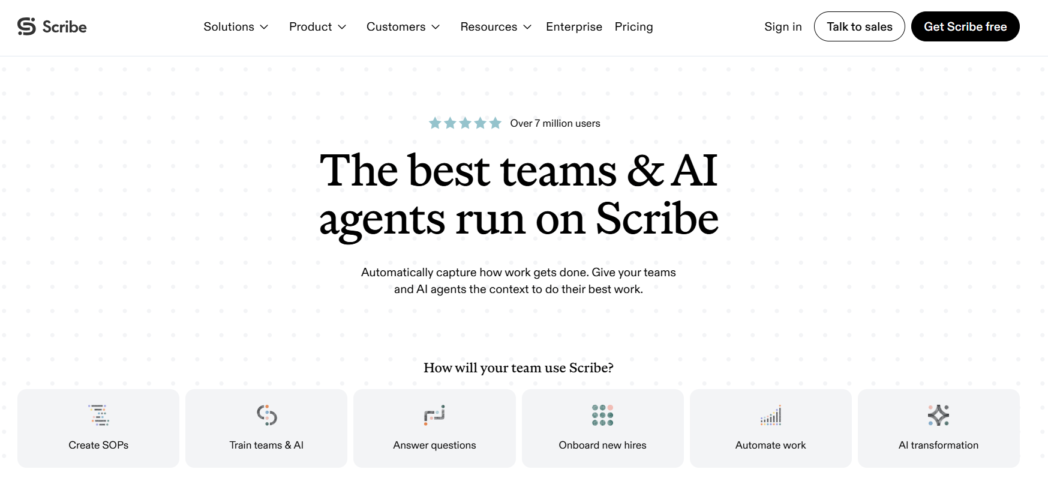
It is a good fit when the final deliverable is a quick, readable document. The limitation is that Scribe does not produce a video of the process. If the reader needs to see the full workflow, screenshots may not be enough.
Best for
- Teams whose main deliverable is written, screenshot-based process documentation for reasonably stable tools.
Key feature
- Browser and desktop capture
- Automatic screenshots and numbered steps
- Editing and redaction tools
- Link sharing, embeds, and paid export options
Pros
- Fast to create and easy to read
- Useful free browser capture option
Cons
- No video output.
- Some capture and export features require paid plans.
3. Tango
Tango works much like Scribe. Its browser extension captures a workflow as you perform it and turns it into an annotated, step-by-step guide, and reviewers consistently praise how clean the output looks with little effort.
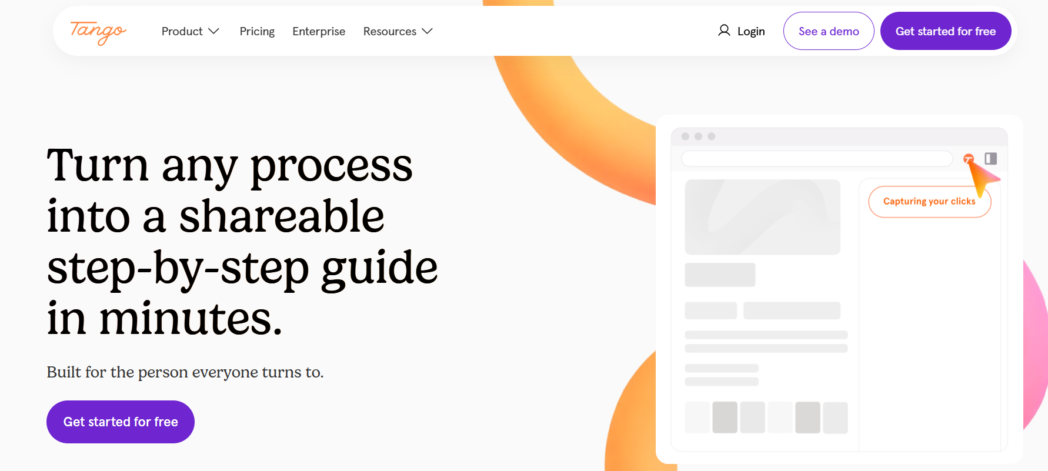
Over the past year Tango has pushed further into digital adoption, adding in-app guidance that walks people through a process live inside the software.
Like Scribe, Tango creates screenshot-based guides rather than video, and its per-user model counts viewers as seats, so cost climbs with the number of people who need access rather than the number who create guides.
Best for
- Small operations and IT teams documenting browser-based processes who also want in-app walkthroughs.
Key features
- Automatic step and screenshot capture from the browser.
- In-app guidance that overlays live instructions on the software being used.
- Link and embed sharing with basic editing.
Pros
- Quick capture and polished, easy-to-read output.
- A free tier that is genuinely usable for a handful of short guides.
Cons
- No video output, so guides rely entirely on static screenshots staying current.
- Per-user pricing that counts viewers, plus a capped free plan, so cost can rise quickly as access spreads.
4. Trainual
Trainual is a different category. Rather than capturing a single workflow, it houses your whole company’s procedures, policies, and training in one searchable place, then tracks who has read and completed what.
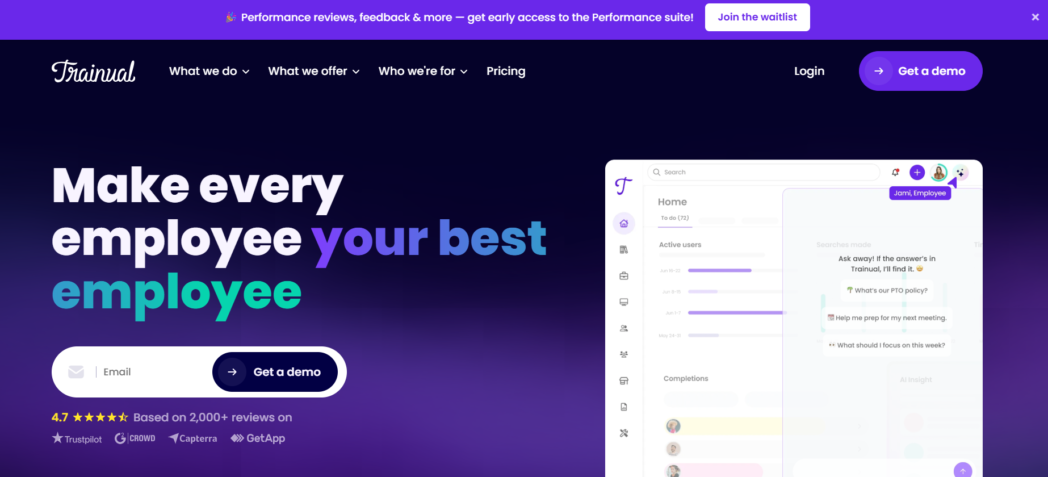
Its AI can draft a written SOP from a short description, which lowers the barrier for teams whose real problem is that nobody wants to sit down and write.
The pricing model reflects the scope. Trainual charges a flat monthly fee that bundles a set number of employees rather than a simple per-seat rate, and it does not offer a free plan. It is built for organizations that want to manage onboarding and accountability across a growing headcount, which is more platform than a team documenting a few processes needs.
Best for
- Growing companies that want SOPs, onboarding, and completion tracking managed together in one system.
Key features
- A central, searchable home for SOPs, policies, and role-based training.
- An AI assistant that drafts written procedures from a prompt.
- Testing, tracking, and reporting on who has completed each item.
Pros
- Combines documentation with training and accountability in one place.
- Flat, headcount-based pricing can work out cheaper than per-seat tools at larger sizes.
Cons
- No free plan, and entry pricing is high for a small team.
- Heavier than needed if you only want to document a handful of processes.
5. Notion
Notion is a flexible workspace rather than a dedicated SOP recorder. You can use it to create pages, databases, owners, statuses, and review dates.
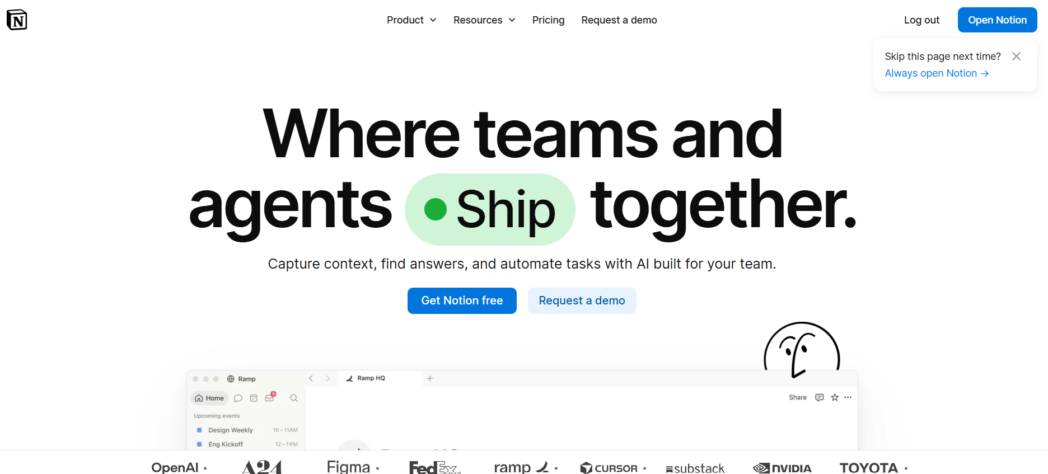
If your team already uses Notion, keeping SOPs there can make them easier to find. The tradeoff is that Notion does not capture the process for you. You need to write the steps, add screenshots, or embed a recording yourself.
Best for
- Teams that already use Notion and want a flexible, low-cost home for written SOPs and knowledge.
Key features
- Freeform pages and databases to structure an SOP library any way you like.
- Owners, statuses, and review dates you can build in as properties.
- Embeds for video, images, and files from other tools.
Pros
- Highly flexible and inexpensive per seat.
- A genuinely useful free plan for individuals and small teams.
Cons
- No automatic step or screenshot capture, so writing each SOP is fully manual.
- Full Notion AI now sits on the Business tier rather than the cheaper plans.
Conclusion
Creating an SOP is not mainly a writing exercise. The real work is capturing the process accurately, explaining what happens when things go wrong, and keeping the document current.
For screen-based tasks, a recording can make the first draft much faster. A written guide gives people something they can scan, while the video helps when a screenshot or sentence does not provide enough context.
Choose the tool that fits the way your team works. The best SOP is the one people can find, understand, and trust.
FAQs
How do I create an SOP?
Choose a recurring task, define its scope and owner, and document the process as you perform it. Turn the notes or recording into numbered steps, add common edge cases, and have someone unfamiliar with the task test the instructions before publishing.
What should an SOP include?
An SOP should include a title, version, purpose, scope, owner, trigger, required tools, numbered steps, decision points, and review date. The exact sections can vary depending on the task.
What is the best format for an SOP?
For work done on a computer, use written steps with screenshots and, when helpful, a recording of the same process. For offline tasks, a clear checklist may be enough. The format should match the work and the needs of the person following it.
How can I create SOPs faster?
Document the process while you perform it instead of writing from memory. For screen-based work, a recorder that captures clicks and screenshots can give you a usable first draft. You then need to edit the wording, add edge cases, and test the result.
Can I create an SOP from a screen recording?
Yes. A screen recording can capture the actions involved in a process and provide a reference for the written instructions. Tools such as Dadan can turn the recording into numbered steps with screenshots, while keeping the video attached to the guide.
What tools can I use to create SOPs?
Dadan, Scribe, and Tango are useful for screen-based documentation. Trainual is designed for SOPs and training, Process Street focuses on recurring checklists, and Notion works as a flexible documentation hub. The right choice depends on whether you need screenshots, video, training, workflow tracking, or a simple knowledge base.
How often should SOPs be updated?
Review SOPs on a regular schedule, such as quarterly, and update them whenever the process or software changes. Give every SOP an owner so someone is responsible for checking that the instructions still match the work.
Recommended Readings: