Two different things go by the same name here. A video SOP is a controlled document in video form, and an SOP training video teaches someone the procedure that document defines. Confuse the two and you end up with a library of helpful clips that no auditor, new hire, or compliance lead can actually rely on.
This guide covers both, and shows you where the line sits.
TL;DR
- An SOP video records a standard operating procedure as a watchable walkthrough.
- To make one that holds up, script it against the written SOP, record the screen at the pace someone can follow, cut it with a transcript editor, add a knowledge check so completion is provable, restrict access, and set a review date.
- Dadan handles recording, editing, hosting, quizzing, and access control in the browser, with a free plan to start on.
What Are SOP Videos?
An SOP video is a recorded walkthrough of a standard operating procedure, showing each step as it happens on screen or on the floor, instead of describing it in text.
The written form is the older one. The US Environmental Protection Agency defines a standard operating procedure as a set of written instructions documenting a routine or repetitive activity, and its guidance document EPA QA/G-6 has served as a reference structure across regulated industries since 2007. That guidance makes a point worth carrying into video work.
SOPs are meant to function as training resources and as documentation of proper procedure, not only as reference shelves.
What separates one from a screen recording of someone doing their job is structure. A screen recording captures whatever happened in front of the camera. An SOP video states what procedure it covers, who owns it, what you need before you start, and which version you are watching.
Because an SOP video documents how work is supposed to be done, two things follow that do not apply to a casual explainer. It has to carry a version, so nobody follows last quarter’s process by accident. And it usually has to produce some proof that people watched and understood it, because “we sent everyone the link” is not a training record.
Both are cheap to build in at recording time and expensive to retrofit later.
Why SOP Videos Improve Employee Training
Video works for procedures because the medium matches the material. A procedure is a sequence of actions in a specific interface or physical space, and showing that sequence removes the interpretation step that text forces on the reader.
The case rests on four specific mechanisms rather than a general claim that video is more engaging. Each one addresses a different way written procedures fail after they leave the author’s desk. Read them as a set, because the fourth is the one most teams overlook and the one that matters most if anyone ever asks to see your training records.
Text Forces the Reader to Translate
A written step tells you to open the settings panel and adjust the threshold. A recorded step shows you where the panel is, what the threshold field looks like, and what happens on screen when you change it.
The reader no longer has to build a mental picture of an interface they have never seen.
The Procedure Doesn’t Depend on One Person
EPA’s guidance notes that SOPs promote consistency even when personnel change. Video improves that. The person who actually knows the process records it, and their knowledge is no longer something you have to book time with them to access.
Questions Get Answered Before They Are Asked
The tone, the pauses, the moment where the recorder says to be careful here because this step is irreversible. None of that survives the trip into a numbered list, and it is often the most valuable part of the recording.
Completion Becomes Measurable
A written SOP sitting in a shared drive gives you no evidence anyone read it. A video with a knowledge check attached gives you a name, a timestamp, and a score.
But a lot of practitioners have been raising the same objection for over a decade, and it deserves a straight answer rather than a marketing dodge.
Video training can go stale very quickly, and it takes more effort to update a video than to edit a wiki. If we include this video training, who is ultimately responsible for updating it? I would hate to see WPD become “littered with out-of-date videos that no one updates.”
— Greg Knoke, W3C public-webplatform mailing list, October 2012
Fourteen years on, the same complaint keeps surfacing. On the Adobe Experience League community, a user reported that “Most of the training videos are outdated” and pointed at a new-user orientation video years past its useful life.
More recently, a developer described what he calls the stale tutorial problem, noting that the workflow in his own onboarding material had changed twice since the walkthrough video was recorded.
Knoke was right in 2012 and the objection still holds, but with one change since. Transcript-based editing means correcting a misstated step is now a text edit rather than a re-record, which removes most of the cost he was worried about.
Essential Elements of an Effective SOP Video
A strong SOP video carries the same structural elements as a written SOP, just delivered in a different medium. Skip the elements and you have a screen recording.
EPA QA/G-6 lists the basic sections a standard operating procedure needs. Those translate well into video, and using them as your checklist is what makes a documented procedure different from a helpful clip.
| EPA SOP element | How it appears in an SOP video |
| Purpose and objective | Stated in the first 15 seconds, before anything is demonstrated |
| Scope | Named up front so the wrong viewer leaves early |
| Responsibilities and responsible individuals | Named on screen and repeated in the video description |
| Materials and tools | Listed before step one, including required system permissions |
| Procedure | Numbered steps, each its own chapter |
| Definitions and acronyms | Defined the first time they are spoken |
| Appendices and supporting documents | Attached in the Resources tab, linked to the written SOP |
But there are two elements that have no direct written equivalent and matter more in video than on paper.
- A Version Marker and a Review Date
State the version and the last review date on screen, not only in the description. Without this, nobody watching can tell whether they are following current practice.
- A Verification Step
Give the viewer something to answer at the end. It confirms comprehension and it gives you a record.
How to Create SOP Videos for Employee Training
The workflow runs from script to knowledge check to access control. Dadan covers all of it in the browser, so you are not exporting a file between a recorder, an editor, a hosting platform, and a quiz tool.
Everything below reflects the current Dadan interface. Sign in at app.dadan.io to follow along, or install the Chrome or Edge extension or the Windows or Mac app if you prefer recording outside the browser.
Step 1: Pull the Written SOP and Mark the Gaps
Open the existing written procedure before you open the recorder. Read it and mark every step where the text is ambiguous, out of date, or assumes knowledge.
Those marks become your script priorities. If no written SOP exists, write the step list first, because recording without one produces a rambling video you will redo. Keep the script in a form you can paste. You will load it into the recorder in step 3.
Step 2: Open the Recorder and Choose Your Mode
From your Dadan Home, start a new recording and choose the online recorder.
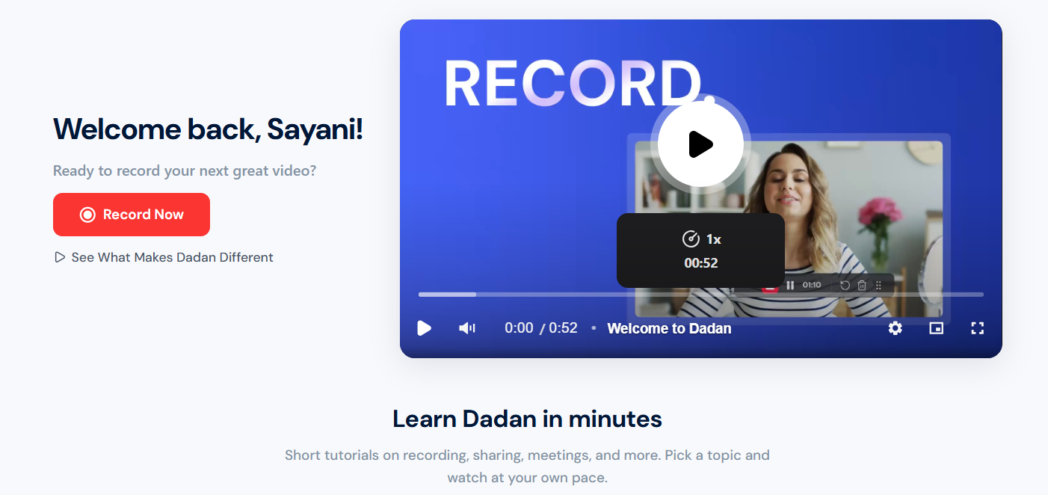
Set your Recording Mode. For a procedure walkthrough, screen-only is almost always right. Add your camera only when a face on screen contributes something the screen does not, which for most SOP work is rarely.
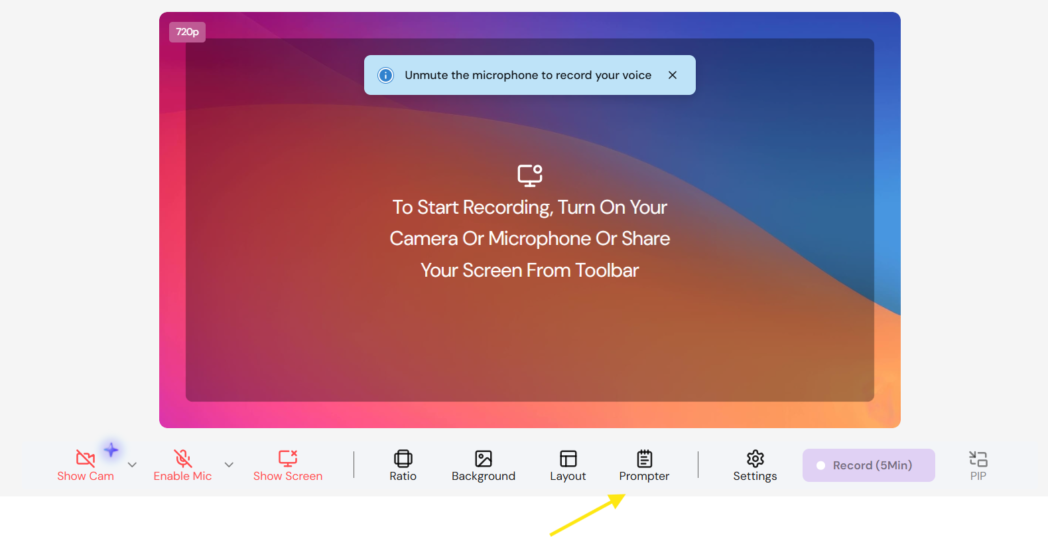
Then set your camera and microphone before you go any further. If you are recording silent b-roll, switch the mic off deliberately and confirm the recorder acknowledges it, because discovering the problem after a long take is expensive.
Step 3: Load Your Script Into the AI Prompter
In the Dadan Recorder, click the Prompter button on the toolbar to open the prompter pop-up. A text box appears pre-populated with a default script. Paste your own in, or use the AI writing option to generate one from a prompt, then edit it.
Click Play to sync the scroll to your speaking pace, and drag the pop-up by the dots icon to sit somewhere readable against your background.
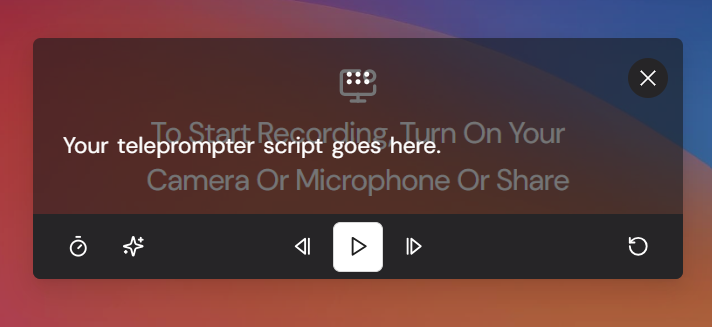
The prompter software keeps you from restating steps or trailing off, which is the single biggest cause of a twelve-minute recording of a four-minute procedure.
Step 4: Set Recording Quality and Hit Record
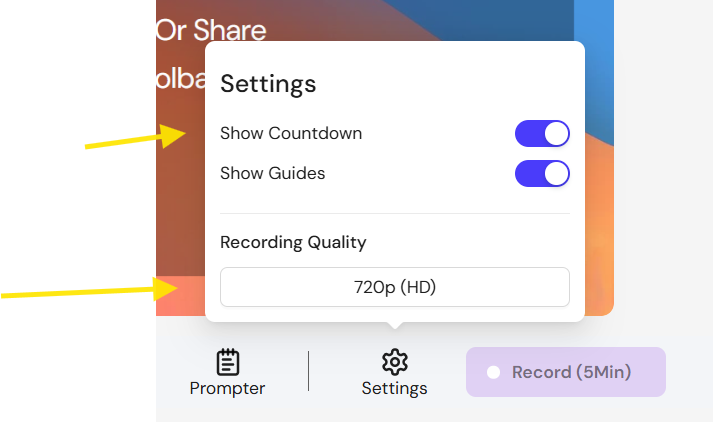
Open the Settings dropdown on the recorder toolbar. Set Recording Quality to 720p for quick internal clips, 1080p for most SOP work, or 2K when you are capturing dense interfaces on a large monitor.
Turn on Show Countdown for a 3-2-1 lead-in and Show Guides if you want alignment overlays while framing.
Click Start Recording. The button is red and carries a timer showing your maximum recording length, which is worth glancing at before you begin a long procedure.
Perform the procedure at the speed someone learning it could follow, which is slower than your working speed. Pause visibly between steps.
On the desktop apps, you can zoom while recording and add on-screen annotations, both worth using on any step involving a small control or a field that is easy to miss.
Click Stop when you are done. The video uploads to your Personal Library automatically.
Step 5: Cut It Down in the Transcript Editor
Generate the AI transcript, then open the Transcript Editor from the AI Assist panel. You get the video player, a waveform timeline, and the timestamped transcript side by side.
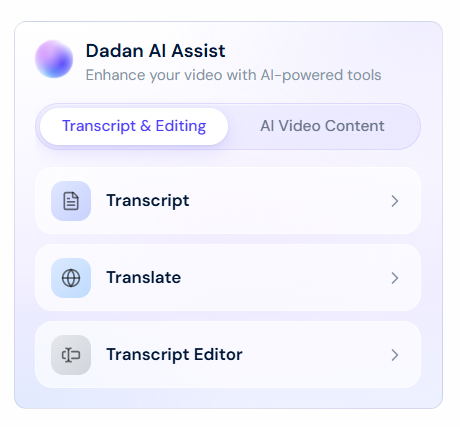
Use Remove Filler Words and Detect Silence to strip the ums and the dead air, and Reorder Segments if you covered something out of sequence. Focus mode hides surrounding text while you work on a section.
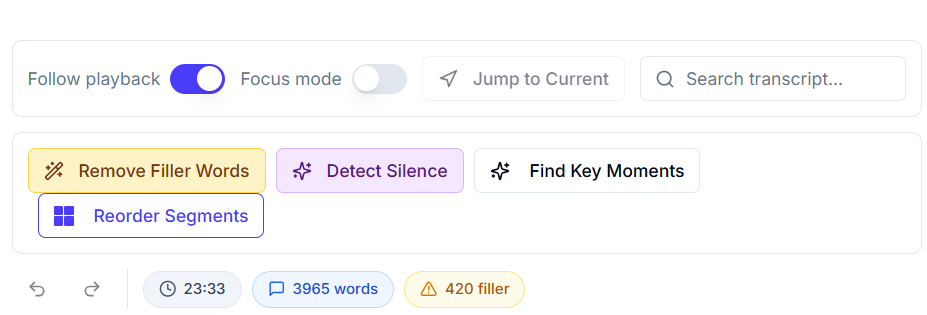
Editing the transcript edits the video. For SOP work this matters more than it does for marketing content, and it is the direct answer to the objection Greg Knoke raised above.
Step 6: Add Chapters So People Can Find Step Six
On the video playback screen, scroll down and click the Chapters icon in the Video Tools box.
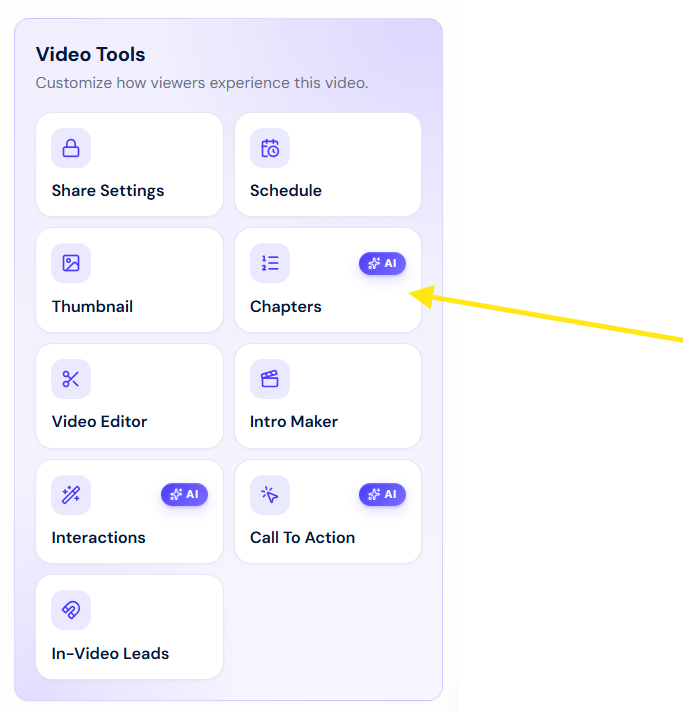
The Video Chapters box opens.
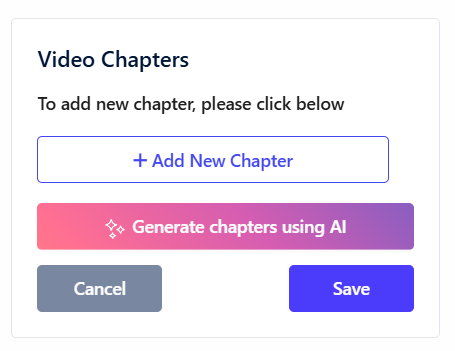
Click Generate chapters using AI, then review what it produced against your actual step list. AI chapters are a starting point, not a substitute for your numbering. Click Use This Chapters to apply them.

You can then rename the chapters and also delete any if required. Then click on Save and the chapters appear below the video, and they survive when the video is embedded on an internal page.
Step 7: Attach a Knowledge Check With Interactions
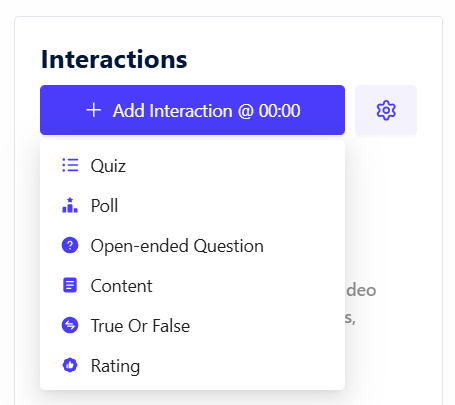
On the video playback screen, click the Interactions button in the Video Tools box, then click Add Interaction and set the exact minute and second where the question should appear.
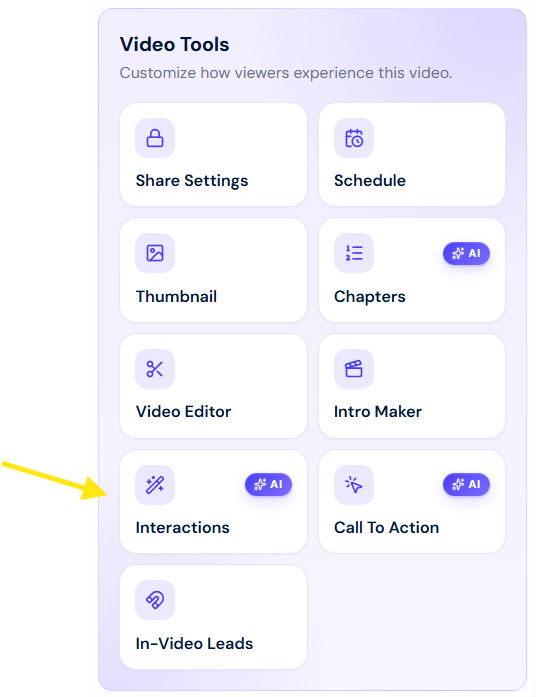
You can add a Quiz, a Poll, an Open-ended Question, a True or False question, a Rating, or embedded Content. All six depend on the transcript existing first.
Then open the Interactions Management Console.
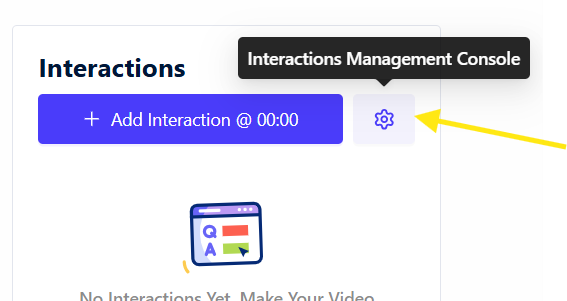
Choose Require Participants To Provide Info Before Taking The Quiz rather than leaving participants anonymous, and enable the custom field to capture something like an employee ID.
Turn on Prevent Seeking so nobody skips to the questions.
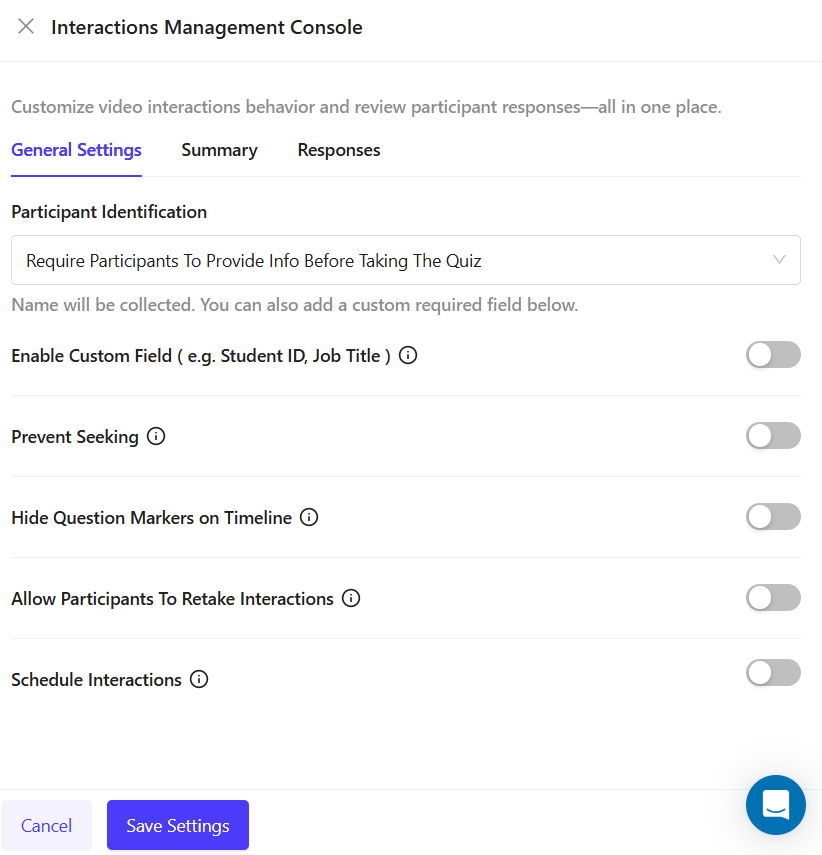
Leave Allow Participants To Retake Interactions off if you need a clean first-attempt record, or turn it on for practice-style training.
Use Schedule Interactions to set start and due dates.
Click Save Settings.
Responses land in the Responses tab with name, email, submission date, and score, and you can export them as PDF, XLSX, or CSV. The Summary tab gives you high, low, and median scores plus a per-question breakdown, which tells you which step of your procedure people are getting wrong.
Step 8: File It in a Team Space and Set Ownership
In the left bar, open the dropdown and click Create New Team. Name it for the department or the procedure family rather than the project, since procedure libraries outlive projects.
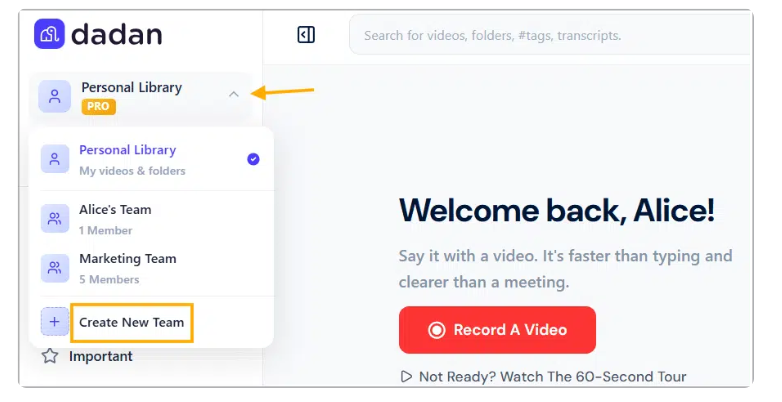
Click Manage team space and select Members to invite people.
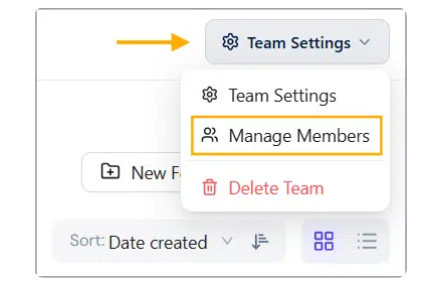
Assign roles carefully, because this is your version control. Viewers can only watch and comment. Creators can record, edit, comment, and share. In an SOP library, most people should be Viewers, and edit rights should sit with whoever owns the procedure.
Click Add for each member, then Save to send invitations. Members get an email and an in-app notification, and the team owner is notified when they join.
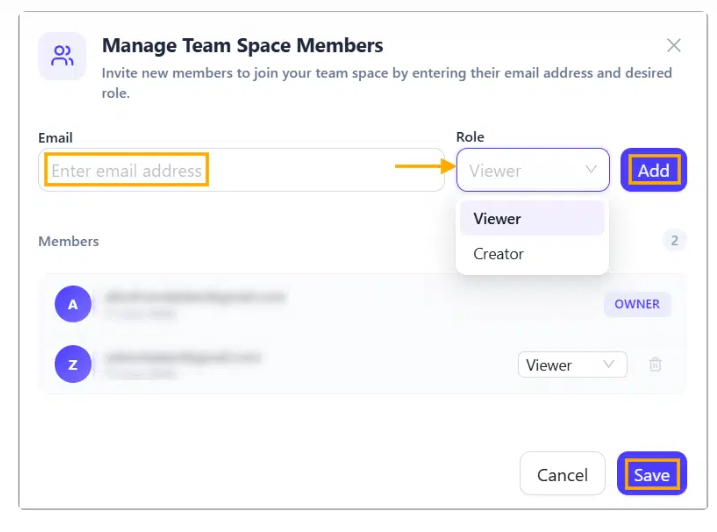
Everyone who has joined appears under Team Settings with their role beside their name, which doubles as your access record.
Set a password on the video, and an expiry date if the procedure has a known end of life. Use domain-level access control if it is embedded anywhere external. Apply tags so it surfaces in search, and add the written SOP as a linked resource in the Resources tab.
Dadan search runs across file names, transcripts, and tags, so a well-tagged library answers questions without anyone rewatching anything.
Best Practices for Creating SOP Videos
The difference between a library people use and a library people ignore is mostly discipline applied at production time.
- Keep one procedure per video.
- Record at following pace, instead of working pace.
- Put the version number and review date on screen, and also in the description.
- Name files consistently.
- Set a review cycle before you publish.
- Edit rather than re-record when something changes.
- Archive superseded versions rather than deleting them.
- Restrict edit rights to the procedure owner. Everyone else watches.
- Watch the per-question quiz breakdown. If most people miss the same question, your video is unclear at that step.
Common Use Cases for SOP Videos
SOP videos earn their keep anywhere a procedure is performed repeatedly by people who did not design it.
- Employee onboarding: Record the first-week setup, from account provisioning to expense filing, and stop delivering the same walkthrough every hiring cycle.
- Software and systems training: Screen recordings are the natural format for anything that happens in an interface, which is most internal process work.
- Compliance and safety procedures: Knowledge checks with identified participants and exportable scores give you evidence of comprehension rather than of distribution.
- Customer support playbooks: Record how to handle the 20 most common tickets, tag them by issue type, and let agents search the library mid-conversation.
- Equipment and lab procedures: Calibration, maintenance, and handling procedures benefit from visual demonstration in ways text cannot match.
- Franchise and multi-site operations: One recorded procedure, translated subtitles, and consistent execution across locations.
- Process handover: When someone changes role or leaves, a recorded walkthrough of their recurring work transfers far more than a document does.
Why Use Dadan to Create SOP Videos?
Most SOP video workflows break in the gaps between tools. You record in one place, edit in another, host in a third, and track completion in a fourth, and every handoff is a chance for the versions to drift apart.
Dadan closes those gaps by keeping the sequence in one browser session, which matters far less for your first video than for your two hundredth.
The maintenance problem is the one worth weighing hardest, because it is the one that kills libraries. Greg Knoke’s objection still stands against most tools, since updating a video genuinely is harder than editing a wiki page.
But transcript-based editing changes that arithmetic completely. When a step changes you edit the text and the video follows, so correcting a procedure costs minutes instead of a re-record, a re-upload, and a fresh round of link distribution.
Interactions handle the other half. A quiz attached at the right timestamp turns a video from something you sent into something you can prove people completed.
Scores export to PDF, XLSX, or CSV, and the per-question summary tells you which step of your own procedure is unclear before someone follows it wrong.
Password protection, expiry dates, and domain-level access keep internal procedures internal. Team Spaces, tags, and chapters make the library navigable, and search runs across transcripts as well as file names, so someone can find the thirty seconds they need without watching anything.
You can test all of it without a card. The free plan covers 25 videos at up to 10 minutes each with 2GB of storage, which is enough to document a first set of procedures and find out whether the workflow holds before you commit to anything. Dadan is rated 4.8 out of 5 on G2.
Conclusion
Record the procedure that generates the most repeated questions on your team. Script it against the written SOP, keep it under the length someone will finish, attach one knowledge check, put a version number on screen, and diary the review date.
Start free at dadan.io.
FAQs
Why are SOP videos better than written documentation?
Video shows a procedure happening rather than describing it, which removes the step where the reader has to translate text into an unfamiliar interface. Written SOPs still matter as the searchable, versioned record, so most teams keep both and link them together rather than replacing one with the other.
What should be included in an SOP training video?
Cover the purpose and scope, who owns the procedure, the tools and access needed, the numbered steps, and definitions for any internal terminology. Add a version number and review date on screen, plus a knowledge check at the end if you need evidence of comprehension.
How long should an SOP video be?
As long as the procedure takes and no longer, which usually means splitting anything past five to seven minutes into separate videos by step group. Length matters less than structure, so a longer video with named chapters is more usable than a short one people have to scrub through.
Can AI generate transcripts and summaries for SOP videos?
Yes. Dadan’s AI Assist generates transcripts, summaries, titles, tags, and chapters from the recording, and the transcript is what makes the video searchable later. All AI Assist features depend on the transcript being generated first.
How do I keep SOP videos updated?
Set a review cycle before publishing and diary the date for critical procedures. When something changes, edit the transcript or splice in a corrected clip rather than re-recording, archive the superseded version instead of deleting it, and increment the version number shown on screen.
Can SOP videos be used for remote employee training?
Yes, and it is where they work hardest, since a recorded procedure removes the need to schedule a live walkthrough across time zones. Translated subtitles and a searchable library mean a distributed team can self-serve rather than waiting on availability.
Does Dadan help create and manage SOP videos?
Yes. Dadan handles recording, transcript-based editing, chapters, captions, hosting, knowledge checks with exportable scores, password protection, and Team Space organization in one browser-based workflow, with a free plan to start on.
Recommended Readings:
- How to Create Training Videos: Engaging & Interactive
- How to Create a Product Demo Video: Step-by-Step Guide
- Creating Educational Videos: Tools, Tips & Best Practices
- 5 Best Educational Video Tools for Engaging Content in 2026