In the 2000s, software buyers would drive to CompUSA, a major retailer of PCs and software, pick up a heavy cardboard box with screenshots on the back. If they were lucky, they would find a demo floppy disk inside.
Today, CompUSA is history, and physical software boxes are obsolete. 69% of modern buyers prefer watching product demo videos to make purchase decisions.
The good news is that you don’t need to hire a video agency to create these demos. When a customer emails asking how a specific feature works, you can record a personalized demo video and send it back within hours
How? We will tell you that in this blog. Right from defining the audience, writing a script, picking a tool, recording, editing, to publishing the videos.
Define your Goal and Audience
Before you hit record, you need to answer two important questions:
Who are you making this for?
What do you want them to do after watching?
Skipping this step would mean creating a generic demo video that would not be useful to anyone.
Think about it this way: A demo for busy sales managers looks completely different from one targeting prospects who have just discovered your product. The sales manager wants to see how your tool saves them 2 hours every week. The prospect needs to understand what your product even does first.
Here’s a real example: Let’s say you’re demoing project management software. For existing customers, you might create a 5-minute deep dive showing advanced automation features. For potential buyers, you’d make a 90-second overview highlighting how it eliminates chaotic email chains and missed deadlines. Same product, totally different use cases.
How to Identify Your Target Audience
Start with your support tickets and sales calls. Look at the questions people ask most often; this will reveal exactly what your audience cares about.
Check where they hang out online. Browse Reddit, industry forums, or review sites where your target audience discusses their challenges. Pay attention to the language they use; you’ll want to mirror this in your demo
Ask yourself these questions when you’re on it:
- Are they already using your product or completely new to it?
- What’s their biggest daily frustration that you solve?
- How tech-savvy are they?
- How much time will they realistically spend watching?
Setting a Clear Goal
Your demo should have one primary goal. Are you trying to:
- Generate trial signups?
- Drive sales conversations?
- Help existing users discover new features?
- Address common objections?
When you know exactly who you’re talking to and what you want them to do, creating your demo becomes a lot easier. You’ll know which features to highlight, what problems to address, and how to structure your entire video around getting that specific result.
Write a Simple Script or Outline
An outline and/or a script template make the video-making process more streamlined. With a standard template, anyone on your team can create professional demo videos without waiting for instructions or second-guessing the approach. You’ll save hours of planning time and ensure every demo hits the same high standard.
Video Outline Template
An outline is a high-level structure that keeps you focused and ensures you don’t miss important points.
Basic Video Demo Outline Structure:
- Hook (15-20 seconds) – Problem statement or attention-grabbing fact
- Solution Preview (10 seconds) – Brief overview of what your product does
- Feature Demo (60-90 seconds) – 2-3 key features that solve the problem
- Results/Benefits (15 seconds) – What users achieve with your product
- Call to Action (10-15 seconds) – Clear next step for viewers
Demo Script Template
Now let’s turn that outline into a detailed script. This two-column format helps you plan exactly what you’ll say and show at each moment:
| Script (What You’ll Say) | Visuals (What You’ll Show on Screen) |
| Hook (15 seconds)
“Tired of losing leads because your follow-up emails get buried in your inbox?” |
Show a cluttered email inbox with dozens of unread messages |
| Solution Preview (10 seconds)
“Meet [Product Name]. It keeps every lead organized and ensures no one slips through the cracks.” |
Show a clean, organized dashboard with a lead pipeline |
| Feature Demo 1 (30 seconds)
“When a new lead comes in, it automatically appears here in your pipeline. You can see their source, contact info, and interaction history in one place.” |
Navigate to the leads section, click on a lead record, show contact details and activity timeline |
| Feature Demo 2 (30 seconds)
“Set up automated follow-up sequences that send personalized emails based on where leads are in your pipeline.” |
Open email automation settings, show email templates, demonstrate setting up a sequence |
| Feature Demo 3 (30 seconds)
“Get instant notifications when leads open emails or visit your pricing page, so you know exactly when to call.” |
Show notification popup, demonstrate clicking through to lead activity, highlight engagement scoring |
| Results/Benefits (15 seconds)
“Users typically see 40% more conversions and save 5 hours per week on manual follow-up tasks.” |
Display results dashboard with conversion metrics and time-saved statistics |
| Call to Action (10 seconds)
“Ready to stop losing leads? Start your free 14-day trial – no credit card required.” |
Show signup form with prominent “Start Free Trial” button, highlight key benefits |
Choose the Right Tool (A screen recorder)
After you have created the outline and written the script, you’re left with one hard thing left to do: choosing a tool to record the video. It’s hard because there are many choices. You can choose from a screen recorder, an animated video maker, guided demo software, a live video call, or an end-to-end AI video automation platform.
To keep content focused and short, we will only cover the screen recorder. We have a bias towards it because that’s what we do. But here are some strong reasons why a screen recorder is a great tool to make product demo videos.
You Become a One-Person Video Team
Hiring a video production company is costly, and it will take weeks to get the final video ready. With screen recording, you’re the director, the presenter, and the editor rolled into one. You can record a fresh video in the afternoon and share it with your client the next morning. This independence helps you move faster and deliver a personalized video to a prospect much quickly.
Show Your Product in Its Natural Habitat
When you record a product demo on a screen recorder, you’re showing your actual product, not some polished recreation of it. Your viewers see the real interface, the actual workflow, and the genuine user experience they’ll get when they sign up. When a prospect watches your demo, they’re seeing exactly what they’ll experience as a user.
Create Professional Quality Without the Professional Price Tag
Modern screen recording tools produce broadcast-quality videos that can go neck-to-neck with expensive production setups. You get crisp visuals, clear audio, and smooth transitions, all the elements that make viewers take your product seriously.
Perfect for Product-Focused Content
Screen recording software perfectly understands the requirement for creating a product–focused video. It can highlight mouse clicks, zoom in on important elements, and maintain visual clarity throughout your demo.
Record Your Demo – Step-by-Step Guide
Here’s a short guide to further help you understand how a screen recorder could help you make a product demo video. We have used dadan screenshots here as a visual reference. But you can still use this guide to learn the basics and apply them to any other screen recorder
Step 1: Set Up Your Recording Environment
Choose your recording method. Most screen recorders provide a browser extension and a desktop app. Browser extensions are usually the quickest to get started with—just install and you’re ready to go.
Prepare your screen. Close unnecessary browser tabs, hide desktop clutter, and set your display to a standard resolution (1920×1080 works well for most viewers). This ensures your demo looks professional and viewers can easily see what you’re showing.
Test your audio setup. Use a decent microphone if you have one, but your computer’s built-in mic will work fine too. The key is recording in a quiet environment where your voice comes through clearly.
Step 2: Configure Your Recording Settings
Select what to capture. Most screen recorders let you choose between recording your entire screen, a specific application window, or just a browser tab. For product demos, recording a specific application or browser tab usually works best, it keeps viewers focused on your product.
Choose your recording quality. Start with 1080p (Full HD) for crisp, professional-looking videos. If you’re on a slower internet connection, 720p still looks good and uploads faster.
Decide on webcam inclusion. A webcam creates a more personal connection with viewers, but it’s not essential for product demos. If you do include it, position your camera view in a corner where it won’t block important interface elements.
Step 3: Prepare Your Product Interface
Set up a clean demo environment. Use sample data that looks realistic but doesn’t contain any sensitive information. Create a few sample accounts, projects, or records that showcase your product’s key features.
Plan your navigation path. Before hitting record, practice the exact clicks and steps you’ll take. This prevents fumbling around during the recording and keeps your demo smooth and confident.
Have your script nearby. Keep your talking points visible (but off-screen) so you can reference them without long pauses or “um” moments.
Step 4: Start Recording
Use the countdown feature. Many screen recorders offer a 3-second countdown before recording begins. This gives you time to compose yourself and start speaking confidently from the first moment.
Highlight important elements as you go. Use your cursor to draw attention to buttons, menu items, and key features. Some tools, like dadan, let you add visual highlights or annotations in real-time use these to guide viewers’ eyes to what matters most.
Maintain a steady pace. Speak clearly and move through your product at a pace that lets viewers follow along. Use natural transitions. Instead of jumping abruptly between features, use phrases like “Now let’s see how this works when…” or “The next thing most users want to do is…” to create smooth connections between different parts of your demo.
Step 5: Wrap Up Your Recording
End with a clear call-to-action. Don’t just stop abruptly. Summarize what viewers just saw and tell them exactly what to do next: “Ready to try this yourself? Click the sign-up button below to start your free trial.”
Stop recording cleanly. Most screen recorders have a hotkey to stop recording. Learn this shortcut so you can end your recording smoothly without hunting for the stop button on screen.
Edit Your Recording
Editing is as important as recording. Even professional video creators spend hours editing their videos after they’re recorded. It is because editing gives that extra layer of smoothness to your video. It irons out mistakes or fumbles and makes the video more fun to watch.
Trim and Cut Unwanted Sections
The most important edit you’ll make is removing unnecessary footage. Cut out those awkward pauses, false starts, or moments when you’re hunting for the right menu item. With precision trimming tools, you can edit down to the exact frame, keeping only the content that moves your demo forward.
Add Text Overlays for Clarity
Sometimes your voice alone isn’t enough to highlight key information. Text overlays help emphasize important points, show keyboard shortcuts, or call attention to specific features. Use them sparingly—think of them as digital highlighter marks that guide your viewer’s attention.
Blur Sensitive Information
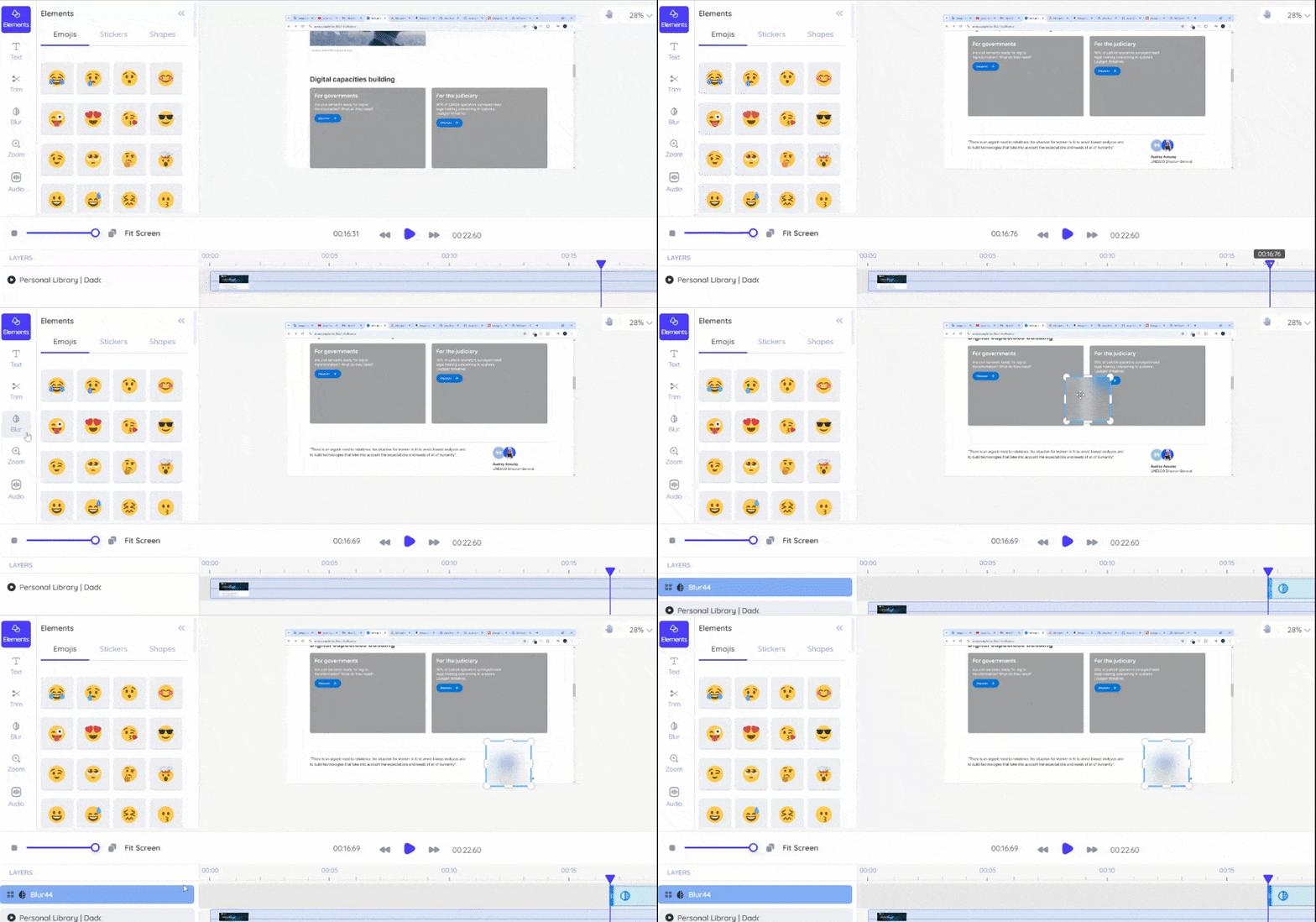
Recording with real data? The blur tool lets you hide confidential information, personal details, or proprietary content without affecting the rest of your demo. Simply drag a blur box over the sensitive area, and adjust the timeline as long as you want the blur effect on the screen. That’s it.
Zoom for Better Detail

When you’re showing intricate interface elements or small text, the zoom feature helps viewers see exactly what you’re clicking. This is especially useful for complex software where important buttons or settings might be hard to spot at normal resolution.
Adjust Audio Levels
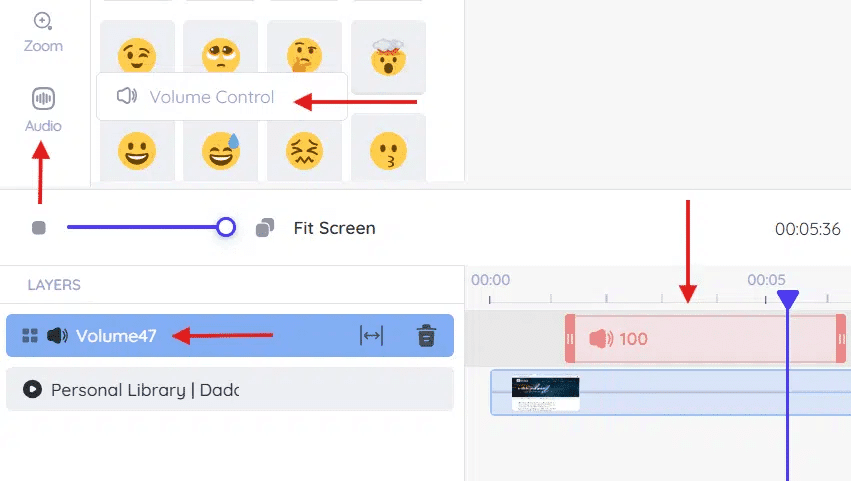
Inconsistent audio can kill even the best demo. Use volume controls to balance your voice recording, ensuring viewers can hear you clearly throughout the entire video.
Add Interactive Elements
By adding interactions to your videos, you turn viewers into participants. Once they interact with the video, they feel heard, and you get live feedback from your viewers. Advanced screen recorders like dadan allow you to add these interactions at the click of a button or automate them with AI. Here are some of the popular interactive features:
Quizzes and Knowledge Checks
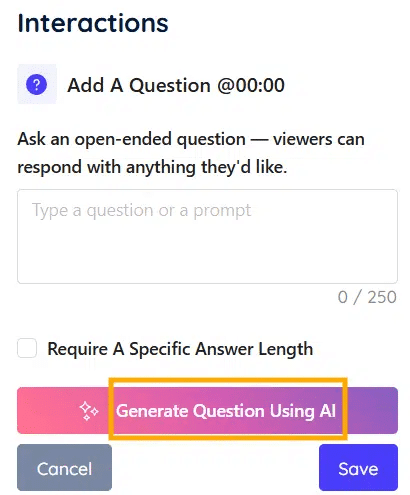
Test understanding at key moments in your demo. When you’ve just shown how your analytics dashboard works, pop up a quick question: “What metric would be the most valuable for tracking customer engagement in your business?” This opens a window and helps you get a deeper insight into understanding the prospect’s business and what matters to them the most. You can use this information in future communication and move the prospect closer to conversion.
Instant Polls for Real-Time Feedback
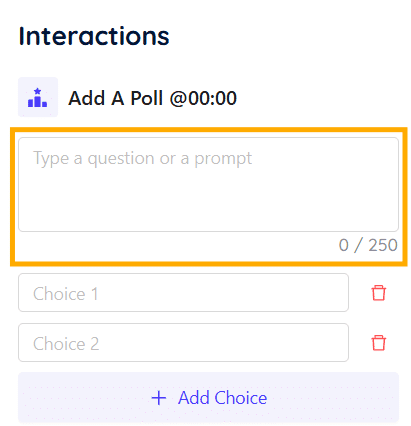
Polls help you gather your prospect’s thoughts based on some choices. For example, you show your different pricing plans and ask: “Which plan seems most suitable for your business size?”
Strategic Call-to-Action Buttons
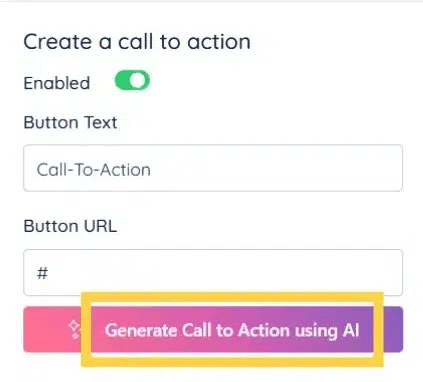
Place clickable buttons at crucial moments in your demo. Instead of waiting until the end, add a “Start Free Trial” button right after demonstrating your most impressive feature. You can customize the button’s appearance, position, and timing to maximize conversions.
Video Chapters for Easy Navigation
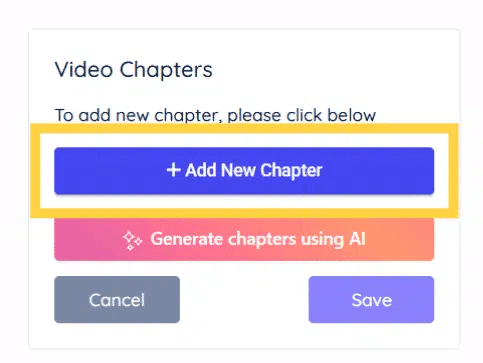
Break your demo into digestible sections that viewers can jump between. This is especially valuable for longer product demos where prospects might want to revisit specific features. Chapters make your content more user-friendly and increase the likelihood that people will watch multiple sections.
Rating Systems for Engagement
Your prospects are your best judge. Let viewers rate features or overall satisfaction using simple star ratings or emoji scales. Their clear feedback will tell you how good your product demo is and what you can do to get better ratings.
Host, Publish & Promote
How you host, publish, and promote your demo video directly impacts viewer engagement, shareability, and conversion rates. Well-placed and well-promoted demos result in more hot leads even when you’re offline. If you simply upload and hope for the best, you’ll miss out on more views and real leads.
Hosting Your Demo Video
Choose self-hosting for control and branding: Many modern screen recording platforms include built-in hosting. That means after you finish recording, you can upload it to their cloud and share it everywhere without worrying about third-party restrictions or ads appearing alongside your content.
Consider bandwidth and loading speed: Self-hosted videos load faster for viewers and give you complete control over the viewing experience. You can create custom players that match your brand colours and remove distracting elements.
Maintain video privacy and security: With self-hosting, you decide who can access your demos through password protection, domain restrictions, or private sharing links. These are crucial features when showing proprietary features or customer data.
Track detailed analytics: Hosting on your own platform provides deeper insights into viewing behaviour, drop-off points, and interaction rates compared to generic video platforms.
Publishing Across Multiple Platforms
Leverage direct platform integrations: Screen recorders like dadan connect directly with YouTube, Vimeo, and social platforms. You publish your demo videos with one click while maintaining video quality and metadata.
Optimize for each platform’s audience: Create shorter teaser versions for different social media platforms to drive traffic to your full demo on your website or landing page.
Use platform-specific features: YouTube’s chapter markers, LinkedIn’s native video tools, and Twitter’s auto-play can enhance your demo’s performance when you tailor content for each platform.
Maintain consistent branding: Ensure your video thumbnails, titles, and descriptions align across all platforms to reinforce brand recognition and professional credibility.
Promoting Your Demo Effectively
Embed strategically on your website: Place demo videos on pricing pages, feature pages, and in your header to catch visitors at key decision points
Share in sales conversations: Send personalized demo links during sales calls or follow-up emails, allowing prospects to review features at their own pace and share with decision-makers
Leverage email marketing sequences: Include demo videos in nurture campaigns, onboarding sequences, and customer success communications to educate users about features they might have missed
Your Demo Video Journey Starts Now
You now have everything needed to create product demo videos that actually convert: understanding your audience, crafting compelling scripts, recording with confidence, editing like a pro, adding interactive elements, and sharing strategically.
The best part? You don’t need expensive equipment, video agencies, or months of practice. With the right screen recording tool, you can go from idea to published demo in under an hour.
Don’t chase perfection. Pick one key feature, follow the template we’ve shared, and hit record. You’ll be amazed at how quickly this becomes second nature.
Ready to turn your product into a video that sells itself? Sign up for free plan with dadan today.
FAQs
How long should a product demo video be?
Aim for 2 to 5 minutes. Shorter demos (around 2 minutes) work best for most audiences, but complex products might need up to 10 minutes. Keep it concise and focused on key benefits.
Do I need professional equipment to record a product demo?
No. A computer and a decent microphone are enough. Clear audio and a clutter-free screen are far more important than expensive cameras or gear.
How to create a product teaser video?
Keep it under one minute, highlight the most exciting feature, and use a strong hook to grab attention. Focus on showing real value quickly.
What is the best screen recording software for product demos?
Pick software that offers reliable recording, editing, and easy sharing. Choose one with features you actually need, like annotation, HD quality, and direct publishing.
Should I use a script when recording?
Yes. A basic script helps keep your video clear, focused, and free of unnecessary pauses or tangents. It’s easier for viewers to follow along and understand your product
Can I add background music to a product demo?
You can, but make sure it’s subtle and doesn’t distract from your explanation. Always check licensing requirements before using any music track.
What makes a product demo effective?
Be clear and concise, highlight real user benefits, show the product in action, and add a strong call-to-action. Authenticity and relevance matter more than production value.
Where should I publish my product demo video?
Share it on your website, YouTube, social media, and in email campaigns. Also, provide a direct link to prospects during sales conversations for the best results.
Recommended Readings:
- How to Create Training Videos: Engaging & Interactive
- How to Create SOP Videos for Employee Training
- Creating Educational Videos: Tools, Tips & Best Practices
- 5 Best Educational Video Tools for Engaging Content in 2026