Documenting an incredible clutch play or a perfect combo is one of the top contenders on a gamer’s wishlist. However, the challenge lies in finding a screen recorder that captures these movements without tanking the FPS or creating lagging gameplay. Most gamers using generic screen recorders face these issues. What they need are advanced screen capture tools that have a built-in mechanism to support high-graphic gameplays.
This blog post covers 10 such advanced screen recorders that you must explore if you want to document your gameplay and share them with others
Key Features to Look for in a Gaming Screen Recorder
Before we start with the list, here are the features you must prioritize to pick the right screen recorder:
High FPS Recording (At least 60fps)
High FPS recording ensures smooth gameplay footage that matches your gaming experience without choppy playback. This is critical for fast-paced action games where every frame matters
Webcam Overlay Support
Picture-in-picture recording with your face cam is essential for streaming and content creation. It is a great medium for building audience connection and getting their reactions.
Multiple Audio Track Recording
Multiple audio tracking means separate game audio, microphone, and system sound recording. This is must-have for recording streaming videos as your viewers can hear you and the gameplay audio clearly without any distortion.
| Software | Best Features | Max FPS | Pricing | OS Support | Rating |
| Dadan | Cloud sharing, AI chapters, annotations | 60 | Free / Lite $8/month | Windows, Mac, Web | 4.8/5 |
| OBS Studio | Unlimited scenes, plugins, pro audio | 120+ | Free | Windows, Mac, Linux | 4.7/5 |
| Nvidia ShadowPlay | Instant replay, 4K capture, direct streaming | 120 | Free (Nvidia GPU req.) | Windows | 4.6/5 |
| Bandicam | Compression, DirectX/OpenGL support | 120+ | $39 lifetime | Windows | 4.5/5 |
| XSplit Gamecaster | Auto game detect, in-game HUD, themes | 60+ | Free / Premium | Windows | 4.3/5 |
| AMD ReLive | Instant replay, multi-mode, low impact | 60 | Free (AMD GPU req.) | Windows | 4.2/5 |
| Action! | Time-shift, green screen, benchmarks | 60 | $29.95 one-time | Windows | 4.6/5 |
| FRAPS | FPS counter, benchmarking, simple UI | 120 | $37 lifetime | Windows | 4.1/5 |
| EaseUS RecExperts | Game mode, built-in editor, easy sharing | 60 | Free / $19.95 month | Windows, Mac | 4.7/5 |
| Gecata by Movavi | Game mode, 4K/120fps, stream+record | 120 | Free / $35.95 one-time | Windows | 4.7/5 |
1. dadan
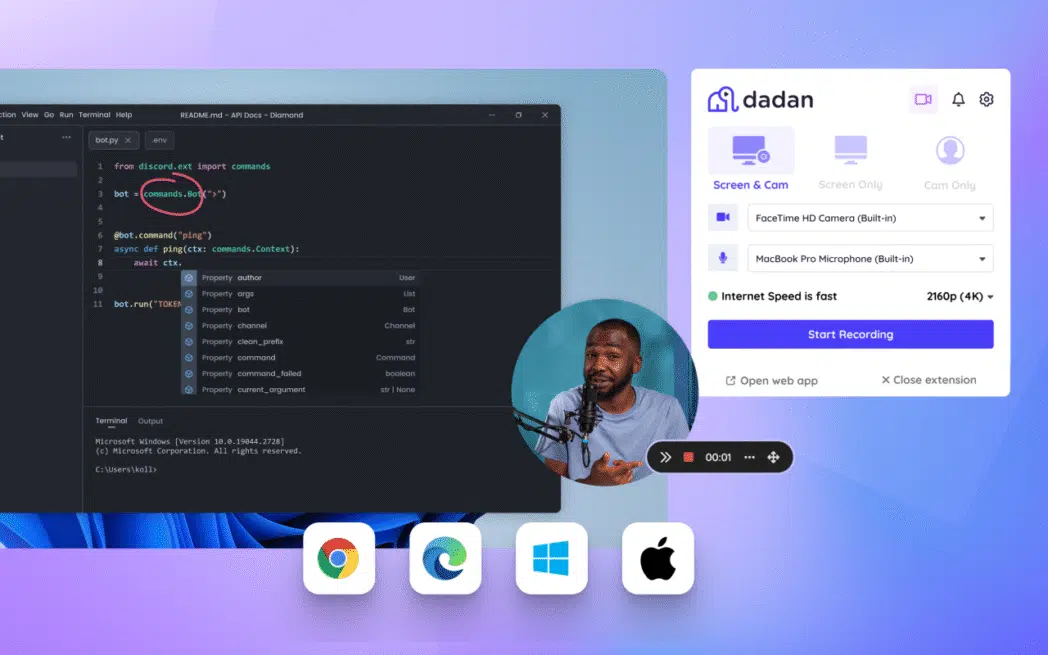
dadan is a cloud-based screen recorder specially designed for content creators like gamers. The screen recorder is easy to use, have the right balance of standard and advanced features, and makes it convenient to upload videos on platforms like YouTube.
It has features like webcam overlay, audio recording, screen annotations, and an advanced built-in video editor to give those final touches to the recording. What truly sets dadan apart is its AI assist features like video chapter generator and video transcription creator. The AI automatically identifies key sections in your gameplay recording and creates chapters for easy consumption. It also auto-transcribes your video, which you can use as captions and expand your reach to foreign gamers.
Top Features:
- 4K recording capability with up to 60fps support
- Webcam overlay with gameplay and voice recording
- Real-time annotation and drawing tools during recording
- Instant cloud sharing with direct links
- AI-powered transcription and automatic chapters
- Cross-platform compatibility (Windows, Mac, Chrome browser)
Pros:
- Extremely user-friendly interface requiring no technical setup
- No watermarks on free version recordings
- Excellent video quality with minimal performance impact
- Instant sharing capabilities perfect for social media
Cons:
- Limited to 5-minute recordings on free plan
Rating
4.8/5 (G2)
2. OBS Studio
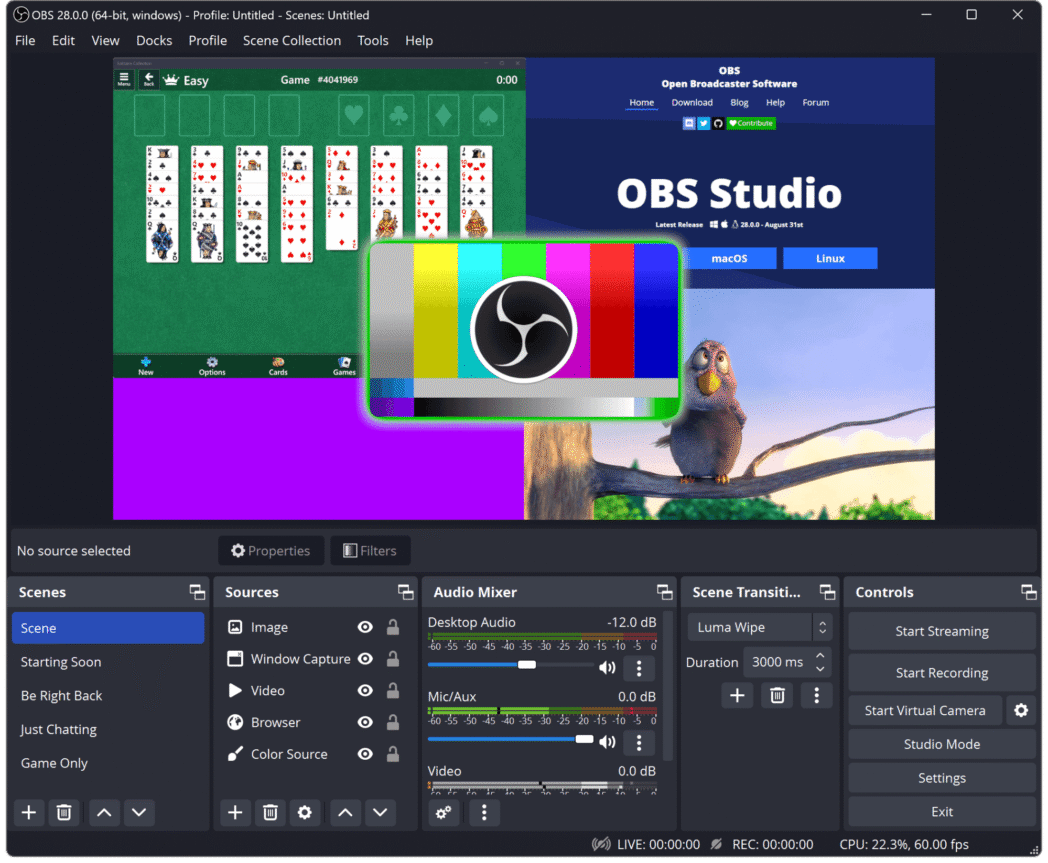
OBS has a history dating back to 2012. It was originally launched as OBS Classic, but underwent a transformation in 2013, and was renamed as OBS Studio. It offers many gamer-specific features like multiple camera angles, complex overlay management, and audio-mixing capabilities.
The hardware is robust and ensures that the recording goes unhindered even during intensive gaming sessions. But the true power of OBS lies in capturing DirectX and OpenGL games meaning you can record your gameplay on a Windows PC, Xbox or any other platform.
Top Features:
- Unlimited recording time with custom quality settings
- Advanced scene management and source mixing
- Support for multiple audio tracks (up to 6 channels)
- Hardware acceleration
- Extensive plugin ecosystem and customization options
Pros:
- Completely free with no limitations or watermarks
- Highly customizable with professional-level features
- Excellent performance with proper configuration
- Strong community support and regular updates
Cons:
- Steep learning curve for beginners
- Requires manual setup and configuration
- Can be overwhelming for simple recording needs
Rating
4.7/5 (G2)
3. NVIDIA ShadowPlay
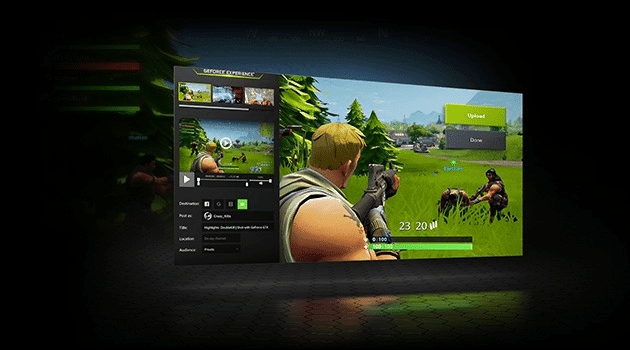
ShadowPlay was launched in 2013 as part of the GeForce Experience. In case you’re unaware, the GeForce Experience is a software by NVIDIA that helps users with NVIDIA graphics card to improve the gameplay experience and share high-quality gameplay videos.
With ShadowPlay you can record videos in up to 4K quality at 120 FPS without disrupting the gameplay performance. ShadowPlay’s Instant Replay is like its MVP feature. By pressing only a hotkey, you can save the last 30 seconds to 20 minutes of gameplay to your hard drive. Such a cool feature to show off a cool stunt or a killing move.
Top Features:
- Instant replay buffer (up to 20 minutes)
- 4K recording at up to 120fps, 8K at 30fps
- Separate audio track recording for game and microphone3
- Automatic game optimization and driver updates
- Direct streaming to Twitch, YouTube, Facebook
Pros:
- Zero performance impact
- Instant replay perfect for competitive gaming
- Hardware acceleration
- Simple one-click recording setup
Cons:
- Requires Nvidia graphics card (GTX 600 series or newer)
- Limited editing features compared to dedicated software
- Compatibility issues with older games
Rating
4.6/5 (TechRadar)
4. Bandicam
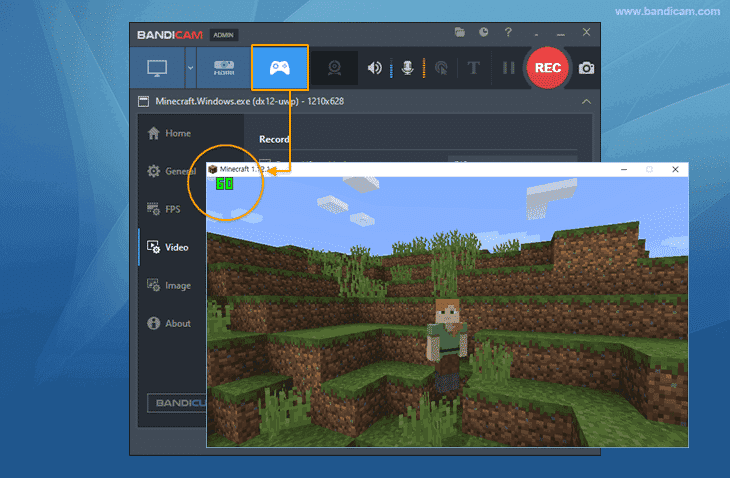
Bandicam earned a reputation in the gaming community for its abilities to support 2D games to modern 2D titles with resolutions of up to 4K UHD at 480 FPS.
It comes with real0time compression algorithms, which ensures that even during extended gaming sessions the file size remains manageable without sacrificing quality. It also offers webcam overlay for professional streamers and has a separate audio track to record gameplay sounds and microphone input.
Top Features:
- 4K recording at up to 120fps with hardware acceleration
- Real-time compression reducing file sizes significantly
- Mouse click animation effects and cursor highlighting
- Scheduled recording and auto-stop functionality
- Webcam overlay with customizable positioning
Pros:
- Excellent compression with minimal quality loss
- Very stable with low system resource usage
- Simple interface perfect for beginners
- Outstanding performance for long recording sessions
Cons:
- Windows-only compatibility
- Free version limited to 10-minute recordings with watermark
- Limited built-in editing capabilities
Rating
4.5/5 (Capterra)
5. XSplit Gamecaster
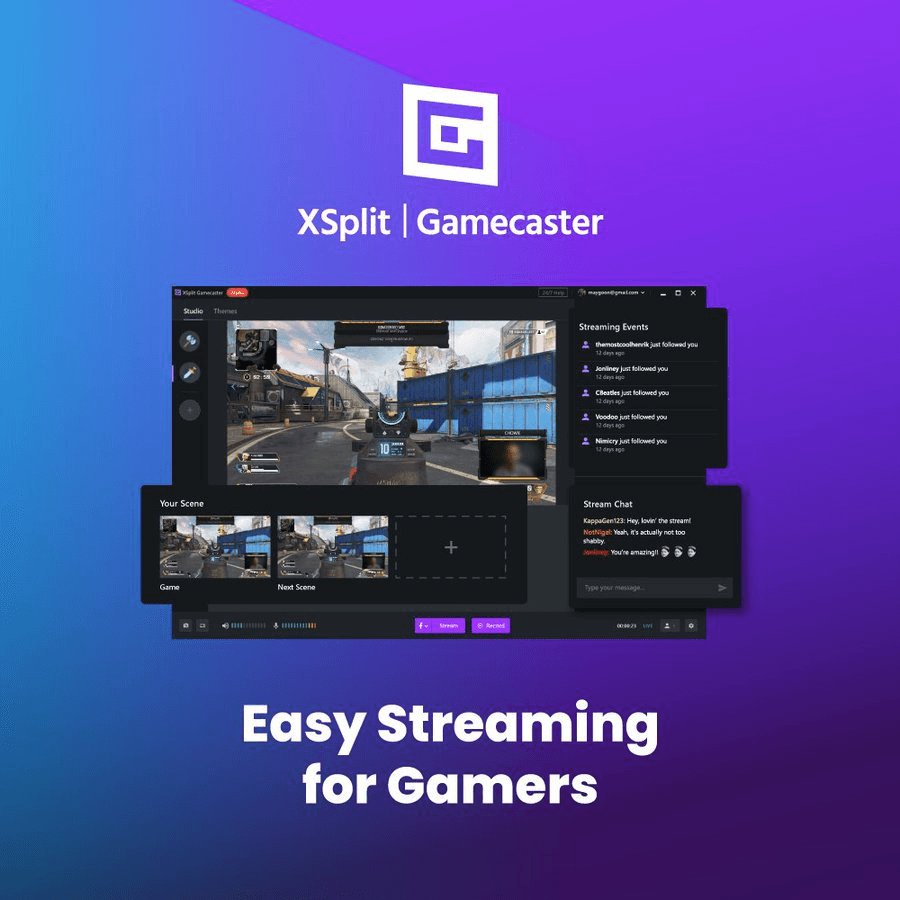
Do you enjoy streaming your gameplays? XSplit Gamecaster might just be the right screen recorder for you. It was specially developed for those gamers who want to stream their videos while it is getting recorded. You don’t worry about the settings as Gamecaster optimizes them for you automatically.
The in-game HUD also lets you control your recording or stream without leaving your game. You can use webcam overlays and one of their cool themes to make your videos unique before you upload them on YouTube or Twitch
Top Features:
- Automatic game detection and optimization
- One-click recording with customizable hotkeys
- Built-in social media sharing and uploading
- Real-time editing with annotations and effects
- Support for multiple capture devices and webcams
Pros:
- Easy to setup and operate
- Good performance with automatic optimization
- Professional-quality output with minimal configuration
Cons:
- Premium features require subscription
- Limited customization
- Windows-only compatibility
Ratings
4.3/5 (Capterra)
6. AMD ReLive
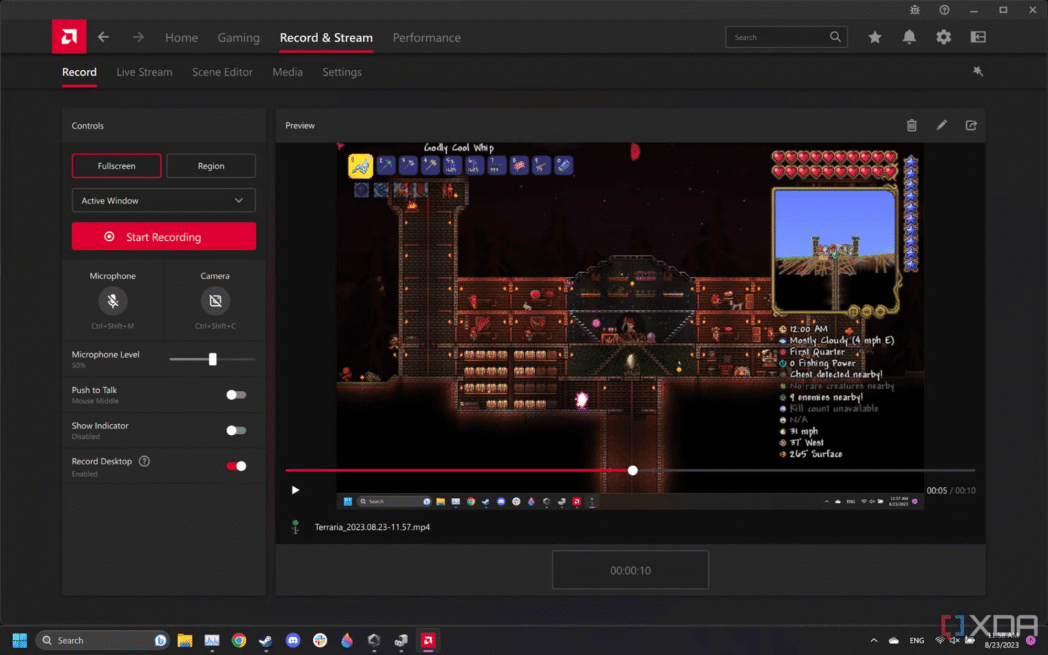
If your PC has an AMD graphics card, you must try ReLive. It is built right into the AMD software, so you don’t have to visit another website to download the screen recorder.
ReLive is capable of recording high-quality gameplay and stream directly at up to 4K resolution at 60 fps. Like ShadowPlay it also comes with an instant replay feature to grab moments after they happen. It also offers multiple recording modes like full-screen game capture, desktop recording, and borderless region capture.
Top Features:
- Instant replay with customizable buffer length
- Multiple recording modes
- Support for up to 4K recording at 60fps
- Separate microphone track recording
Pros:
- Zero additional software installation needed
- Excellent performance with AMD GPUs
- Low system resource usage
- Free with AMD graphics drivers
Cons:
- Limited to AMD graphics card users
- Fewer advanced features compared to dedicated software
- Less frequent updates than standalone applications
Rating
4.2/5 (TechSpot)
7. FRAPS
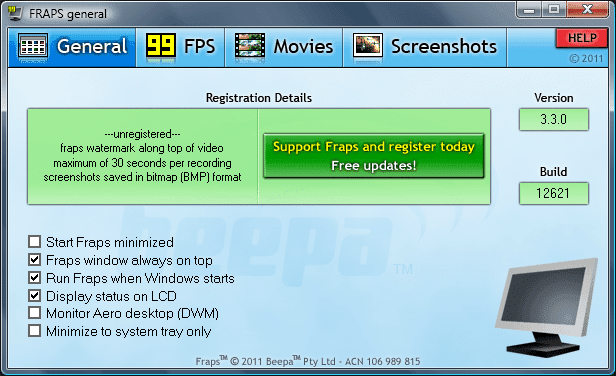
FRAPS gets its name from Frames Per Second. It is one of the earliest tools for recording gameplay videos and is capable of recording both DirectX and OpenGL applications.
The standout feature of FPS is the real-time FPS counter. The advantage is you can use this FPS counter to benchmark your games and record short clips at high quality. FRAPs is a great choice for gamers who prefer a lightweight design and a system that has minimal technical requirements.
Top Features:
- Real-time FPS monitoring and display
- High-quality video capture up to 7680×4800 resolution
- Custom frame rate recording from 1 to 120 FPS
- Benchmarking tools for performance testing
- Screenshot capture with automatic naming
Pros:
- Very lightweight and stable
- Excellent for FPS monitoring and benchmarking5
- Works reliably with older games
- Simple, no-nonsense interface
Cons:
- Limited to 30-second recordings in free version
- Large file sizes due to minimal compression
- Lacks modern features like instant replay
Rating
4.1/5 (Softonic)
8. Action! Game Recorder
Action! records your gameplay videos in full HD at 60FPS. It comes with hardware acceleration to provide support across multiple GPUs and provide superior performance even during the most demanding gaming sessions.
Its time-shift feature works like the instant replay functionality, recording the last few minutes of gameplay, which can be saved in the hard drive. Action! also has the greenscreen effect that allows streamers to remove the background and get creative with it in an easy way.

Top Features:
- Real-time FullHD 60fps recording with hardware acceleration
- Greenscreen mode for background removal
- Time-shift recording for capturing past gameplay
- Multiple recording modes
- Built-in benchmark tools for performance testing
Pros:
- Excellent performance with minimal system impact
- Professional features like greenscreen support
- User-friendly interface with good organization
- Strong hardware acceleration support
Cons:
- Premium software requiring purchase
- Windows-only compatibility
- Limited free trial functionality
Rating
4.6/5 ( Capterra)
9. EaseUS RecExperts
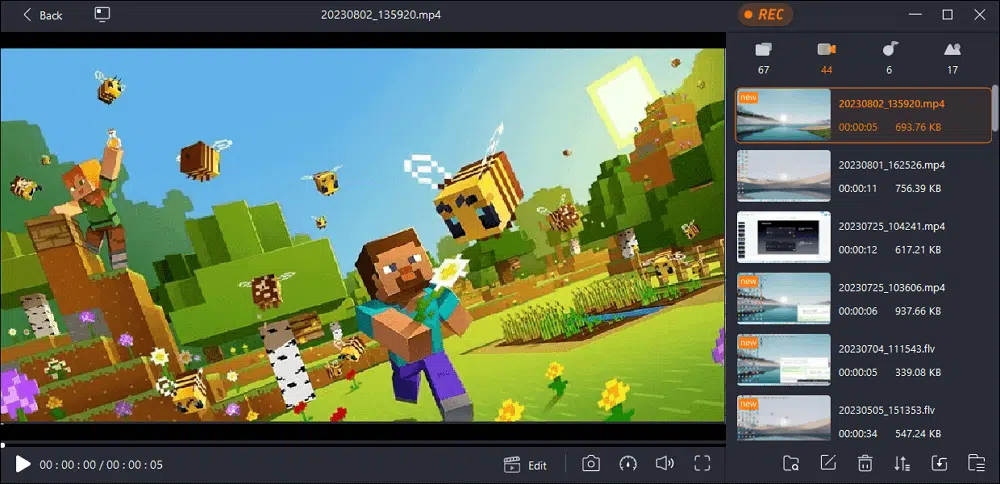
EaseUS is a comprehensive screen recorder as it meets the requirements of diverse creators who want to record their computer screen to create content. But it offers a game mode recording designed to meet the needs of gamers who like recording gameplay videos. It offers an easy-to-use interface and comes with GPU hardware acceleration to support high graphics game.
The built-in video editor is one its most attractive features as it lets creators to trim, enhance, and export their videos effortlessly. The recording scheduler which automatically starts and stops the recording based on the game launches is a unique addition for streamers.
Top Features:
- Dedicated game mode with optimized performance
- Built-in video editor with trimming and effects
- GPU hardware acceleration support
- Scheduled recording and auto-stop functionality
- Multiple format support and quality options
Pros:
- Very user-friendly with dedicated gaming features
- Good performance with hardware acceleration
- Comprehensive editing tools included
- Reliable recording with minimal setup
Cons:
- Premium features require subscription
- Not as feature rich other advanced screen recorders
- Windows-focused with limited Mac support
Rating
4.7/5 (G2)
10. Gecata
Gecata by Movavi is a dedicated screen recorder for gamers. It is made for Windows PC, and it’s lightweight, smooth, easy to use, and offers a superior recording experience.
It supports gameplay capture of up to 4K resolution and 120 FPS. It has a Game Mode recording, which automatically starts the recording as the game is launched. You can also add webcam overlay and record the gameplay audio and your voice at the same time – a complete package for streamers.
Top Features
- 4K/120 FPS Recording: Capture smooth, high-res gameplay
- Webcam Overlay
- Customizable Hotkeys
- Inbuilt editor to trim and tweak recordings before sharing
- Export in MP4 and direct sharing to YouTube
Pros
- Easy to use, even for beginners
- No noticeable performance loss on most games
- High-quality video and audio capture.
- Affordable one-time purchase
Cons
- Free version has a 10-minute recording limit and watermarks
- Occasional lag with very resource-intensive games
- Windows-only; no Mac version
- No free tech support or updates in the free version
Rating
- 4.7/5 (G2)
Which game play recorder you must pick?
Choosing the best screen recorder for your gaming needs comes down to your priorities. Whether it’s ultra-smooth FPS, easy sharing, editing tools, or webcam overlay.
Think about the games you play, your PC setup, and whether you want to stream, record highlights, or create tutorials. Try out a couple of options from our list to see which one fits your style and workflow best.
If you want to experience a hassle-free, powerful, and gamer-friendly recorder, sign up for Dadan Screen Recorder today. Enjoy a 14-day free trial with access to all advanced features with no strings attached. Start your free trial now!
FAQs
What is the best screen recorder for gaming?
The best screen recorder for gaming depends on your preference for specific needs and set up. Make a list of features that are non-negotiable for you. Such as, high FPS, webcam overlay option, audio track separation, and ease of use. Also check for the screen recorder compatibility with your operation system.
Which screen recorder has the least impact on the game performance?
A screen recorder with features like hardware acceleration and the ability to support gaming at high FPS (at least 60) must be capable of providing a frictionless game recording performance. Screen recorders like ShadowPlay, AMD ReLive, and dadan are the top picks
Can I record both game audio and my voice at the same time?
Yes, you can record the game audio and your voice at the same time if the screen recorder has the ability of split audio recording. Screen recorders like dadan, OBS Studio, and Gecata are a few platforms that can manage this type of recording effortlessly
How do I record gameplay in 1080p at 60 FPS?
Use a screen recorder capable of handling video recording at such high resolution. Check the tool’s hardware capabilities before settling for one
What is the best screen recorder for streaming and recording at the same time?
OBS Studio has been quite popular in the gaming community for its recording and streaming features. Having said that, OBS offers a steep learning curve. So, if you’re a newbie, we suggest you spend some time to get familiar with the OBS interface before trying to stream a gameplay. If ease of use is also one of your top priorities, then dadan and EaseUs are also good choices.
Do I need a powerful PC to record gameplay?
If you’re recording gameplay video in high resolution and at high FPS, then a decent CPU and GPU are recommended for smooth experience
Can I add a webcam overlay while recording gameplay?
You can add webcam overlays while recording gameplays by using screen recorder that can record both screen and webcam at the same time. All of you have to do is choose the webcam+screen recording mode before you start recording. Screen recorders like dadan and Bandicam are popular screen recorders with this feature
Are there screen recorders for gaming on consoles (like PS5 or Xbox)?
Both PS5 and Xbox Series X/S have built-in screen recording features. They do not provide advanced video editing options, so you might have to transfer them to a different screen recorder with a built-in video editor
Which format should I use to save gameplay recordings?
MP4 is the most popular format for saving gameplay recordings. The file size is not very big and if offers a high-quality recording
Can I edit gameplay recordings in the same software?
Depends on what screen recorder you are using for recording the gameplay. Screen recorders like dadan offer a mix of basic and advanced editing features. You can trim, crop, zoom and blur video sections and use AI-powered features to create transcriptions, add chapters, and interactive elements
Which screen recording software doesn’t add a watermark?
Screen recorders like OBS Studio, dadan, and ShadowPlay do not add a watermark on your gameplay recordings even on the free plan. Many screen recorders add a watermark unless you upgrade to a premium plan