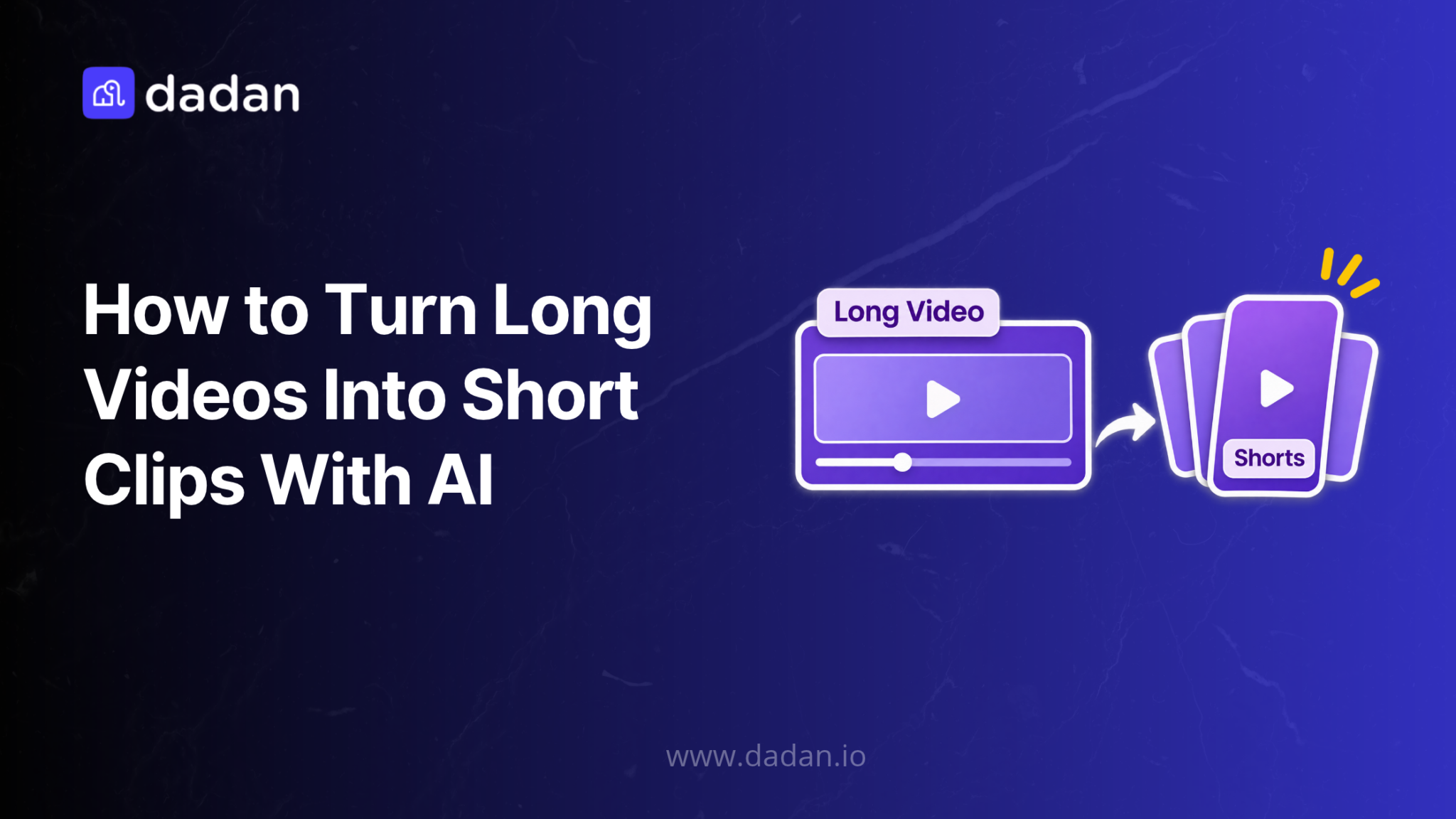
If you want to turn long videos into shorts with AI, the process itself is pretty simple. AI reads the transcript and pulls out the moments that work on their own, and you cut each one into a vertical clip. Where most people go wrong is posting every pick the AI makes without reading it first.
Here’s what that looks like in Dadan.
What Is AI Video Clipping?
AI video clipping is software finding short, self-contained moments inside a long recording and turning them into separate videos. That’s really all it is.
Most tools do it by reading the transcript instead of watching the picture. Words tell the AI where a thought starts and where it wraps up, which is exactly what you need to know to cut a clean clip.
The Transcript Does Most of the Work
This is the part tool landing pages skip. The AI can only be as good as the transcript underneath it.
If the transcript mishears your product name, the AI picks moments based on the wrong words, and your captions spell the name wrong too. In Dadan, every AI Assist feature runs off the transcript, including Find Key Moments. So two minutes spent cleaning up the transcript pays you back twice.
People mix these up all the time, and they give you different things from the same video.
You’ll usually want chapters and clips on the same recording. Chapters help the people who open the full video, and clips go out and bring new people to it.
Why Turn Long Videos Into Short Clips With AI?
Your best material is usually buried at minute 34 of a webinar most people never finished. Clips pull it out and put it where people actually scroll, and the full video stays put for anyone who wants the rest.
Saves Editing Time
Cutting a clip takes seconds. Finding it is what eats your afternoon.
Doing it by hand means watching at normal speed, jotting down timestamps, then scrubbing back to catch where the sentence really starts. On a 60-minute webinar, that’s an hour gone before you’ve cut anything.
AI reads the whole transcript in one pass and hands you a ranked shortlist. And when you want a moment it didn’t flag, you skim the transcript at reading speed instead of rewatching.
More Content From One Recording
Say you run a 45-minute webinar and take eight audience questions. That’s eight possible clips before you even count the product demo.
The full recording stays hosted with its transcript and chapters, so every clip has somewhere to send people. You record once and keep posting from it for weeks.
Reach on Short-Form Feeds
Social platforms give short vertical videos its own space. YouTube, for example, treats square or vertical uploads of up to three minutes as Shorts, so they show up in a different feed from your long videos.
A 45-second clip reaches people who’d never click on a 45-minute video. Link it back to the full recording, and some of them will go and watch the rest.
Limits of AI Picks
AI ranks moments using signals like emphasis and how complete a thought sounds. It has no idea what you need the clip to do.
So it might rate a funny tangent above the 30-second product proof your sales reps keep asking for. Treat what it gives you as a shortlist, and set aside a few minutes per recording to read through it.
How to Turn Long Videos Into Short Clips using Dadan
Everything below happens inside Dadan’s transcript editor, from start to finish. You can work in the browser or in the Windows and Mac apps, and you don’t need a separate clipping tool.
Step 1: Upload or Record Your Video
Sign up to Dadan and record something new in Dadan or upload a file you already have. If the video is on another site, paste its public URL and Dadan imports it without you downloading it first.
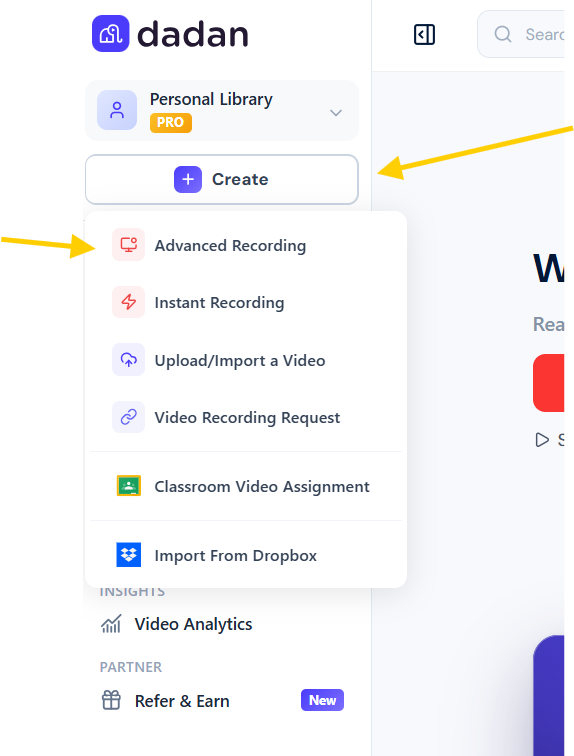
For calls, the Dadan meeting recorder joins scheduled meetings from your Google or Outlook calendar and drops each recording into your library.
One heads-up on file size. The Free plan accepts files up to 100 MB, and a full webinar export usually goes well past that. Paid plans take between 2 GB and 25 GB per file, and the current limits are on the pricing page.
Step 2: Generate the Transcript
Open the video and click Transcript in the AI Assist panel. Dadan detects the language on its own and gives you a searchable transcript with accuracy of up to 99%.
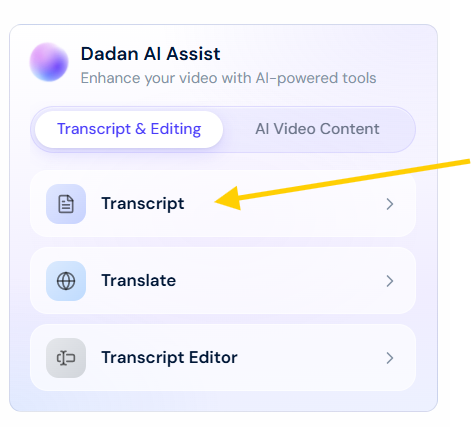
Before you go looking for clips, run search and replace on anything it misheard, like your product name or a guest’s surname. Your captions come straight from this text, so one fix here fixes every clip you cut later.
For long recordings, check your plan first. Free and Lite transcribe 10 minutes per video, while Pro and Business transcribe the whole thing.
Step 3: Remove Filler Words and Silences
Remove filler words with AI, then run Trim Dead Air.
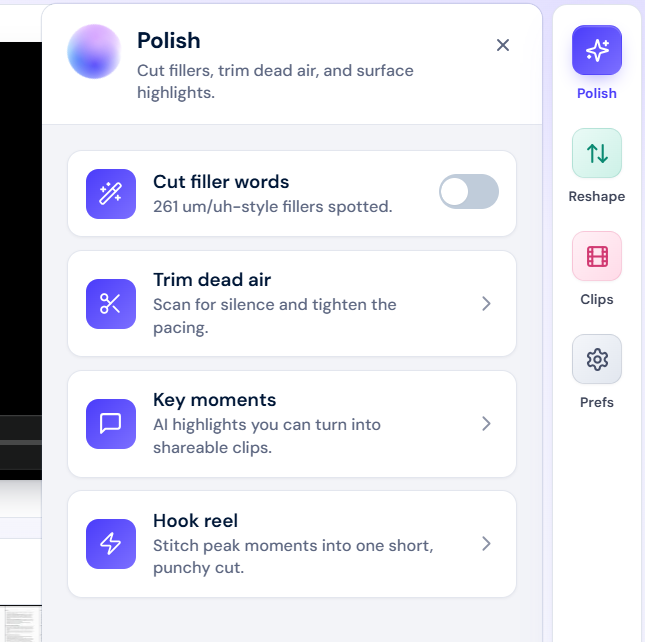
If you said a client’s name or a price you’d rather not post, highlight it in the transcript and click Mute. A cleaner transcript is also much easier to read through when you review clip suggestions.
Step 4: Run Find Key Moments
Open Find Key Moments from the AI Assist toolbar in the transcript editor. Dadan scans the recording and comes back with suggested moments, each with a timestamp and a rating.
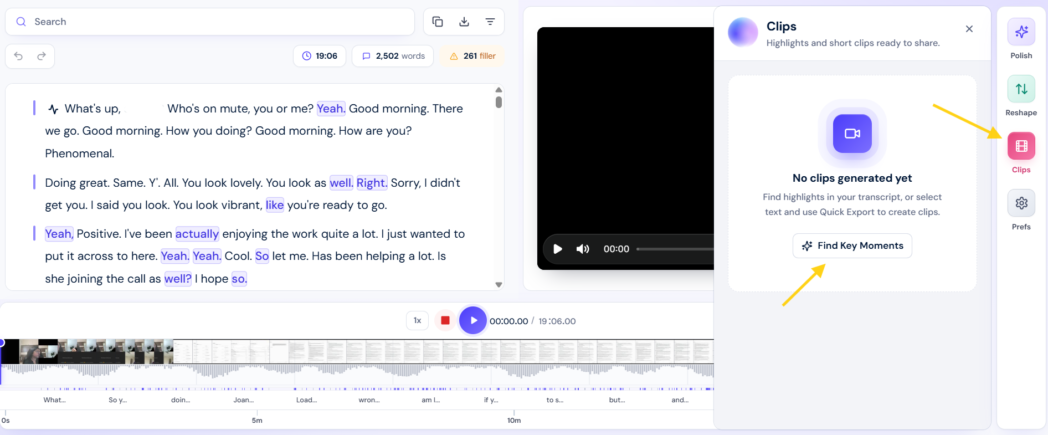
Click any suggestion to preview it. You can export it right away, but read it first using the check in the next step.
Step 5: Review the Suggested Clips
This step takes the longest and matters the most. Read the first and last sentence of each suggestion in the transcript.
Keep the clip if the first line makes sense to someone who’s never seen you before and the last line actually finishes the point. If either one fails, adjust the clip or drop it.
Watch for openers that point backward. Words like “so,” “like I said,” “that one,” and “the second thing” all assume the viewer saw what came before, and nobody scrolling a feed did. Endings that trail off into “and the other thing is” have the same problem in reverse.
The rating tells you which moments the AI found most engaging. Only you know which ones fit what you’re trying to do.
Step 6: Choose an Aspect Ratio and Export
Every clip lands in Generated Clips, where you can preview it, download it, delete it, or publish it to your library. Choose the shape based on where you’ll post it and what’s in the frame.
You can cut the same moment twice, once vertical for Shorts and once square for LinkedIn, without redoing anything.
How to Create Better Short Clips From Long Videos
AI gets you a shortlist fast. Whether people watch past the first two seconds comes down to a few calls only you can make, and most of them happen in the transcript.
Start With a Clear Opening Line
Someone scrolling a feed has zero context, so your opening line has to stand alone. For example, “That’s why we moved approvals into Slack” means nothing without the problem behind it. Start the clip one sentence earlier, where you explain how approvals kept stalling.
If the great line really does need setup and the setup runs long, skip it. Put one line of on-screen text above the clip instead, and you’ve replaced 20 seconds of preamble.
End on the Main Point
Plenty of good clips go bad by running long. Once the point is made, every extra second gives the viewer a reason to swipe.
End on the sentence that completes the idea, and leave out the “okay, so moving on.” Long recordings also tend to have the same idea said twice. If the second take is tighter, use that one.
Stick to One Idea per Clip
YouTube’s own advice on turning long-form content into Shorts is to build each Short around a single actionable pointer. If a moment covers two tips, cut two clips.
Add a Text Hook
A lot of people scroll with the sound off, so the first words they read decide whether they stay. Turn on captions from the transcript, then add a short line of text at the top of the frame that tells viewers what they’ll get.
YouTube’s guidance says the same thing, which is to open on the hook instead of building up to it. Your hook can simply be the strongest sentence in the clip, lifted from the transcript and put on screen in the first second.
I analyzed 50 viral Shorts hooks here are the 5 structures that keep appearing
byu/Rafmo39 inNewTubers
Plan Clips Before Recording
The easiest clips to cut come from recordings where you planned them. At the end of each section, sum up the point in one sentence a stranger would understand, like “The fastest way to cut onboarding time is to record each setup step once.”
Dadan’s web screeen recorder lets you keep private sticky notes next to your recording canvas, and there’s a built-in teleprompter too. Put your summary lines there so you remember to say them.
How to Use Short Video Clips for Marketing and Social Media
Before you post a clip, decide where you want people to go after watching it. That one decision changes which moment you pick and how you end it.
Link to the Full Video
Host the full recording on Dadan and share a timestamped link that jumps straight to where the clip’s conversation continues. People who liked the clip land on the next sentence instead of minute zero of a 50-minute video.
Chapters help whoever sticks around. Dadan chapters work on embedded videos too, so the full recording stays easy to navigate on your own website.
Add a Lead Form
Your clip brings people in, so put the ask on the full recording they click through to. Add an in-video lead form that shows up at a set moment or on hover. Dadan sends the leads to tools like HubSpot, Mailchimp, or ActiveCampaign, or keeps them inside Dadan if you haven’t connected anything.
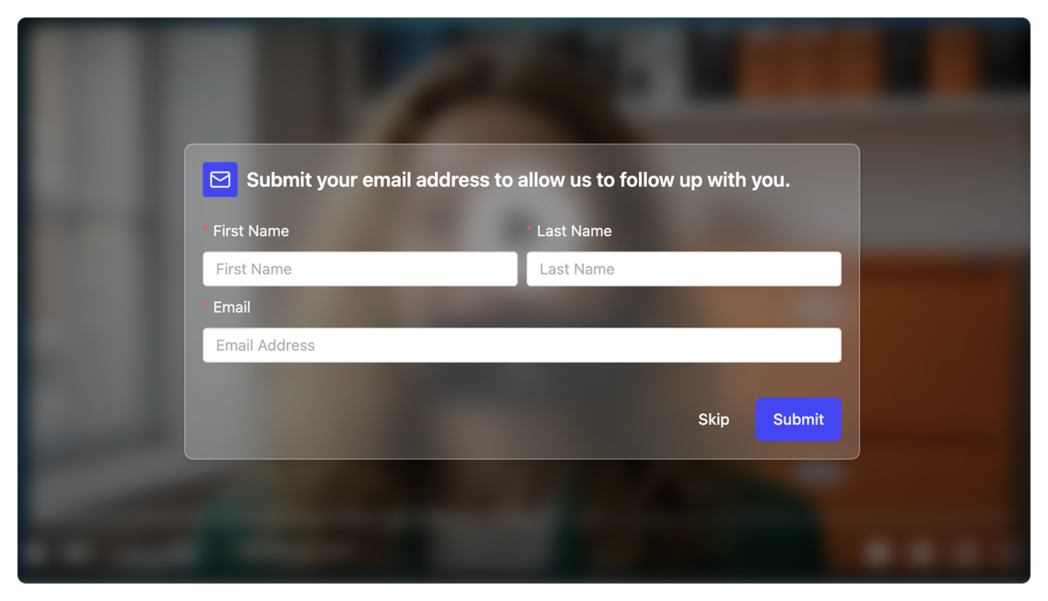
For demos and consultations, use a booking button instead. Dadan connects to Calendly and Cal.com, so viewers can book a time without leaving the video.
Use Clips in Sales and Support Replies
Clips work just as well in one-to-one conversations. A 60-second clip of the exact feature a prospect asked about makes a much sharper follow-up than a link to a full demo, and you can email it straight from Dadan.
Support works the same way. When a customer asks something you already answered in a recorded session, send them the clip of that answer instead of typing it out again.
Internal Meeting Clips
Nobody wants to rewatch an hour-long meeting to find one decision. Clip the minute and a half where everyone agreed, and share it in Slack directly from Dadan.
Pair it with the meeting recap, which pulls out highlights, decisions, and action items. Anyone who needs the detail can search the full transcript.
Check Which Clips Bring People Back
Dadan analytics show views, watch duration, and CTA clicks on the full video your clips point to, plus where viewers came from. Look at which clips brought people who stayed and clicked, not just which ones got the most views.
After a few weeks, you’ll know which kinds of moments are worth clipping from your next recording.
How to Turn Screen Recording Videos Into Short Clips for Social on Dadan
Screen recordings are the trickiest thing to clip for social. Crop a 16:9 recording to vertical and you keep less than a third of its width, while a square crop keeps a little over half. That’s why a menu that looks fine on your laptop turns into a blur on someone’s phone.
Step 1: Record Only the Window You Need
Dadan’s desktop apps let you record a specific window instead of your whole screen. The smaller the capture area, the bigger the text looks once you crop for social.
Turn on zoom while you record, and the view follows your cursor into whatever you’re working on. If the clip is going straight to Shorts or Reels, pick a portrait recording ratio in the web recorder before you start.
Step 2: Say the Step Out Loud in One Sentence
At each step you might want to clip, name the action in one plain sentence, like “To export a report as a PDF, open Reports and click Export.” That line gives your clip a clean opening, and it gives you an exact phrase to search for later.
Step 3: Annotate While You Record
Draw, highlight, or add text on screen to point at the button that matters. Everything you add becomes part of the video, so it’s still there after you crop.
Keep annotations near the middle of the frame, because vertical and square crops cut off the edges. If something sensitive shows up on screen, use Droplet in the web recorder to hide it as you go.
Step 4: Find the Step in the Transcript
Search the transcript for the feature name or the sentence you said in Step 2. In a walkthrough you narrated, search usually gets you there faster than Find Key Moments, because you already know which step you want.
Run Find Key Moments anyway if the recording includes commentary or Q&A. That’s where the AI tends to surface moments you didn’t plan.
Step 5: Add Captions and Zoom in the Editor
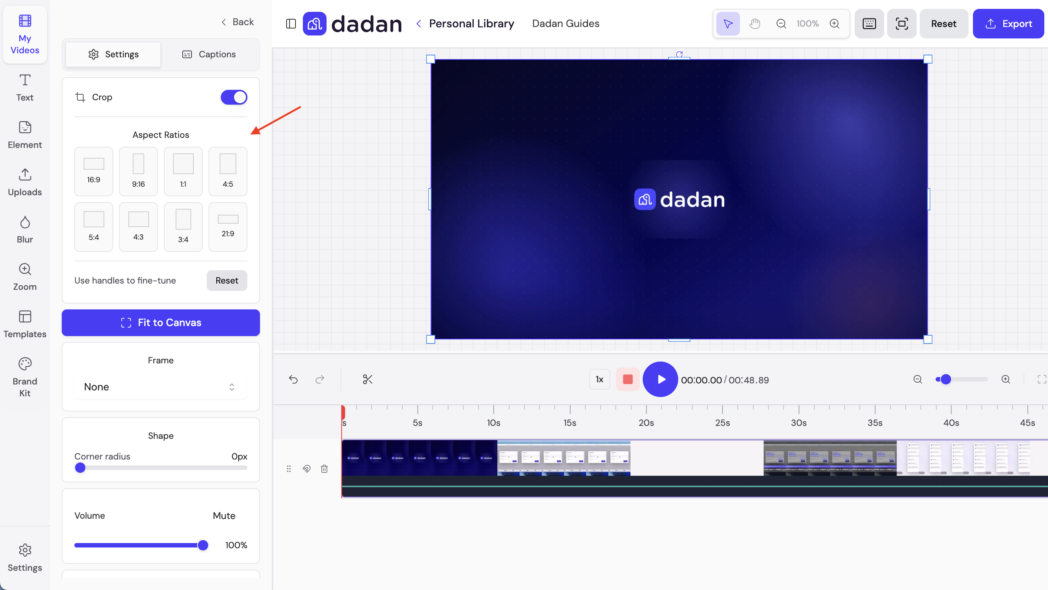
Open the clip in the Dadan video editor, add captions, and zoom in on the exact button you click. The editor also has crop and resize tools, plus a Brand Kit for your logo and colors, so your clips all look like they came from the same place.
Step 6: Post It With a Link Back to the Full Walkthrough
Post the clip and link to the full recording at the timestamp where the walkthrough continues. Dadan uploads directly to YouTube and LinkedIn, so you don’t have to download the clip first.
Conclusion
Your next week of short-form content is probably sitting in your library right now, in a webinar or demo you recorded and shared once. Open it in the transcript editor and run Find Key Moments, then keep only the clips a stranger would understand from the first sentence.
If you clip one older recording every week, you’ll have a steady supply of posts without booking a single new shoot. Try it on your last webinar with a free Dadan account.
FAQs
How do I turn a long video into short clips with AI?
Upload or record the video in Dadan, generate the transcript, and run Find Key Moments from the AI Assist toolbar in the transcript editor. Read through the suggestions, pick an aspect ratio, and export the clips worth keeping.
What is the best AI tool for turning long videos into short clips?
Look for one that picks clips from the transcript, lets you override its choices, exports vertical and square formats, and hosts the full video your clips link back to. Dadan does all of that in one place and adds lead forms to the full recording, which makes it a strong pick for webinars, demos, and screen recordings.
Can AI automatically find the best moments in a video?
Yes. Dadan’s Find Key Moments scans the recording and suggests moments with timestamps and ratings. It can’t know whether you’re after awareness or demo bookings, though, so check its picks against your goal before you export.
How long should short video clips be?
As long as one complete idea needs, and no longer. YouTube treats square or vertical videos of up to three minutes as Shorts, and other platforms set their own limits, so check the length options in each app before you export a longer clip.
Can I turn webinars and meetings into short clips?
Yes. Dadan records scheduled meetings from your calendar and imports webinars from a file or a public URL, and you clip both the same way, from the transcript. Just get permission from everyone in a meeting clip before you share it outside your company.