
Remote teams, educators, creators, marketers, sales reps, we’re all recording ourselves now. Product walkthroughs, webinar replays, online classes, demo clips, and social video snippets. And most of us are doing it from bedrooms, home offices, or temporary setups.
If you record videos with your webcam, your background is part of the message, whether you mean it to be or not.
The problem with that is it doesn’t have to be messy to be distracting. A busy shelf or a moving shadow behind you are small details that pull attention away from what you’re saying.
A virtual background for your webcam gives you control over that visual layer. Instead of showing whatever happens to be behind you, you decide what viewers see. It could be a clean neutral space or a subtle branded backdrop. Anything that doesn’t pull focus towards it.
In this article, we’ll look at what virtual backgrounds actually are, how they work in screen recordings, and how to use them effectively without turning your video into something artificial or overproduced.
What Are Virtual Backgrounds in Screen Recording
A virtual background for webcam recording is a digital layer that replaces or modifies what’s behind you while you’re on camera.
Instead of your actual room, the software detects your outline, including your face, shoulders, and hair, and separates you from the environment. It then inserts a different background.
Most modern tools rely on AI segmentation. They analyze the video frame and identify which pixels belong to you and which belong to the background.
A few years ago, this required a green screen. But now, in most cases, you don’t need one.
This works across different setups, whether you’re using a Mac virtual background webcam configuration, a Windows 10 laptop, or an external HD webcam. The key factor is lighting and camera quality.
A clearer image makes it easier for the software to separate you from the background.
It’s also worth clarifying that virtual backgrounds are not:
- filters that change your face
- heavy post-production edits
When done well, a webcam virtual background should feel neutral. Viewers shouldn’t be thinking about it at all. It should simply remove visual noise so your message becomes the focal point.
There are generally three common types:
1. Blur Background
This keeps your real environment but softens it. It’s often the most natural-looking option and works well for internal updates, casual recordings, or when you want to keep things understated.
2. Static Image Background
This replaces your environment entirely. It can be a clean office scene, a plain wall, or a branded design.
3. Custom Background
Marketing and sales teams often use custom-designed virtual webcam backgrounds with logos or brand colors.
If you’re looking for free webcam recording software with virtual background features, many screen recording tools now include this capability. The difference lies in how smoothly it integrates with the recording workflow.
Why Virtual Backgrounds Improve Screen-Recorded Videos
When you record your screen and your webcam at the same time, viewers are already processing multiple inputs. They’re listening to you, watching your face for cues, and following what’s happening on the screen.
Your background becomes a third visual input. A clean virtual background for webcam recording removes that extra layer. That’s the very first benefit, focus.
The other benefits are:
Consistency
If you create multiple videos, the environment behind you shouldn’t change in each one of them.
Using a webcam with a virtual background creates a stable visual identity. Whether you record from home, a coworking space, or a hotel room, your videos look consistent.
Privacy
Virtual backgrounds also protect privacy without reducing presence. Not everyone wants their home layout visible to clients or students. A virtual background for Windows 10 or Mac setups lets you keep your physical environment private while staying fully visible and engaged.
Brand Cohesion
For teams, branded virtual webcam backgrounds add another layer. A subtle logo placement or brand color palette can make recorded demos and webinars feel cohesive.
So, a good webcam virtual background shouldn’t draw attention to itself. If viewers notice the background more than the speaker, something is wrong. The best results are neutral and understated.
How to Record Webcam Recording Videos with Virtual BG Using Dadan
If you’re trying to record a webcam with a virtual background inside a screen recorder, the main thing you want is simplicity. You pick a background, check how it looks, and hit record.
Dadan supports this directly from the recorder toolbar, so you don’t need an extra webcam software with virtual background running in the background.
Step 1: Open the Dadan Recorder
Launch Dadan, then click Create and Record a Video.

Step 2: Open Background Settings
Click Background in the toolbar. This is where you choose the virtual background for webcam recording.
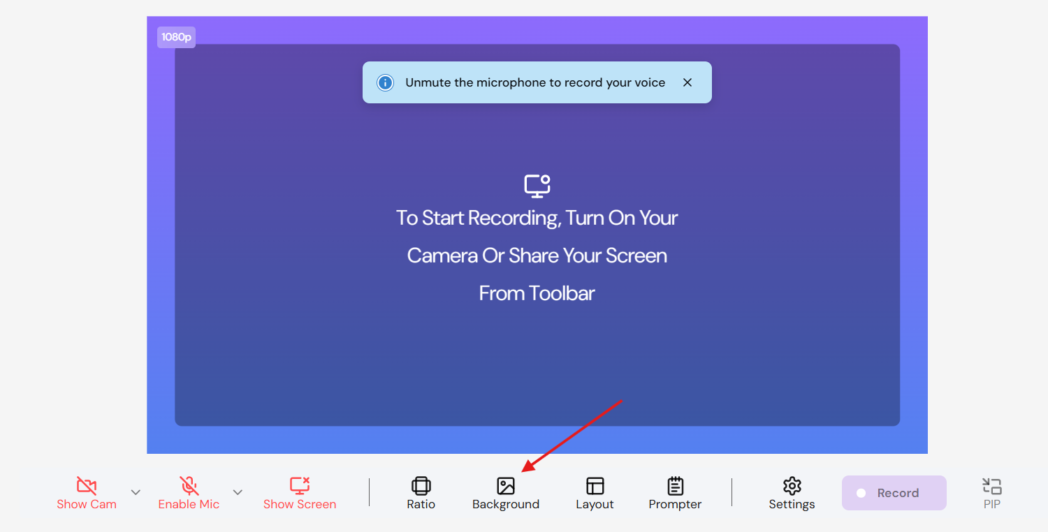
Step 3: Choose a Background Style
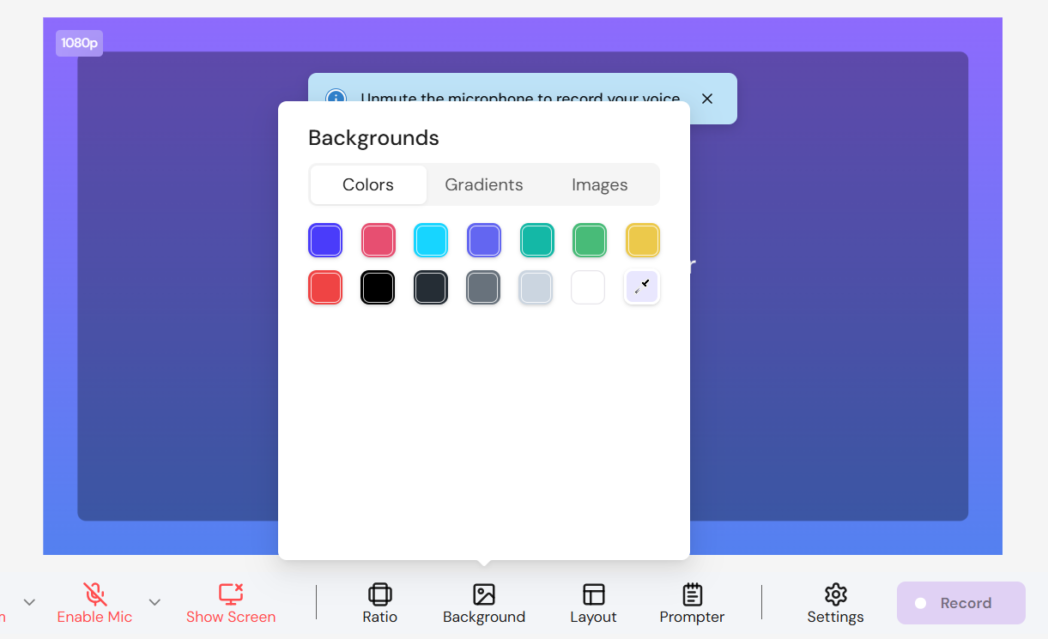
A background panel opens with three options:
- Colors
- Gradients
- Images
Click any option, and it applies immediately to your webcam preview, so you can see how it looks before recording.
Step 4: Or Upload Your Own Background
If you want to create a custom virtual background for webcam recordings (for example, a branded backdrop), go to Images and click Upload an image.
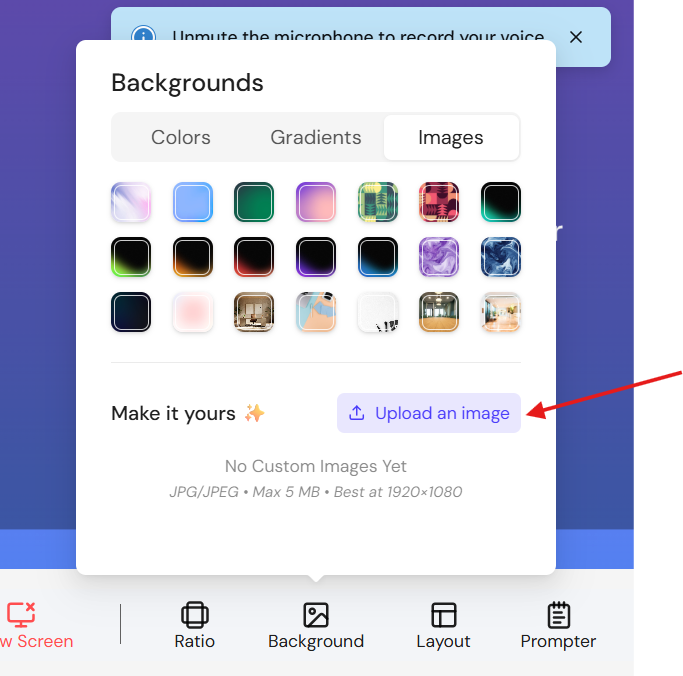
Dadan accepts JPG/JPEG files (up to 5 MB). For best results, use a 1920×1080 image so it fits cleanly without stretching.
Step 5: Adjust Layout (Optional)
Click Layout in the toolbar to choose how your webcam appears in the final video (picture-in-picture, side-by-side, etc.). This affects how prominent your webcam frame is, so it’s worth setting before you start.
Step 6: Hit Record
Click Record. Dadan will capture your webcam with the selected virtual background applied, whether you’re recording webcam only or screen + webcam.
Common Mistakes to Avoid
A virtual background for webcam recording can improve clarity. But if it’s poorly chosen or poorly set up, it does the opposite. Here are the most common mistakes to avoid:
- Choosing overly busy or highly detailed backgrounds that compete with your face and screen content.
- Recording in poor lighting.
- Wearing clothing that is too loud or blends into the background.
- Using oversized logos or loud, branded designs that dominate the frame rather than support it.
- Ignoring camera framing, such as sitting too low, too close, or with awkward headroom.
- Selecting unrealistic stock backgrounds that don’t match your lighting tone.
Small details like this make a virtual webcam background feel natural rather than pasted on.
Bonus Read: How to Choose the Best Webcam for Screen Recording and Video Calls
Conclusion
When you record your screen and webcam, you’re managing attention. Your voice explains, your screen demonstrates, and your face builds connection. The background should not compete with any of that.
Using a virtual background for webcam recording simply removes variables. It keeps your environment consistent and protects your privacy.
And the setup doesn’t need to be complicated. With Dadan, you turn on your camera, select a background, adjust layout, and record. The process stays simple, which is exactly how recording should feel.
FAQs
What are virtual backgrounds for webcam recording?
Virtual backgrounds are digital backdrops that replace or modify your real environment during webcam recordings. They can be solid colors, gradients, images, or custom uploads.
How do virtual backgrounds improve screen recorded videos?
They reduce visual distractions, maintain consistency across recordings, protect privacy, and help viewers focus on your face and message rather than your surroundings.
Can I use virtual backgrounds without a green screen?
Yes. Most modern webcam software with virtual background features uses AI segmentation, so a green screen is not required.
Do virtual backgrounds reduce video quality while screen recording?
Not if lighting is good and your webcam resolution is clear. Poor lighting can affect edge detection, but with proper setup, quality remains strong.
Which screen recorder supports virtual webcam backgrounds?
Dadan includes built-in background controls inside its recorder, allowing you to apply colors, gradients, or custom images directly to your webcam feed.
How do I add a virtual background while recording my screen?
In Dadan, turn on your webcam, click the Background option in the toolbar, choose a style or upload an image, then start recording.
How can I make my virtual background look more natural?
Use even lighting, maintain contrast between your clothing and the background, and choose simple, neutral visuals.
Are virtual backgrounds suitable for product demos and webinars?
Yes. Clean or subtly branded backgrounds help maintain a professional look in demos, webinars, and customer-facing recordings.
Should I use blur background or custom virtual background?
Blur works well for natural-looking internal updates. Custom backgrounds are better for branded presentations or public-facing videos.
Can I use branded backgrounds during screen recording?
Yes. Dadan allows you to upload custom images, which can include subtle branded designs for a consistent visual identity.