Most training videos get made the same way still. You record the slides, add narration, export, share. Weeks later nobody can remember what was in them, and you’re left wondering whether to reshoot or just send a PDF instead.
The problem is not the tool or the budget. It’s that recording something and training someone are two different things.
This guide covers what actually separates one from the other, and how to create training videos your team will watch, retain, and come back to.
What Makes Training Videos Actually Engaging?
If your viewer isn’t asked to do anything, they won’t. That’s the core problem with most training videos. It plays, it ends, and the person watching wasn’t required to actively process anything along the way.
Keep Segments Short and Focused
Shorter, focused segments outperform longer recordings not because of some principle about attention spans, but because they force the viewer to re-engage at each new piece of content.
If you can break a thirty-minute module into five focused units, you’ve already improved your completion rate before recording a single frame.
Control Visual Pacing
Pacing is the other thing most people underestimate. A static talking-head shot held for fifteen minutes loses people fast.
Cutting between you, your screen, and annotations keeps the eye moving and signals that something new is happening. Use cursor highlights, callout text, and chapter markers throughout because your viewer’s eye needs to be directed, instead of leaving it to wander across a busy interface.
Build In Interactivity Before the Halfway Point
The highest-return change you can make is adding something interactive before the halfway point. A viewer who has to answer a quiz question at minute three is paying more attention than one who doesn’t. It’s what separates video that informs from video that actually trains.
Quizzes and knowledge checks embedded mid-video force active recall, which is one of the most reliable ways to improve retention.
Give Your Video a Clear Structure
Before any of that, you need to give your video a clear structure. State the objective in the first twenty seconds. Use chapter markers so people can navigate back to what they missed. Close with a summary.
How to Create Training Videos – Step-by-Step
Most quality problems in training videos are pre-production problems. The clearer your plan going in, the less editing you’ll do afterward and the better the finished video performs.
Step 1: Define a Single Learning Objective
Before you open any recording software, write one sentence finishing this thought:
“After watching this video, the viewer will be able to…”
If that sentence is vague or tries to cover multiple outcomes, the video isn’t ready to be made. Every decision about script, format, and length should trace back to that one sentence. If a segment doesn’t serve it, cut the segment.
Step 2: Write a Script or Outline
Recording off the top of your head costs you twice as long in the edit. Every unscripted minute typically adds two minutes of editing.
For short instructional content, a bullet-point outline is enough to stay on track. For formal training like compliance modules or onboarding content, write a full word-for-word script, it reduces retakes and keeps every version of the video consistent.
If you’re worried about sounding robotic reading from a script, Dadan’s built-in teleprompter scrolls your script at a configurable pace directly alongside your recording layout. You stay on message without memorizing lines or cutting every time you lose your place.
Step 3: Set Up Your Recording Environment
Test your audio first, before anything else. Bad audio is the fastest way to lose a viewer, faster than any visual problem.
A decent headset microphone in a quiet room beats an expensive condenser in a reverberant space every time. Record a thirty-second test and listen back before you commit to a full take.
Your recording layout should follow your content type. For software tutorials and walkthroughs, a screen recording with a small webcam overlay works well because the screen is the main event. For presenter-led content, lead with the camera and let the screen support it.
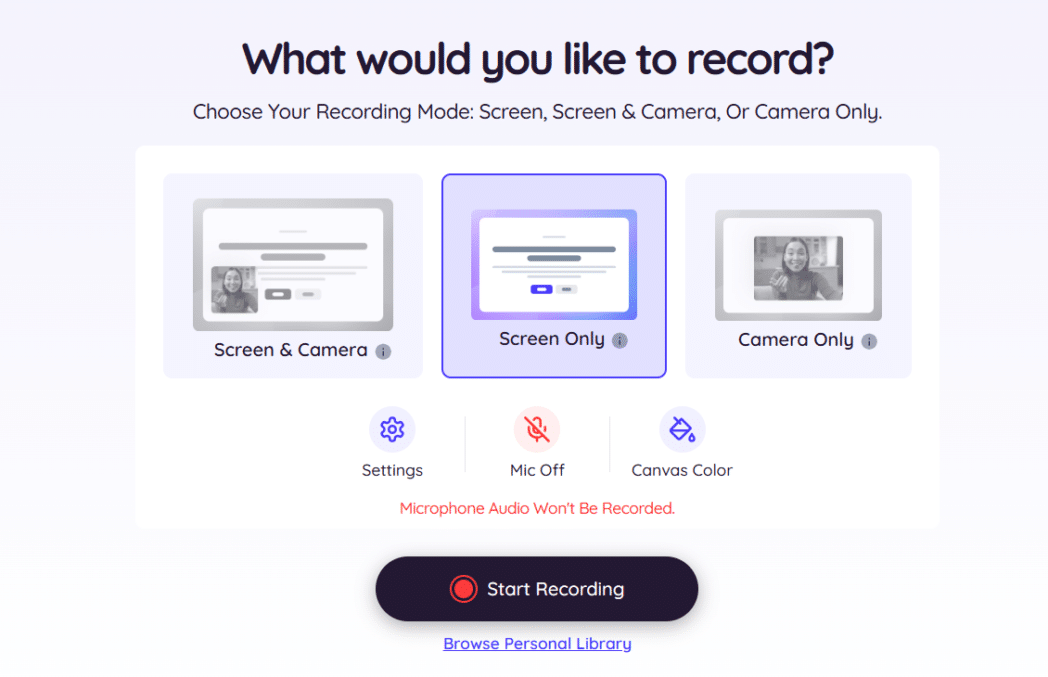
Dadan’s screen recorder lets you choose from multiple layouts and recording ratios at the start of each session, so you’re not locked into one format.
Step 4: Record
While you’re recording, use Dadan’s tools to draw, highlight, and add text directly on screen in real time.
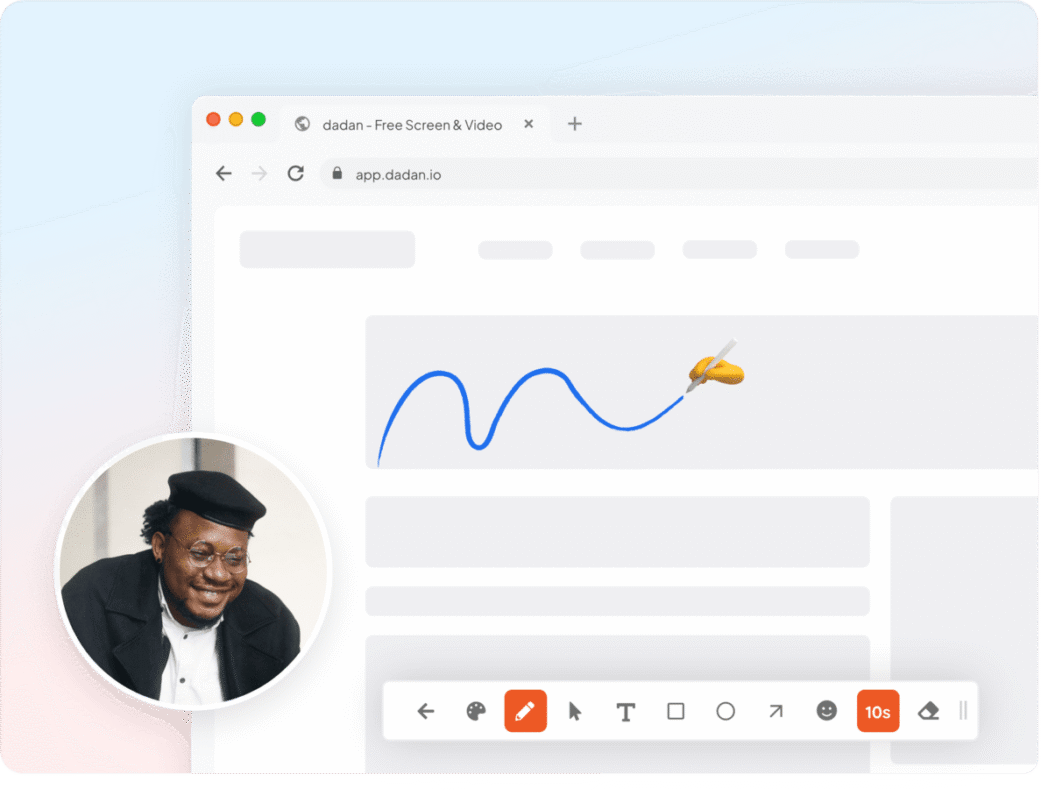
For software walkthroughs specifically, on-screen callouts are essential because they tell the viewer exactly where to look rather than leaving them searching a dense interface.
Step 5: Edit Using the Transcript
Once your video is uploaded, Dadan’s transcript video editor gives you a full text version of everything you said. To cut a section, delete it from the transcript, and the corresponding video is removed automatically.

You’re editing by reading rather than scrubbing a timeline, which is considerably faster for most training content.
Use it to remove filler words, close up dead air between sentences, and reorder segments without re-recording. If you stumbled over a line or went on a tangent, it’s a text edit.
Step 6: Add Interactivity
This is where most training video workflows stop, and it’s where the biggest gains are sitting.
After editing, you can add quiz questions and checkpoints based on what you covered. You can also place elements manually at any timestamp if you want control over exactly where they appear.
For compliance and formal training, add a knowledge check at the midpoint and a quiz at the end. It gives you documented evidence that the viewer engaged with the content. For external training, a lead capture form embedded mid-video turns a passive viewer into an identifiable contact.
Every quiz answer, poll response, and form submission is tracked from the Dadan dashboard. You’ll know who watched, how far they got, and whether they understood what you were teaching.
Interactive elements in Dadan sit at specific timestamps, so they appear mid-video at exactly the right moment rather than tagged on at the end.
Step 7: Configure Sharing and Access
Get your access settings right before you send anything. If the content is internal or compliance-related, use Dadan’s password-protected sharing so the video isn’t publicly accessible. You can set custom sharing links and access controls per video.
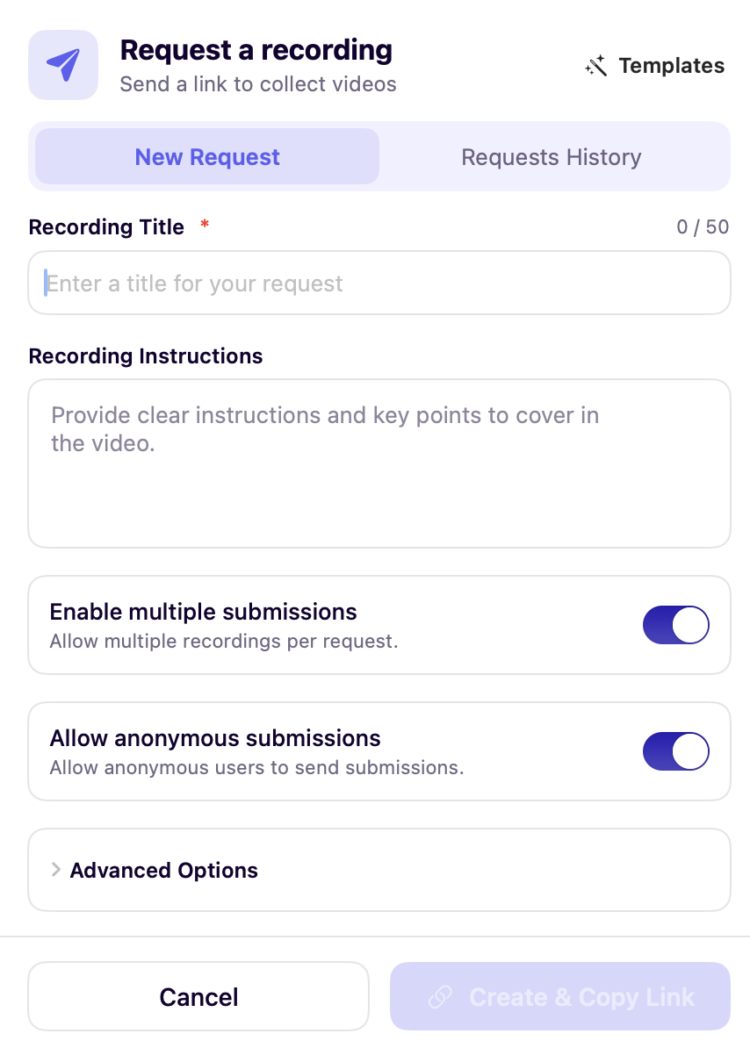
For remote teams, Dadan’s “Request a Video” link lets you collect recorded responses from employees directly. It’s useful for role-play exercises, language-specific training scenarios, or simply confirming that someone can demonstrate a process back to you.
Step 8: Monitor Completion and Engagement
Once your video is live, track view analytics, drop-off points, quiz completion rates, and interactive element responses from the Dadan dashboard.
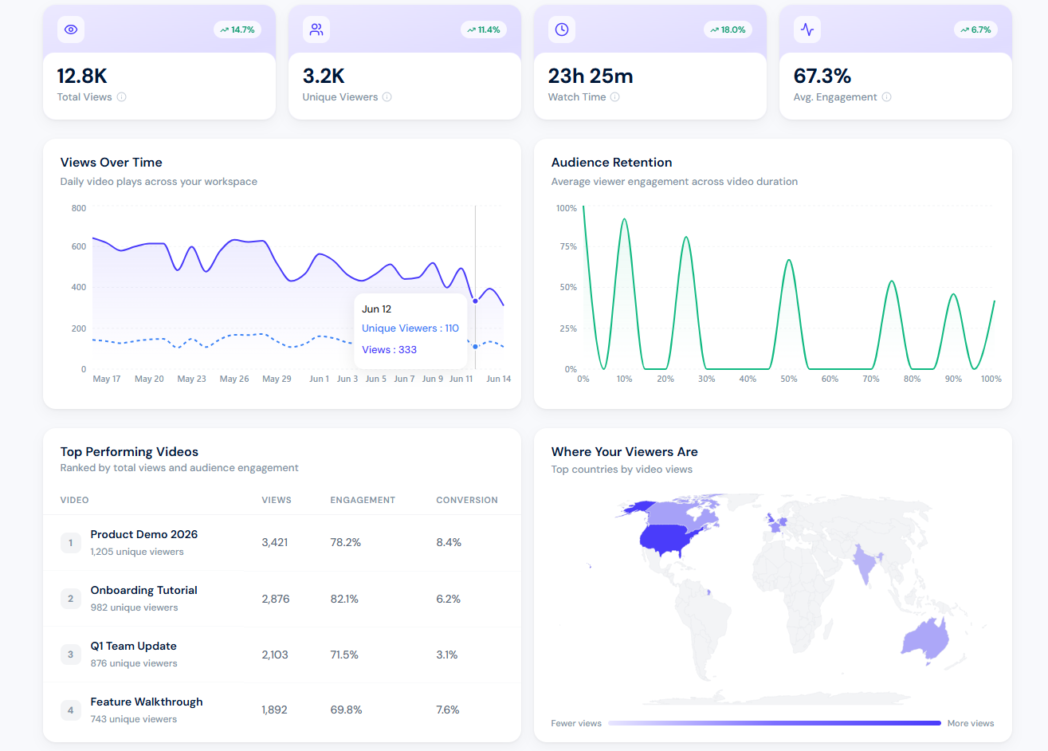
The data tells you which segments are losing people and which knowledge checks are failing consistently, giving you something concrete to improve rather than just re-recording the whole thing and hoping for better results.
Why Async Video Training Is Growing Fast
If your team is distributed across cities or time zones, you already know why synchronous training doesn’t scale.
Scheduling a live session that works for everyone is a coordination problem. Making everyone attend the same time slot for content they could watch in twenty minutes on their own schedule is an efficiency problem. Async video solves both.
The practical advantage is repeatability. A well-made onboarding module can train your next two hundred hires without any additional cost or effort. A live session needs a facilitator, a calendar slot, and a room every single time.
For content that doesn’t require live discussion, async video is simply the more rational format.
Remote and hybrid work accelerated this shift, but the underlying logic was always there. Learners who control their own pace, who can pause, rewind, and revisit a specific segment, retain more than learners sitting in a room waiting for everyone else to catch up.
Async video gives you that without sacrificing the ability to track whether it actually worked.
Types of Training Videos Companies Need in 2026
Not all training content belongs in the same format. Treating it that way is one of the most common reasons training video programs get poor engagement. Match the format to what you’re actually trying to achieve.
Onboarding Videos
Onboarding is the clearest use case for training video because the content is the same for every new hire, every time.
Record it once, use it for every cohort. Keep each module focused on one topic, under eight minutes, and include a knowledge check at the end.
If a new hire has a question about the benefits process, they shouldn’t have to wait for their manager to get back to them, the answer should be in a video they can rewatch or they can simply add comments below the video on Dadan.
Software and Tools Training
Screen recordings with cursor highlights and narration are the right format here because the subject matter is visual by nature. Your viewer needs to see the exact steps, in the right order, on the actual interface they’ll be using.
The most common problem with software training video is poor audio and an absence of on-screen callouts. Without them, viewers spend the whole video trying to find where you’re clicking.
Compliance Training
Compliance training is where interactivity is not optional. You need to show that employees watched the content and understood it.
Embedded quizzes with pass/fail thresholds and tracked completion rates give you that documentation. This is why interactive video has replaced slide-based compliance modules in most organizations serious about the format.
Sales Enablement and Product Training
Video is well-suited for product walkthroughs and objection-handling scenarios because it shows rather than tells.
Short recordings of specific situations, two to four minutes each, give your sales team something they can return to before a call rather than reading through a static playbook.
Ongoing Skill Development
Short-form videos of two to five minutes work best for ongoing development because they fit into a working day. Employees aren’t going to block out forty-five minutes for a skill module, they will watch a focused five-minute video between tasks. Build your ongoing training library in these units and your completion rate will reflect it.
3 Best Tools for Creating Training Videos
The right tool depends on what your workflow actually requires. If you need to record quickly, add interactivity, and distribute to a distributed team with tracking, that’s a different product than if you’re building polished course content on a two-week production timeline. Here are three tools worth evaluating, covering different points on that spectrum.
1. Dadan
Dadan covers everything in the training video workflow from a single platform. You record (screen, webcam, or both), edit using the transcript, add interactive elements, host the video, and share it with the right access controls, all without switching tools. It runs in the browser and has dedicated apps for Mac, Windows, Chrome, and Edge.
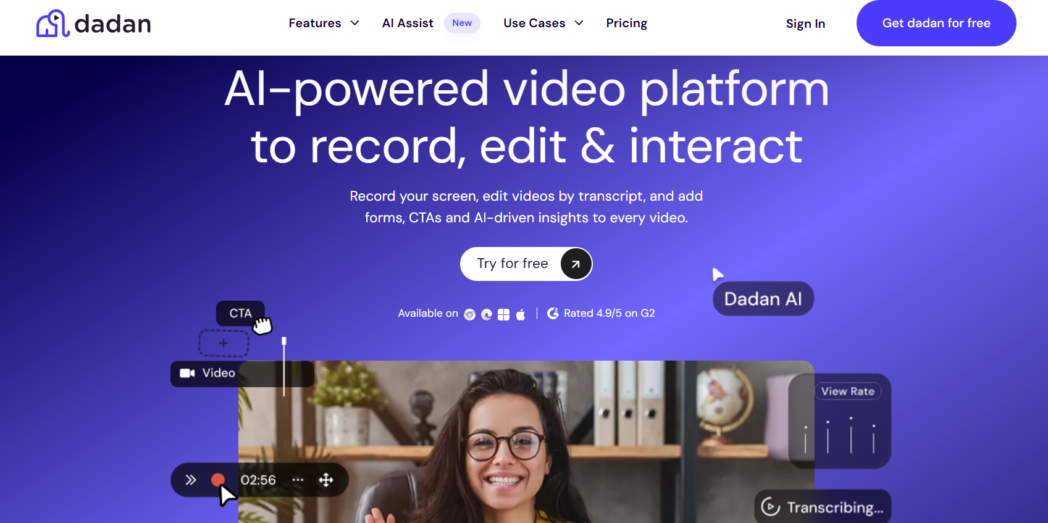
For training video specifically, the transcript editor changes how fast you can turn a recording into something publishable. Delete a line from the transcript and that section of video is cut. No timeline scrubbing or frame-by-frame hunting for where you stumbled.
The AI Interactive Video Creator then analyzes your content and suggests quizzes, polls, and checkpoints you can place at any timestamp. And because every interactive response is tracked from the dashboard, you get actual data on comprehension rather than just view counts.
- Transcript editor lets you cut, reorder, and clean up video by editing the text rather than scrubbing a timeline.
- AI Interactive Video Creator analyzes your video content and auto-generates quizzes, polls, open-ended feedback prompts, and CTAs placeable at any timestamp.
- Interactive element responses (quiz answers, poll results, form submissions) are all tracked from the Dadan dashboard.
- Recording works across screen, webcam, or both, with multiple layout options, annotations, and a built-in teleprompter for scripted content.
- Free plan covers 25 videos at up to five minutes each with 2GB storage.
Dadan works best for L&D teams, remote teams, and educators who need to record, add interactivity, host, and track from one place. Rated 4.8/5 on G2.
The main constraint on the free plan is the five-minute recording limit, which is tight for anything beyond a microlearning module. Upgrading removes that cap.
2. Camtasia
Camtasia is a desktop video editor from TechSmith built for instructors who want precise control over how a finished tutorial looks.
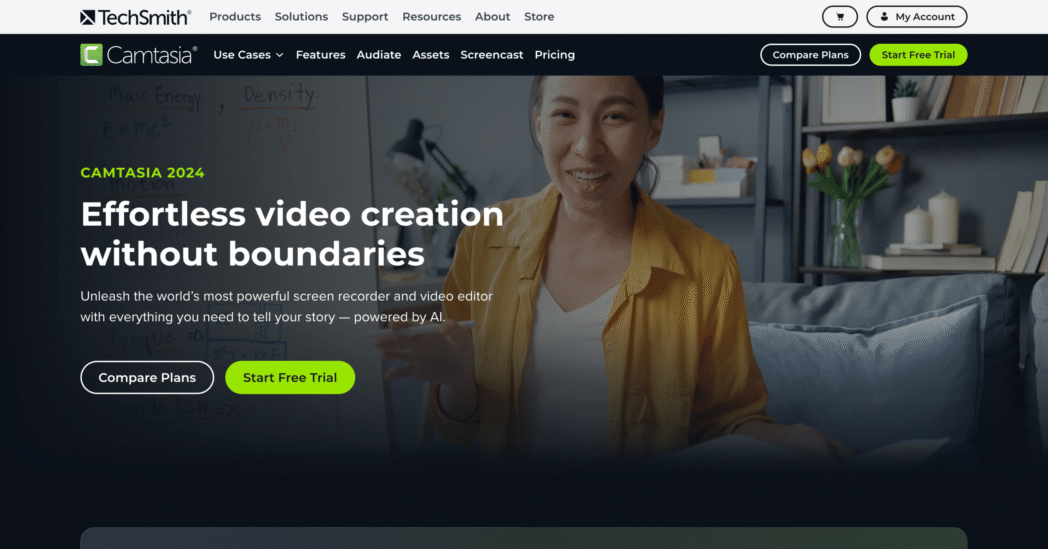
If you’re building formal course content where production value matters and you have the time to invest in a proper edit, Camtasia’s output quality is great but the pricing is significantly higher than others offering the same features.
The multi-track timeline editor gives you more flexibility than most browser-based tools. Annotations, zoom effects, cursor highlights, callout overlays, and a library of pre-built assets are all there for creating polished instructional content at a deliberate pace.
- Multi-track timeline editor with annotations, zoom effects, cursor highlights, and callout overlays.
- Library of pre-built assets and templates.
- Desktop-only, supporting Windows and macOS, no browser-based access.
- No native interactive video capability (quizzes, polls, or in-video knowledge checks).
- Individual subscriptions available annually.
Camtasia makes sense for dedicated instructional designers building formal course content on a longer production timeline. If you need to record something today, add a quiz, and share it with a distributed team by the end of week, it’s not the right tool for that workflow.
3. Loom
Loom is built for speed. Record a screen or webcam video, get a shareable link the moment you stop, send it. For quick team updates, informal how-tos, or async walkthroughs where you don’t need any formal training infrastructure, it does the job.
The Business plan at $15/user/month removes recording caps and adds basic editing, custom branding, and integrations with Slack and other tools your team probably already uses.
- Screen and webcam recording.
- Custom branding, and basic editing tools including trim and stitch on Business plan.
- No in-video interactive elements on any plan tier.
- AI features including transcript-based editing, filler word removal, and auto-generated summaries are locked to Business + AI at $20/user/month.
- No completion tracking, not designed for formal training programs that require documented comprehension.
Loom is a solid tool for async messaging and quick team updates. If you need to run a training program with documented completion, interactive checkpoints, and performance data, you’ll hit its ceiling quickly.
Conclusion
The tools have caught up with what a good training video actually requires. You don’t need a production team or a video editing background to create training videos that hold attention and produce measurable results.
You need a clear objective, a structure your learners can follow, and at least one point in the video where they have to actively engage with what you’re teaching.
If you’re ready to build training content that scales across your team, start for free at dadan.io.
FAQs
What is the best software for training videos?
Dadan is the strongest option for teams that need recording, editing, interactivity, and hosting in one platform; Camtasia suits instructional designers who want a full desktop editor for polished course content with a longer production timeline.
How long should employee training videos be?
Under ten minutes per module, with five minutes or less performing best for retention and completion; anything longer should be broken into focused units rather than extended into a single recording.
Are screen recordings effective for training?
Yes, particularly for software walkthroughs and process documentation, provided the audio is clear and on-screen callouts are used to direct the viewer’s attention rather than leaving them to locate things on their own.
Why do employees stop watching training videos?
Poor audio, no clear objective, content that covers too many topics at once, and nothing requiring the viewer to actively engage with the material are the most consistent causes.
How do interactive videos improve learning?
Embedded quizzes and polls require the viewer to recall and apply information in the moment, which strengthens retention far more reliably than passive watching.
What makes training videos more engaging?
Focused segments, varied visual pacing, on-screen annotations, chapter markers, and at least one interactive element placed before the halfway point all make a measurable difference.
Can AI help create training videos faster?
Yes. AI tools can auto-generate transcripts, suggest quiz questions, remove filler words and silence, and produce titles and chapter markers, cutting post-production time significantly.
What are the best training video formats for remote teams?
Async screen recordings with narration work well for process and software training; short presenter-led videos with embedded quizzes suit onboarding and compliance content across distributed teams.