
You open a recorder to capture a quick walkthrough, and by the time it is set up, the thing you wanted to show has already scrolled past. On Mac and Windows, the built-in recorder gets you a file on your desktop, but then you are stuck moving it somewhere before anyone can watch.
Snap Record cuts that opening delay to a single shortcut.
Press Command + Shift + 2 on Mac or Ctrl + Shift + G on Windows, choose what you want to capture, and start recording instantly. Once you’re done, your video is ready to share via a link, so there’s no need to search for a file or upload it manually.
TL;DR:
Snap Record is Dadan’s instant screen recorder for Mac and Windows. Press Command + Shift + 2 on Mac or Ctrl + Shift + G on Windows to open the recorder. Choose to capture your entire screen, a window, or a custom area, and record with your microphone and webcam if needed. When you stop recording, your video is automatically uploaded and ready to share with a link, with no watermark on free recordings.
Why Starting Screen Recordings Should Be Faster
The slower it is to start recording, the more often you skip recording altogether. Most screen recordings react to something happening right now. You want to catch a bug while it is still on screen, or walk a teammate through a flow before the details fade.
Both macOS and Windows include built-in screen recording tools. On Mac, you can launch the recorder with Command + Shift + 5, while on Windows, you can use Dadan’s Snap Record shortcut, Ctrl + Shift + G, for instant recording. Built-in tools capture your screen well, but after recording, you’re often left with a raw video file that still needs to be trimmed, uploaded, and shared before anyone can view it.
Many users describe the same challenge.
A recorder that starts with a simple keyboard shortcut changes the workflow. When recording takes only a second to start, you’re more likely to capture quick updates, walkthroughs, or feedback instead of typing long explanations. With Dadan, your recording is automatically uploaded and ready to share as a link, making collaboration much faster.
What Is Dadan Snap Record?
Snap Record is Dadan’s instant screen recording mode for the Mac and Windows apps. Launch it with Command + Shift + 2 on Mac or Ctrl + Shift + G on Windows to open the recorder instantly. It lets you choose what to capture and start recording without navigating through menus.
Snap Record is built into the Dadan desktop app, so once the app is installed, the shortcut is always ready. Press the keyboard shortcut, and the recorder opens, allowing you to capture your entire screen, a single window, or a custom region.
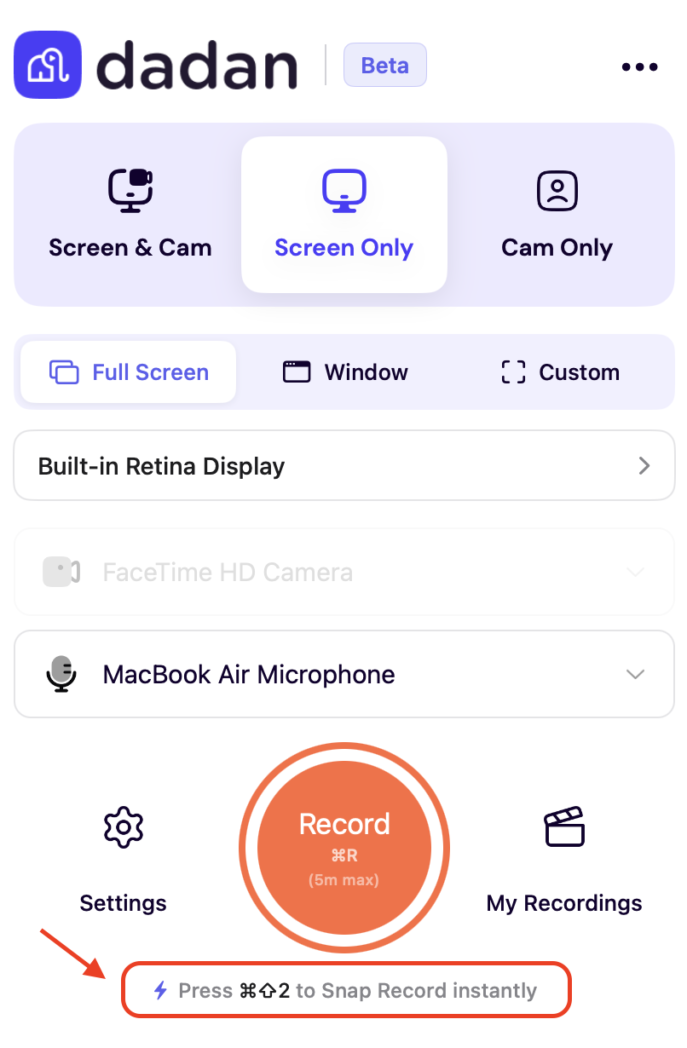
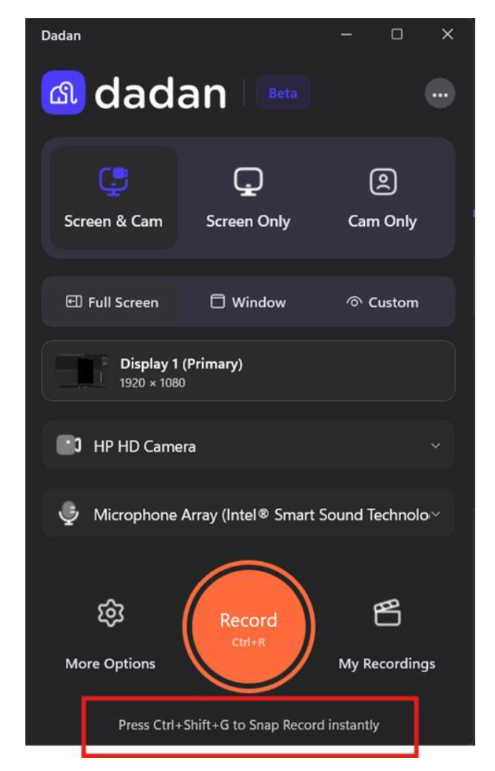
With Snap Record, you can:
- Capture your entire screen, a single window, or a custom area
- Record your screen only or add your webcam as a picture in picture overlay
- Record microphone and system audio with noise suppression
- Zoom in and add on screen annotations while recording
- Share your recording instantly with a link or download the video, with no watermark on free recordings
Unlike traditional screen recording tools that simply save a video file, Snap Record streamlines your workflow. When you stop recording, your video is automatically uploaded to your Dadan library, where you can trim the beginning or end, copy a shareable link, or download the file. Free recordings are watermark free, so your videos are ready to share immediately.
How to Start Screen Recording With Snap Record
To start Snap Record, install the Dadan desktop app, sign in once, then press Command + Shift + 2 on Mac or Ctrl + Shift + G on Windows to open the recorder instantly. After the initial setup, the keyboard shortcut launches the recorder whenever you need it.
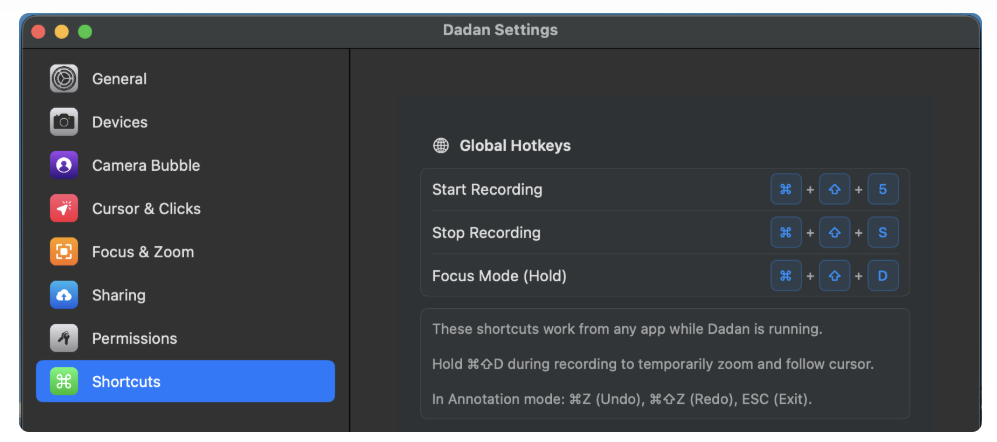
- Install the Dadan desktop app and sign in. Dadan is available for both Windows and macOS. Sign in using your email, Google, or Microsoft account.
- Launch Snap Record. Press Command + Shift + 2 on Mac or Ctrl + Shift + G on Windows. The recorder opens immediately, so there’s no need to open the app first.
- Choose what to capture. Record your entire screen, a specific application window, or a custom area you select.
- Configure your recording. Turn your microphone on or off, add your webcam as a picture in picture overlay, and enable system audio if you want to capture sound from your computer.
- Start recording. A short countdown gives you a moment to prepare before recording begins.
- Stop and share. When you’re finished, stop the recording, trim the beginning or end if needed, then instantly copy a shareable link or download the video file.
How Snap Record Helps Mac and Windows Users
Snap Record gives Mac and Windows users a faster way to start recording, along with built in editing, sharing, and cloud hosting that standard screen recording tools don’t provide. Built in recorders are great for capturing your screen, but Snap Record simplifies everything that happens before and after recording, where most of the time is usually spent.
- Start recording instantly with Command + Shift + 2 on Mac or Ctrl + Shift + G on Windows, without opening the app first.
- Trim, zoom, blur, and annotate videos directly in Dadan instead of exporting them to another editor.
- Every recording is automatically uploaded to Dadan and ready to share with a secure link, so viewers can watch in their browser without downloading files.
- Keep all your recordings in a searchable library with AI generated transcripts, making it easy to find and reuse past videos.
- Free recordings are watermark free, so your videos are ready to share immediately without additional editing.
For remote teams, customer support, sales, training, and asynchronous communication, Snap Record helps you spend less time managing recordings and more time sharing information. You can also watch Snap Record in action on Dadan’s YouTube channel.
Bonus Read: 10 Things You Can Do With Dadan MCP
Conclusion
A screen recorder is only valuable if it’s quick enough to use whenever you need it. With Dadan Snap Record, simply install the desktop app, then press Command + Shift + 2 on Mac or Ctrl + Shift + G on Windows to start recording instantly. Instead of ending up with a raw video file, your recording is automatically uploaded, ready to edit, and easy to share with a link in just a few clicks.
FAQs
How do I start a Snap Record?
Install the Dadan desktop app and sign in once. Then press Command + Shift + 2 on Mac or Ctrl + Shift + G on Windows to launch Snap Record instantly. Choose what you want to capture and start recording.
Which keyboard shortcut launches Snap Record?
Use Command + Shift + 2 on Mac or Ctrl + Shift + G on Windows. The recorder opens immediately, allowing you to capture your entire screen, a window, or a custom area.
Does Snap Record record audio?
Yes. You can record your microphone, your computer’s system audio, or both at the same time. Dadan also includes noise suppression to help produce clearer voice recordings.
Can I record my webcam and screen together?
Yes. Snap Record supports screen and webcam recording simultaneously. Your webcam appears as a picture in picture overlay, which you can resize, reposition, or disable for screen only recordings.
Is Snap Record available on Windows?
Yes. Snap Record is available for both Windows and Mac. Use Ctrl + Shift + G on Windows or Command + Shift + 2 on Mac to launch the recorder and quickly capture, edit, and share your recordings.
Does Snap Record add a watermark?
No. Recordings created on Dadan’s free plan do not include a watermark, so you can share or download your videos without additional branding.
Do I need to open Dadan before using Snap Record?
No. After installing the Dadan desktop app and signing in once, Snap Record is always ready. Simply use Command + Shift + 2 on Mac or Ctrl + Shift + G on Windows to launch the recorder instantly, without opening the app manually each time.
Check out our How-to Guide:
- How to Screen Record on Windows Without Xbox Game Bar
- How to Screen Record on Windows 7, 8, 10, and 11
- How to Grant Google Chrome Screen Recording Permissions
- How to Screen Record on Windows Using Shortcut Keys
- How to Stop Screen Recording on Mac
- Zero to Global: Dadan’s First Year in Product, Users, and What’s Next