Recording an X Space should be simple, but it isn’t. Hosts can toggle recording before they go live, and X will save a replay you can share.
But if you missed that toggle or just wanted a local copy, there’s no built-in download button.
That is a gap if you’re a creator, educator, or team relying on live conversations for lessons, training, or repurposed content. Lots of voices on Spaces don’t repeat themselves in threads or captions, so losing the live audio means losing nuance, answers, examples, and back-and-forths that never make it into text.
This article is about how to record X Spaces in practical steps, what X supports natively, and where you need tools like screen/audio capture to get a usable file.
What Are X Spaces?
When marketers and creators talk about X Spaces, they’re talking about live audio rooms built right into the X app, conversations that happen in real time, with people tuning in and speaking live rather than typing replies.
You might see a purple bubble at the top of your feed indicating someone has started a Space. Tap it, and you’re inside listening to the audio as it unfolds.
Unlike text posts or even pre-recorded podcasts, Spaces is very much a live experience. A host starts the session, invites others to speak, and anyone on the platform can join as a listener. Up to 13 people (one host, up to two co-hosts, and ten speakers) can be live on the “stage,” while an unlimited number of listeners can tune in without speaking.
The format grew out of the broader social audio trend launched by apps like Clubhouse, but X’s version doesn’t require a separate app or invite system.
The idea is that rather than reading a thread or watching a video, you’re listening and participating in a live voice conversation, often with Q&A, debate, and spontaneous back-and-forth that you can’t capture with text alone.
For teams, educators, and creators, that means you can host real-time discussions on topics without scheduling a webinar or recording a podcast weeks in advance.
Can You Record X Spaces Natively
Yes, but only in a narrow, platform-controlled way. And that limitation is where most confusion starts.
On X, native recording is a host-only feature. When you create a Space, you’ll see an option to enable recording before you go live. If you don’t turn that on at the start, there’s no way to add recording later. Once the Space begins, the decision is locked.
When recording is enabled, X makes this explicit to everyone who joins. Listeners see a notice that the Space is being recorded, and speakers are informed as well. There’s no silent or background recording happening at the platform level.
After the Space ends, X saves the recording and attaches it to the Space. Hosts can replay it, share a link, and in some cases download it.
Historically, X has stated that recordings remain available for at least 30 days, though availability and download access can vary based on app version and account type. The key point is that the recording lives inside X’s ecosystem, not on your device by default.
So, if you’re listening rather than hosting, native recording simply isn’t an option. There’s no save or download, and no way to request the audio file from X. Even if the host records the Space, listeners can only replay it while it remains available on the platform.
If you need the audio for documentation, training, editing, or reuse outside X, you’re working within tight constraints. And if you’re not the host, those constraints are exactly why external recording methods exist in the first place.
How To Record X Spaces As A Host
X only lets you record a Space while you’re setting it up. That means you need to enable recording before the Space starts, you can’t turn recording on later once you’re live.
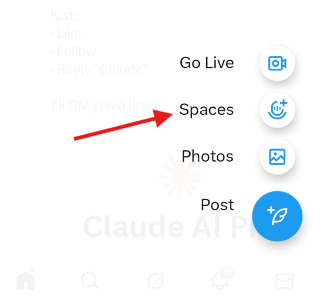
Step 1: Tap The “+” Button In The X App
Open X on your phone (iOS or Android) and tap the + button used to create new content. From the create menu, choose Spaces.
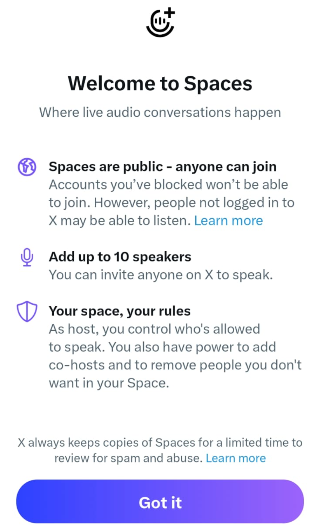
Step 2: Choose Create Now Or Schedule For Later
You can either start immediately or schedule it and share it as a post. Either way, you’ll see the recording option during setup.
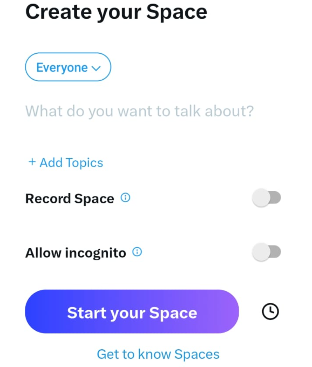
Step 3: Turn On Record Space During Setup
On the Space setup screen, toggle Record Space ON. This is the key step. Recording is something you opt into while setting up the Space.
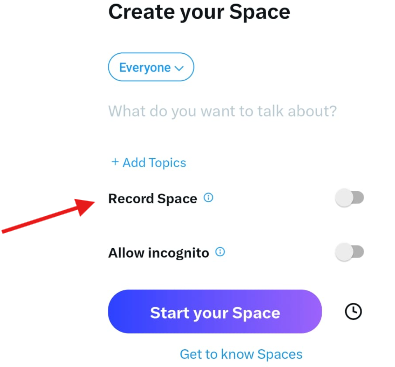
Step 4: Start The Space
Now start the Space if you’re going live, or schedule it if you’re planning ahead. Once you’re live, the recording runs as part of the Space session (since you enabled it in setup).
Step 5: Share The Recording Afterward (As X Allows)
When you record during setup, you can share the recording later (for example, as a post). How exactly it appears can vary by app version, but the key is that recording must be enabled at setup for you to have a recording to share.
How To Record X Spaces As A Listener
If you’re only listening, X doesn’t give you a “record” button. Even if the host records the Space, listeners typically can’t download the audio directly from X. So if you need your own copy, you have to record it while it’s live.
The important detail here is that Spaces audio is system audio. Your recorder must capture tab/system sound, otherwise you’ll end up with a silent file.
Dadan works well here because it supports recording with audio as part of the screen recording flow.
Step 1: Sign in to Dadan
Go to dadan.io and sign up to your account. You can log in using Google, Microsoft, LinkedIn, Apple, or email.
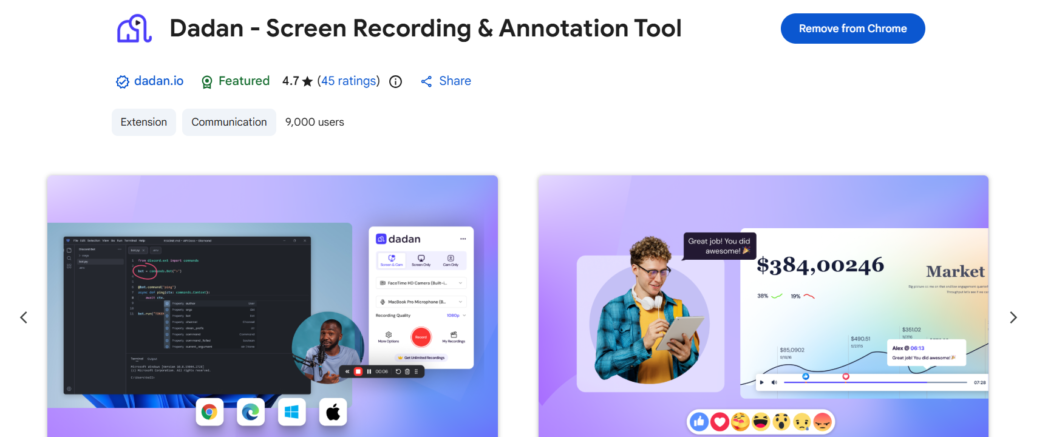
You can record using either:
- The Dadan desktop app (Mac or Windows), or
- The Dadan Chrome extension
For recording X Spaces, using Chrome on a desktop is recommended.
Step 2: Open the X Space You Want to Record
Open X in Google Chrome and join the Space you want to record. Make sure:
- The Space is live
- Audio is playing clearly in the browser tab
X Spaces audio plays as tab/system audio on desktop.
Step 3: Start a New Recording in Dadan
Click Create and select Record a Video. Choose Screen only as the recording mode.
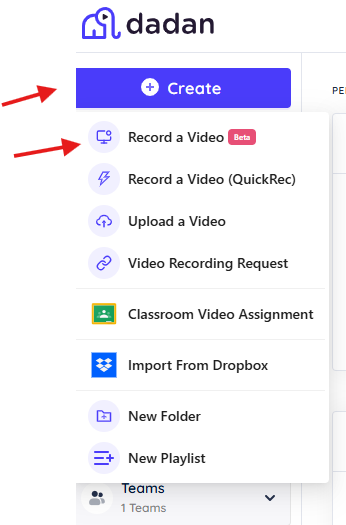
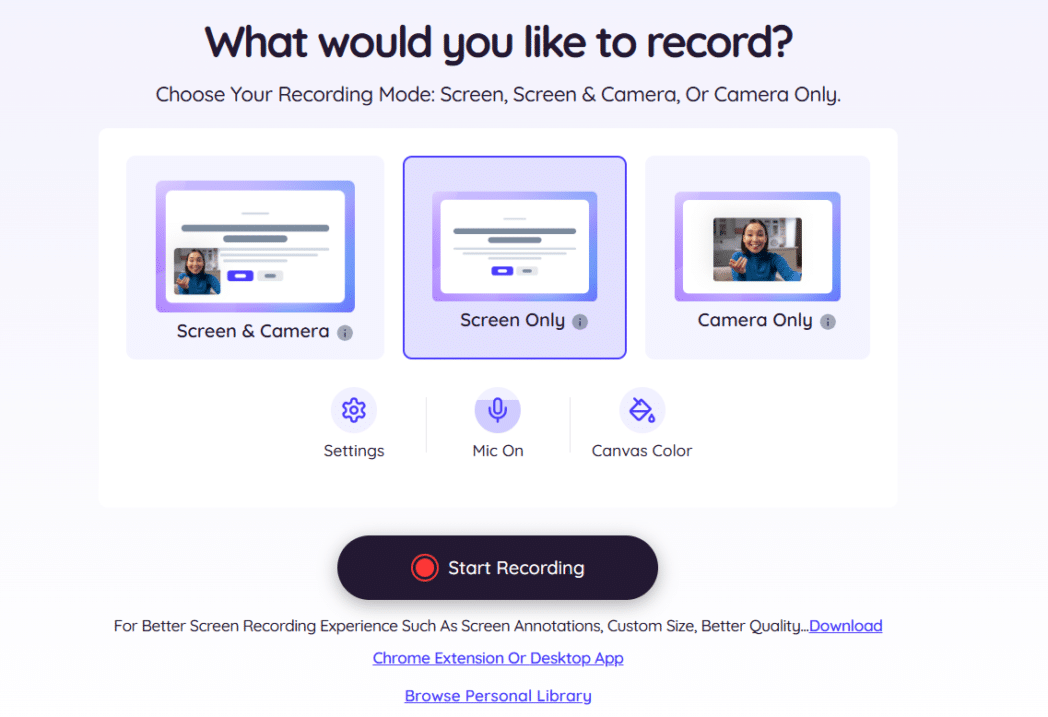
This ensures the Space audio is captured without requiring webcam input.
Step 4: Start Recording
After sharing the tab, Dadan automatically starts recording after a short countdown. The recording indicator confirms that both screen and audio are being captured.
Step 5: Stop the Recording
Once the Space ends, or when you have recorded the required portion, click Stop. The recording is automatically saved to your Dadan library.

Step 6: Download or Edit the Recording
After processing, you can:
- Download the recording
- Trim the video
- Generate transcripts or summaries using Dadan’s AI tools
The file can then be reused for documentation, content, or internal sharing.
Best Practices for Clean X Spaces Recordings
- Record from a desktop browser, not a phone. Mobile OS restrictions make third-party recording inconsistent.
- Use Google Chrome and record the tab, not the window or entire screen.
- When Chrome asks what to share, double-check that “Also share tab audio” is enabled before clicking Share. If this is unchecked, the recording will have no audio.
- Start recording only after the Space audio is live.
- Keep the Space tab active and unmuted during the recording. Muting the tab or pushing it too far into the background can interrupt audio capture.
- Avoid switching headphones, speakers, or audio outputs mid-recording.
- Close unnecessary tabs and background apps before recording.
- Let the recording finish processing properly. Stop the recording using Dadan’s controls instead of closing the browser abruptly to avoid corrupted files.
Common Problems and How to Fix Them
If something went wrong with your recording, it’s almost always one of the issues below.
The Recording Has No Audio
This happens when the tab audio wasn’t shared. When Chrome prompts you to choose what to record, the X Space tab must be selected, and “Also share tab audio” must be enabled.
Only Microphone Audio Was Captured
In this case, the recorder was listening to your mic instead of the Space. Restart the recording and select Tab as the source. If you’re not speaking, keep the microphone turned off.
The Recording Stopped Before The Space Ended
This usually happens when the tab becomes inactive or when power-saving settings interrupt the browser. Keep the Space tab open and prevent your system from sleeping while recording.
Audio Drops Out Or Sounds Distorted
Switching headphones or speakers mid-recording can interrupt the audio stream being captured. Choose your audio output before starting and don’t change it until the recording is finished.
The Space Sounded Fine Live, But Playback Is Silent
Most often, the tab was muted during recording, or Chrome deprioritized background audio. Before starting, confirm the tab isn’t muted, and the system volume is active.
The Recording Doesn’t Appear In The Library
Closing the browser before stopping the recording can prevent the file from processing. Always stop the recording using Dadan’s controls and wait for it to upload.
Audio And Screen Are Out Of Sync
High CPU usage can cause sync issues. Close unnecessary apps and tabs before recording, especially video-heavy or screen-sharing tools.
Conclusion
X gives hosts a limited native option, and everyone else has to plan ahead. If you’re hosting, the decision to record has to happen before the Space starts. If you miss it, there’s no recovery.
If you’re listening, desktop recording is the only reliable way, because that’s where X shared Space audio as tab audio in the browser. Phones simply don’t offer the same level of control.
So, set up recording intentionally, use the right source, and don’t rely on assumptions about what X saves for you. Live conversations are valuable precisely because they’re unpolished and immediate. Recording them is how you make sure that value doesn’t disappear when the Space ends on X.
FAQs
Can I record X Spaces as a listener?
Yes. X doesn’t offer a native option for listeners, but you can record a Space externally using a screen recorder like Dadan on a desktop. The key is recording the browser tab so the Space audio is captured as system audio.
Does X notify users when a Space is recorded?
X only notifies users when the host enables native recording. External recordings made by listeners using screen recorders do not trigger any notifications in the Space.
Where are X Spaces recordings saved?
Native recordings created by the host are stored on X and attached to the Space replay. Recordings made with Dadan are saved to your Dadan library and can be downloaded locally.
How long are X Spaces recordings available?
Host recordings on X are typically available for a limited period (often around 30 days), depending on the account and app version. Recordings made with Dadan remain available in your account until you delete them.
Can I download X Spaces recordings directly from X?
Only hosts may have access to a download option, and it isn’t consistently available. Listeners cannot download recordings directly from X and need an external recorder.
Can I record X Spaces on iPhone?
Not reliably. iOS restricts system audio capture, which makes third-party recording inconsistent. For dependable recordings, desktop is recommended.
Can I record X Spaces on Android?
Results vary by device and OS version. Some Android setups allow partial capture, but reliability is inconsistent compared to desktop recording.
Can I record X Spaces on desktop?
Yes. Desktop browsers expose tab audio, which makes this the most reliable setup for recording Spaces using tools like Dadan.
Why is there no sound in my recording?
In most cases, tab audio wasn’t shared. Make sure you selected the Space tab and enabled “Also share tab audio” in the browser sharing dialog before starting the recording.
Recommended Readings:
- How to Record Skype Calls on Windows and Mac for Free
- How to Record a Microsoft Teams Meeting in Simple Steps
- How to Record a Webinar without Host Permission
- Video Messaging 101: A Beginner’s Guide to Smarter Communication