Can you record a Discord call? Yes, there are two popular ways: using the Craig bot or a screen recorder. Craig has been the favorite for many Discord users, but it can only record audio. For recording both video and audio, you need a screen recorder.
We will share the step-by-step process to use Craig and a screen recorder, so you know which one works best for you.
TL;DR
- Learn how to record Discord calls with built-in tools or external screen recorders.
- Follow step-by-step guides for both native and external recording methods.
- Get tips on recommended audio settings to capture clear sound.
- Discover how to edit and post-process your recordings for polish.
- Find quick solutions to common recording issues.
Prerequisites
Before you start recording a Discord call or podcast, take care of these essentials:
Get Consent
Inform all participants that you’re recording before you start. Recording laws vary by location; some require all-party consent, others just one. It’s better to be transparent and avoid legal issues.
Check Your Hardware & Software
Keep Discord, your operating system, and audio/video drivers updated. Test your headset, microphone, and webcam to ensure they’re properly connected and working.
Optimize Discord Settings
Verify your microphone and speaker inputs are set correctly. Make sure you’re not muted or deafened. Ensure Discord has microphone and camera permissions in your device settings.
Set Up Your Recording Space
Record in a quiet environment. Close unnecessary apps running in the background to free up system resources. This helps with audio quality and recording stability.
Install Your Recording Tool
Choose one: Craig Bot (for audio-only, multi-track recordings) or OBS Studio (for video and audio). Install and configure whichever tool you’ll be using before hitting record. Follow the steps in the next section.
How to record a Discord Video Call using Craig bot (Step by Step)
Craig is one of the most popular tools for recording Discord voice calls, especially if you need high-quality, multi-track audio for podcasts or interviews. It works on both Windows and macOS.
Here’s how to get started:
Step 1: Invite Craig to Your Server
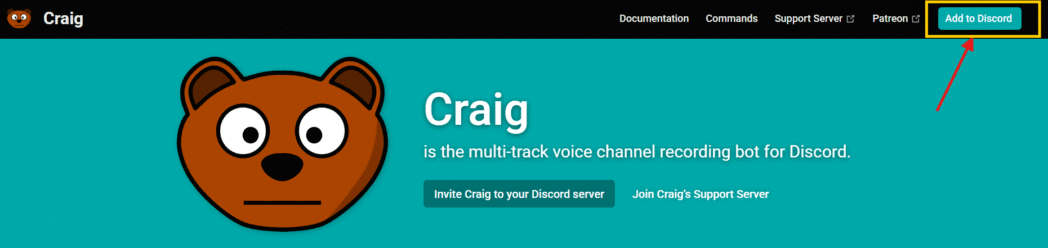
Head over to the official Craig Bot website at craig.chat and click the option to invite Craig to your Discord server. You’ll be asked to select which server you want to add Craig to, then click Authorize to grant access. You may need to complete a quick CAPTCHA verification.
Step 2: Join a Voice Channel
Open Discord and join the voice channel where you want to record. Make sure everyone who’ll be part of the recording is ready.
Step 3: Start Recording
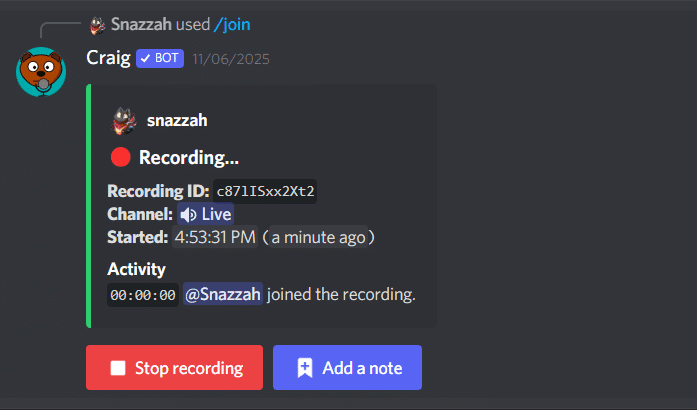
In the text channel (where Craig has access), type /join and press Enter. Craig will instantly join your voice channel and start recording. You’ll see a message in the chat confirming the recording is active, and Craig will also send you a private message (DM) with a download link—even while the recording is still in progress.
Step 4: Stop the Recording
When you’re done, simply type /stop in the chat and press Send. Or, you can click the red Stop recording button. Craig will leave the voice channel once the recording ends.
Step 5: Download Your Audio
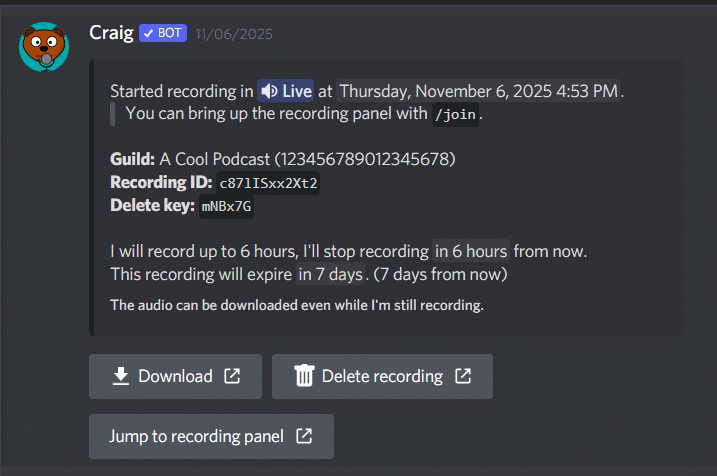
Click on the download link sent by Craig before the recording began. You can download your audio in multiple formats like FLAC, MPEG-4 AAC, or MP3. Your recordings stay available for 7 days, and each session can last up to 6 hours.
Recording a Discord Podcast with Craig
Craig is especially loved by podcasters because of its multi-track recording feature. Each participant gets their own audio file, so you can independently adjust volume, cut mistakes, or edit each speaker without affecting others. This gives you total control during post-production and ensures a polished final product.
Craig is audio-only. It’s designed specifically for voice channels and cannot record video calls or livestreams. If you need to capture both video and audio, you’ll need a screen recorder, which we’ll cover in the next section.
How to record Discord Video Call and Podcast using dadan (Step by Step)
Want to record a Discord livestream, presentation, or group call with video and audio? That’s where screen recorders shine. We’ll show you how you can use dadan to record these types of content, but you can pick any screen recorder, including built-in tools like Windows GameBar or QuickTime Player
Why a Screen Recorder?
A screen recorder captures everything happening on your screen in real-time, including video, chat, and audio simultaneously. This makes it perfect for recording Discord livestreams, webinars, or group calls where visual context matters
What is Dadan?
Dadan is a cloud-based screen recorder and video creation platform built for content creators, remote teams, and educators. It simplifies video creation by letting you capture your screen, webcam, or both simultaneously in 4K with crystal-clear audio. Beyond recording, Dadan includes an intuitive built-in text-based video editor with AI-powered features like automatic transcription and chapter generation. It’s available for Windows, Mac, Chrome, and Edge extensions.
Steps to Record Discord Video and Audio Using Dadan
Step 1: Download Dadan
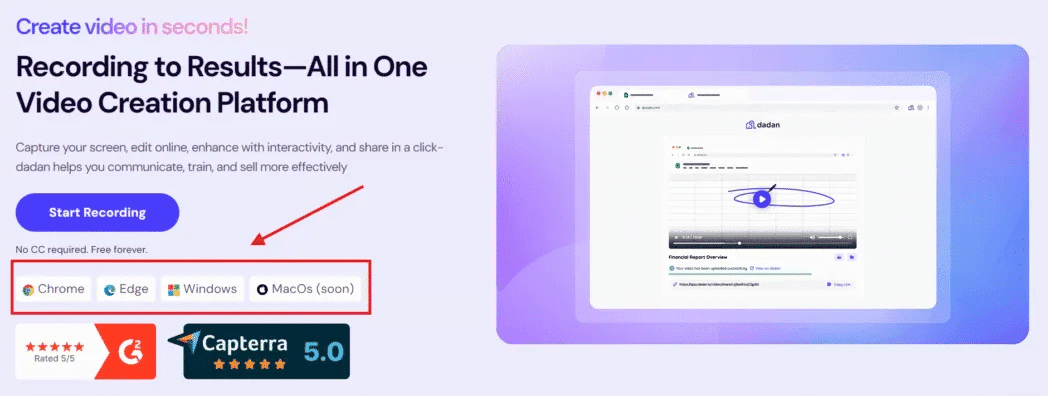
Record Online or Download the Dadan app from the website for your Windows or Mac PC. Or install the browser extension from the Chrome Web Store or Edge Add-ons. After you download the app, it opens automatically after installation. For the extension, click Add to Chrome or Get button and pin it to your toolbar for quick access. Next, sign up with your email
Grant permissions for your camera and microphone when prompted at the time of installation. Without these permissions, dadan will not be able to record the screen and audio
Step 2: Choose the recording mode
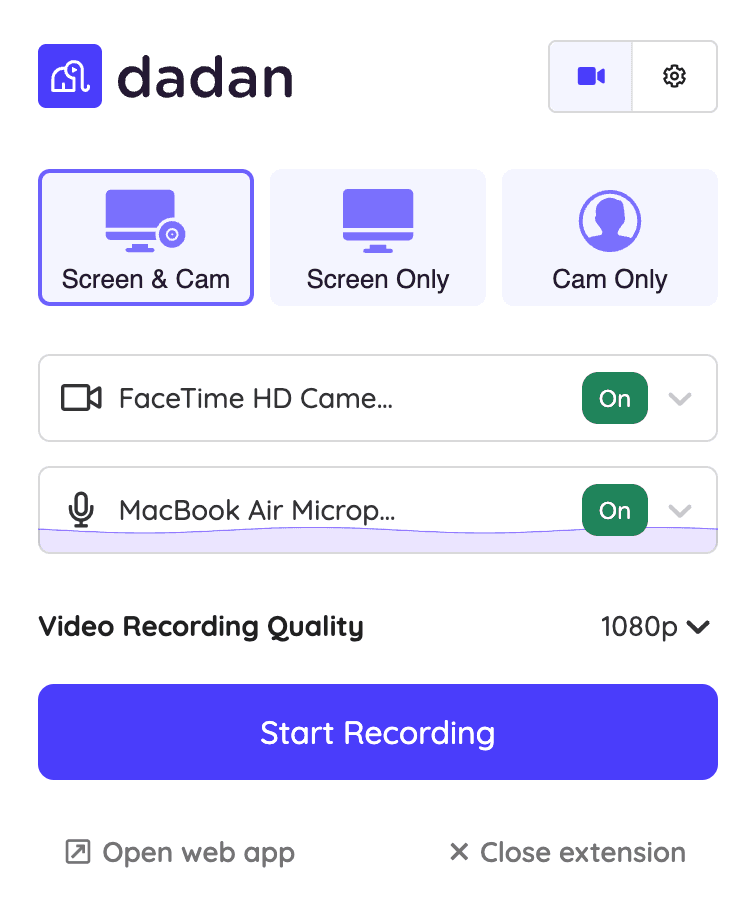
Open Dadan and choose your recording mode based on what you need to capture:
- Screen Only: Perfect if you just want the Discord window without showing your face.
- Webcam Only: Record just yourself, useful if you’re doing a reaction video or personal commentary.
- Screen + Webcam: Capture both Discord and your face in a picture-in-picture layout; great for presentations or hosting.
Step 3: Select the recording area

Select what area you want to record: Entire Screen to capture everything, Window to focus on just Discord, or Custom Size for a specific area. If you’re recording from the browser, you get the option to record a single tab.
Make sure your microphone is selected as the audio input. Also, enable internal audio recording in Dadan’s settings so you capture Discord’s audio—voices from other participants, screen shares, and any background audio.
Step 4: Start Your Recording
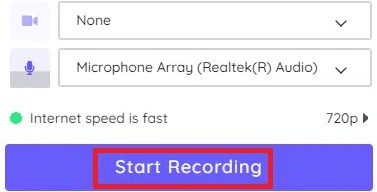
Click Start Recording. You’ll see a brief countdown before recording begins. Position your Discord window and make sure everyone knows you’re recording
Step 5: Stop and Save
When you’re finished, click the Stop button on the floating toolbar. Your video automatically uploads to your dadan library.
Step 6: Edit Your Video
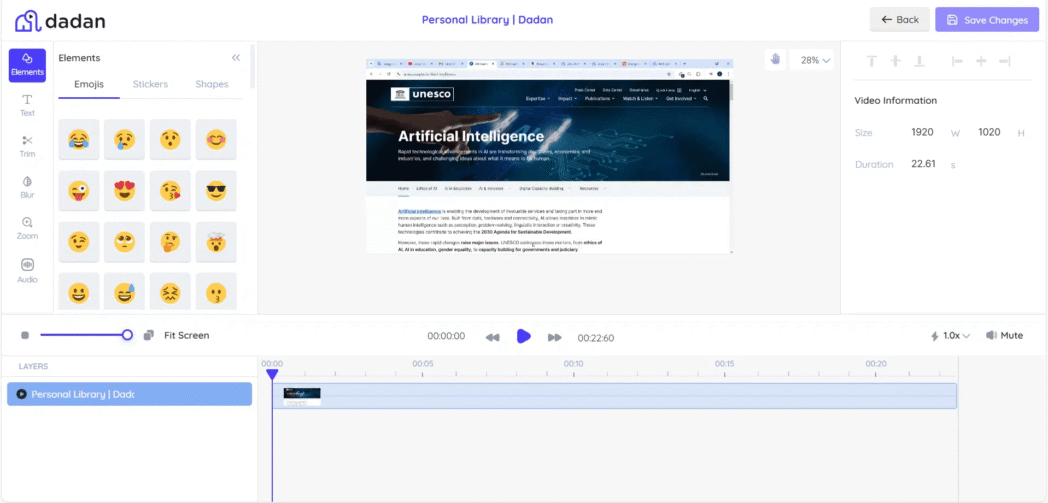
Open the video in Dadan’s built-in video editor. You can trim the video, remove background noise, crop or zoom sections, and polish everything without needing external software. Take advantage of AI Assist features like automatic transcription to generate searchable text from your recording, or use AI to detect and remove filler words and silences automatically.
Text-Based Video Editor:

Dadan now includes a text-based video editor. Editing your video is as easy as editing a document. You can edit directly from the transcript, cut or move sections, remove filler words, arrange clips, and the changes will automatically reflect in the video. All this without any watermark.
Once you’re happy with it, share the video instantly via link or download it for further use.
Editing & Post Processing
Now that you have your recording, let’s polish it. The goal isn’t perfection—it’s making your content clear, engaging, and easy to follow.
Trim Unwanted Sections
Cut out long silences, stutters, or moments when nothing important is happening. This keeps your content tight and respects your viewers’ time
Clean Up Audio
Remove background noise, hums, or echoes from your recording. If you recorded using Craig Bot, you can use an external audio editor to clean up each speaker’s track independently.
Remove Filler Words and Pauses
Words like “um,” “uh,” and “like” distract listeners and make your content feel less polished. The same applies to awkward silences, as it slows down the pace of the video. Use an AI-powered editor that can automatically spot these interruptions, and make your job a lot easier in removing them from the video.
Add Captions or Subtitles
Captions make your content accessible to everyone and improve engagement. Many viewers watch videos with the sound off, and they follow the subtitles to get the context. Captions also help with SEO and give you a searchable transcript of your content.
Organize and Label
If you’re working with multiple speakers or tracks, label them clearly. Organized files make editing faster and easier, especially if you’re collaborating with others.
Add Context With Visuals or Text
Highlight key moments with text overlays, annotations, or visual markers. This guides viewers to important information and breaks up longer recordings.
Get Feedback Before Finalizing
Share your rough edit with a colleague or friend. Fresh eyes catch things you might miss and help ensure your message is clear.
Quick Troubleshooting
Recording Discord calls can sometimes hit a few snags. Here are the most common issues and how to fix them.
Audio Issues
If no one can hear you or you can’t hear others, first check the obvious: Are you muted or deafened in Discord? Look for the microphone and speaker icons in the voice channel. Next, verify you’ve selected the correct input and output devices in Discord’s Voice & Video settings.
It could also happen due to outdated audio drivers. Update them from your sound card manufacturer’s website. If problems persist, try restarting Discord completely or reconnecting to the voice channel.
Choppy or Low-Quality Audio
Check your internet connection; if it’s poor, it could be the reason for choppy audio. Close unnecessary background applications consuming bandwidth. Reduce recording quality settings temporarily to see if that helps. You can also toggle Discord’s Noise Suppression or Echo Cancellation on or off; sometimes disabling these helps if they’re causing issues.
Discord Permissions Problems
If you can’t join a voice channel or record, you might lack the necessary permissions. Check with your server owner or admin to ensure you have permissions to Connect, Speak, and Video (if recording video). Some channels restrict access to certain roles; confirm you have the right role assigned.
Recording Software Issues
If you’re using Craig Bot and can’t get it to work, verify you’re the server owner or have permission to add bots. Double-check that you’ve invited Craig correctly and that it successfully joined the voice channel.
If you’re recording video and experiencing lag or dropped frames, it’s likely a performance issue. Close unnecessary apps, reduce your recording resolution or frame rate, and ensure your graphics drivers are up to date. High-resolution (4K) or high frame rate (60fps) recording demands more processing power; try 1080p at 30fps if you’re struggling.
Missing or Lost Recordings
If your recording didn’t save, check your storage space. Also, verify that the recording actually completed. Sometimes recordings fail silently if there’s a connection drop or software crash. Always keep a backup or test your setup before recording something important.
File Format or Export Problems
If you can’t open or export your recording, ensure your media player supports the file format (MP3, FLAC, or MP4 are common). Try a different player or convert the file to a more universal format. If using Craig Bot, check that you downloaded the correct track version (multi-track vs. single-track mix).
Still Stuck?
If none of these fixes work, restart your computer. It clears temporary issues and refreshes system resources. Then try again. Most Discord and recording issues resolve with a simple restart.
Ready to Record Your Discord Call?
Now you know exactly how to record Discord calls, livestreams, and podcasts. You’ve also got the tips to troubleshoot common issues and polish your content in post-production. The next step is simple: set up your recording tool, get consent from everyone involved, and press record.
If you’re only recording audio, Craig bot is the easiest option. For videos, use a screen recorder that’s easy to live with. That also includes the built-in screen recorders: GameBar for Windows and QuickTime Player for macOS.
But if you want an advanced screen recorder with editing features, AI transcription, and more, try dadan free for 14 days. You’ll get access to all the premium tools, no credit card required.
FAQs
How to record a Discord call with sound?
You can record Discord calls with sound by using a bot like Craig for audio-only recordings or a screen recorder for both video and audio. Ensure you enable internal audio capture in your recording software to include all voices and sounds.
Can I record a podcast through Discord?
Yes, Discord is popular for remote podcast recording. Using multi-track bots like Craig lets you record each speaker separately, making post-production easier and producing higher-quality audio.
Does Discord allow you to record calls?
Discord doesn’t have a native call recording feature, but you can record calls using third-party tools like bots or screen recorders that capture audio and video.
What is the Discord bot that records audio and video?
Most recording bots like Craig capture audio only. To record video, you’ll need a screen recorder. There isn’t a bot that records both audio and video simultaneously within Discord.
Is it safe to record Discord calls?
Yes, as long as you follow legal and ethical guidelines. Always inform and get consent from all participants before recording, and comply with local laws related to recording conversations.
Can I record Discord calls directly in the app?
No, Discord doesn’t offer built-in recording for calls. You need to use external bots or screen recording software to capture your calls.
How do you record Discord audio and gameplay?
Use a screen recorder that can capture both your gameplay screen and system audio (Discord audio) at once. Configure the recorder to include internal audio and select the right recording area.
How do I record someone else’s audio on Discord?
Bots like Craig can capture all participants’ audio, including others on the call, if invited correctly to the voice channel. Screen recorders set to capture system audio also capture others’ voices.
Recommended Readings:
- How to record GoToMeeting as an attendee
- How to Record a Zoom Meeting as a Participant – 3 easy ways
- Record Google Meet meetings without premium
- How to Record X (Twitter) Spaces – Step-by-Step Guide