Most of the time you spend on a how-to guide goes into screenshots. You stop after every click, grab the screen, crop it, blur the customer’s name, draw an arrow, paste it in, and then try to remember where you were in the task.
You don’t have to work that way anymore. If you create how to guides for internal processes or customer help, you can record yourself doing the task and let a tool turn each click into a written step with the screenshot already in place.
What Makes a Good How-To Guide?
A good how-to guide gets someone to the end of a task without them messaging you halfway through. That sounds obvious, but it’s exactly where most internal guides fall apart.
Google’s developer documentation style guide sets out clear rules for this, and Google uses it for its own developer docs.
Three of those rules fix most bad guides, and they work whether you write from scratch or tidy up something a tool generated for you.
One Step Should Do One Thing
If a step says “Open Billing and update your card,” that’s two actions sharing one number. When the first one doesn’t work, your reader has no idea which step they’re stuck on.
Google makes one exception. Menu paths can go in a single step with angle brackets, so “Select Settings > Billing” still counts as one.
Tell People Where Before You Tell Them What
Write “In the top-right corner, click Share” instead of “Click Share in the top-right corner.” The first version points the reader’s eyes at the right spot before they reach the verb. The second sends them hunting, and they only find out where to look once they’ve already started.
Goals work the same way. “To add a teammate, click Invite” tells them why before they click.
Say What Happens After the Click
This is the one almost everybody skips. After an action, tell the reader what they should see, like “The Invite dialog opens.”
Without that line, someone who sees something unexpected can’t tell whether they messed up or your guide is out of date. One short sentence saves you a support message.
Crop Your Screenshots Down to One Panel
A full-screen screenshot makes people search the whole interface for one button. Crop to the panel they’re working in, put a box or arrow on the exact thing to click, and blur names and email addresses before you share anything.
Why Creating How-To Guides Manually Takes So Much Time
Everything around the writing is what eats your afternoon, and it gets worse with every step you add, even when the task itself is easy.
You Repeat the Same Screenshot Routine on Every Step
For each step, you pause, take the screenshot, crop it, highlight the button, check it for private info, paste it into the doc, and line it up with the text. Then you switch back to the app and figure out where you were.
Now do that 15 times. A process you can finish in two minutes can easily turn into an hour of documentation.
Tools for creating decent documentation with screenshots?
byu/Izual_Rebirth insysadmin
You’ll Forget the Steps You Do on Autopilot
The person who knows a process best usually writes the worst guide for it. Once you’ve done something a hundred times, you stop noticing that you switch workspaces first or close a pop-up before anything else. Those are exactly the steps a new person gets stuck on.
A recorder doesn’t have that problem. It catches every click, including the ones you’d never think to write down.
One Product Update Can Make the Whole Guide Wrong
A button gets renamed or moves to another menu, and suddenly your guide points at something that isn’t there.
Fixing it means retaking screenshots by hand, so most people put it off. Give it a few releases and nobody trusts the guide anymore.
Windows Is Retiring Its Free Steps Recorder
Windows has shipped a free tool for this since Windows 7. It’s called Steps Recorder (psr.exe), and it saved a screenshot every time you clicked.
Microsoft has deprecated it in Windows 11 and plans to remove it in a future update. It points people to its screen capture and recording apps instead, but those don’t build step-by-step guides.
How to Create a How-To Guide Without Writing Every Step
The idea here is that you do the task once while recording, and the tool turns every click into a numbered step with a screenshot and a first draft of the text. You stop writing the guide and start editing it, which is a lot faster.
The walkthrough below uses Dadan Guides. Dadan launched it in September 2026, and you get it on every plan, including the free one. The prep and editing tips work no matter which recorder you use.
Step 1: Get the Task Ready Before You Hit Record
Use a test account or dummy data so no real customer details end up in a screenshot.
Close Slack and email and turn on Do Not Disturb, because a notification that pops up mid-recording lands right in your guide.
Start where your reader actually starts. Most people are already logged in, so begin on the dashboard instead of the login page.
Do one dry run without recording so you’re not hunting for buttons on the real take.
Step 2: Open the Guide Recorder in Dadan
Open the Dadan extension in Chrome or Edge and select Guide. Choose the screen you want to record, and set the language you want the guide written in from preferences before you start.
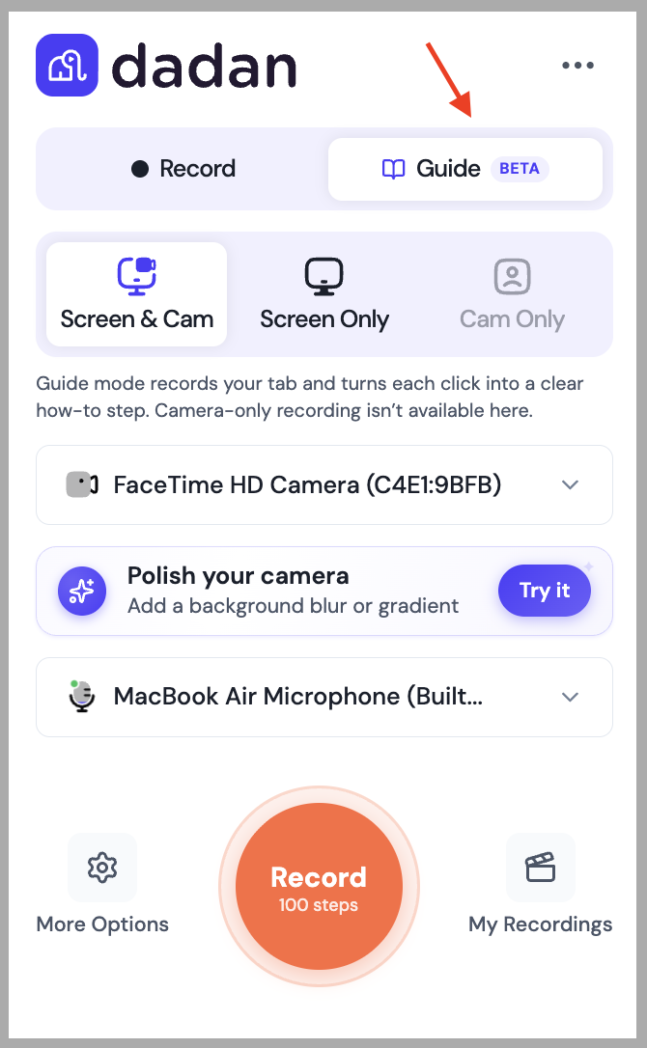
If you don’t have the extension yet, you can grab it from the Dadan homepage.
Step 3: Click Through the Task Like You Normally Would
Start recording and do the task from start to finish. Every click becomes its own numbered step, in order, with a screenshot of what was on screen at that moment.
Try to click with purpose. If you open a menu just to check something and close it again, that’s a step you’ll delete later. If you make a mistake, keep going. Deleting one bad step is quicker than starting over.
Dadan also keeps the recording itself, so your guide comes with a video of you doing the task. If someone can’t follow step 6 from the text, they can just watch that part.
Step 4: Edit the Draft
When you stop, Dadan builds a doc-style guide with a screenshot and a short instruction on every step. Treat that text as a first draft. The recorder knows what you clicked, but it has no idea why.
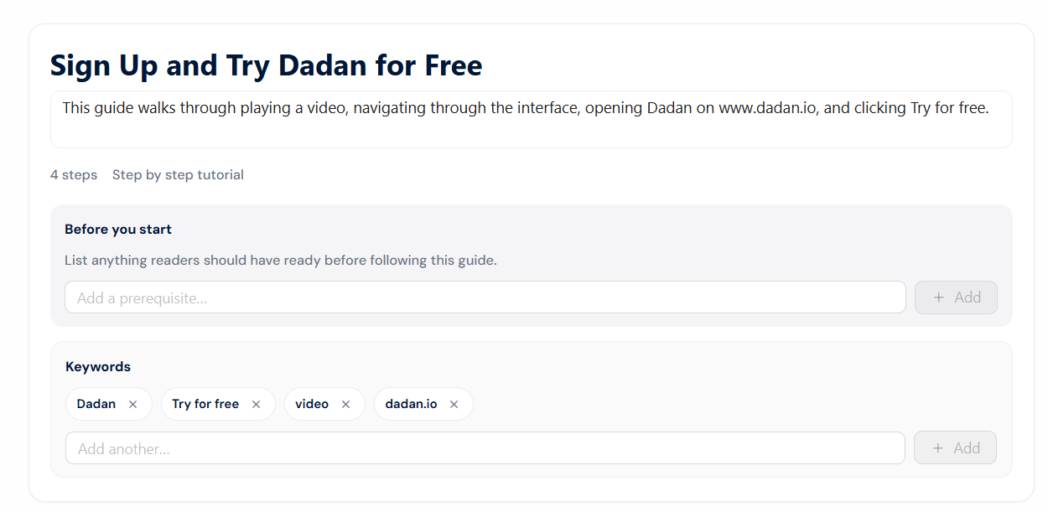
This is where the Google rules come back in.
- Rewrite vague steps.
- Merge clicks that belong to one action, and delete the ones where you were just poking around.
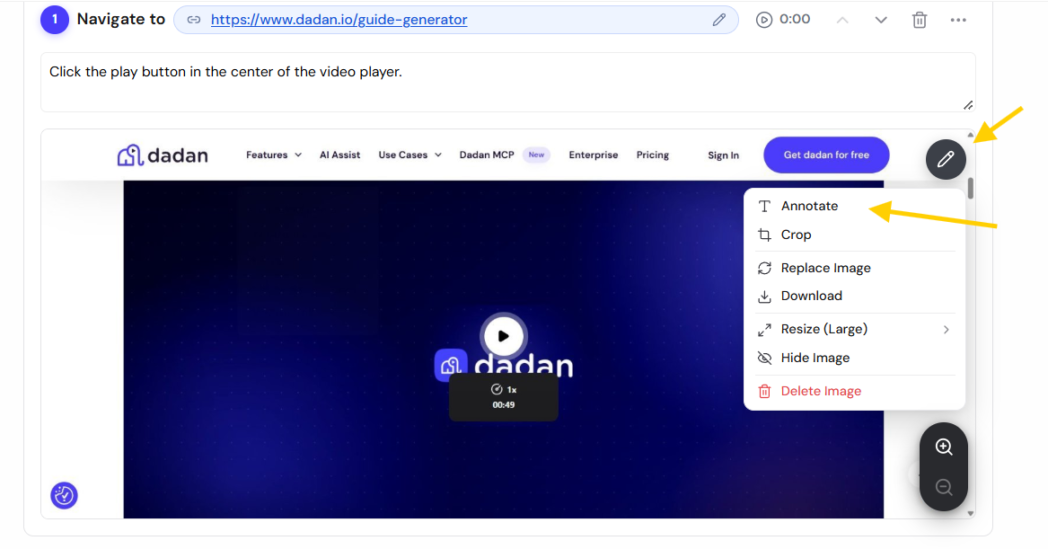
- Add anything that happened off-screen. Dadan lets you add missed steps with your own images.
- Mark up screenshots where the button is tiny, and drop in a tip or a warning wherever people usually go wrong.
- After any step where the screen changes in a surprising way, add a line saying what they should see.
Step 5: Translate It, Publish It, or Export a PDF
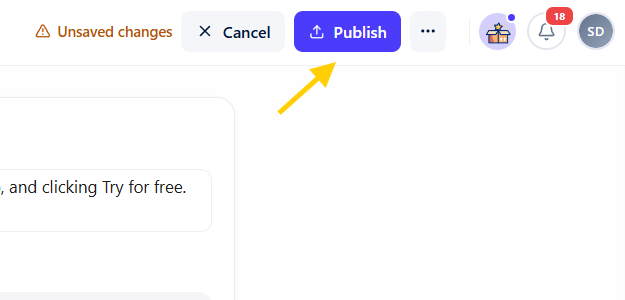
If you’re not finished, save it as a draft and come back later. When it reads right, publish it and share the link straight from Dadan, or export a PDF for anyone who wants a file.
If you’re sending the guide to people who work in another language, translate the finished guide instead of writing a second one. Dadan guides supports 40+ languages and translate them into 180+ languages. Once a guide is live, you can see how many people open it, which tells you which guides are worth polishing first.
Step 6: Re-Record When the Process Changes
When the product changes, look at how big the change is. If one button moved, swap that step’s screenshot for your own image and fix the text.
If the whole flow changed, just record it again. That takes about as long as doing the task once, which beats patching ten screenshots.
What Types of How-To Guides Can You Create?
If you can do it by clicking through a screen, you can turn it into a recorded guide. Anything that happens away from a screen still needs photos or a video, so it’s worth knowing which kind you’re dealing with before you pick a tool.
Software Walkthroughs
These show a customer how to get one specific thing done in your product. Send a short step by step introduction to a new feature along with the release note, and you’ll head off the first wave of “how do I” emails.
SOPs
Think approving expenses or pulling month-end reports. These guides go out of date fastest, because the tools behind them update all the time. Recording makes them cheap to redo.
Onboarding Guides
Nobody reads a 40-page onboarding manual. A new hire needs one task at a time, so a set of short guides works better. They’re easier to search, and when one task changes, you only redo one guide.
Rollouts
Switch tools or change how something works, and everyone asks the same handful of questions. Record the new workflow once and send it with the announcement. That’s one recording instead of the same walkthrough in every meeting.
Answers to Questions
When someone asks how to do something, you can try to explain step by step in a chat thread, or you can record yourself doing it and send the link. It takes about the same time, and the next person who asks gets the same link.
Physical Tasks
Screen recorders can’t capture you setting up a printer or packing an order. For those, shoot a short video on your phone and write the steps around it, or number a set of photos.
Best Tools for Creating How-To Guides
We compared each tool on four things.
- Does it build the steps for you, or do you build them?
- Do you end up with a doc or a video?
- What does the free plan really let you do?
- And what does it cost once you outgrow that?
1. Dadan
Dadan started as a browser-based screen recorder and video platform. In September 2026 it added Guides, which turns a screen recording into a written, step-by-step guide.
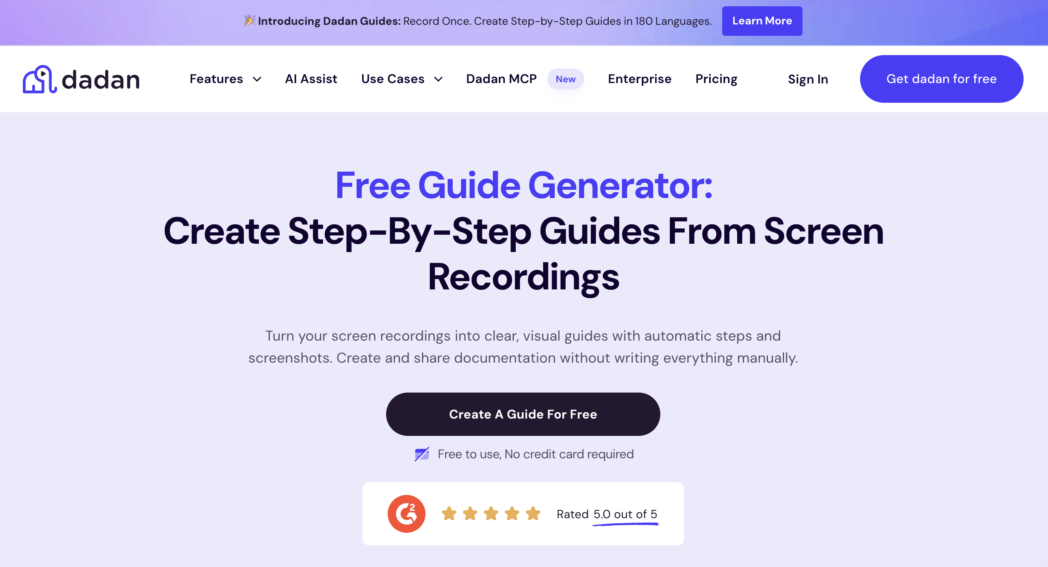
You record through the browser extension, and every click becomes a numbered step with its own screenshot and a draft instruction.
You can rewrite, merge, reorder, or delete steps, add the ones the recorder missed, and mark up screenshots with notes and warnings.
The biggest difference is that you don’t have to pick between a doc and a video. One recording gives you both. People who want to skim follow the steps, and anyone who gets stuck can play the recording for that step. The other tools on this list give you one format or the other.
You can also translate a finished guide into 180+ languages and see how many people open each one.
And since Dadan already handles video editing, hosting, and transcripts, your guides sit in the same library as your other recordings. If you already use Dadan for support replies or async updates, you don’t need a separate subscription just for docs.
Best For
- Support staff who want an SOP and a video from one recording
- Small businesses that want guides and video hosting in one tool
- Anyone documenting processes for readers in more than one language
Key Features
- Each click becomes a numbered step with an automatic screenshot
- A written guide and the original video from the same recording
- Rewrite, reorder, merge, delete, or add steps, including your own images
- Annotations, tips, and warnings on any step
- Create guides in 40+languages and translate them into 180+ languages
- Publish as a link or export as a PDF
- Views and engagement for every published guide
Pros
- One recording gives you both a step-by-step guide and the video.
- Guides come with every plan, including the free one.
- Paid plans cost less than most dedicated guide tools.
- Translation into 180+ languages is built in.
Cons
- The free plan stops at 2 guides a month and 5 steps per guide.
2. Scribe
Scribe is the name most people think of when they hear auto-generated guide. You hit record in the browser extension, do the task, and Scribe builds a guide with screenshots and AI-written steps.
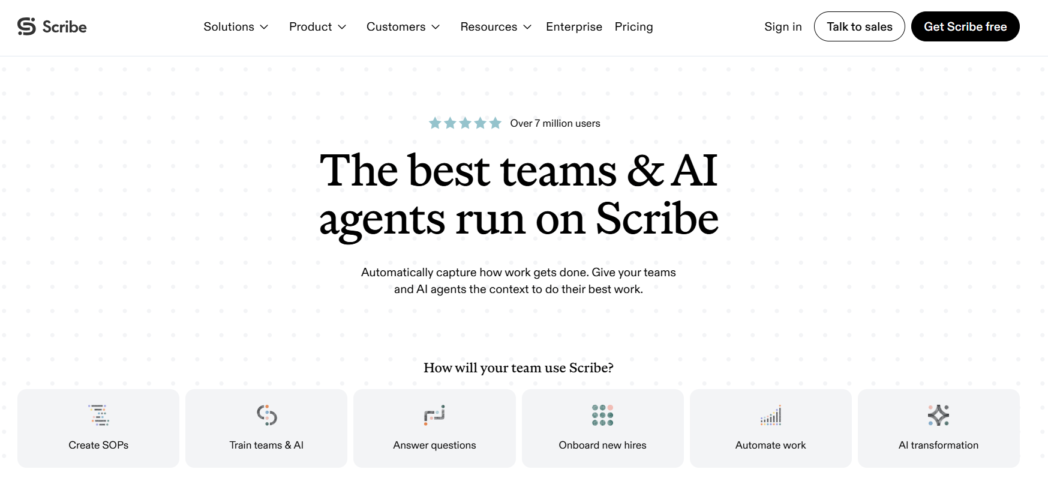
It’s polished and widely used, and guides embed nicely in tools like Notion and Confluence. If documenting processes is a big part of your job, Scribe does exactly that and nothing else.
The free Basic plan only captures in the browser, though. Desktop capture, Smart Blur for hiding sensitive info, and exports to PDF, HTML, and Markdown all need Pro Personal.
Watch the seat math. Pro Team is cheaper per seat, but you have to buy at least five. A three-person group either pays for five seats or pays the higher Pro Personal rate. And Scribe only gives you a document, with no video of the process.
Best For
- Ops and IT staff writing a high volume of internal SOPs
- Companies that keep their guides inside Notion or Confluence
Key Features
- Click and keystroke capture in the browser, desktop on Pro
- AI-written step text and guide titles
- Smart Blur for sensitive data on Pro
- PDF, HTML, and Markdown exports on Pro
Pros
- It’s mature and widely used, so it’s easy to find help and examples.
- Capture starts fast with almost no setup.
- Guides embed cleanly in other tools.
Cons
- The cheaper Pro Team plan needs at least 5 seats.
- Desktop capture and exports need a paid plan.
- You get a document only, with no video of the process.
3. Tango
Tango works a lot like Scribe. The browser extension catches your clicks, and you get a step-by-step guide with screenshots and AI-written text.
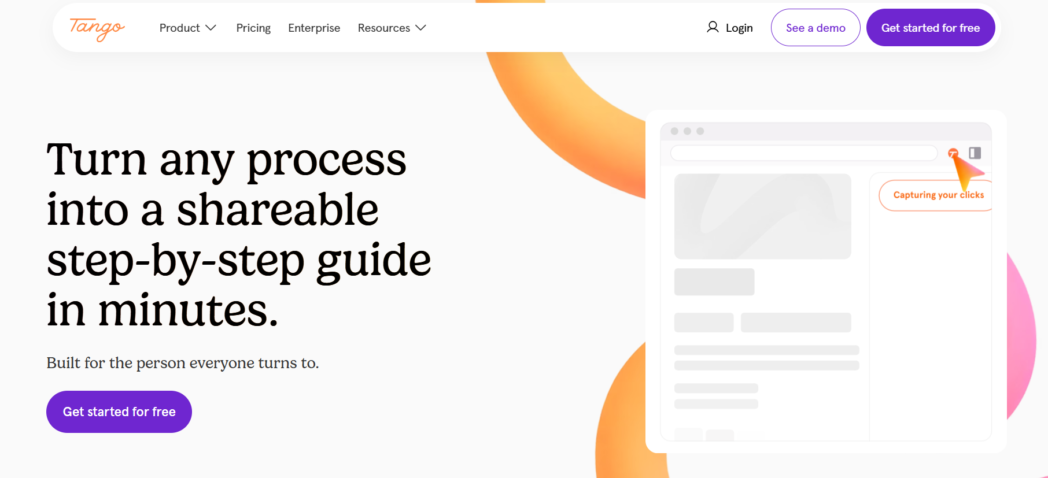
Where it stands out is the free plan. You can have up to 10 people in a free workspace, and you still get screenshot annotation and redaction, which plenty of tools lock behind a paywall.
The free plan does cap how many shared workflows you can keep, and your exports carry Tango branding. PDF export and desktop capture need Pro. The in-app guidance that shows steps on top of live software is an Enterprise feature.
Best For
- Small groups testing auto-generated guides before paying
- Anyone documenting browser-based workflows
Key Features
- Browser click capture with automatic screenshots
- Annotation and redaction on every plan
- Desktop capture and PDF export on Pro
- In-app guidance on Enterprise
Pros
- A free workspace holds up to 10 people.
- Annotation and redaction come with the free plan.
- The per-user price drops once you have 3 or more members.
Cons
- The free plan caps shared workflows and puts Tango branding on exports.
- PDF export and desktop capture need Pro.
- You get a document only, with no video.
4. Guidde
Guidde goes the other way. You click through a process in the browser, and Guidde gives you a how-to video with the steps written out next to it. On the Business plan, it’ll even generate the voiceover so you don’t have to narrate.
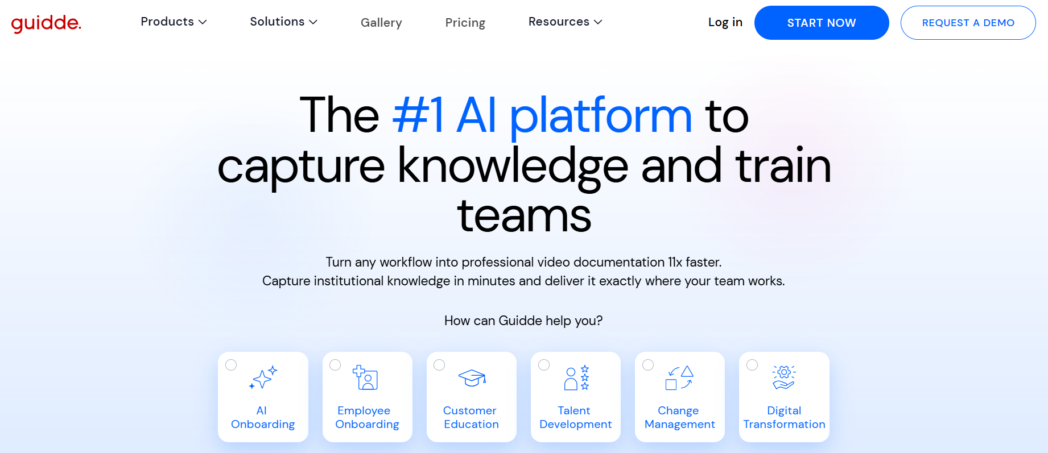
That’s great for training content people watch start to finish. It’s less great when someone just wants to jump to step 7, because scrubbing through a video to find one step is slower than scrolling a doc.
The free plan gives you up to 25 videos with a Guidde watermark. Pro removes the watermark and lets you export to video, PowerPoint, and PDF. AI voiceover and desktop capture need Business, and Business tops out at five creators.
Best For
- Training leads who want narrated how-to videos
- Small groups with five or fewer creators
Key Features
- Browser capture that turns a workflow into a how-to video
- Written steps alongside the video
- AI voiceover on Business
- Video, PowerPoint, and PDF exports on Pro and up
Pros
- It turns a click-through into a finished how-to video.
- Business generates the voiceover, so you don’t have to narrate.
- Viewers don’t need paid seats.
Cons
- Finding one step in a video is slower than scrolling a doc.
- AI voiceover and desktop capture need Business.
- Business tops out at 5 creators, and the free plan adds a watermark.
Conclusion
A recorder can take every screenshot and draft every step. What it can’t do is explain why a step matters or warn people where they usually trip up, and that’s the part only you can write.
So pick a process you keep explaining over and over, record it once in Dadan, and spend your time on the edits. Guides come with the free plan, so you can try Dadan Guides free on your next process.
FAQs
How do I create a how-to guide?
Decide where the task starts and ends, then write one numbered step per action. Say where to click before you say what to click, and add what the reader should see afterward. If you don’t want to take the screenshots by hand, record yourself doing the task in Dadan and it’ll build the steps for you.
How can I create a how-to guide faster?
Record the process instead of documenting it by hand. A guide recorder turns each click into a step with a screenshot, so you spend your time fixing the text instead of capturing and pasting images.
Can I create a how-to guide from a screen recording?
Yes. Dadan Guides records your screen through the browser extension and turns every click into a numbered step with a screenshot. You also keep the recording, so the guide comes with a video of the same process.
Is there an AI tool that creates step-by-step guides?
Yes. Dadan, Scribe, Tango, and Guidde all capture your clicks and write the step text for you. Dadan gives you a written guide and the original video from one recording, and Guides comes with its free plan.
What should a how-to guide include?
You need a clear starting point, one action per numbered step, where each action happens, and what the reader should see after it. Add cropped, marked-up screenshots and a warning wherever people usually slip up.
What is the best software for creating how-to guides?
It depends on what you want to end up with. Dadan is the strongest pick if you want a written guide and a video from one recording. For documents only, Scribe and Tango are the established names, and Folge works if your guides have to stay offline.
How do I create screenshots for a how-to guide?
You can take them by hand in a tool like Snagit and crop, mark up, and blur each one. It’s much faster to use a guide recorder like Dadan, which grabs a screenshot every time you click.