Recording your Facebook screen is one of those tasks that looks simple until you are actually trying to do it.
You record, switch to Facebook, and either the video content goes black, the browser extension you installed starts fighting with the Ads Manager interface, or you end up with your screen captured but no webcam, or a webcam feed but no audio.
None of this is accidental. Facebook’s platform is built in a way that makes standard screen recording approaches fail, and understanding why is the fastest way to stop wasting time on tools that won’t work.
This guide covers exactly how to get a clean screen and webcam recording on Facebook, whether you’re saving a video, capturing a Live session, documenting an Ads Manager workflow, or recording a Messenger call, and why the method works where others don’t.
Why Recording Facebook Screens Is Challenging
To record Facebook successfully, you need to understand two separate problems. Most people run into both without realizing they’re distinct issues with different causes.
The Black Screen Problem
Facebook applies Digital Rights Management (DRM) to video content across its platform. When you try to screen record a Facebook video or Facebook live stream using a standard recorder, the DRM encryption blocks the video feed from being captured. The result is a black screen with only audio, or in some cases, no output at all.
Standard screen recording tools that rely on graphics card capture methods are blocked because the decryption keys are never exposed to the recording layer.
The Ads Manager Problem
Chrome extensions that work perfectly on YouTube, Google Meet, or standard websites often fail on Facebook.
The reason is that Facebook’s pages run heavy JavaScript that dynamically loads content, and extension scripts injected into the page frequently conflict with this dynamic rendering.
Common indications include the extension freezing mid-recording, failing to detect the tab’s audio stream, or producing a recording in which the Facebook interface appears but the video content shows as a blank frame.
So, the solution is tab-level recording. When a recorder uses the browser’s native getDisplayMedia API to capture a specific browser tab, rather than the full display, it works inside the browser’s own rendering pipeline.
The OS-level DRM trigger never fires. And because the capture happens outside the page’s DOM, nothing is injected into the Ads Manager interface.
That’s the approach tools as Dadan takes, and it’s why it works on Facebook when most other tools don’t. The rest of this guide walks through the setup.
One clarification worth making before the steps is that Facebook does not send a notification to other users when you screen record posts, videos, or stories. For Messenger calls, there is no in-app notification either, though the consent laws in your region still apply to recording conversations.
What You Need Before Recording
A failed recording usually comes down to a missed setting or a resource conflict rather than the recording tool itself. Getting these four things right before you hit record prevents the most common issues.
- Chrome or Edge browser
- Microphone permissions enabled in your browser’s site settings
- A working webcam, if you want the screen and webcam recorded together
- Facebook open in a dedicated tab, ready to be selected when the screen share dialog appears
That’s all you need on the hardware and browser side. The recording method covered in this guide runs entirely in the browser, so there’s no software to install, no compatibility checklist to run through, and no account setup before you can test whether it works.
How to Record Screen and Webcam on Facebook
The steps below use Dadan, accessible via the Chrome or Edge extension, the desktop app for Mac or Windows, or directly at dadan.io.
Step 1: Open Dadan and Choose Your Recording Mode
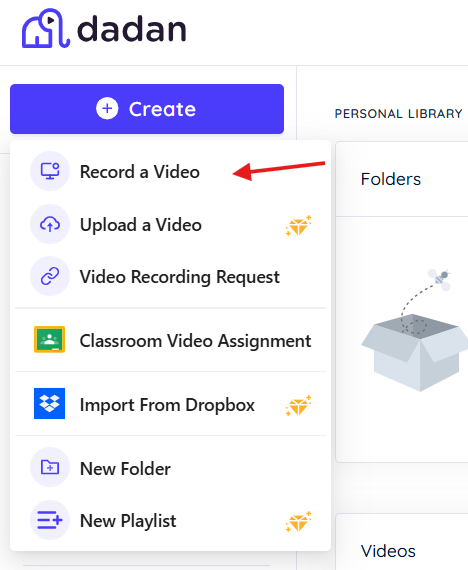
After signing up, click Start Recording. You’ll see three options: Screen Only, Cam Only, and Screen + Cam.
For recording Facebook with your webcam visible, select Screen + Cam. Your screen becomes the main recording, with the webcam displayed as a picture-in-picture window in the corner. You can reposition it before or during the session.
If you’re capturing the Facebook interface without needing your face on screen or saving a Live stream, documenting a workflow, Screen Only is sufficient.
Step 2: Set Up Your Audio
Dadan captures microphone audio and system audio simultaneously. Select your microphone from the audio dropdown before you start.
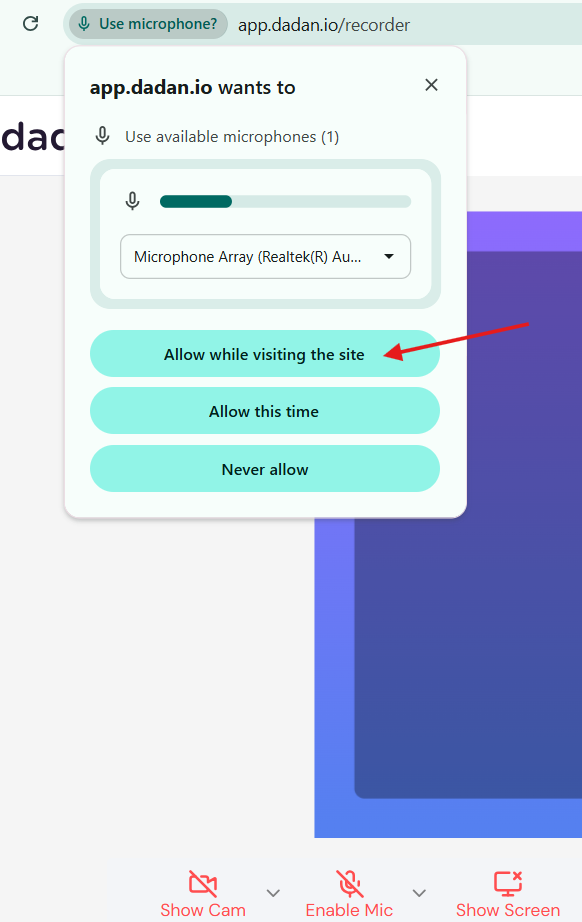
To capture audio playing on the Facebook tab, either enable system audio in Dadan’s settings beforehand, or check the “Share tab audio” option in the browser dialog that appears in the next step.
Missing this is the most common reason people end up with a recording that has narration but no sound from the page.
Step 3: Start Recording and Select the Facebook Tab
Click Record. Your browser opens a dialog asking what to share: Entire Screen, Window, or Tab. Select Tab, then choose the specific tab where Facebook is open.
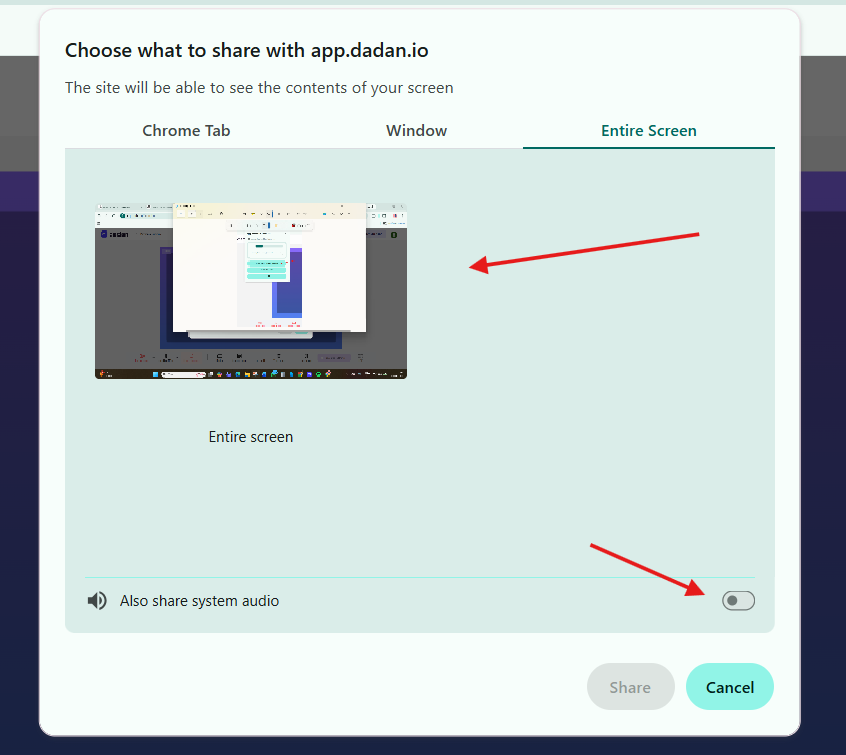
This single step is what resolves the black screen issue. By selecting the tab rather than the full screen, you’re telling the browser to capture its own rendered output for that tab. The DRM layer at the OS level is never involved, so Facebook’s video content captures effortlessly.
Before confirming, check that “Share tab audio” is enabled if you need sound from the page.
Dadan counts down from 3 and begins recording. A timer appears in the toolbar, and a small indicator shows on the captured tab.
Step 4: Navigate Facebook as You Normally Would
Switch to your Facebook tab and proceed with what you came to record. Play a video, walk through Ads Manager, open a Live stream, or navigate Business Suite.
Dadan records in the background without touching the page, so your webcam feed appears as an overlay in the corner of the final recording.
Step 5: Stop and Edit
Click Stop when you’re done. Dadan opens the recording directly in the video editor. You can trim the start and end, cut sections, and use the text-based video editor to remove filler or long pauses.

Because Dadan auto-transcribes the recording, this works like editing a document as well. You find the lines you want to remove, delete them, and the corresponding video is cut. You don’t need to scrub through a timeline frame by frame.
You can also zoom in on specific areas to draw attention to parts of the interface, and use the blur tool to mask any sensitive information that appears on screen. For example, billing details, client account names, and contact data, before sharing.
Step 6: Share or Download
Download the recording as an MP4 or share it via a link. Shared links support password protection, expiry dates, and domain filtering. If you want to publish directly, Dadan integrates with YouTube, LinkedIn, and Slack.
Why Online Recorders Work Better
The core issue with desktop recorders and browser extensions on Facebook comes down to where the capture happens.
The DRM Problem
Desktop screen recorders like OBS Studio capture video at the graphics card level, which is the same layer where DRM encryption enforces its restrictions.
When OBS tries to capture a Facebook video, the DRM system detects the capture attempt and replaces the video feed with a black frame.
Disabling hardware acceleration in the browser can sometimes work around this, but it’s inconsistent and degrades overall browser performance.
The Extension Reliability Problem
Chrome extensions inject JavaScript into the page to enable recording. Facebook’s own JavaScript conflicts with these injected scripts, causing extensions to crash, produce incomplete recordings, or miss audio streams.
Extensions also have limited access to tab audio compared to the browser’s native Screen Capture API.
But online screen recorders like Dadan use the browser’s built-in Screen Capture API through the standard getDisplayMedia() method. This captures the rendered output of the tab directly from the browser, not from the graphics card.
Because the capture happens at the browser rendering level (after DRM decryption has already occurred for display), the video feed is captured as-is. This is why browser-based recording tools consistently produce clean recordings on Facebook, where desktop apps and extensions fail.
Use Cases
Screen + webcam recording on Facebook is not limited to content creators making reaction videos. Several professional workflows depend on capturing Facebook interfaces with a face-on-camera narration, and each has different requirements.
Marketing and Advertising Teams
Recording Facebook Ads Manager walkthroughs with webcam overlay creates effective training materials for onboarding new team members.
Sales teams also use Facebook screen recordings as assets after discovery calls, to walk prospects through competitor ad strategies or to demonstrate product integrations.
Educators and Course Creators
Facebook Groups remain one of the most widely used platforms for online course communities. Recording yourself navigating a group, explaining moderation tools, or posting workflows, gives students a guided experience that written documentation can’t replicate.
With Dadan’s interactive features, you can embed quizzes and polls directly into the recording, turning a passive walkthrough into an active learning module.
Content Creators and Influencers
Reacting to viral Facebook stories, demonstrating posting strategies, or creating behind-the-scenes content all require screen + webcam recording.
The webcam overlay adds a personal element that pure screen capture lacks, which is a critical factor for audience engagement.
Remote Teams and Customer Support
A 2-minute screen recording explaining a workflow in Facebook or Messenger can replace a lengthy email thread.
For customer support teams, showing someone how to fix an issue is faster than writing step-by-step instructions, and the face-on-camera component reduces friction in support interactions.
Best Practices
- Run a short test recording before any long session. You can then confirm the webcam position, mic levels, and that the Facebook tab is rendering correctly.
- Close tabs you aren’t using. Facebook is resource-intensive, and extra open tabs cause stuttering in the recording, particularly on machines with less than 8GB of RAM.
- Disable other browser extensions before recording. Ad blockers and other active extensions on the Facebook tab are the most common source of unexpected recording problems. Disable them before starting.
- Check for sensitive data before sharing. Ads Manager and Business Suite regularly surface billing information, client account names, and contact details. Use Dadan’s blur tool to mask these after recording and before distributing the file.
- Confirm consent for Messenger calls. Recording a call without the other party’s knowledge may violate consent laws depending on where you’re located. Always disclose before recording.
Common Problems and Fixes
Even with the right tool and setup, Facebook’s platform behavior can cause issues that don’t occur on other websites. Below are the five most commonly reported problems with Facebook screen recording, along with the fixes.
Black Screen in the Recording
You’re capturing at the wrong level. In the browser dialog, switch from Entire Screen or Window to Tab, then select the specific Facebook tab. That single change resolves DRM-triggered black screens in nearly every case.
No Audio in the Recording
The most likely cause is that the “Share tab audio” checkbox was not selected when the browser prompted you to choose what to share.
When the sharing prompt appears, check the “Share tab audio” toggle before confirming. This checkbox is easy to miss at the bottom of the dialog. Confirm that both tab audio and microphone are enabled in your recorder’s settings.
Webcam Not Available
Another application has exclusive access to your camera. Zoom, Teams, and Google Meet all maintain an exclusive lock on the webcam while they’re running.
Close Zoom, Google Meet, Teams, FaceTime, or any application using the webcam. On Mac, check Activity Monitor for background processes holding the camera. On Windows, check Task Manager. Refresh your recorder after closing the conflicting app.
Laggy or Choppy Recording
This almost always means insufficient system resources. Close background applications and unnecessary browser tabs.
Lower your recording resolution to 720p, which is more than sufficient for screen recordings. If the problem persists, use the Dadan desktop app instead of the browser version, as native apps are more resource-efficient.
Facebook Session Expired Mid-Recording
Before recording, refresh the Facebook page and actively interact with it (scroll and click elements) to reset the session timer.
For long recordings inside Ads Manager or Meta Business Suite, consider breaking the session into shorter segments.
Conclusion
Facebook screen recording is technically more complex than recording on most other websites because of DRM protection, JavaScript conflicts with extensions, and inconsistent behavior across browsers.
But the solution is to use a browser-based recorder that captures through the browser’s native Screen Capture API.
Dadan handles this workflow end-to-end. Record your screen and webcam together, capture both tab and microphone audio, annotate in real time, and edit directly in the browser with a text-based video editor. Add interactive elements, auto-generate captions, and share with a single link.
FAQs
Can I record screen and webcam together on Facebook Ads?
Yes. Open Ads Manager in a browser tab, launch Dadan in Screen + Webcam mode, and select that tab. This captures the full Ads Manager interface with your webcam overlay, narration, and tab audio.
Why do Chrome extensions not work properly on Facebook Ads Manager?
Ads Manager relies on heavy dynamic JavaScript. Chrome extensions inject their own scripts into the page, and these frequently conflict with Facebook’s rendering engine. Browser-based recorders that use the native Screen Capture API avoid this because they don’t inject code into the page.
What is the best way to record Facebook Ads walkthrough videos?
Use a browser-based screen recorder with webcam and audio support. Record the specific browser tab running Ads Manager to get a clean output with tab audio. Dadan’s annotation tools let you highlight interface elements during recording, and the text-based editor simplifies post-production.
Can I record Facebook workflows with audio?
Yes. When selecting a browser tab to share, enable the “Share tab audio” checkbox. Grant microphone access for narration. Dadan supports recording both internal audio and microphone input simultaneously.
Do I need to install any software to record Facebook screens?
No. Browser-based recorders like Dadan work entirely in the browser. Dadan also offers Chrome extensions and desktop apps, but installation is not required.
How do I avoid a black screen while recording Meta platforms?
Use tab-level capture. In the browser dialog, select Tab rather than Entire Screen or Window, then choose the Facebook tab. Tab-level capture works within the browser’s rendering pipeline and doesn’t trigger the DRM protections that OS-level recording activates.
Can I edit my screen recordings after recording?
Yes, Dadan includes a built-in video editor with trimming, splitting, merging, cropping, text-based transcript editing, zoom and blur effects, and audio adjustments. For advanced production, export as MP4 and use Descript, CapCut, or DaVinci Resolve.
Is it safe to record Facebook screens?
Recording your own interface, your ads, or publicly available content is generally fine. But recording Messenger calls without the other party’s knowledge may violate consent laws depending on your location. Recording and republishing third-party video content raises copyright concerns. When in doubt, get explicit permission.
What are common issues while recording social media screens?
Black screens, missing audio, webcam conflicts, laggy output, and session expiration. Fixes for each are covered in the troubleshooting section above.
Recommended Readings:
- 10 Best Webcam Recorders in 2026 by Cost and Ratings
- How Virtual Backgrounds Enhance Screen Recorder Videos for Webcam Users
- How to resize a video for Facebook