Video has become a normal part of how we work today. But video has a limitation most teams run into quickly, which is that it’s hard to reuse.
You can’t skim them. You can’t search them properly. And pulling out one clear point often takes longer than the meeting itself. This is the problem AI video transcription tools are meant to solve, and it’s why they’ve become standard across remote teams, educators, and content-heavy roles.
An AI video transcription generator converts spoken video into text that you can search, edit, quote, caption, and reuse.
Over the last few years, these tools have also improved in practical ways, such as greater accuracy, support for multiple languages, speaker labels, subtitles, and summaries. The result is something teams can actually use.
In this article, we’ll look at seven AI video transcription tools, what each one is good at, and how to choose the right option based on how you record and share video today.
Why AI Video Transcription Matters
Recording is easy. Using the recording later is not. Most teams don’t want to rewatch long videos, but they do want to refer back to what was said. That gap is where transcription actually earns its place.
So, people rely on AI video transcription for reasons that are fairly straightforward.
- It lets you find specific information without having to replay entire recordings. Instead of scrubbing timelines, you search for a phrase and read the surrounding context.
- It makes meeting recordings usable after the call is over.
- It gives learners a way to navigate recorded lessons. They can jump to the part they need or read along without having to watch everything again.
- It makes updates easier. When something changes, you can identify exactly what needs fixing instead of rerecording full sections.
- It turns spoken explanations into reusable material.
- It supports captions and accessibility without adding extra work. Most caption workflows start with a transcript, and using a tool to generate subtitles without watermark removes a lot of manual effort.
The value is whether the recorded video stays buried or becomes something people actually return to. That difference is what separates tools that sound good on paper from tools teams keep using.
How We Selected These Tools
On paper, almost every transcription tool looks similar. They all promise accuracy, speed, and AI-generated transcripts. The difference shows up only after you’ve recorded dozens of meetings or videos and need to go back to them regularly.
Accuracy
Accuracy was non-negotiable, but not in the sense of chasing perfect transcripts. What’s important is whether the transcript is usable without spending time fixing it.
Some tools generate text that looks fine at first glance but falls apart when conversations get messy. Missed context, incorrect speaker switches, or sentences that don’t reflect what was actually said make the transcript unreliable.
Tools that consistently produce readable transcripts across normal meetings and recordings are the only ones worth considering.
Features
Generating text is only the starting point. The real question is what the tool expects you to do next.
Some products are clearly designed for meetings. You review the transcript, pull out notes, and move on. Others assume you’re working with recorded content and want to edit, caption, or reuse parts of the video later. We picked tools where the transcript felt central to the workflow.
Captions and Language Support
For teams working across regions or publishing public-facing content, generating and editing captions should be easy. Tools that make this process awkward or fragmented become harder to use as content volume increases.
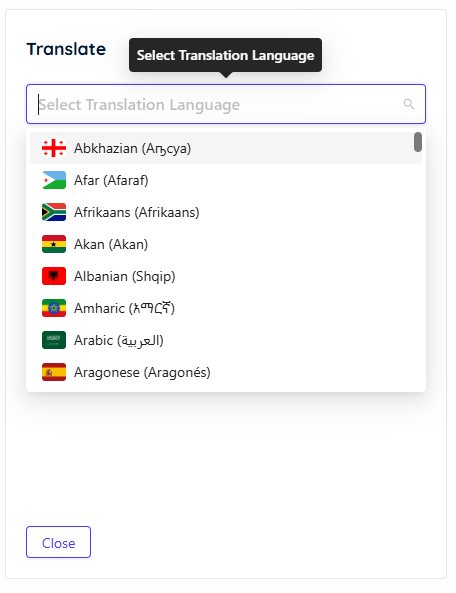
Where language support matters, it needs to fit naturally into the workflow rather than requiring separate steps or tools.
Fit for the Use Case
Not every tool is built for the same job. Some tools are clearly designed around meetings and notes. Others work better for recorded content, editing, or reuse. Problems show when a tool is used outside the context it’s designed for.
Understanding what a product assumes you’re trying to do makes it easier to decide whether it will hold up over time.
Limitations
Some struggle with longer recordings. Some don’t scale well for teams. Some work well for meetings but feel awkward for content reuse. These aren’t automatic deal-breakers, but they matter when choosing the right tool.
The tools covered next are selected with these constraints in mind.
Comparison Table of AI Video Transcription Tools
| Feature | Dadan | Otter | Loom | Fireflies | Descript | Sonix | Fathom |
| Automatic meeting join & recording | ✅ | ✅ | ❌ | ✅ | ❌ | ❌ | ✅ |
| Manual screen recording | ✅ | ✅ | ✅ | ✅ | ✅ | ✅ | ❌ |
| Automatic transcription | ✅ | ✅ | ✅ | ✅ | ✅ | ✅ | ✅ |
| Transcript synced to video timeline | ✅ | ❌ | ✅ | ❌ | ✅ | ✅ | ❌ |
| Edit video using transcript | ✅ | ❌ | ✅ | ❌ | ✅ | ❌ | ❌ |
| Search within transcript | ✅ | ✅ | ✅ | ✅ | ✅ | ✅ | ✅ |
| AI summaries/ highlights | ✅ | ✅ | ✅ | ✅ | ❌ | ❌ | ✅ |
| Caption generation | ✅ | ✅ | ✅ | ✅ | ✅ | ✅ | ❌ |
| Multi-language transcription | ✅ | ❌ | ✅ | ✅ | ✅ | ✅ | ✅ |
| Free plan available | ✅ | ✅ | ✅ | ✅ | ✅ | ❌ | ✅ |
8 AI Video Transcription Tools
Some transcription tools are optimized for meeting capture and notes, others work better with recorded video content, and a few bridge both worlds by combining transcription with editing, summarization, or repurposing workflows.
1. Dadan
Dadan is built for situations where the recording itself is not the final step. You record a video and then need to work with it afterward.
You can use Dadan in two main ways. You can record manually, screen, webcam, or both, or you can let it join and record meetings automatically by connecting your calendar.
Once connected, Dadan detects scheduled meetings, joins them on your behalf, records the session, and saves it to your workspace without you needing to start or stop anything.
After the recording is saved, a transcript is automatically generated and remains linked to the video timeline.
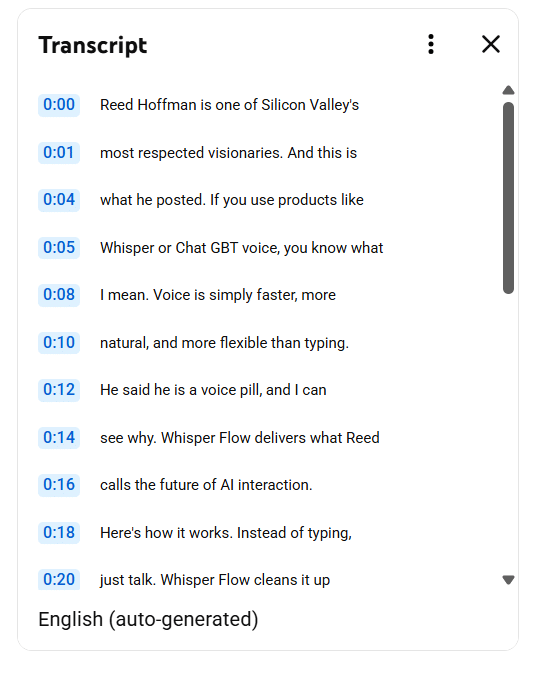
You can search the transcript to find specific moments and edit text to trim the video. Dadan also adds structure to longer recordings. From the transcript, you can generate summaries, chapters, and descriptions that help you review or share the video more efficiently.
Because the video, transcript, edits, and sharing all live in the same workspace, it works well for repeated recording workflows such as training materials, internal documentation, demos, or recorded meetings that need follow-up.
Key features
- Automatic meeting recording via calendar integration
- Manual recording (screen, webcam, or both)
- Automatic transcription synced to the video timeline
- Searchable transcripts for quick navigation
- Text-based video editing using the transcript
- Caption generation from transcripts
- AI summaries, chapters, and metadata
- Video hosting and sharing from the same workspace
2. Otter.ai
Otter.ai is built to capture and review spoken conversations, especially during meetings. You use it when the main output you care about is a written record of what was said rather than editing or repurposing the video itself.
You can use Otter live during meetings or upload recordings afterward. In both cases, it generates a transcript with speaker labels and makes it searchable, so you can quickly check how something was phrased or confirm what was agreed on without replaying the call.
Otter also adds automated summaries and highlights, which are useful when you want a quick recap instead of reading the full transcript.
Key features
- Live transcription during meetings
- Upload and transcribe recorded audio or video
- Speaker identification in transcripts
- Automated summaries and highlights
- Search across past meetings and transcripts
3. Loom
Loom is primarily a screen-recording tool for async communication, and transcription sits inside that workflow rather than being the main product.
You typically use Loom to explain something once and let others watch it at their own pace.
When you record a Loom video, a transcript is generated automatically and attached to the video. Loom adds AI-generated titles, summaries, and chapters to make longer recordings easier to understand at a glance.
Loom works well when video is a communication shortcut, not an asset you plan to edit heavily or reuse across formats. The transcript improves consumption and clarity, but it’s not meant to be a primary editing or content-reuse layer.
Key features
- Automatic transcription for Loom recordings
- Closed captions generated from transcripts
- Searchable transcripts linked to video playback
- AI-generated titles, summaries, and chapters
- Multi-language transcription support
➤ Bouns Read: The Best Loom Alternative
4. OpenArt
OpenArt is an AI-powered creative platform designed for generating and transforming visual content. While its focus extends beyond transcription, it can be useful earlier in the video workflow for creators who need to generate visual content before recording, editing, or repurposing it. Its AI video generator supports workflows such as text-to-video and image-to-video, allowing creators to turn ideas or existing visual assets into short video content.
OpenArt also provides tools for video-to-video transformation, lip sync, sound, and other AI-assisted creative workflows. This makes it useful for creators and marketing teams that want to generate video concepts, transform existing visuals, and prepare content for further editing or repurposing.
Key features
- AI video generation from text and images
- Image-to-video generation
- Video-to-video transformation
- AI-assisted video editing
- Lip sync and audio capabilities
- Access to multiple AI video models
- Tools for creating and experimenting with different visual concepts
5. ImagineArt
ImagineArt sits at the production end of the video workflow rather than the review end. Where transcription tools help you work with footage after it exists, ImagineArt is where the footage comes from when you don’t have any to record.
That matters for teams producing training material, demos, or marketing video on a schedule. Instead of booking a shoot for every explainer, you generate the visuals, then run them through whichever transcription and captioning step your workflow already uses. Its AI video generator covers both text-to-video and image-to-video across roughly forty models, so a product shot or a slide can become a clip without a camera.
The platform also handles the audio side, with voiceover generation and lip sync, which is useful when a recorded presenter isn’t available but the content still needs a voice.
Key features
- Text-to-video and image-to-video generation
- Access to multiple AI video models, including Runway, Veo, Kling, and Seedance
- Voiceover generation and lip sync for presenter-style content
- AI video editing, including object removal and background changes
- Image generation and editing in the same workspace
- Free daily credits with no card required
6. Fireflies.ai
You use Fireflies when you want meetings captured automatically and turned into transcripts, summaries, and searchable records without manual effort.
Fireflies can join meetings on supported platforms or process uploaded recordings. After the meeting, you get a transcript with speaker labels, along with structured notes and action items.
Fireflies is commonly used by sales, customer success, and research teams that want every call recorded and searchable without needing to manage recordings themselves.
Key features
- Automatic meeting recording and transcription
- Speaker identification and timestamps
- AI-generated summaries and action items
- Search across meetings and transcripts
- Support for multiple conferencing platforms and languages
7. Descript
Descript is built for situations where the transcript is used to edit audio or video, not just read it.
You typically use it when you’re working with recorded content, such as podcasts, interviews, or course lessons, and want to make changes without scrubbing the timeline.
When you import or record a video in Descript, it generates a transcript and treats that text as the editing surface. Deleting a sentence in the transcript removes it from the video. Fixing a word updates the audio and captions.
Descript works best when editing and cleanup are the main jobs. It’s less focused on meeting capture or long-term transcript archives, and more on making recorded content easier to shape and publish.
Key features
- Automatic transcription for audio and video
- Edit video and audio by editing the transcript
- Subtitle and caption export (SRT, VTT)
- Speaker labeling and transcript editing
- Tools for podcasts, interviews, and recorded content
8. Sonix AI
Sonix is focused on transcription and translation at scale. You use it when you have recorded files and want clean transcripts and subtitles without additional editing or collaboration layers.
You upload audio or video files to Sonix, and it generates transcripts that you can edit, search, and export.
Sonix is often used when language support and translation matter, since it supports a wide range of languages and subtitle workflows.
Sonix fits well when transcription is a standalone step in your workflow, especially for teams handling multilingual content or large volumes of recordings that need to be turned into text and captions.
Key features
- Upload and transcribe audio or video files
- Broad language support and translation options
- Editable transcripts with timestamps
- Subtitle generation and export
- Suitable for batch and volume transcription
9. Fathom
Fathom is built for meeting capture with as little setup as possible. You connect your calendar, and it joins meetings automatically, records them, and generates a transcript and summary once the call ends.
The focus with Fathom is review and recall. You get a transcript you can search, along with AI-generated summaries and highlights that help you scan. You can also clip specific moments and share them, which is useful when you want to pass along context without sending the entire recording.
Key features
- Automatic meeting recording via calendar integration
- Transcription generated after each meeting
- AI summaries and key highlights
- Searchable transcripts
- One-click clips and sharing
- Free plan available for individual use
How to Choose the Right AI Transcription Tool
Before you compare tools, be clear about what you record most often and what you need after the recording ends. That alone eliminates most options.
- If your recordings are mostly meetings, choose a tool that joins automatically, generates transcripts and summaries on its own, and lets you search past conversations easily.
- If you work with recorded video (demos, tutorials, training), look for transcripts synced to the video that let you find or trim sections without rewatching everything.
- If editing is part of your workflow, pick a tool that lets you edit video or audio via the transcript rather than a timeline.
- If captions or multiple languages matter, check how easily the tool generates, edits, and exports them.
- If you only need raw transcripts, a simple upload-and-export tool is usually enough. You don’t need meeting automation or hosting if you won’t use it.
Conclusion
AI transcription tools all solve the same basic problem, but they don’t solve it in the same way.
The mistake most people make is choosing based on features instead of workflow. If you record occasionally and just need written notes, a meeting-focused tool is enough. If you record regularly and return to those videos, the transcript needs to be part of how you work.
Once you’re clear on that distinction, the choice usually becomes obvious. The right tool is the one you keep using after the first week, because it removes work rather than creating more.
FAQs
How accurate are AI video transcription tools?
Accuracy depends on audio quality, speakers, and the amount of overlap. Most modern tools handle clear speech well, but things like crosstalk, accents, or background noise still cause errors. For everyday meetings and recorded content, accuracy is usually good enough to rely on, with light corrections when needed.
Can AI transcribe videos in multiple languages?
Yes. Many tools support multiple languages, but the experience varies. Some handle transcription and editing smoothly across languages, while others support transcription but make review or export harder. If language support matters, test the workflow, not just the language list.
Are AI transcriptions good enough for professional use?
For internal documentation, meetings, training, and content workflows, yes. They’re widely used across teams for recall, notes, captions, and reuse. For legal or regulatory use, transcripts often still need manual review.
Which AI tool is best for meeting transcription?
Meeting-focused tools that join calls automatically and generate summaries work best here. They reduce manual steps and make it easy to review decisions and follow-ups without having to replay recordings.
Can these tools generate subtitles automatically?
Most of them can. Some generate captions directly from the transcript and let you edit or export them, while others offer captions mainly for viewing inside the platform. If you publish videos publicly, check export formats and editing support.
Recommendations Readings:
- AI Multilingual Transcription for Meetings: Ultimate Guide
- 8 Best AI Text-Based Video Editing Tools
- 20 Best Video Content Creation Tools for Creators in 2026