Most video tools promise to save time. Very few actually do.
Recording is rarely the issue. The problem starts after you stop recording. When you have to trim or re-record a line or add captions. Someone asks for a shorter version. Someone else wants the same video, but without one sentence you casually said in the middle.
In many tools, editing at that stage takes more effort than recording again, so people start over even when the change is minor.
That’s why different video tools vary in their real use cases. Not only by quality or effects, but also by how much work they create when a recording needs to be fixed, reused, or shared more than once.
We’ll walk you through this article, which looks at video content creation tools through that lens.
Best Video Content Creation Tools for Creators in 2026
Here is the best list of video content creation tools for creators in 2026, covering recording, editing, AI workflows, and interactive video features. These tools help creators produce high quality videos faster while improving engagement and reach.
Whether you are a solo creator or part of a team, this list highlights tools worth using in 2026.
- Screen Recording Tools
- Dadan
- Loom
- ScreenPal
- Online Video Editing Tools
- Dadan
- Veed
- CapCut
- AI Text Based Video Editing Tools
- Dadan
- Descript
- Otter.ai
- AI Transcription & Subtitle Tools
- Dadan
- ZapCap
- Vizard
- AI Interactive Video Tools
- Dadan
- Vimeo
- AI Video SEO & Metadata Optimization Tools
- Dadan
- VidIQ
- AI Video Generator Tools
- Synthesia
- InVideo
- Audio & Voice Enhancement Tools
- Adobe Podcast
- Krisp
- Short Form & Clip Repurposing Tools
- Dadan
- Vmaker AI
- Video Collaboration & Sharing Tools
- Dadan
- Wipster
1. Screen Recording Tools
Many tools assume the recording is final. Once you stop talking, you’re expected to download a file, move it elsewhere, or record again if something needs to change. That works if you record occasionally. But it doesn’t help if recording is part of regular work.
That’s why teams often rely on external screen-recording tools rather than built-in options. They’re easier to access, quicker to share, and more flexible when changes are needed.
1.1 Dadan
Dadan is a browser-based screen recording tool you can use to record your screen, webcam, or both without installing anything.
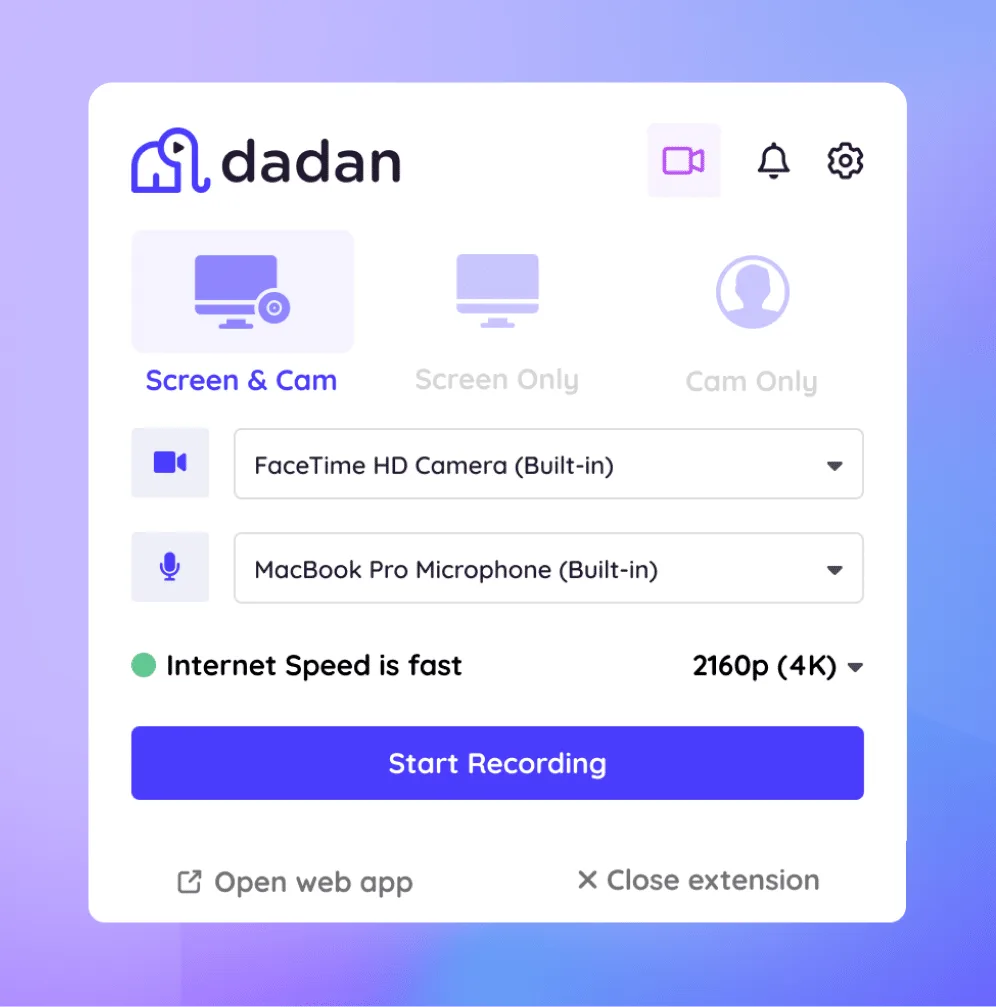
It’s mainly used for work videos like walkthroughs, demos, training recordings, and internal explanations where you need to record quickly and make changes later.
Once the recording is done, you don’t have to download the video or move it into another tool to edit or share it. Everything stays in the same place, which makes it easier to fix small mistakes or reuse the video when needed.
Top Features
- Screen and Camera Recording: You can record your screen, your camera, or both directly from the browser. This works well for walkthroughs, demos, and explanations without setup time.
- Edit Without Re-recording: After recording, you can make changes without starting over. This helps when a sentence needs fixing or a section needs trimming.
- Auto Transcripts and Captions: Dadan automatically generates transcripts that you can edit the video with or add subtitles.
- Easy Sharing: You can share the recording using a link instead of exporting and uploading files.
Pros
- Saves time when recordings need small edits
- Keeps recording, editing, and sharing in one place
- No software installation required
Cons
- If you need full-fledged video editing, it may be limited
Who is it for?
- Remote teams
- Educators and trainers
- Sales and customer-facing teams
1.2 Loom
Loom is a screen recording tool that’s commonly used for quick explanations and internal communication. You can record your screen, webcam, or both, and share the video instantly using a link. It’s often used when speed matters more than editing or reuse.
Most teams use Loom for short updates, quick walkthroughs, or explanations that don’t need much cleanup afterward. You record once, send the link, and move on.
Top Features
- Quick Screen and Webcam Recording: You can start recording almost immediately, making it easy to capture short explanations or updates.
- Instant Shareable Links: Loom generates a link as soon as the recording is done, so you don’t need to download or upload files.
- Basic Trimming: You can trim the start or end of a recording to remove obvious mistakes.
Pros
- Very fast to record and share
- Easy for viewers to open without setup
- Familiar tool for many remote teams
Cons
- Limited editing options beyond basic trimming
- Re-recording is often easier than fixing small mistakes
- Not ideal for videos that need reuse or iteration
Who is it for?
- Remote teams
- Product and engineering teams
- Managers
- Individual contributors
1.3 ScreenPal
ScreenPal is a desktop-based screen recording tool that records videos locally on your computer. Unlike browser-based tools, it follows a traditional workflow in which recordings are saved as files you manage yourself.
It works well when you need offline access or direct control over your recordings, but it also means more steps when you want to edit or share the video.
Top Features
- Desktop Screen Recording: You can record your screen directly on your computer without relying on a browser connection.
- Local File Saving: Recordings are stored locally, giving you full control over where your files live.
- Built-in Editor: ScreenPal includes basic editing tools for trimming and simple adjustments.
- Multiple Export Options: You can export recordings in different formats for sharing or uploading elsewhere.
Pros
- Works offline
- Full control over recorded files
- Suitable for structured tutorials and lessons
Cons
- Manual file handling after recording
- Slower workflow when edits are needed
- Requires switching tools for sharing
Who is it for?
- Educators
- Trainers
- Students
- Users preferring desktop tools
2. Online Video Editing Tools
Recording a video is only half the job. Most videos still need some level of editing before they can be shared. That usually means trimming unnecessary parts, adding captions, or making small adjustments so the video is easier to follow.
Online video editing tools are used when you don’t want the complexity of full desktop editors but still need enough control to fix and polish recordings quickly.
2.1 Dadan
Dadan includes built-in video editor that works directly on recorded content. Instead of editing on a traditional timeline, you edit the video through its transcript, which makes it easier to correct or remove sections without manual cutting.

This approach is useful for work videos where edits are mostly about clarity rather than visuals, such as walkthroughs, demos, and training content.
Top Features
- Text-Based Video Editing: You can edit the video by editing the transcript, which removes the need for timeline-based cutting.
- Trim and Rearrange Sections: Sections can be removed or reordered without re-recording.
- Caption and Subtitle Support: Captions are generated from the transcript and can be edited easily.
- Browser-Based Editing: All editing happens online without installing software.
Pros
- Faster editing for spoken-content videos
- No need to learn timeline-based editors
- Keeps recording and editing in one workflow
Cons
- Limited control for visual-heavy edits
- Not suitable for complex effects or animations
Who is it for?
- Remote teams
- Educators
- Sales teams
- Customer-facing teams
2.2 Veed
Veed is an online video editor focused on quick edits and social-ready output. It’s commonly used when videos need captions, formatting, or branding before being shared on social platforms.
The editor is template-driven, which makes it easy to get started without much setup.
Top Features
- Online Timeline Editor: Basic timeline-based editing directly in the browser.
- Caption and Subtitle Tools: Automatic subtitle generation with editing controls.
- Templates and Presets: Ready-made layouts for social media videos.
- Export for Multiple Platforms: Presets for different social formats.
Pros
- Easy to use for quick edits
- Useful for social media content
- No software installation required
Cons
- Limited flexibility for longer or complex videos
- Template-driven output can feel repetitive
Who is it for?
- Marketing teams
- Social media managers
- Content creators
2.3 CapCut
CapCut is a more feature-rich online and desktop video editor that supports both basic and advanced editing. It’s widely used for short-form and social video content where visual elements matter.
Compared to lighter editors, CapCut offers more control but also requires more time to learn.
Top Features
- Timeline-Based Editing: Full timeline editor with multiple layers.
- Visual Effects and Transitions: Built-in effects, filters, and transitions.
- Auto Captions: Automatic caption generation for spoken content.
- Music and Sound Effects: Built-in audio library.
Pros
- More creative control than lightweight editors
- Suitable for short-form and social videos
- Generous free version
Cons
- Steeper learning curve
- Can feel heavy for simple edits
Who is it for?
- Content creators
- Social media teams
- Video-first marketers
3. AI Text-Based Video Editing Tools
Traditional video editors rely on timelines. AI text-based video editing tools work differently. Instead of cutting clips, edit the video by adjusting the spoken text.
These tools are useful when videos are mostly voice-driven, and edits are about removing, rearranging, or correcting sections rather than adding visual effects.
3.1 Dadan
Dadan allows you to edit videos by editing the transcript generated after recording. When you delete or modify text, the corresponding video section is updated automatically.

This works well for work videos where clarity matters more than visuals and where small corrections are common.
Top Features
- Transcript-Based Editing: You can remove or adjust parts of the video by editing the text.
- Auto Transcription: Spoken content is transcribed automatically after recording.
- Reorder Sections: Parts of the video can be rearranged by moving text blocks.
- Built-In Captions: Subtitles are created from the transcript and can be edited.
Pros
- Faster than timeline-based editing for spoken content
- No need for advanced video editing skills
- Reduces the need to re-record for small changes
Cons
- Limited control over visual elements
- Not suitable for design-heavy or animation-based videos
Who is it for?
- Remote teams
- Educators
- Sales teams
- Customer support teams
Bonus Read: How Startups Scale Video Content Creation with AI-Powered Screen Recordings
3.2 Descript
Descript is a text-based video and audio editor that lets you edit recordings by working directly with transcripts. It’s commonly used for podcasts, interviews, and long-form spoken content.
In addition to basic text-based edits, Descript offers more advanced features, which can be useful but also add complexity.
Top Features
- Text-Based Video and Audio Editing: Edit content by editing the transcript.
- Screen and Audio Recording: Built-in tools for recording content.
- Filler Word Removal: Automatic detection of filler words.
- Multi-Track Editing: Support for layered audio and video.
Pros
- Powerful editing capabilities
- Works well for long-form spoken content
- Useful for both audio and video workflows
Cons
- Steeper learning curve
- Can feel complex for simple edits
Who is it for?
- Podcasters
- Content creators
- Media teams
- Editors
3.3 Otter.ai
Otter.ai is primarily used to convert spoken content into text. It’s commonly used to transcribe meetings, interviews, and discussions so the content can be reviewed, searched, and organized before being edited or reused in other tools.
Top Features
- Automatic Transcription: Converts spoken content into text in real time or after recording.
- Speaker Identification: Labels different speakers in conversations.
- Searchable Transcripts: Makes it easy to find specific parts of recordings.
- Collaboration Tools: Allows sharing and commenting on transcripts.
Pros
- Accurate transcription
- Useful for reviewing long conversations
- Helps structure spoken content
Cons
- Limited video editing capabilities
- Requires exporting content to other tools for final edits
Who is it for?
- Teams running frequent meetings
- Researchers
- Journalists
- Content planners
4. AI Transcription & Subtitle Tools
Adding subtitles manually takes time and usually happens after everything else is done. That’s why most teams rely on AI transcription tools instead. These tools automatically convert spoken content into text, which can then be edited, converted into captions, or reused elsewhere.
The main difference between transcription tools is how much control they give you once the text is generated and how easily it fits into the rest of your video workflow.
4.1 Dadan
Dadan automatically generates transcripts and subtitles from recorded videos. The transcript is editable and directly connected to the video, which makes it easier to correct wording or timing without redoing the entire caption file.
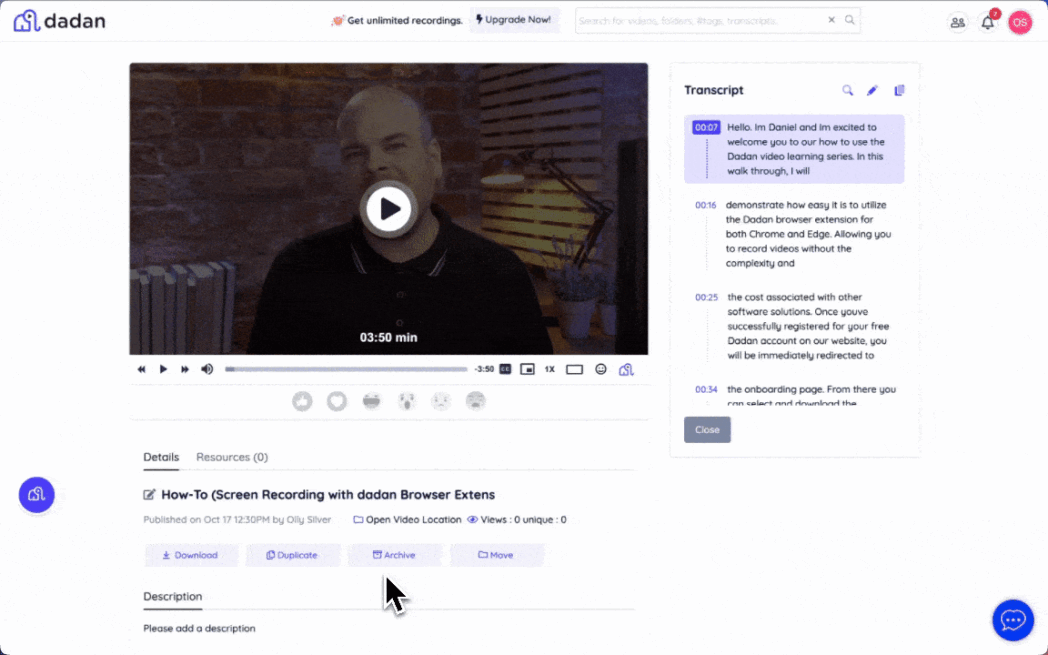
Because transcription is part of the recording and editing flow, subtitles don’t require exporting files or switching tools.
Top Features
- Automatic Transcription: Converts spoken content into text after recording.
- Editable Subtitles: Captions can be corrected or adjusted directly.
- Transcript-Based Editing: Changes to the text update the video and captions.
- Built-In Sharing: Videos with subtitles can be shared using a link.
Pros
- No separate subtitle tool required
- Easy to fix caption errors
- Keeps transcription and editing in one workflow
Cons
- Limited styling options for subtitles
- Not designed for complex caption animations
Who is it for?
- Remote teams
- Educators
- Sales teams
- Customer support teams
4.2 ZapCap
ZapCap is an AI-powered video captioning and editing platform designed to help creators turn long-form videos into engaging, short-form content in seconds. It automatically generates highly accurate captions in 90+ languages, helping increase viewer retention, engagement, and watch time across platforms like TikTok, Instagram Reels, and YouTube Shorts.
The platform also offers a developer API, enabling businesses and agencies to automate caption generation and integrate video enhancement workflows at scale.
Top Features
- AI Caption Generation: Automatically creates highly accurate captions with up to 99%+ transcription accuracy in 90+ languages.
- Animated Caption Templates: 26+ viral-style subtitle templates inspired by popular creators.
- Magic B-Roll & Transitions: Automatically adds relevant visuals and smooth transitions to improve storytelling.
- Sound Effects & Background Music: Enhances videos with professional audio elements in one click.
- SEO Optimization Tools: Auto-generates hashtags, titles, and descriptions based on video content.
- Long-to-Short Converter: Transforms long videos into short, viral-ready clips for social platforms.
- Multi-Language Support: Supports global audiences with captions in 50+ languages.
- ZapCap API: Enables developers to integrate automated captioning and video enhancement into apps and workflows.
Pros
-
Extremely fast AI caption generation with high accuracy
-
Strong focus on viral content optimization (captions, clips, templates)
-
Saves significant editing time for creators and agencies
-
Supports multi-language content creation at scale
-
Offers API for automation and enterprise use
Cons
-
Advanced features may require paid plans
-
Some templates may feel repetitive depending on usage
-
Requires an internet connection for processing
Who is it for?
-
Content creators
-
Social media managers
-
Marketing teams
-
Video editors and agencies
-
Developers building video automation tools
4.3 Vizard
Vizard is used to generate subtitles and identify key moments in longer videos. It’s often used when content needs to be repurposed into shorter clips with captions.
The tool focuses on speed, making it easier to add subtitles without manual transcription.
Top Features
- Automatic Subtitle Generation: Creates captions from spoken content.
- Clip Identification: Highlights sections that can be turned into shorter videos.
- Caption Editing: Allows basic corrections to generated subtitles.
- Export Options: Supports exporting videos with captions.
Pros
- Faster subtitle creation for long videos
- Useful for repurposing content
- Reduces manual transcription work
Cons
- Limited control over subtitle formatting
- Requires review to ensure accuracy
Who is it for?
- Content creators
- Social media teams
- Marketing teams
5. AI Interactive Video Tools
AI interactive video tools turn passive videos into engaging experiences by adding quizzes, polls, CTAs, and forms directly inside the video.
They help creators and teams capture viewer intent, collect feedback, and generate leads in real time.
These tools are widely used for marketing, training, onboarding, and education to boost engagement and conversions.
5.1 Dadan
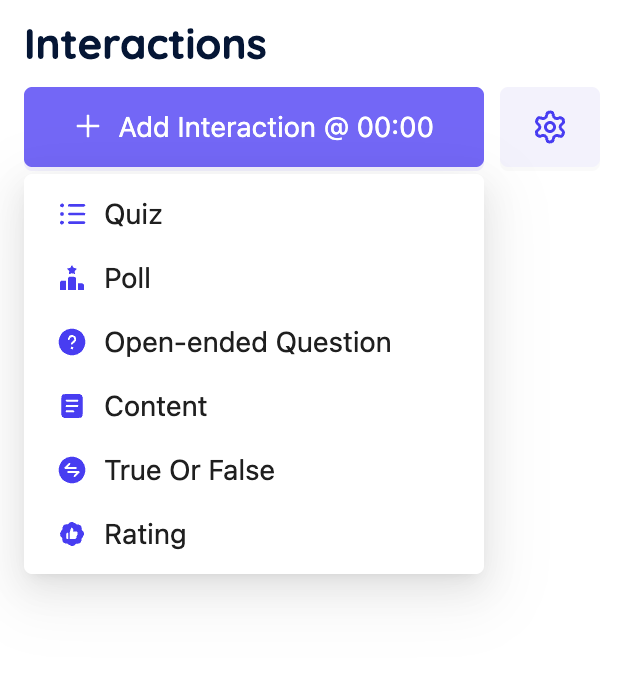
Dadan transforms your videos into interactive experiences automatically. With Dadan’s AI, you can create quizzes, polls, open questions, ratings, and more. Add as many as you like. You can also generate CTAs and lead forms to convert more viewers.
Top Features
- Interactive Quizzes: Add questions inside videos to check understanding and retention.
- Dynamic Polls: Collect instant opinions and feedback from viewers in real time.
- Open Ended Feedback: Let viewers share thoughts directly within the video.
- Text Overlays: Display important messages, instructions, or highlights on screen.
- Custom Call to Actions: Drive signups, downloads, or next steps from within the video.
- One Click Setup: Add multiple interactions quickly without technical effort.
Pros
- Boosts student engagement and active learning
- Improves video marketing performance and conversions
- Supports multiple interaction types in a single video
- Easy to set up and manage
Cons
- Requires viewer interaction to see full value
Who is it for?
- Content creators
- Marketing teams
- Educators and trainers
- Sales and growth teams
- Customer success teams
- Product and onboarding teams
5.2 Vimeo
Vimeo is a video hosting platform that includes tools for private sharing and video review. It’s often used when videos need controlled access, structured feedback, or approval from stakeholders.
Interaction on Vimeo is typically part of a review or approval process rather than an open discussion.
Top Features
- Private Video Hosting: Control who can view or comment on videos.
- Timeline Comments: Leave feedback linked to specific points in the video.
- Access Permissions: Manage viewer and reviewer roles.
- Embeddable Player: Share videos on external sites with privacy controls.
Pros
- Strong privacy and access management
- Suitable for client or stakeholder reviews
- Professional presentation for shared videos
Cons
- Advanced review features require paid plans
- Less flexible for informal internal collaboration
Who is it for?
- Marketing teams
- Creative teams
- Agencies
- Client-facing teams
6. AI Video SEO & Metadata Optimization Tools
Titles, descriptions, tags, and thumbnails play a large role in whether a video shows up in search results or recommendations.
AI video SEO and metadata tools are used to optimize these elements so videos are easier to discover on platforms like YouTube. These tools focus on keywords, performance signals, and content suggestions rather than video creation itself.
6.1 Dadan’s AI Video Meta Generator
Dadan helps generate supporting content around videos, such as summaries, titles, and descriptions, based on the video transcript. This makes it easier to add metadata without manually rewriting what was said in the video.

Because the metadata is generated from the transcript, it stays aligned with the actual content instead of relying on guesswork.
Top Features
- Video Summaries: Generate short summaries based on the transcript.
- Title and Description Suggestions: Create metadata directly from spoken content.
- Transcript-Based Content: Use the transcript as a source for descriptions and notes.
- Easy Copy Export: Metadata can be copied and reused on hosting platforms.
Pros
- Saves time when writing video descriptions
- Keeps metadata aligned with video content
- Reduces manual rewriting effort
Cons
- Limited control over keyword strategy
- Not a full SEO analytics tool
Who is it for?
- Content teams
- Educators
- Marketing teams
- Video publishers
6.2 VidIQ
VidIQ is a YouTube-focused optimization tool used to improve video discoverability. It provides keyword suggestions, performance insights, and guidance on titles and tags based on platform data.
The tool is commonly used by creators and teams publishing regularly on YouTube.
Top Features
- Keyword Research: Identify search terms related to video topics.
- Title and Tag Suggestions: Optimize metadata for YouTube search.
- Performance Analytics: Track views, engagement, and rankings.
- Competitor Insights: Compare performance with similar channels.
Pros
- Strong YouTube-specific insights
- Helpful for improving discoverability
- Useful for ongoing content publishing
Cons
- Limited to YouTube
- Advanced features require paid plans
Who is it for?
- YouTube creators
- Marketing teams
- Video-first brands
7. AI Video Generator Tools
AI video generator tools are best when you don’t want to record video manually. Instead of filming, these tools create videos from written scripts, templates, or predefined formats.
They’re commonly used for training content, internal communication, and marketing videos where consistency and speed matter more than recording real people on camera.
7.1 Synthesia
Synthesia is an AI video generator that creates videos from written scripts using digital avatars. You write the content, select an avatar and voice, and generate a video without recording yourself.
It’s commonly used for standardized content where consistency is important, and filming is impractical.
Top Features
- AI Avatars: Create videos using digital presenters instead of real people.
- Script-Based Video Creation: Generate videos directly from written text.
- Multi-Language Support: Produce videos in multiple languages and accents.
- Template Layouts: Use consistent formats across videos.
Pros
- No filming or recording setup required
- Consistent output across large volumes of content
- Useful for multilingual or global teams
Cons
- Limited flexibility in presentation style
- Videos can feel less natural than recorded content
Who is it for?
- Training teams
- HR teams
- Internal communications teams
- Enterprise organizations
7.2 InVideo
InVideo is an AI-assisted video creation tool that turns scripts or prompts into videos using templates, stock footage, and text overlays. It’s often used for marketing and social media content where speed matters.
Instead of avatars, InVideo focuses on visual layouts and pre-designed scenes.
Top Features
- Script-to-Video Generation: Create videos from written prompts.
- Template Library: Choose from ready-made layouts for different formats.
- Stock Media Access: Use built-in images, videos, and music.
- Brand Customization: Add logos, colors, and brand elements.
Pros
- Fast video creation without filming
- Large library of templates and assets
- Suitable for short-form and promotional content
Cons
- Output can feel template-driven
- Limited control beyond available layouts
Who is it for?
- Marketing teams
- Social media managers
- Content creators
- Small businesses
8. Audio & Voice Enhancement Tools
If you record videos regularly, you already know that bad audio is harder to fix than bad video. A slightly blurry screen is tolerable, but a muffled voice, background noise, or uneven volume is not.
Audio and voice enhancement tools are used to clean up recordings when re-recording isn’t an option, or when you want the audio to sound consistent without spending time on manual editing.
8.1 Adobe Podcast
Adobe Podcast includes an audio enhancement feature that cleans up the recorded voice automatically. You upload your audio or video file, and the tool removes background noise and improves clarity without requiring manual adjustments.
This is useful when recordings are done in less-than-ideal environments or when you want consistent audio quality across multiple videos.
Top Features
- Speech Enhancement: Automatically improves voice clarity.
- Noise Reduction: Removes background noise and echoes.
- Browser-Based Processing: No software installation required.
- Video Audio Support: Works on audio extracted from video files.
Pros
- Very easy to use
- No audio editing knowledge required
- Improves poor recordings quickly
Cons
- Limited control over fine audio adjustments
- Not suitable for music or complex audio mixing
Who is it for?
- Remote teams
- Educators
- Content creators
- Podcasters
8.2 Krisp
Krisp is a real-time noise cancellation tool that works while you’re recording or on a call. Instead of fixing audio after the fact, it removes background noise as you speak.
This is useful if you record in shared spaces, work from home, or deal with unpredictable background sounds.
Top Features
- Real-Time Noise Cancellation: Removes background noise while recording.
- App-Level Integration: Works with recording tools, meeting apps, and editors.
- Voice Isolation: Keeps your voice clear while filtering other sounds.
- No Post-Processing Required: Audio is cleaned during capture.
Pros
- Improves audio before it’s recorded
- Works across many apps
- Useful for live recordings and meetings
Cons
- Requires running in the background
- Free plan has usage limits
Who is it for?
- Remote workers
- Customer-facing teams
- Educators
- Content creators
9. Short Form & Clip Repurposing Tools
Manually cutting highlights takes time, especially when the same video needs to be reused across platforms. Short-form and clip repurposing tools are used to identify useful sections and turn them into smaller videos without starting from scratch.
9.1 Dadan
Dadan lets you create clips directly from recorded videos and transcripts. Instead of scrubbing through a timeline, you can select the part you want using text and turn it into a separate clip.
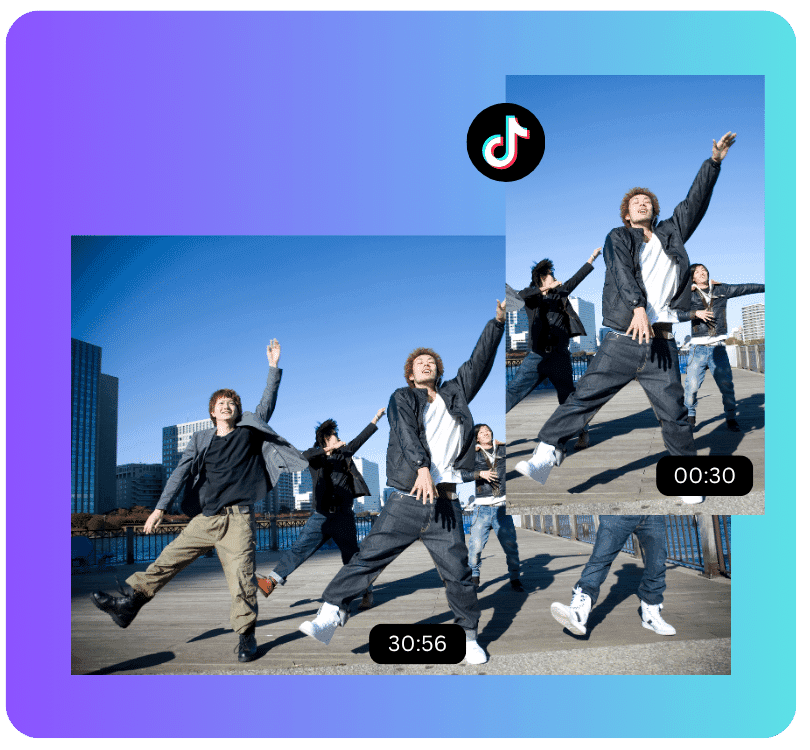
This works well when you already have long recordings and want to reuse specific sections for training, sharing, or follow-ups.
Top Features
- Transcript-Based Clip Selection: Create clips by selecting text rather than manually cutting video.
- Multiple Clips from One Recording: Generate several short clips from a single video.
- Browser-Based Editing: No need to download or re-upload files.
- Easy Sharing: Share clips using links.
Pros
- Faster than manual clipping
- Keeps repurposing in the same workflow
- Useful for reusing long recordings
Cons
- Limited control over clip styling
- Not designed for social-first editing
Who is it for?
- Remote teams
- Educators
- Sales teams
- Training teams
9.2 Vmaker AI
Vmaker AI is designed to turn long videos into short, shareable clips automatically. It’s often used for creating highlights from webinars, interviews, or long-form content.
The tool focuses on speed, using AI to suggest which sections are worth turning into clips.
Top Features
- Auto Clip Detection: Identifies highlights from longer videos.
- Subtitle Generation: Adds captions to clips automatically.
- Aspect Ratio Presets: Formats clips for different platforms.
- Quick Export Options: Generate clips ready for sharing.
Pros
- Saves time when repurposing long videos
- Useful for creating multiple clips quickly
- Built-in captions for short-form content
Cons
- AI suggestions need review
- Limited manual control over clip selection
Who is it for?
- Content creators
- Social media teams
- Marketing teams
10. Video Collaboration & Sharing Tools
Once a video is ready, the next problem is getting it reviewed or shared without confusion. Video collaboration and sharing tools are meant to remove that confusion. They keep the video and the feedback together so you don’t have to piece things back manually.
10.1 Dadan Video Collaboration
With Dadan, you share videos using a link and collect feedback directly on the video itself. When someone leaves a comment, it’s tied to the exact moment they’re referring to.
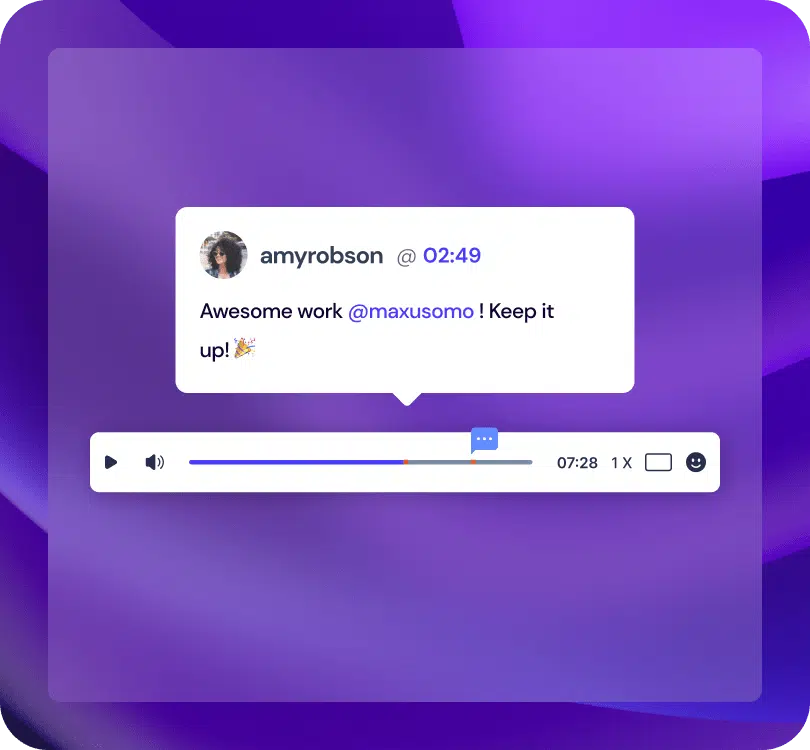
This makes reviews easier when you’re sharing walkthroughs, demos, or training videos and need clear input before making changes.
Top Features
- Shareable Video Links: You can share videos without downloading or uploading files.
- Timestamped Comments: Feedback is linked to specific moments in the video.
- Browser-Based Access: Viewers can watch and comment without installing anything.
- Centralised Video Library: Your recordings and feedback stay in one place.
Pros
- You don’t have to guess what feedback refers to
- Review cycles take less time
- Easy for others to access and comment
Cons
- Collaboration is focused on feedback, not threaded discussions
- Not meant for public video hosting at scale
Who is it for?
- Remote teams
- Training teams
- Product teams
- Client-facing teams
10.2 Wipster
Wipster is used when videos go through formal review and approval. Instead of casual comments, it helps you manage structured feedback, versions, and sign-offs.
If you’re dealing with multiple reviewers or clients, this keeps feedback organised and traceable.
Top Features
- Frame-Level Comments: You can comment on exact frames in the video.
- Approval Workflows: Track who has reviewed and approved a video.
- Version Management: Keep track of different versions during revisions.
- Reviewer Controls: Assign roles and manage access.
Pros
- Clear approval and review process
- Useful when multiple stakeholders are involved
- Reduces miscommunication during revisions
Cons
- Too heavy for simple sharing
- Setup takes time
Who is it for?
- Creative teams
- Agencies
- Production teams
- Marketing teams
Conclusion
Video creation usually involves more than one step. Recording, editing, captions, sharing, feedback, and reuse are often handled by different tools depending on how the video is used.
Some focus on recording, some on editing, some on transcription, and others on collaboration or repurposing. Which tools make sense depends on how often videos are created, how frequently they are edited, and how they are shared within a team or with external audiences.
Use the sections above to identify tools that fit your existing workflow rather than trying to replace everything with a single solution.