A meeting recap is a short summary of what your meeting decided and what people need to do next.
If you record your meetings, you already have everything a recap needs, but the recording on its own is hard to act on, because pulling one decision out of it means finding the right few minutes and watching them again.
A recap gives you the decisions, the owners, and the deadlines in a form people can read without opening the video.
Quick answer:
- A meeting recap turns a recording into a short summary of the decisions made, the tasks with owners and deadlines, the open questions, and what happens before the next meeting.
- You build one by transcribing the recording, pulling out the decisions and commitments, assigning owners and dates, and sharing the result where the work happens.
- AI can draft the summary from the transcript in under a minute, but a person still has to confirm the action items and fix any misheard names before it goes out.
What Is a Meeting Recap?
A meeting recap is a written summary of a meeting’s outcomes, made so that someone who missed the meeting can act on it without watching the recording.
The most useful comparison is with a transcript.
A transcript gives you the full text of everything that was said, start to finish. Whereas, a recap is shorter and selective. It keeps the decisions, the tasks, and the people responsible for them, and leaves out most of the discussion that produced them.
The format is also flexible. A recap can be a short paragraph, a bulleted list, or a filled-in template.
Why Turn Meeting Recordings Into Recaps?
The reason is access. A recording works well as an archive and poorly as a reference.
To check what a meeting decided, you have to remember roughly when it came up, move to that point in the video, and watch. Anyone who missed the meeting either does the same or watches the whole thing.
Across a team that records often, that becomes a lot of repeated watching.
Recaps are also important for async work. You might record a meeting so that colleagues in other time zones don’t have to join live. If the only output is the recording, they still have to watch it, so you have moved the effort rather than removed it. A recap is something they can read and reply to in a few minutes.
Then there is memory. People leave the same meeting with different versions of what was decided, and weeks later there is no shared record apart from the video.
Not every meeting needs to record one. A quick one-on-one or an informal sync usually does not. Recaps are worth the effort for decision meetings, cross-functional calls, client conversations, and any meeting where someone who was not in the room has to act on the outcome.
What Should a Meeting Recap Include?
A useful recap answers four things. What was decided, who is responsible for each task, when it is due, and what is still unresolved.
The table below lists the elements worth including, and what each one answers.
| Element | What it answers |
| Meeting basics | When, who, why |
| Decisions made | What was agreed |
| Action items | Who does what, by when |
| Open questions | What is unresolved |
| Blockers | What is stuck and on whom |
| Next step | What happens before the next meeting |
The most common mistake is listing topics instead of outcomes. A line like “discussed pricing” records that the subject came up, not what was talked about.
A more useful version names the decision and the next step, for example “held the price increase until the billing redesign, Sam to confirm the timeline by Friday.” As a rule, every line should either state a decision or assign a task.
How to Turn a Meeting Recording Into an Actionable Recap
Transcribe the recording, read it for decisions, turn each commitment into a task with an owner and a date, then share the result with your team mates.
The steps are the same whether you write the recap by hand or use a tool to draft it.
1. Start With A Transcript
Reading is faster than scrubbing video for quotes. Most tools generate a transcript automatically after the call, and a searchable transcript lets you jump to any phrase instead of watching for it.
Accuracy is higher when the audio is clean and people speak one at a time, and lower with crosstalk or strong accents, so expect to correct a few lines.
2. Read For Decisions And Commitments Only
Go through the transcript and mark two things, the decisions the group reached and the commitments people made.
A decision is something the group agreed to. A commitment is something a person said they would do. Anything that is neither can stay out of the recap.
3. Turn Each Commitment Into A Task With An Owner And A Date
“We should update the onboarding email” becomes “Marco updates the onboarding email by 22 Aug.” If the meeting never named an owner or a date, treat that as a gap to close now. Note it and ask.
4. Write Decisions As Outcomes
Say what was decided, and where it helps, what was ruled out. For example, “Chose the staged rollout over a full launch because support wanted a smaller first group” tells a later reader more than “agreed on the rollout plan.”
5. Add A Line Of Context
Put a one-line summary at the top and add timestamped links for the moments likely to be questioned later. Then remove anything that is not a decision, a task, or the context needed to follow them.
6. Put It Where People Work
A recap sitting in a folder next to the recording gets ignored as easily as the recording would. So, post it in the channel, paste it into the ticket, or add it to the project doc, and include a link back to the recording for anyone who wants the detail.
How AI Can Help Create Meeting Recaps
AI can draft a full recap from a transcript in under a minute, which handles the slow part. It gets owners, dates, and names wrong often enough that the draft still needs a human read before it goes out.
So, the clear benefit is speed. A meeting summarizer reads the transcript and returns a structured draft with decisions, discussion points, and action items in less time than it takes to skim the first page.
For a team that records several meetings a week, that is often what makes recaps happen at all instead of staying on a list of good intentions. A teams meeting summary, or any transcript-based summarizer, does this first-draft job well.
But there are some limits to keep in mind too.
- It invents action items. Check every owner against what was actually said.
- It mishears names and numbers.
- It can’t judge importance.
So the honest answer to “can I just let AI do my meeting recaps” is that you can let it write the draft, but you have to read that draft against the recording before it counts for anything.
This matches Google’s guidance on AI content, which treats the tool itself as fine and the missing human judgment as the problem.
Whether AI note-takers can be trusted is a live question for the people who use them daily. Someone in r/ProductivityApps, a community built around these tools, asked the group whether they trust AI for notetaking.
When the people who rely on these tools most are still asking whether the output holds up, it is a sign the draft is a starting point and not a finished record.
Meeting Recap vs Meeting Notes: What’s the Difference?
Meeting notes record what was said during the meeting. A meeting recap summarizes what it means and what to do, and it is written afterward for people who need the outcome.
The two terms get used interchangeably, which is part of why so many recaps are really cleaned-up notes with the decisions buried inside them.
| Meeting notes | Meeting recap | |
| When they are made | During the meeting | After, from the recording or notes |
| What they capture | The discussion, in order | The outcomes and next steps |
| Length | As long as the meeting | Short, scannable |
| Written for | Attendees and the record | People who need to act, including those who missed it |
| Works when | Nothing important was left out | A reader knows what to do in under two minutes |
So, you might want both. Notes are the full account for the archive and for anyone who wants detail. The recap is the shorter layer that most people will read.
If you only have time for one, write the recap, since the recording already holds the full record.
How Dadan Creates Meeting Recaps From Recordings
Dadan records the meeting, transcribes it, drafts a recap from the transcript using a meeting template, and lets you attach that recap to the recording so the two stay together.
Step 1: Capture The Meeting Or Upload A Recording
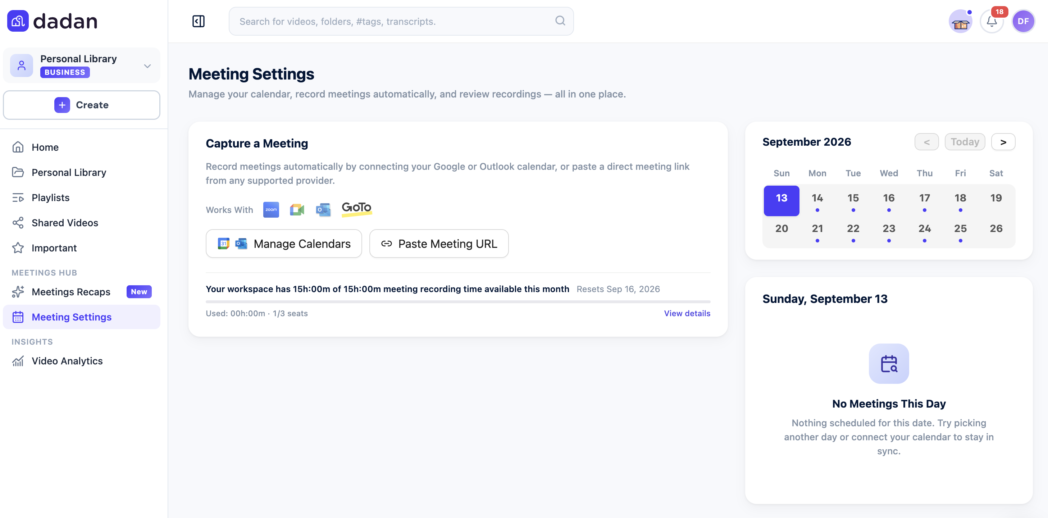
Paste a meeting link into the Meetings Recording tab and Dadan’s note-taker joins the call as a participant, which works for Zoom, Google Meet, Microsoft Teams, and GoToMeeting without a separate meeting recorder, and everyone on the call is notified when the bot joins.
Or connect your Google or Microsoft calendar so scheduled meetings record on their own. Or upload an existing recording from your computer.
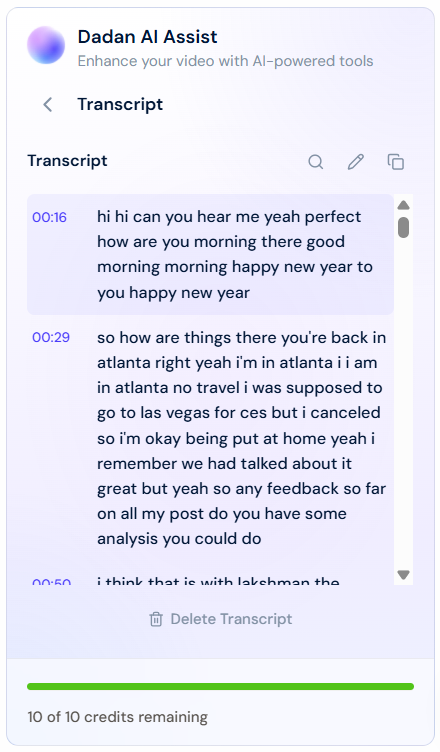
Step 2: Let Dadan Transcribe It
The transcript generates automatically once the recording is in. Set your default meeting language first so a non-English call transcribes accurately rather than defaulting to English.
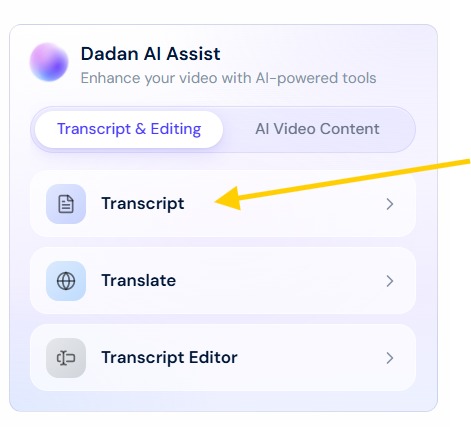
Every step after this reads from the transcript, so it comes first.
Step 3: Pick A Template And Generate The Summary
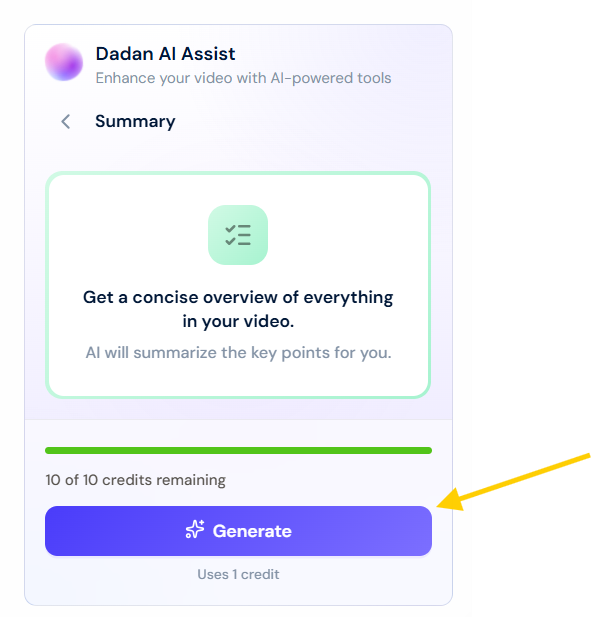
Open the AI Assist panel and generate a summary, or choose from more than 30 meeting templates built for specific meeting types, including minutes of meeting, sales calls, business reviews, feedback calls, and HR conversations.
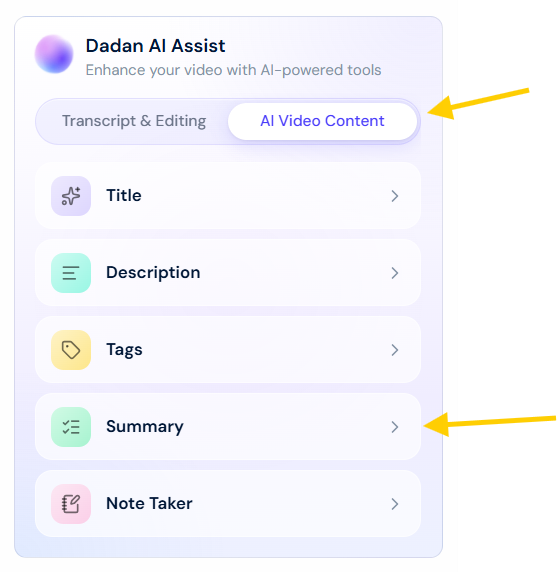
The template shapes the output, so a sales-call template captures different fields than a project update. Dadan returns a structured one-page recap, usually in under a minute.
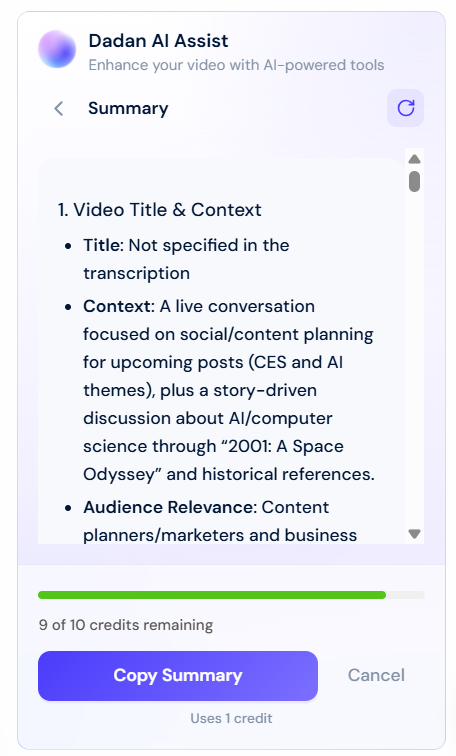
Step 4: Review The Draft Against The Recording
Confirm the owners and dates, fix any misheard names or numbers, and add back anything important the summary flattened. This is the step that makes the recap safe to send.
Step 5: Attach The Recap To The Recording
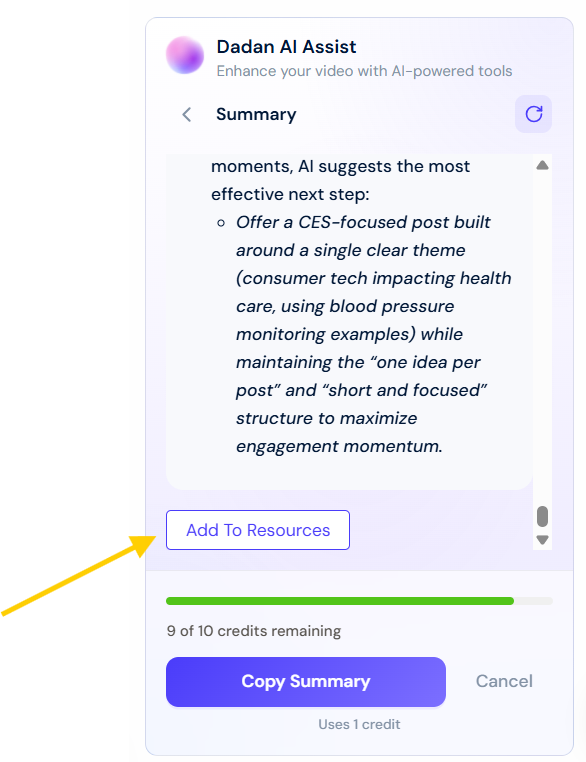
Use Add to Resources to attach the notes to the video itself. The recap and the recording then sit in the same place, so anyone who opens the video sees the summary with it, and anyone reading the recap is one click from the moment it came from.
Step 6: Share It With Your Team
Copy the notes into the channel, ticket, or project doc your team uses, or send the recap by link or email. Include the recording link for anyone who wants the full detail.
Step 7: Find It Again Later
Dadan’s library search runs across file names, transcripts, and tags, so a recorded meeting stays findable after the recap goes out. Search a phrase months later and land on the point in the recording where it was said.
How to Make Meeting Recaps More Useful
Keep it with the video, route the tasks into your team’s tools, and match the template to the meeting.
A few habits to remember:
- Keep the recap with the recording.
- Link to the moments that need clarifications or discussions later.
- Match the template to the meeting.
- Route tasks into your tools.
- Use a consistent format.
- Read the AI draft before sending it.
Conclusion
A recording gives you the raw material for a recap, but it is not a recap by itself. The information people need is the set of decisions, owners, and next steps, and those have to be pulled out and written down before anyone can act on them.
You can write the recap by hand, which is slower but reliable, or use AI to draft it and then check the result. Either way, the recap is what turns a meeting people half-remember into something the team can act on.
If you want to keep the recording, the transcript, the recap, and the place to share it in one workflow, that is what Dadan is built for.
Record your next meeting free at dadan.io and let the AI draft the recap while you get on with the work.
FAQs
What should be included in a meeting recap?
A meeting recap should include the decisions that were made, action items with a named owner and a deadline, any questions left open, and the next step before the following meeting.
How do I create a meeting recap from a recording?
Record the meeting or upload an existing recording, and Dadan transcribes it automatically. In the AI Assist box you generate a summary or pick a meeting template, review the draft for owners and dates, then use Add to Resources to attach the recap to the recording and share it.
Can AI create a meeting recap from a recording?
Yes. An AI meeting summarizer reads the transcript and drafts a structured recap with decisions and action items, often in under a minute. It will sometimes invent action items, mishear names and dates, or miss an important decision, so you need to check the draft against the recording before sending it.
What is the difference between meeting notes and a meeting recap?
Meeting notes are taken during the meeting and capture the discussion as it happens. A meeting recap is written afterward and summarizes what the meeting decided and what to do next, for people who need the outcome, including those who did not attend.
How can I make meeting recaps more actionable?
Give every task a named owner and a deadline, write decisions as outcomes rather than topics, and route the action items into the tool where the work gets done.
Can I create a meeting recap without manually taking notes?
Yes. If the meeting is recorded and transcribed, a tool like Dadan can draft the recap from the transcript automatically, so you do not have to take notes during the call. You record or upload the meeting, generate the summary from a meeting template, review it, and share.