Dadan’s Meeting Bot can automatically join and record your calls, ensuring you never miss key discussions. Whether you’re meeting with clients, partners, or vendors, this guide will show you how to enable recording of external meetings.
Prepare the dadan meeting bot for a meeting
To prepare the dadan meeting bot to record a meeting, follow these steps:
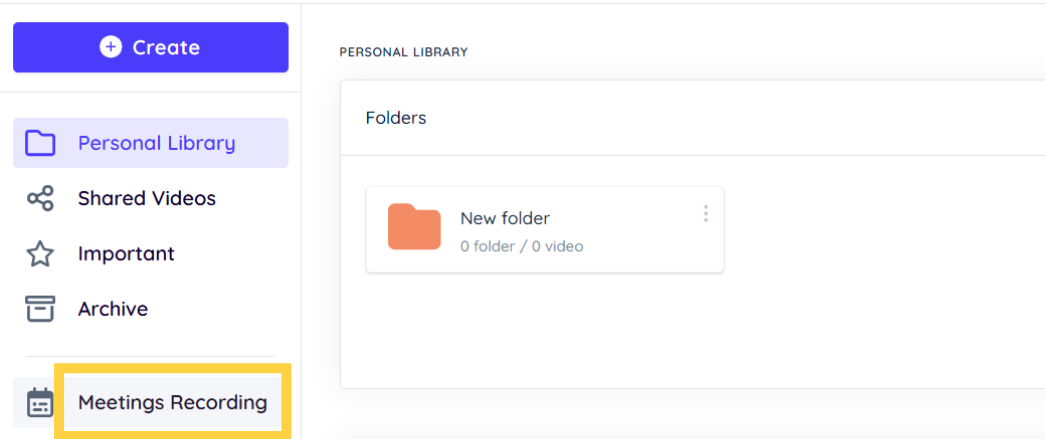
- Access dadan Meetings Recording:
- In the dadan app, click Meetings Recording on the left sidebar.
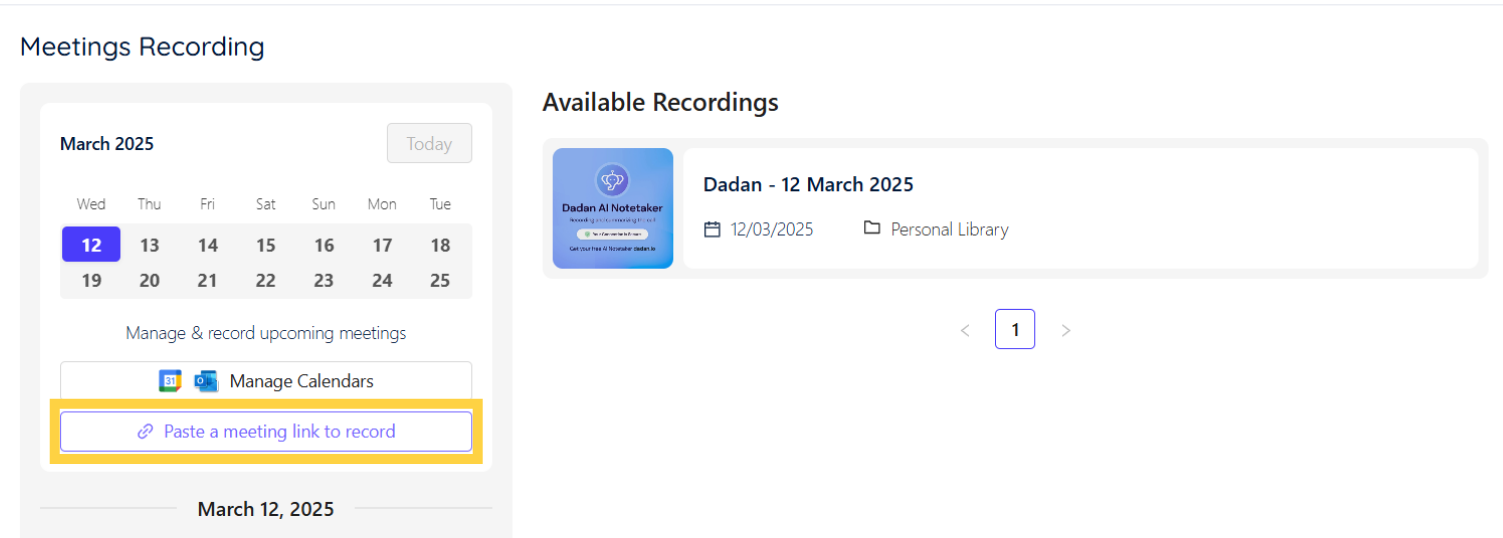
- Go to the recording section:
- In the Meetings Recording box, click Paste a meeting link to record.
- Paste the link:
- Paste the meeting link into the Paste Meeting Link to Record field.
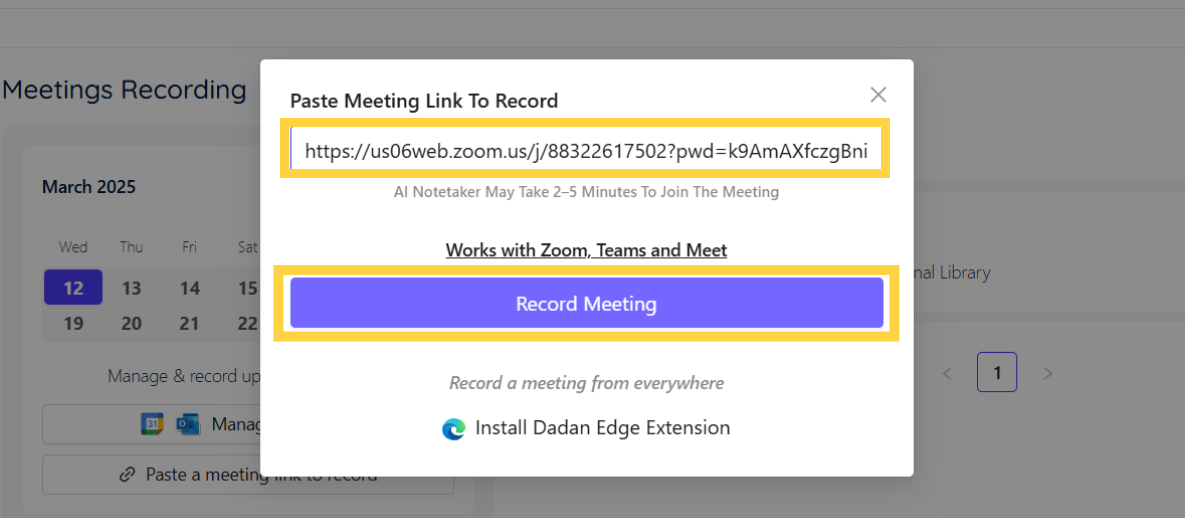
- Click Record Meeting:
- This will schedule the dadan Meeting Bot.
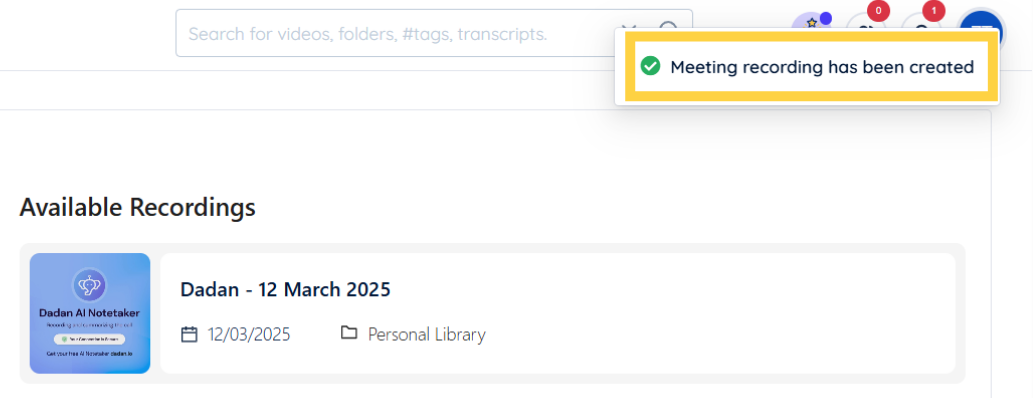
- You should see: Meeting recording has been created.
- Choose the meeting language:
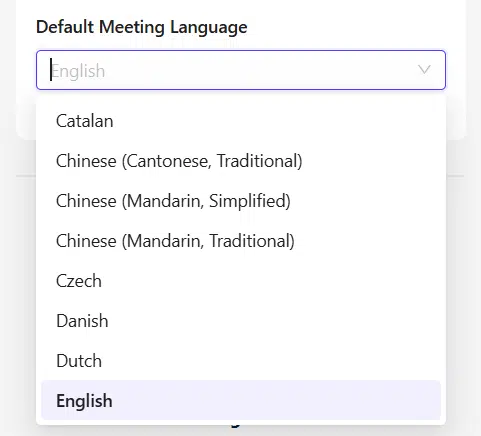
- In the Default Meeting Language drop-down menu, select the default language.
- The transcript will be in the selected language, so ensure choosing correct language.
Join a meeting with dadan AI Notetaker
To stay focused on the conversation, use dadan AI Meeting Notetaker to capture and summarize your meetings automatically:
- Start or join your external meeting:
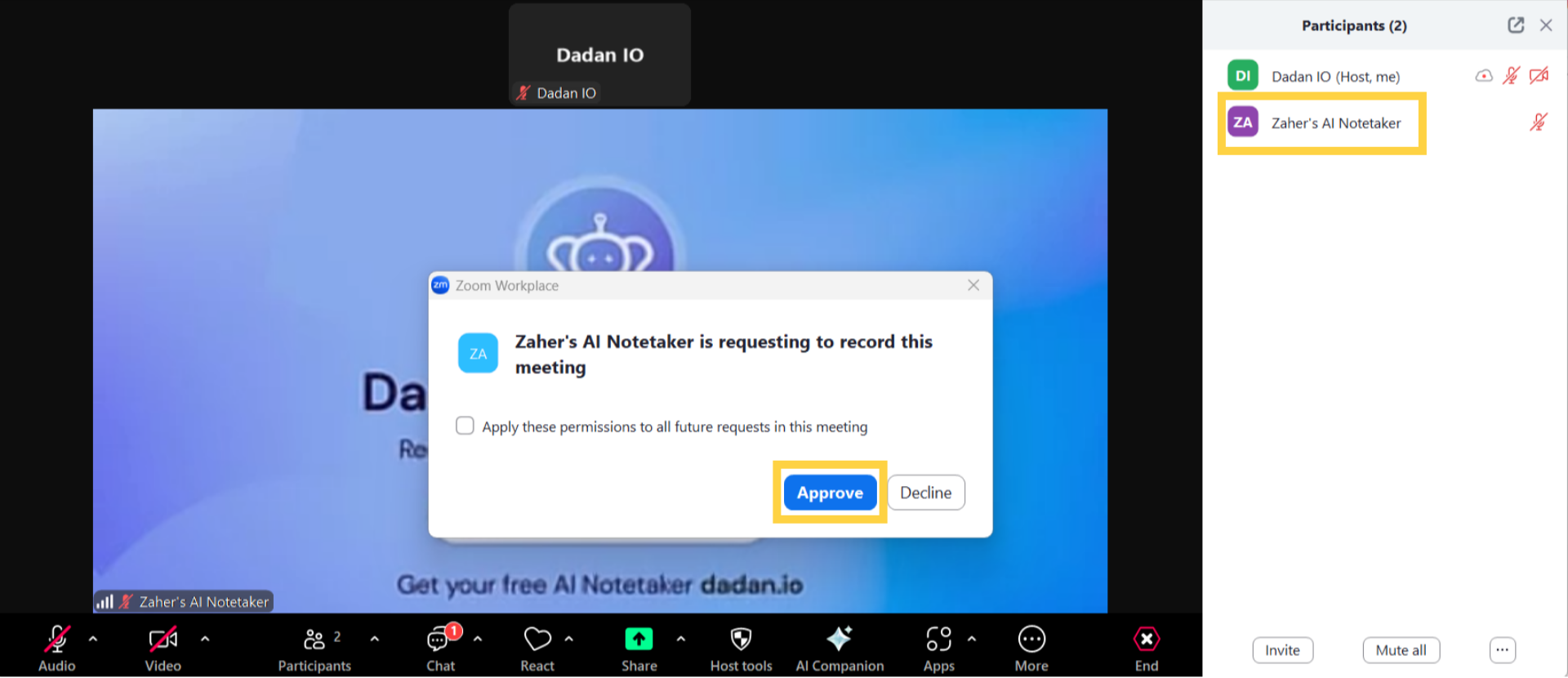
- When the dadan AI Notetaker requests to record the meeting, click Approve to add the dadan Meeting Bot as a member (it will appear as a participant).
- Monitor the recording:
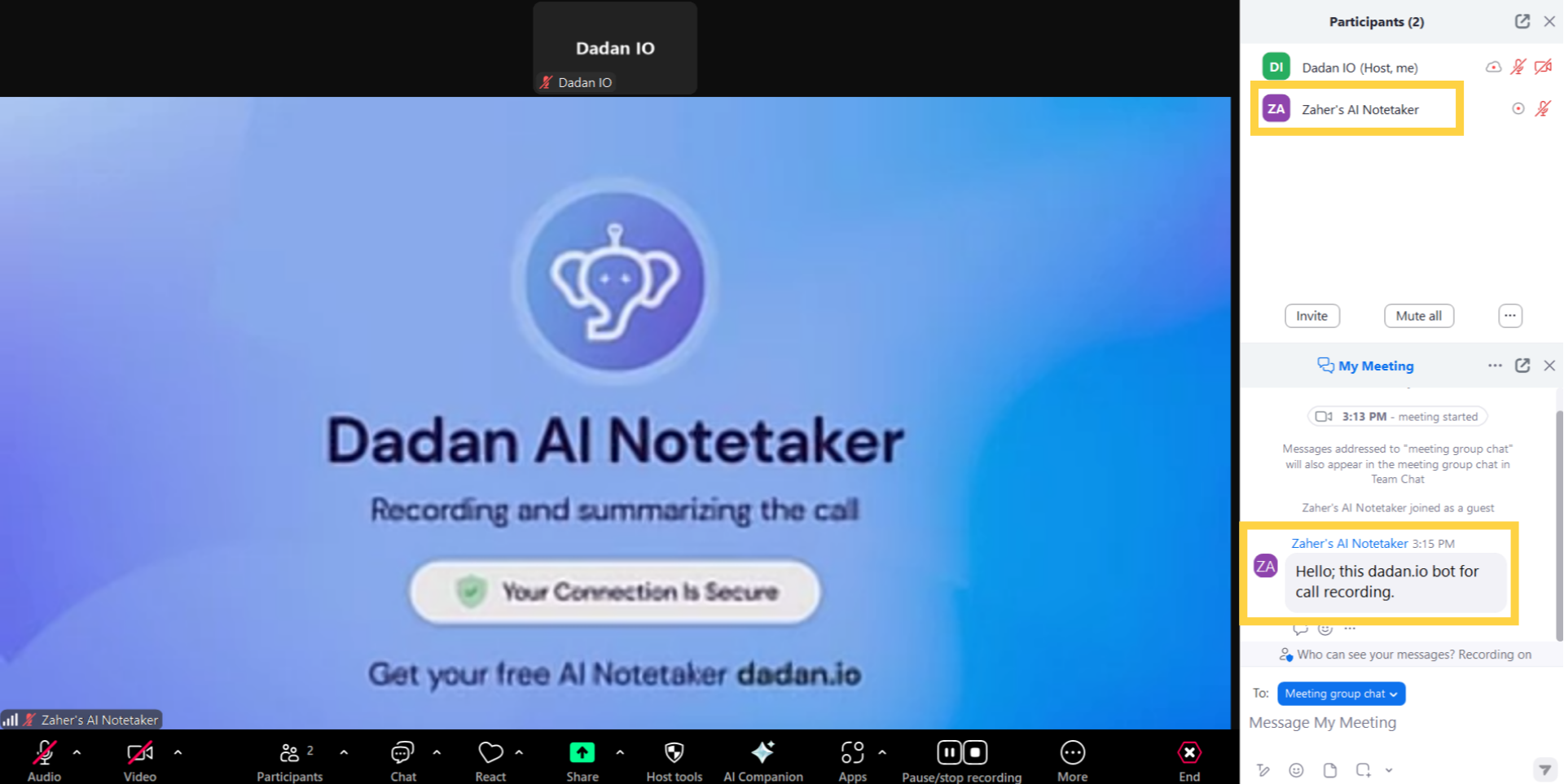
- During the meeting, check the sidebar panel for the dadan Meeting Bot.
- The Bot will write a Hello chat message.
- Let dadan handle the recording and summarization.
- During the meeting, check the sidebar panel for the dadan Meeting Bot.
- Check your recording in dadan:
- After finishing the meeting, the record will be in your Personal Library.
- The dadan recording will use the same name as the meeting.
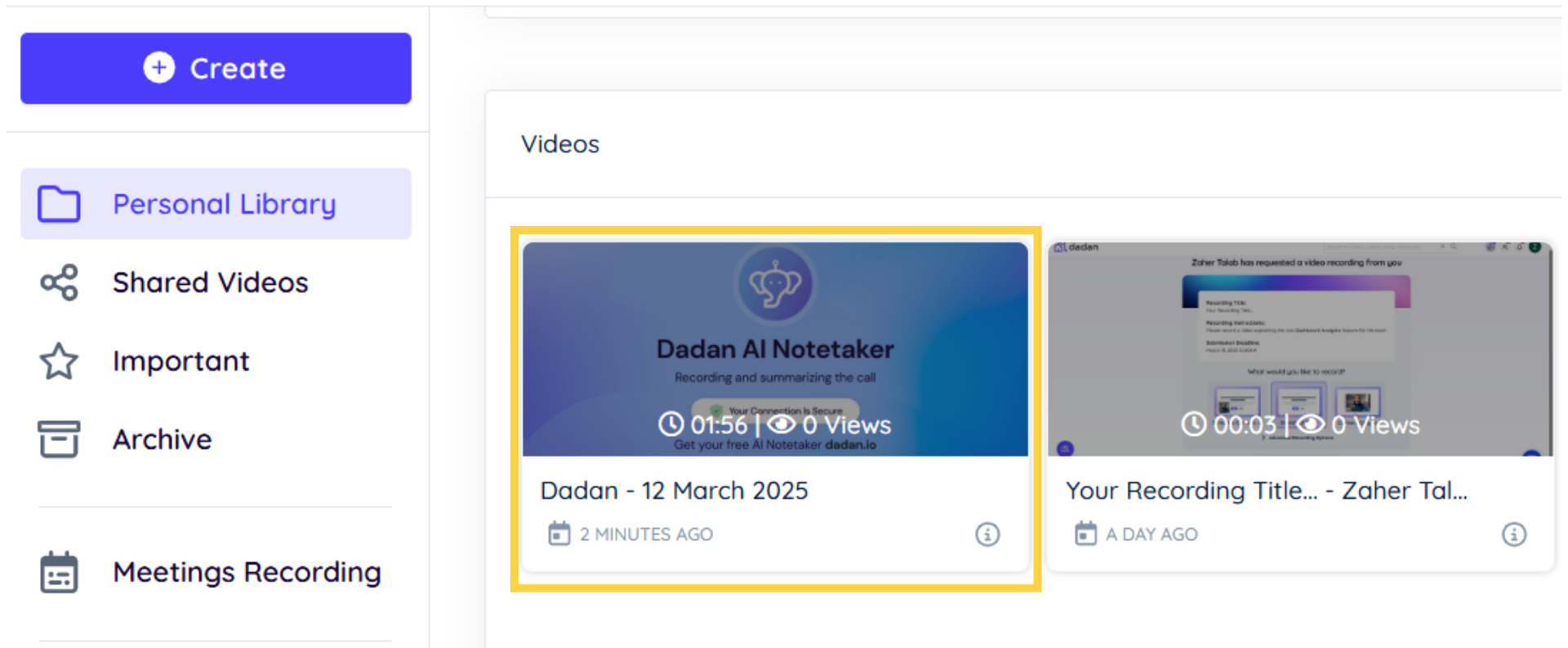
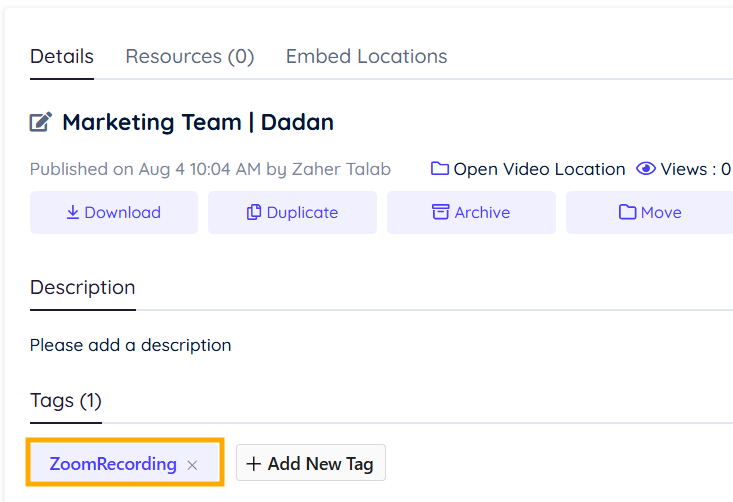
- Note: Recordings are tagged with their date and the original meeting application (e.g., ZoomRecording), making it easier to locate the specific meeting you need.