Steps to add timeline-anchored comments
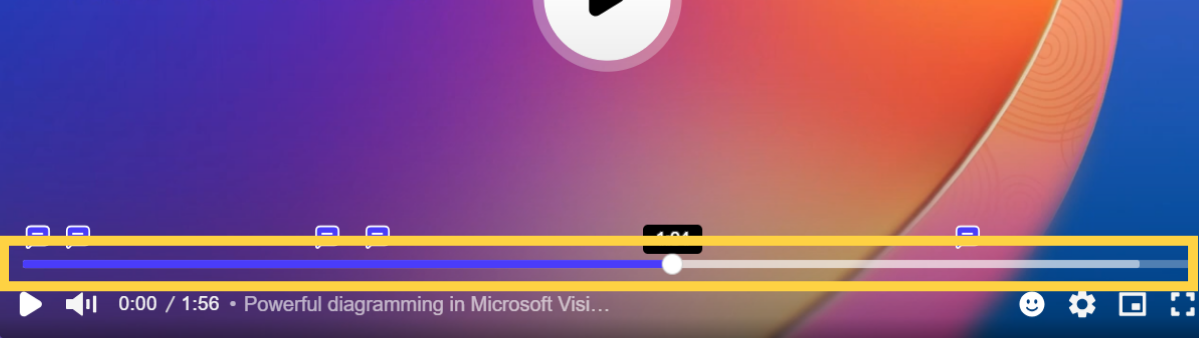
To add a timeline-anchored comment:- Open the video on the dadan playback screen. Play or scrub to the moment you want to comment on.
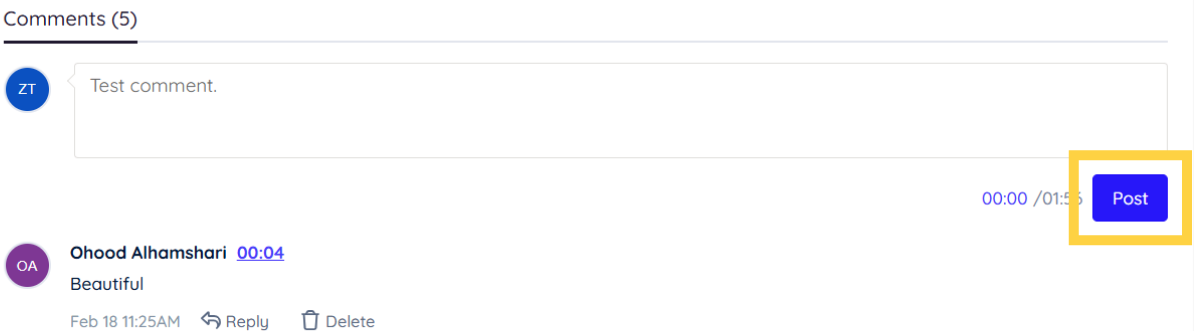
- Type your comment in the comment box as usual. Notice the Timestamp.
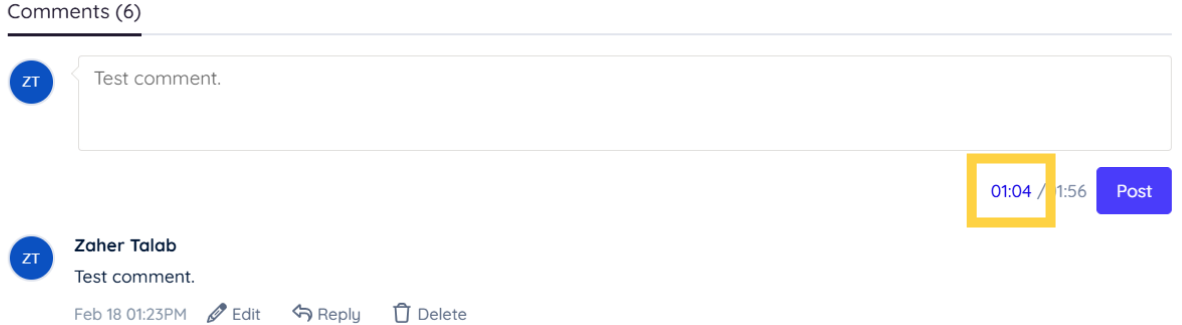
- Click Post to attach the comment to the selected timestamp.
Viewing and managing dadan video comments on the timeline
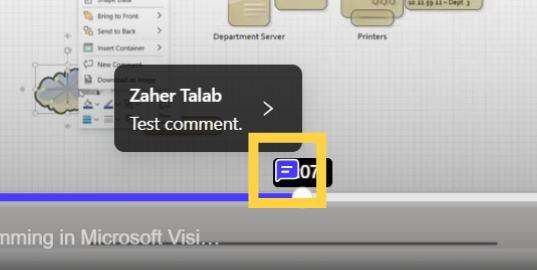
Dadan allows you to manage video comments on the timeline as follows:- The Timeline-anchored comments appear as markers on the video timeline.

- Click the marker to jump to the exact timestamp and display the comment.
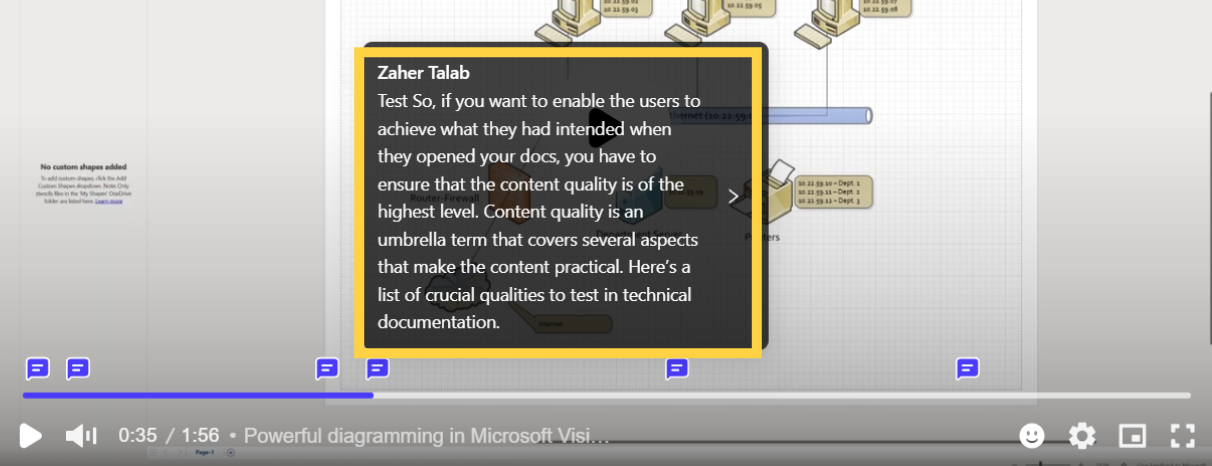
- You can also click the timestamp on the comment itself to jump to its timestamp on the video.

Editing or deleting a comment
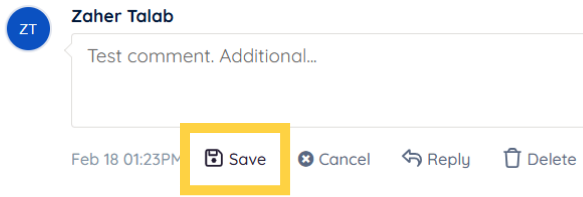
To delete or edit a comment:- Edit: Hover over your comment, click the Edit (pencil) icon, make changes, and click Save. (Admins can only edit their own comments.)
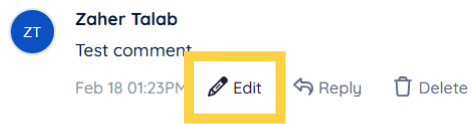
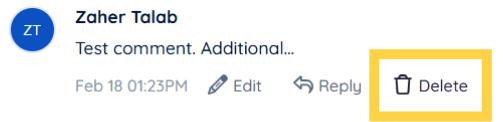
- Delete: Click the Delete (trash) icon. Confirm or cancel the deletion. (Admins can delete any comment.)

Replying to and resolving comments
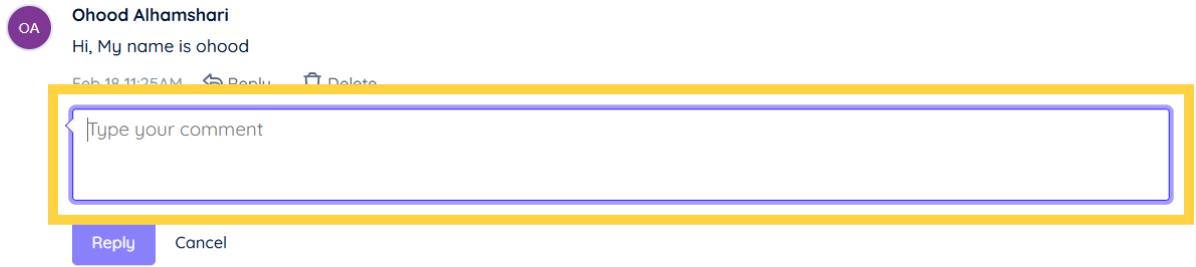
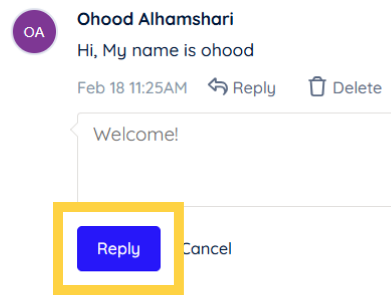
To reply to or resolve a comment:- Reply: Click the Reply icon below a comment, type your response, and click the Reply button.