












Skip links

Free Guide Generator:
Create Step-by-Step Guides From Screen Recordings

Turn your screen recordings into clear, visual guides with automatic steps and screenshots. Create and share documentation without writing everything manually.

Free to use, No credit card required

Join 40,000+ users actively using dadan
for Video Creation

guide

Record Once. Get a Step-by-Step Guide Instantly.

Step 1

Open the Guide Recorder

Open your Dadan browser extension and select Guide. Pick the screen you want to record and choose the language for guides from preferences.

dadan platforms
Step 2

Record Your Workflow

Start recording and click through the entire process from start to finish.

record setup
Step 3

Let Dadan Build the Steps

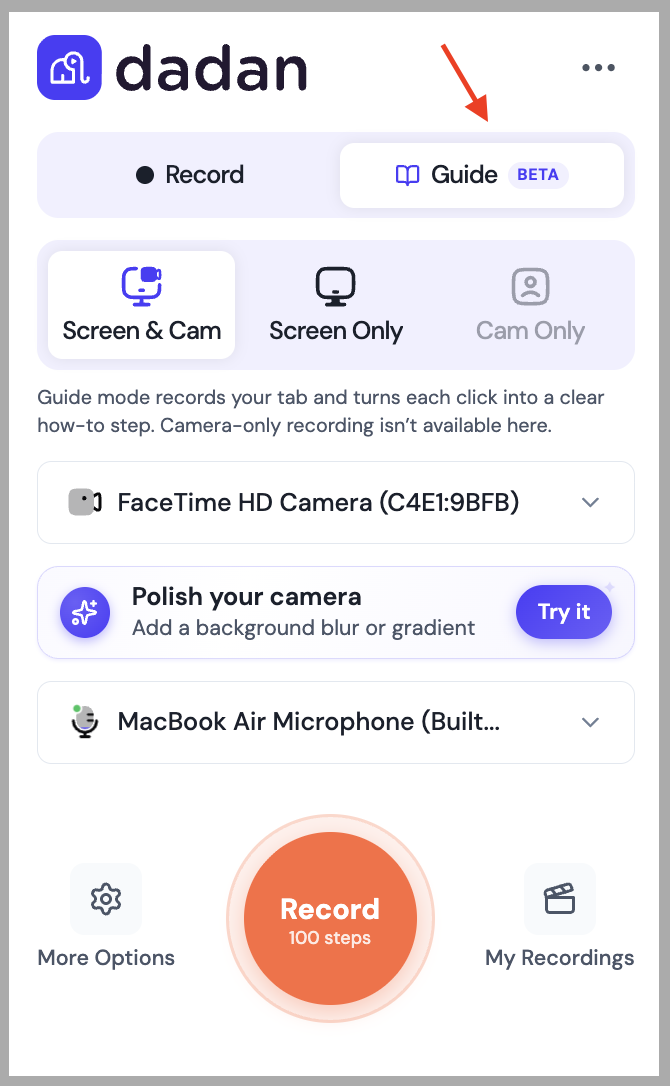
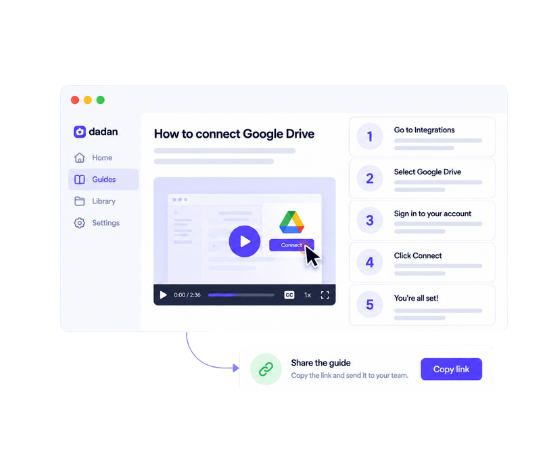
Each click is captured as a step. When you stop recording, Dadan turns the whole thing into a doc-style guide with a screenshot on every step.

dadan recording
Step 4

Edit and Publish

Rewrite the text on any step, annotate the screenshots, and add or remove steps until it reads right. Then you can share the guide online or share it as a PDF.

edit video toolbar

Create Guides for Every Team and Workflow

Product Walkthroughs & Documentation

Walk prospects, users, or team members through your product screen by screen. Record the workflow once, and Dadan turns each click into a documented step, so you can create guides without writing manuals from scratch.

snap record
ai video editor

Employee Training

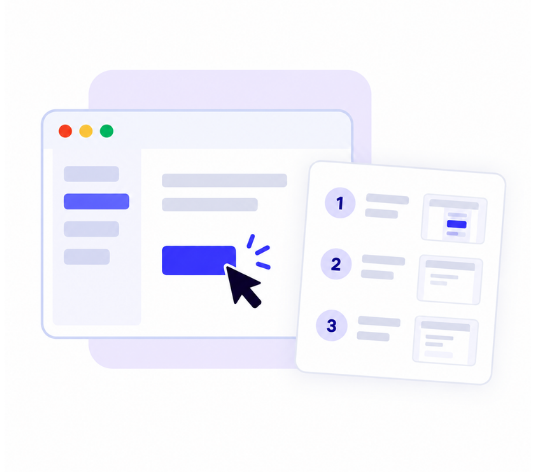
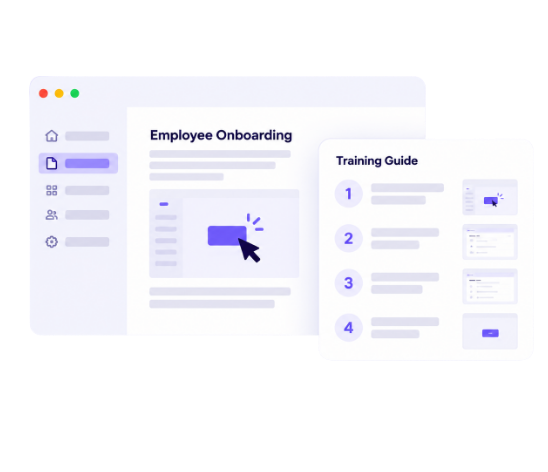
Turn the process you already know into a repeatable training doc. Record it and new hires follow the same steps every time.

Customer Onboarding

Show new customers exactly how to set up and use what they bought, with steps they can revisit whenever they get stuck.

ai homepage
telepromptor

Change Management

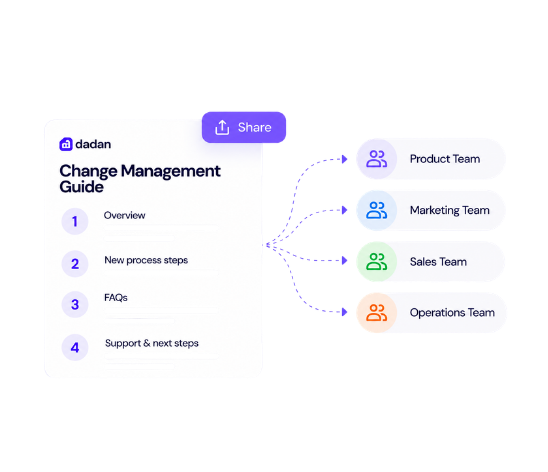
When you roll out a new tool or a new process, most of the questions are the same. Record the new workflow and send the guide, so the rollout doesn't need to be the same walkthrough repeated for every team.

Internal Processes

Capture how your team actually does the work, from expense reports to deployment checklists, so knowledge doesn't live in one person's head.

Turn Highlights Into Short Clips
video analytics

How-To and Step-by-Step Guides

Answer the "how do I do this" questions once. Record the steps, publish the guide, and send the link the next time someone asks.

Meet Our Happy Customers

IMGBG

Turn Recordings Into Guides Automatically

video

Automatic Screenshots

As you click, Dadan grabs the screen behind each step, so the guide will show what you’re pointing at. You can annotate any of them, and you never need to stop mid-task to take a screenshot yourself.

editor icon

Numbered Steps

When you click through the process, each click becomes its own numbered step in the guide in the same order that you do it. So, whoever reads the guide gets a list of steps to follow instead of only the video to follow through.

search

Original Recording

Instead of only getting a video recording, Guides gives you both a video and a doc from the same recording. If anyone wants to watch the exact step, they can simply click and play the video.

brush

Written Instructions

Every step in the guide comes with an instruction that you can edit or rewrite. Dadan gives you a draft, but you can sharpen it to make it more relevant to your team or provide more detail.

send

Guide Editing

You can rewrite the text, annotate screenshots, merge steps, or delete any, and finalize before you share it as a PDF.

cc

Translation

You can translate the finished guide in any of 40+ languages, so the same onboarding doc works for your team across the globe.

script icon

Sharing

Publish your guide and share it straight from Dadan, alongside the rest of your video content.

feedback icon

PDF Export

Export the guide to a PDF when someone needs a file instead of a link.

privacy

Viewer Engagement

See how your guide performs, which guides people open and which they skip. Track views and engagement on every guide you publish.

Why Create Guides With Dadan?

Features
Turns a recording into guides
How steps are captured
Screenshots per step
Edit and reorder steps
PDF export
Guide translation
Guides on the free plan
shines fill
Dadan Guides
Yes
Each click, live during recording
Yes
Yes
Yes
Yes
Yes
Other Guide Generators
Yes
Transcript, after recording
Yes
Yes
Yes
English-only
No

Turn Your Recordings Into Step-by-Step Guides

FAQs

A guide generator is a tool that turns a recorded process into a written, step-by-step guide. Instead of documenting each step manually, you record the workflow and the tool builds the steps for you.

You record your screen through the Dadan browser extension, and every click you make becomes a separate step. Dadan arranges those steps into a doc-style with a screenshot on each one, and you can edit, reorder, and publish it when from there.


Yes. That's exactly what Guides does. You record the process on screen, and each action is captured as its own numbered step in the finished guide.

Yes. As you record, Dadan captures a screenshot for each step, so your finished guide pairs every instruction with the screen it refers to. You don't have to take or add any images yourself.

Yes. You can rewrite the text on any step, annotate screenshots, reorder or merge steps into one, delete steps, or add a new one manually. 

Yes. Once you publish a guide, you can share it from Dadan the same way you share your other content.

Yes. You can translate a finished guide into over 40 languages, which makes it easy to share the same process with teams or customers in different regions.

Yes. You can export a finished guide as a PDF, so you can download it, print it, or share it with people who don't use Dadan.

Yes. Guides are included on every plan, including the free plan, which gives you 2 guides per month at up to 5 steps each. Paid plans raise those limits, up to 25 guides per month at 100 steps each on Business.

Guides work for product walkthroughs, employee training, software documentation, customer onboarding, change management, internal processes, and any how-to content. If it's a process you can click through on screen, you can turn it into a guide.