Steps to request a video recording
Follow these steps to request a video recording in dadan:
- Access the request feature:
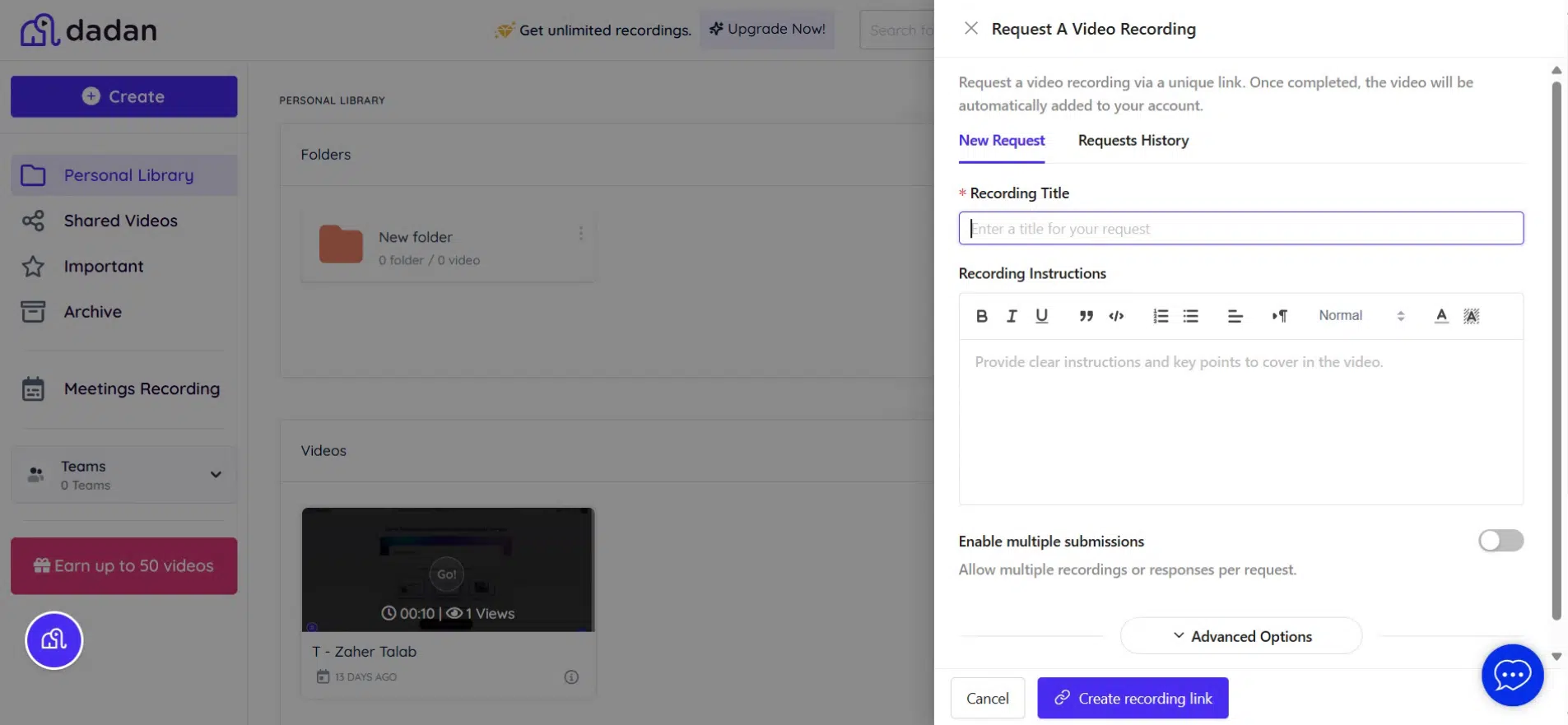
- Open the dadan app and click Create on the left sidebar to open the dropdown menu.
- Select Video Recording Request from the options.

- The Request a Video Recording panel will appear for you to fill out.
Filling the request form
Follow these steps:
- Enter the request details:
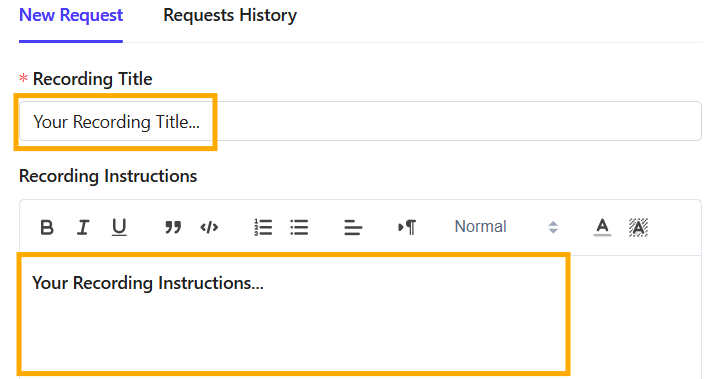
- Recording Title: Provide a clear title for the request.
- Recording Instructions: Add specific details on what should be covered in the video. This helps the recipient understand the purpose and key points to address.
- Enable multiple submissions (optional):
- Toggle the option if you want multiple recordings or responses per request.
- Allow Anonymous submissions:
- Keep this option enabled if you want to allow anyone with the request link to record and submit a video.

- Set advanced options (if needed):
- Click Advanced Options to configure additional preferences.
- Recording Deadline: You can set a deadline for submitting the recording.
- Save Video In: Choose where the recorded video will be stored (e.g., Personal Library or Team Space).
- Recording Mode: Select whether the user can choose their recording settings or if specific modes (e.g., screen only, camera only, both) should be enforced.
- Password protection (optional): To restrict access to the recording link if needed.
- Click Advanced Options to configure additional preferences.

- Send the request:
- Click Create recording link to complete the process.
A link to the request will be created, allowing you to copy and send it to a teammate.
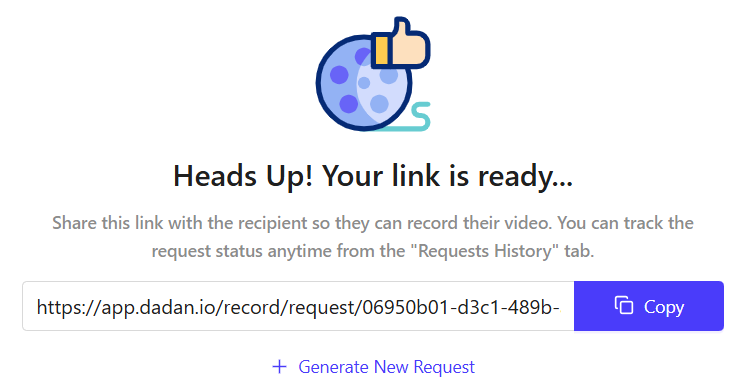
The request will appear in the Request History list.
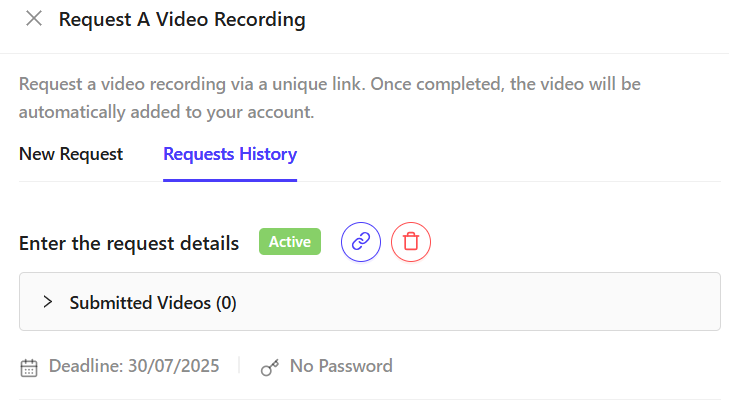
Receive and review the video
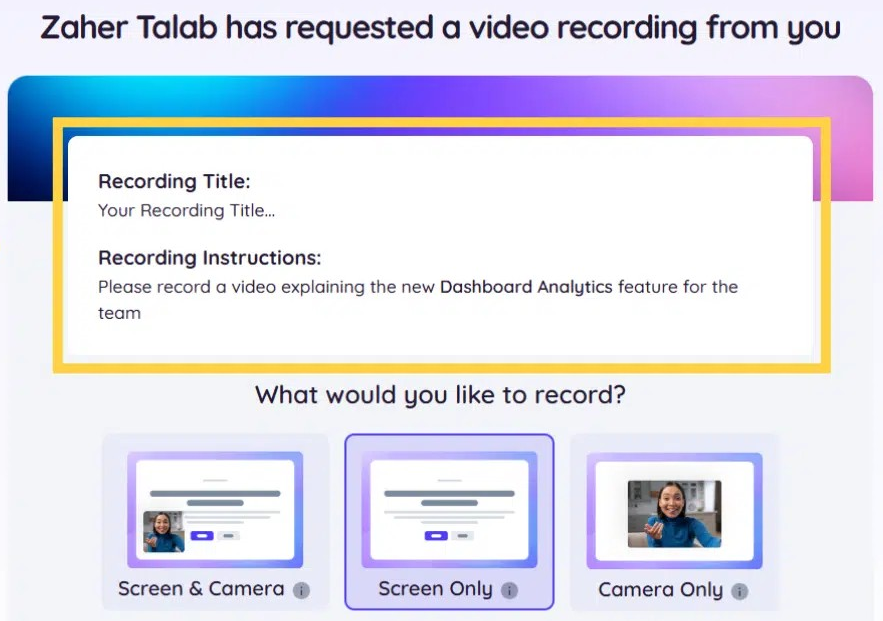
When the recipient opens the link, a recording screen opens, including the Recording Title and Instructions.