The core idea of asynchronous collaboration is to separate communication from timing.
When you link communication to availability, you introduce a constraint that has nothing to do with the quality of the work.
Separating communication from timing removes that dependency. It allows teams to contribute based on responsibility rather than presence, and it strengthens accountability because conversations are tied to specific outcomes.
In this article, we’ll look at what asynchronous collaboration actually means in day-to-day work, which features matter in tools, and the best asynchronous collaboration tools for remote and distributed teams in 2026.
What Is Asynchronous Collaboration?
Asynchronous collaboration is a way of working where people do not need to respond in real time.
Instead of discussing everything in meetings or live chat, communication is structured so it can be reviewed later. For example,
- A product update might be recorded and shared.
- A design file might collect comments over several hours.
- A project task might include detailed notes instead of a follow-up call.
The key difference from synchronous collaboration is timing.
Synchronous tools like live meetings, real-time chat, and video calls require immediate participation. They work well for brainstorming, negotiation, or urgent issues.
On the other hand, asynchronous tools for interaction and collaboration handle the rest. They support updates, reviews, documentation, onboarding, and routine coordination without forcing everyone into the same time slot.
For distributed teams, this allows work to continue across time zones. It reduces the need for repeated explanations and makes decisions easier to trace later.
Key Features Enterprise Teams Need
Asynchronous collaboration only works if the structure is strong. Without it, you just move confusion from meetings into chat threads or scattered files.
Enterprise teams need tools that do more than let people leave messages. They need systems that keep communication organized and usable over time.
Here are some features you should look for:
Clear Context
In live meetings, people can interrupt, ask questions, or request clarification immediately. In an async setup, that safety net disappears.
So, the update has to carry its own context. The reader or viewer should understand what the task is, why it matters, and what is expected next without needing another explanation.
That requires structured descriptions, attached files, and enough explanation inside the task, document, or video itself. If people still need a live call to understand it, the system is not really for asynchronous communication.
Feedback Connected to the Work
In design tools, feedback belongs on the design. In project tools, discussion belongs inside the task. In video tools, comments should link to specific moments.
When feedback is provided in separate chat threads, misunderstandings increase. So, comments should be tied to the exact item you refer to.
Search and Retrieval
Async work generates volume. Over time, you build a library of files, walkthroughs, and updates. A strong tool makes it easy to find them again.
If retrieving information is difficult, teams fall back on meetings just to reconstruct history.
Permission Controls and Security
Every task should show who is responsible and what stage it is in. Without visible ownership, async systems become passive.
More importantly, enterprise teams handle different levels of information. The tool must allow you to control who can view, edit, or share content. This protects sensitive material while still supporting collaboration.
Integration With Your Workflow
Asynchronous collaboration tools should integrate with your existing stack, such as CRM, LMS, project management software, file storage, or messaging platforms.
If information has to be manually copied between systems, async workflows break down quickly.
AI Assistance
AI is increasingly built into modern asynchronous collaboration tools. Look for useful applications like:
- Automatic transcripts for video
- Summary generation
- Smart search
- Suggested action items
These features reduce manual effort and make large volumes of content easier to navigate.
When these elements are in place, async collaboration becomes practical. Without them, teams simply trade meetings for digital clutter. With that in mind, let’s get into the list.
10 Best Asynchronous Collaboration Tools Of 2026
There is no single tool that handles every type of asynchronous work perfectly. Some focus on video communication. Others center on project tracking, documentation, or visual collaboration.
The right choice depends on how your team works.
Below are 10 asynchronous collaboration tools widely used in 2026, along with where they fit best.
1. Dadan
Quick Overview
Dadan is built specifically for async-first communication by combining video, screen recording, annotations, and structured discussions into one interface that actually feels coherent.
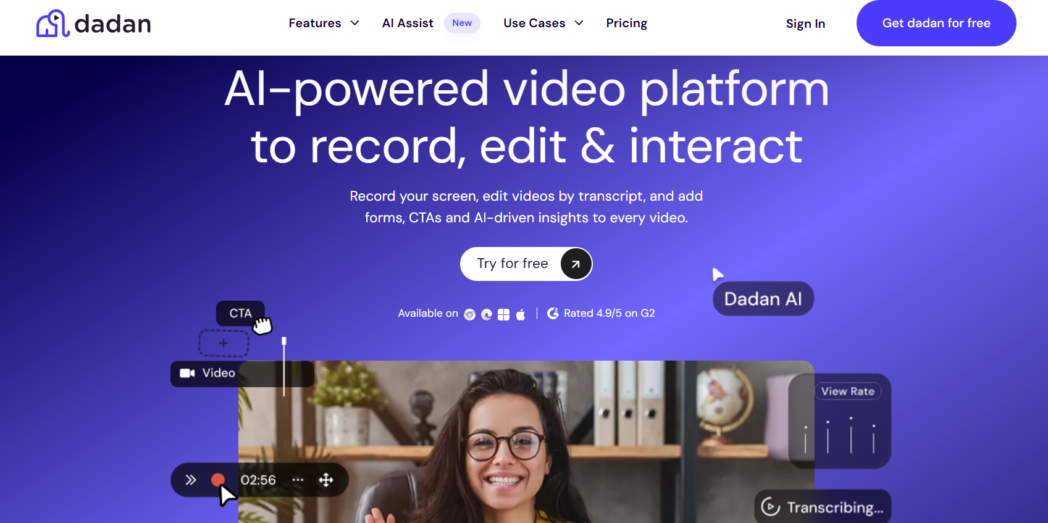
It lets you record your screen, your webcam, or both, and share the explanation as a video that others can watch later. Instead of sending a long written message or repeating the same explanation in multiple calls, you record it once and keep it accessible for anyone who needs it.
The platform also organizes those recordings inside a shared workspace. Your team can comment on specific moments in the video, read transcripts, or jump between chapters, rather than watching the entire recording.
This makes it useful when explanations are part of everyday work. Where most tools retrofit async features onto synchronous foundations, Dadan was designed from the ground up for people who need to communicate clearly without a live call.
Best For:
- Product teams
- Customer success teams
- Sales teams
- Training & enablement teams
- Design teams
- Engineering teams
Key Features:
- Screen + camera recording with timestamped commenting
- Visual annotation tools directly on recordings
- Threaded async discussions with emoji reactions and reply chains
- AI-generated meeting summaries and transcription
- Team workspaces with project-based organization
- Controlled sharing
Pros:
- Dramatically reduces the need for status-update meetings
- Visual format works especially well for design feedback and product reviews
- Clean, intuitive UI with a short learning curve
- Strong notification controls
- Integration with other tools like Slack, HubSpot, MailChimp, Trello, GitHub, Jira and more
Cons:
- Works best when the whole team adopts it, partial adoption reduces impact
Pricing Overview:
- Free
- Lite: $8 per user/month
- Pro: $14 per user/month
2. Loom
Quick Overview
Loom allows you to record your screen, webcam, or both, and share the recording instantly via a link. Teams use it to explain ideas, review work, answer questions, or walk someone through a process without scheduling a meeting.
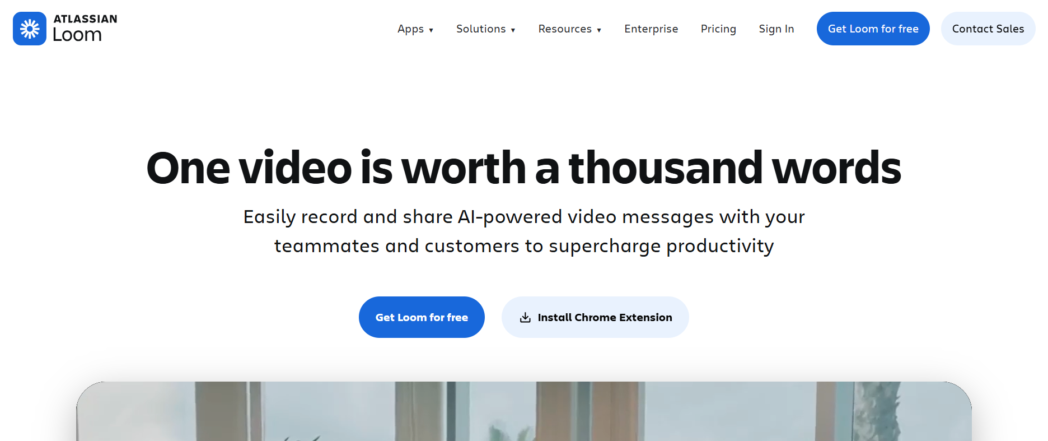
Because recordings remain stored in a shared workspace, teams can revisit explanations later. This is useful for onboarding, documentation, or repeated questions that would otherwise require another meeting.
Best For:
- Customer support teams
- Sales teams
- Product teams
- Marketing teams
- Remote operations teams
Key Features:
- One-click screen and webcam recording
- Auto-generated transcripts and captions
- Viewer analytics
- Timestamped comments and reactions
- Loom AI for summaries and task extraction
Pros:
- Fast to use
- Viewer engagement data is useful for sales and CS teams
- AI summary feature saves time on longer recordings
Cons:
- Gets expensive at scale
- Storage limits apply to free and lower-tier plans
Pricing Overview:
- Starter: Free plan
- Business: $18 per user/month
- Business + AI: $24 per user/month
- Enterprise: Custom
3. Slack
Quick Overview
Slack started as a real-time chat tool and has added async-friendly features over time, like channel threading, clips, scheduled sends, and Slack AI for summarizing threads you’ve missed.
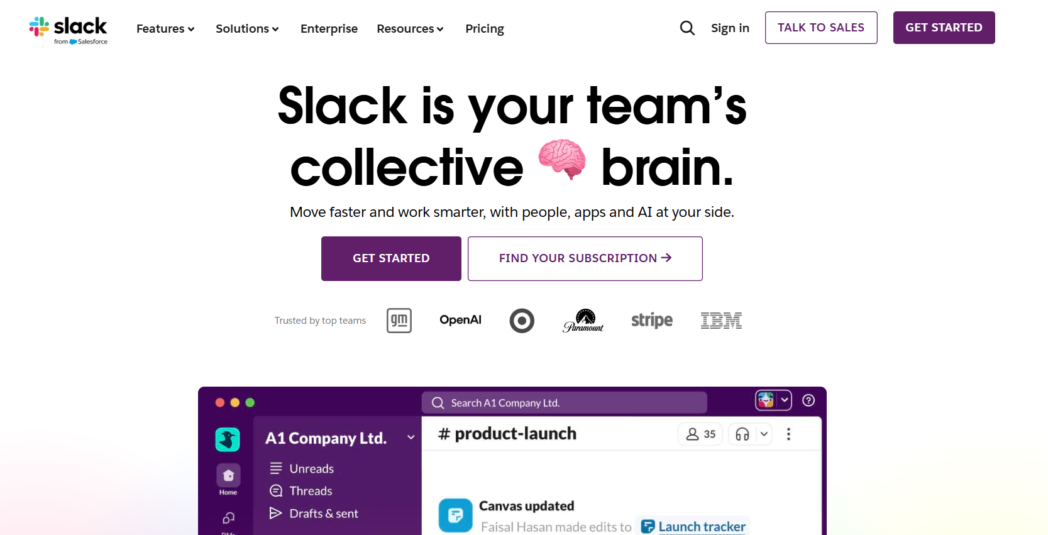
It works as long as your team establishes clear norms around response expectations. However, Slack’s strength is also its limitation. Because it handles a large volume of messages, important updates can be lost in busy channels if teams do not use threads and structure their messages carefully.
Best For:
- Engineering teams
- Product teams
- Operations teams
- Customer support teams
- Marketing teams
- Sales teams
Key Features:
- Organized channels by team, project, or topic
- Clips, scheduled messages, and status settings
- Slack AI for thread summaries and search
- Slack Connect for external partner collaboration
Pros:
- Widely used across many organizations
- Strong integration ecosystem
- Useful for quick async updates between teams
Cons:
- Notification overload
- Teams need discipline to organize conversations clearly
- Pricing adds up for large teams at higher tiers
Pricing Overview:
- Starter: Free plan
- Pro: ₹245.25 per user/month
- Business+: ₹557.10 per user/month
- Enterprise+: Custom
4. Notion
Quick Overview
Instead of messages or video updates, Notion organizes information through pages, databases, and collaborative documents.
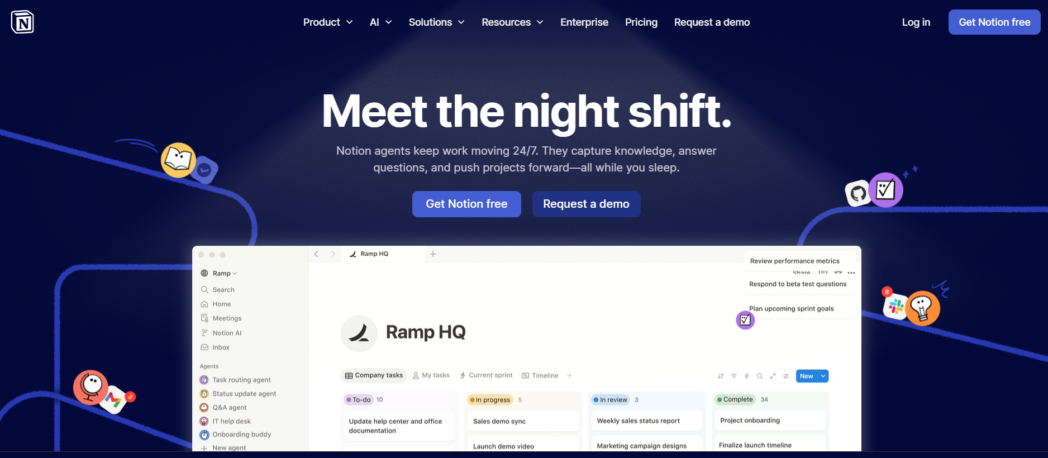
Teams use it to write project briefs, store internal documentation, track tasks, and maintain company knowledge bases. Because everything sits inside the same workspace, you can review information rather than asking someone to explain it again.
For example, a product team may document a feature release inside Notion. Later, marketing refers to the same page while preparing launch communication, or customer success teams read that documentation again when explaining the feature to clients.
Best For:
- Product teams
- Marketing teams
- Operations teams
- Research teams
- Startup teams
Key Features:
- Flexible pages and databases
- Notion AI for drafting, summarizing, and working from templates
- Inline comments and page-level discussion threads
- Integrations to Slack, GitHub, Figma, and more
- Strong template library across common use cases
Pros:
- Adaptable to any team size
- Notion AI is useful for generating structured content and summaries
- Good for onboarding wikis, SOPs
Cons:
- Performance slows with very large workspaces
- Large workspaces can become complex without a clear structure
Pricing Overview:
- Starter: Free plan
- Plus: $10 per user/month
- Business: $20 per user/month
- Enterprise: Custom
5. ClickUp
Quick Overview
ClickUp is a project management platform built to organize tasks, workflows, and project timelines in one workspace.
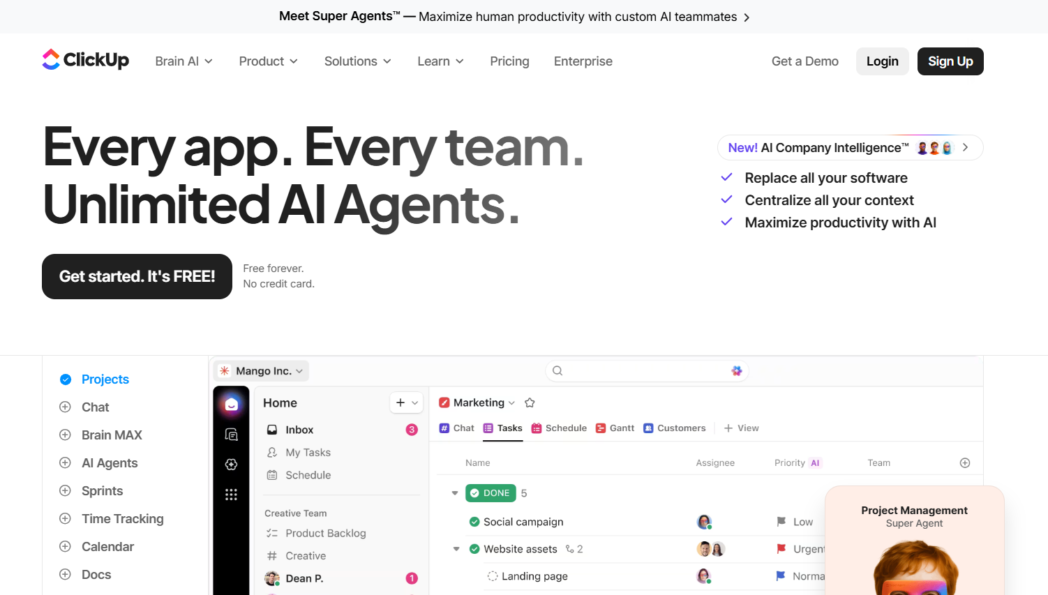
Instead of tracking work through scattered messages or meetings, you manage it through structured tasks. Each task includes the description, files, comments, deadlines, and ownership for that piece of work.
ClickUp also supports multiple project views, such as lists, boards, and timelines, so that teams can track progress at different levels, whether they are managing daily tasks or coordinating larger projects across departments.
Best For:
- Project management teams
- Operations teams
- Product teams
- Marketing teams
- Engineering teams
Key Features:
- Task and subtask management
- Custom workflows and status tracking
- Multiple project views, including list, board, and timeline
- Time tracking and reporting
- Integrations with tools like Slack, Google Drive, and GitHub
Pros:
- Strong task organization for complex projects
- Highly customizable workflows
- Supports multiple project views
Cons:
- Interface can feel overwhelming for new users
- Requires setup to maintain clean workflows
Pricing Overview:
- Starter: Free plan
- Unlimited: $7 per user/month
- Business: $12 per user/month
- Enterprise: Custom
6. Asana
Quick Overview
Asana is designed to help teams organize work through structured tasks and project timelines.
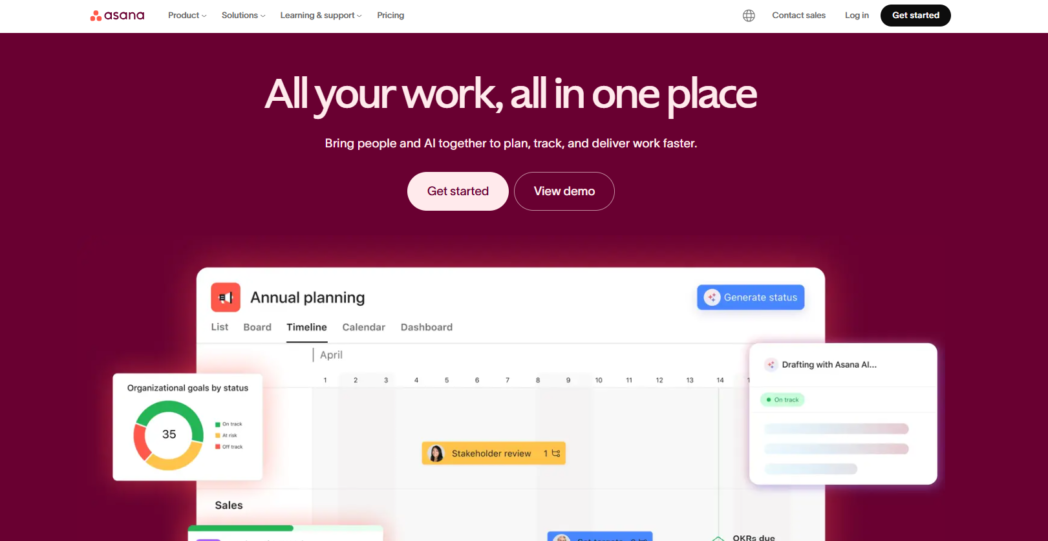
Projects are broken into individual tasks, and each task includes the owner, deadline, description, and related discussion. When someone completes their part of the work, they update the task so the rest of the team can see the progress.
For asynchronous teams, this provides a clear overview of project status. Instead of scheduling check-ins to understand what is happening, teams review the task list and activity inside the project.
Best For:
- Project management teams
- Operations teams
- Marketing teams
- Product teams
- Program management teams
Key Features:
- Tasks with clear ownership, due dates, and dependencies
- Timeline view for project planning
- Goals and portfolio views for leadership oversight
- Asana Intelligence for workflow automation and reporting
- 200+ integrations, including Salesforce, Slack, and Microsoft Teams
Pros:
- Task ownership is explicit and clear at every level
- Easy to understand project timelines
- Widely adopted across organizations
Cons:
- Less flexible customization compared with some project tools
- Advanced reporting features require higher-tier plans
Pricing Overview:
- Personal: Free plan
- Starter: $10.99 per user/month
- Advanced: $24.99 per user/month
- Enterprise: Custom
7. Trello
Quick Overview
Trello is a project organization tool built around a visual Kanban board system. Work is represented as cards that move across columns such as “To Do,” “In Progress,” and “Completed.”
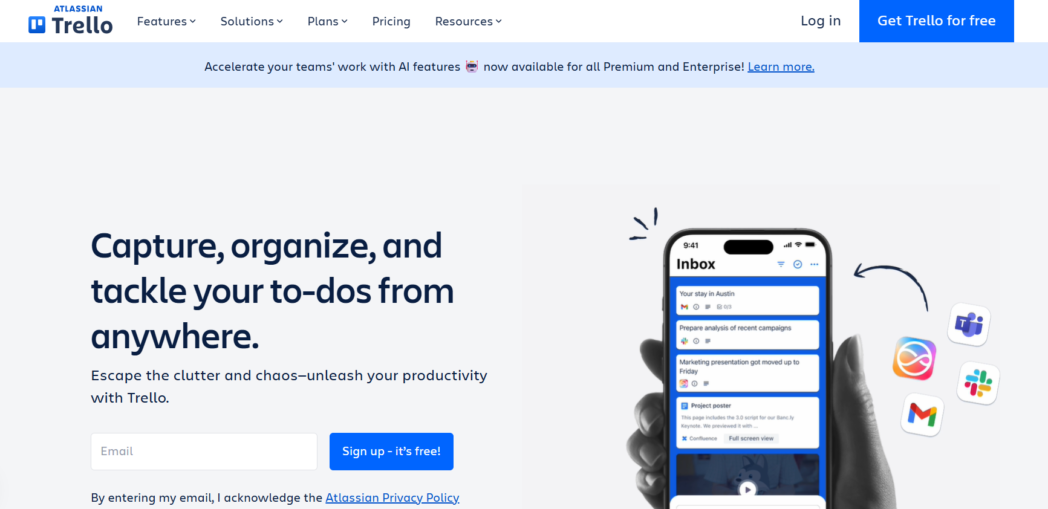
Instead of coordinating progress through meetings or long message threads, you track work by updating the card itself. Each card contains the description, attachments, comments, checklists, and due dates related to that task.
For asynchronous teams, this works because the board itself becomes the status update. It works well when teams need a clear visual overview of work but do not require the deeper workflow customization found in more complex project management systems.
Best For:
- Project management teams
- Marketing teams
- Operations teams
- Product teams
- Content teams
Key Features:
- Drag-and-drop Kanban boards
- Cards with checklists, due dates, attachments, and labels
- Power-Ups for integrations with Slack, Google Drive, and more
- Timeline and table views on paid plans
Pros:
- Easy to learn and adopt
- Clear visual overview of tasks and progress
- Flexible for small and medium-sized projects
Cons:
- Doesn’t scale well to complex, multi-team projects
- Reporting and analytics are limited
- Power-Ups can feel like patches for missing features
Pricing Overview:
- Free plan
- Standard: $5 per user/month
- Premium: $10 per user/month
- Enterprise: $17.50 per user/month
8. Confluence
Quick Overview
Confluence is a documentation and knowledge management platform developed by Atlassian. It is designed to store internal documentation, meeting notes, product specifications, and team knowledge in a structured workspace.
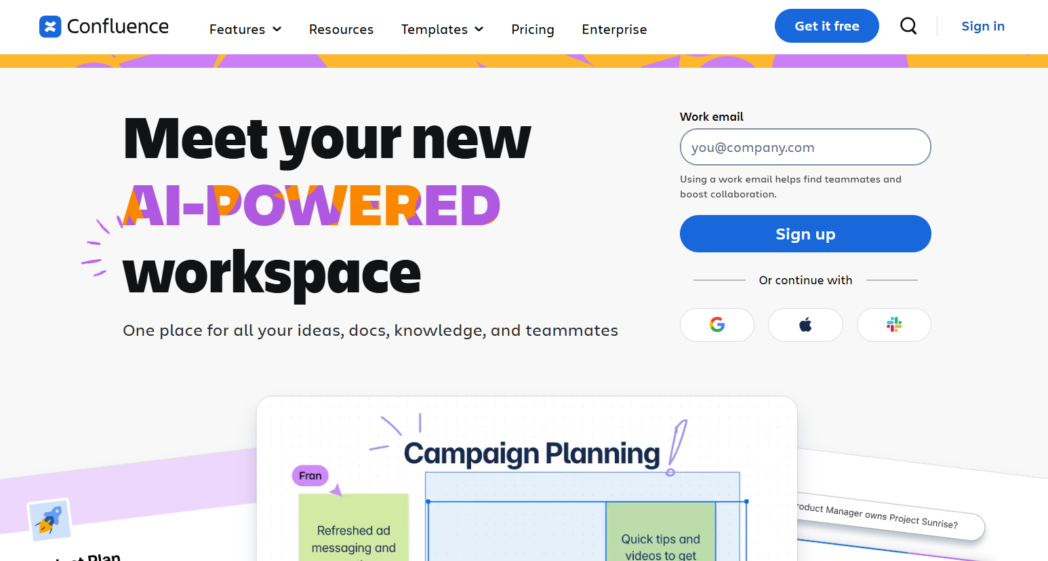
Instead of sharing information through scattered documents or emails, you write and organize documentation inside pages that remain accessible to the entire organization.
For asynchronous collaboration, this becomes a central reference point. When you need context on a feature, process, or decision, you open the relevant page and review the documentation rather than asking someone to explain it again.
Confluence is commonly used alongside project management tools such as Jira, where the documentation explains the work, and the task tracker manages the execution.
Best For:
- Engineering teams
- Product teams
- Operations teams
- IT teams
- Documentation teams
Key Features:
- Collaborative documentation pages
- Structured knowledge bases
- Commenting and inline feedback
- Version history and page tracking
- Integrations with Jira, Slack, and other Atlassian tools
Pros:
- Strong documentation and knowledge organization
- Good collaboration features for technical teams
- Works well with the Atlassian ecosystem
Cons:
- Interface feels dated
- Non-technical users often struggle with navigation
- Best suited for teams already using Atlassian products
Pricing Overview:
- Free plan
- Standard: $5.42 per user/month
- Premium: $10.44 per user/month
- Enterprise: Custom
9. Miro
Quick Overview
Miro is an infinite whiteboard used by design teams, product managers, and anyone running structured workshops or retrospectives.
What makes it work for async is the contribution model. Team members can add sticky notes, vote on ideas, and build out diagrams on their own schedule, without a live session.
Instead of discussing ideas only through text or meetings, Miro allows you to place diagrams, notes, images, and frames on the board so others can review and respond later.
Because the board remains saved and editable, the team can return to it later instead of recreating the discussion in another meeting.
Best For:
- Design teams
- Product teams
- UX research teams
- Innovation teams
- Strategy teams
Key Features:
- Infinite canvas with templates for brainstorming, journey mapping, and retrospectives
- Sticky notes, voting, and timer tools
- Miro AI for clustering ideas and generating visual summaries
- Async presentation mode with video walkthroughs
- Integrations with Figma, Jira, Asana, and Slack
Pros:
- Strong visual collaboration capabilities
- Useful for brainstorming and design workflows
- Flexible canvas for mapping complex ideas
Cons:
- Boards get cluttered fast without clear ownership norms
- Performance degrades with very complex boards
- Free plan is limited to 3 editable boards
Pricing Overview:
- Free plan
- Starter: $8 per user/month
- Business: $20 per user/month
- Enterprise: Custom
10. Basecamp
Quick Overview
Basecamp is a project coordination platform designed to keep communication and work organized in a single place. Instead of managing tasks, messages, and files across multiple tools, Basecamp groups them inside a project workspace.
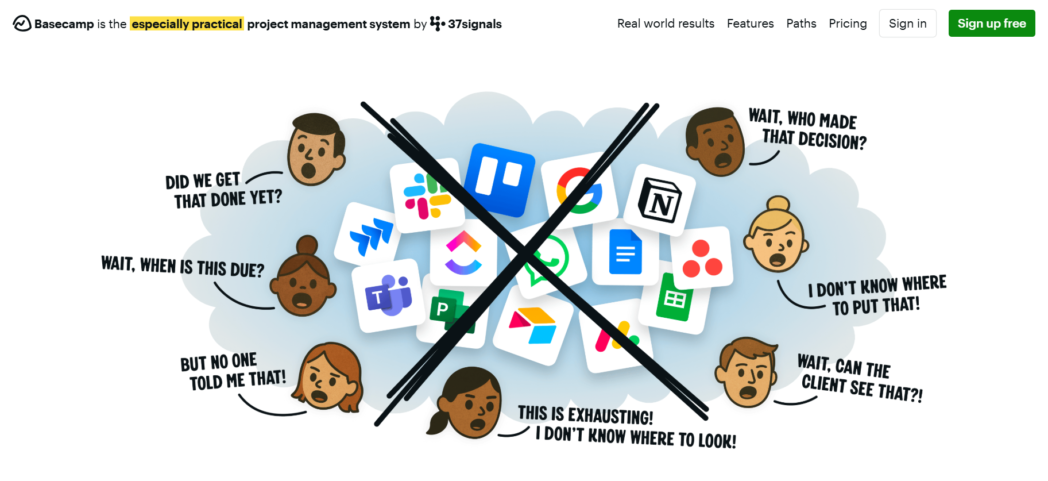
Each project includes message boards, to-do lists, shared files, and schedules. Updates and discussions stay attached to the project, so the team can review them later without needing a meeting to catch up.
When you open the project, you see the latest updates, pending tasks, and recent discussions. Everyone involved can review the same information without scheduling a status call.
Best For:
- Operations teams
- Project management teams
- Marketing teams
- Agency teams
- Remote teams
Key Features:
- Projects with message boards, to-dos, schedules, and file storage
- Campfire (group chat) and Pings (direct messages)
- Hill Charts for tracking project momentum
- Automatic check-in questions to replace status meetings
- Client access for external collaboration
Pros:
- Simple and easy to adopt
- Keeps project communication in one place
- Reduces reliance on status meetings
Cons:
- Limited customization compared with other project tools
- Fewer advanced reporting features
Pricing Overview:
- Free plan
- Basecamp Plus: $15 per user/month
- Basecamp Pro Unlimited: $299/month
When Enterprises Should Adopt Async Tools
The clearest signals are that your team spans more than two time zones, and people are blocked waiting on responses, onboarding relies on shadow calls that could be recordings, or recurring status meetings are consuming time that written updates could cover just as well.
But remember that the shift doesn’t have to happen all at once. Go slow and steady.
Replace one status meeting with a shared doc update. Record your next project kickoff instead of requiring live attendance. Set a response-time norm so people aren’t expected to reply instantly.
How To Choose The Right Async Collaboration Tool
The best tool is the one your team will actually use, and that depends on your workflow, your existing stack, your team size, and where your current process is breaking down. Here’s how to think through it.
Identify Where Work Is Getting Stuck
Most teams have one dominant problem. Knowledge is scattered across Google Docs, Slack threads, and email, and no one can find anything.
Feedback loops are slow because everything requires a live call. Tasks are being dropped because ownership is unclear. Status updates consume 2 hours of meetings each week, which could be handled in a single shared document.
Identify the specific failure mode before picking a tool. Picking a tool before diagnosing the problem is how teams end up with five half-adopted platforms and the same underlying issues.
Match the Tool to the Type of Work
Not all asynchronous collaboration tools do the same job. Most fall into three buckets:
- Async video collaboration tools for walkthroughs, demos, reviews, and explanations that are faster to show than type
- Project management tools for tracking tasks, owners, deadlines, and dependencies
- Documentation tools for keeping decisions, specs, and process knowledge easy to find later
If you try to force one tool to do all three, you usually end up with messy workflows.
Check Whether It Preserves Context
Async only works when someone can open the item later and still understand it. So check whether the tool supports:
- Clear descriptions and attachments
- Comments that stay connected to the work
- Version history or traceability where needed
If it pushes you back into messages, it’s not doing the job.
Make Sure It Fits Into Your Stack
Look at whether it connects well with what you already use for messaging, CRM, file storage, and project tracking. If it creates another island, your team will default back to meetings to reconnect the dots.
Run A Real Pilot
Almost every tool here has a free plan. Pick a live project, assign it to the tool for 4 weeks, and evaluate based on actual usage.
The question worth asking at the end is whether your people use it without being prompted. Did it reduce the friction it was supposed to reduce? Would the team be inconvenienced if it were taken away?
If the answer to any of those is no, the tool isn’t the right fit, or the problem you’re solving isn’t the right one to start with.
Future Trends: Async Collaboration in 2026 and Beyond
The tools are getting smarter. AI summarization, automated task extraction from recorded discussions, and intelligent document search are all maturing quickly.
By the end of 2026, the better platforms will surface relevant information proactively rather than waiting for you to search for it.
The other shift is cultural. Teams are learning that good async communication is a skill, clear writing, sufficient context, and explicit ownership. Organizations that develop this skill intentionally are seeing better outcomes than those treating async as just a tooling decision.
Conclusion
The tools on this list solve real problems. Which one is right for your team depends on where your biggest bottleneck is, what you’re already using, and how much change your team can absorb at once.
Start with one problem. Pick the tool that addresses it most directly. Get adoption. Then build from there.
FAQs
What is asynchronous collaboration and how is it different from real time collaboration?
Asynchronous collaboration means you do not need everyone present at the same time to move work forward. People share updates, feedback, and decisions so others can review them later.
Real-time collaboration happens live. Meetings, calls, and live chat require immediate participation. Most teams use both, but async handles routine coordination better.
Why are enterprises shifting toward asynchronous work models?
Because scale breaks real-time coordination. As teams spread across locations and time zones, meeting-heavy workflows become inefficient. Async models reduce scheduling dependency, improve documentation, and make it easier to keep work moving across distributed teams.
What are the main benefits of asynchronous collaboration tools for large teams?
They reduce repeated explanations, improve visibility into work, preserve decisions and context over time, and support distributed teams without forcing constant meetings. They also make onboarding easier by keeping information accessible.
How do asynchronous tools reduce meeting overload in organizations?
They move routine communication into formats that can be reviewed later. Instead of scheduling status updates, teams share a single update and let others review it when they have time. Live meetings become more focused on decisions that truly require discussion.
Are asynchronous collaboration tools suitable for global and distributed teams?
Yes. That is one of their strongest use cases. Async tools allow teams in different time zones to contribute without waiting for overlapping work hours, while still keeping work and decisions visible.
How secure are asynchronous collaboration platforms for enterprise use?
It depends on the platform, but enterprise-ready tools typically include role-based access, controlled sharing, admin oversight, and security controls. If your team handles sensitive data, you should verify these features before rolling out the tool broadly.
How does AI improve asynchronous collaboration workflows?
AI helps teams process large amounts of content faster. Common uses include video transcripts, summaries of long updates, search improvements, and identifying action items from discussions. The main benefit is saving time when reviewing information.
Can asynchronous tools replace traditional meetings completely?
No. Some conversations still require real-time discussion, especially on sensitive topics, in negotiations, or for complex decisions where back-and-forth is needed. Async tools reduce meeting volume, but they do not remove the need for live collaboration entirely.
How can sales and customer success teams use asynchronous collaboration?
Sales teams use async tools to share recorded product walkthroughs, proposal explanations, and follow-ups that prospects can review later. Customer success teams use them for onboarding, training, troubleshooting, and answering repeat questions with clear, recorded explanations.
Recommended Readings:
- 10 Tips for Better Async Video Communication
- The Future of Work Is Asynchronous and AI Transcriptions Are Leading the Way
- Why Asynchronous Communication Is Changing the Way We Work