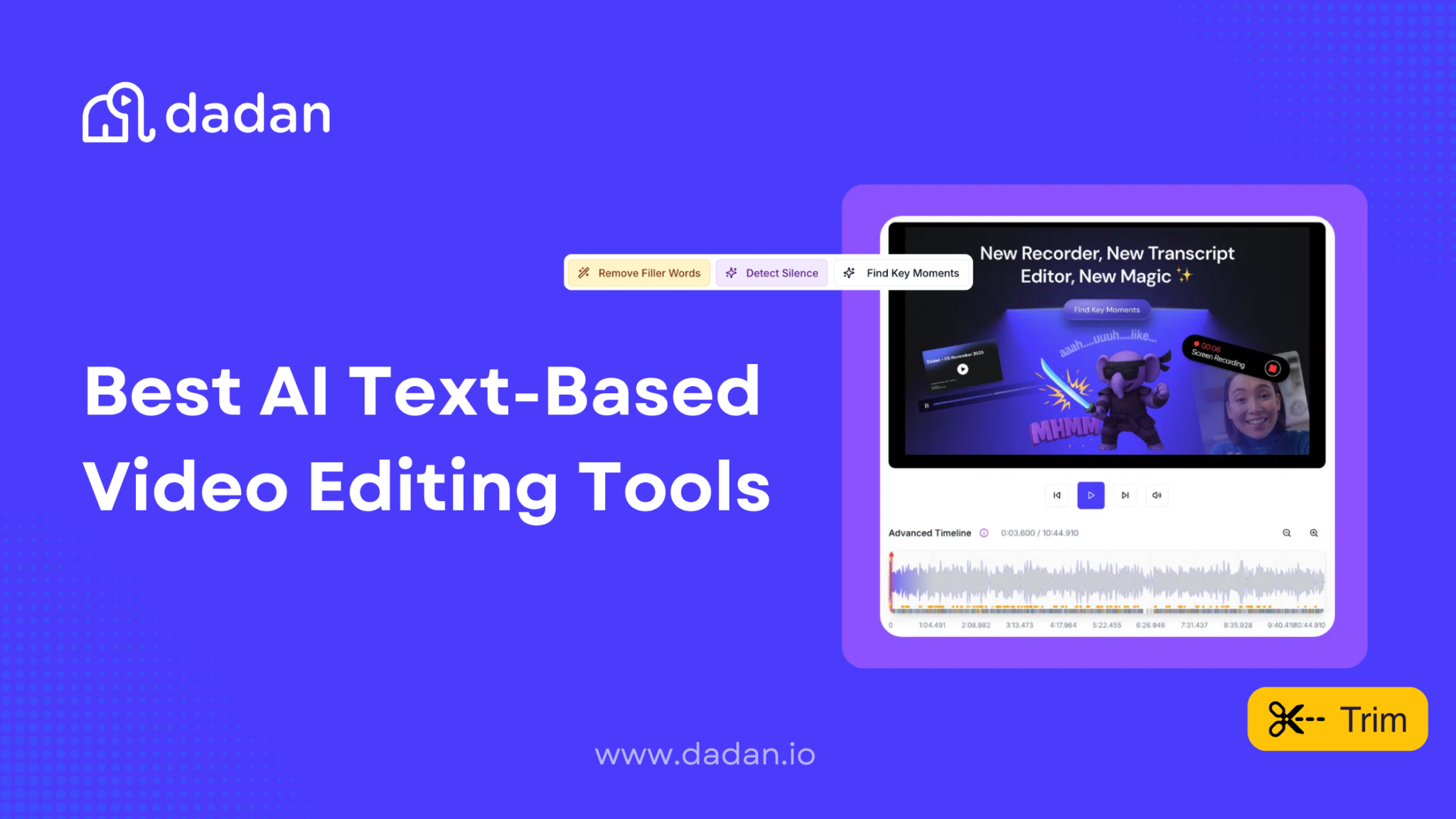
In text-based video editing, instead of working on a timeline, you work with text that’s time-linked to the audio and video.
When you delete, move, or correct a line in the transcript, the corresponding part of the video updates automatically. The transcript and the video stay in sync throughout the edit.
It’s mainly used for spoken content, like talking-head videos, YouTube explainers, webinars, podcasts, course lessons, and product demos. In these formats, editing usually means removing sections or rearranging parts of the text, instead of adjusting the visuals.
Because of that, transcript-based editing is often faster than traditional timeline editing for long or repeatable content. You can scan, search, and revise the transcript directly instead of replaying sections of the video to find what needs to change.
Best AI Text-Based Video Editing Tools
If you’re working with talking-head video regularly, the idea of editing through a transcript starts to make sense very quickly. You’re already thinking in sentences, so being able to edit video by editing text feels more natural once you try it.
Most text-based video editing tools follow this basic approach, but the experience can vary a lot depending on how the transcript is generated, how it is synced to the video, and how easy it is to make edits without breaking the flow.
The tools below all support transcript-based video editing, but each one fits a slightly different kind of workflow, depending on what you’re recording and how often you edit.
1. Dadan
Dadan makes sense as a text-based video editor in a video editing list because the workflow starts with recording and stays text-driven all the way through editing.

You record a screen, webcam, or both (with audio), Dadan generates a transcript, and that transcript becomes the control layer for editing. Instead of importing footage into a separate editor or blindly cutting on a timeline, edits are made directly from the audio.
The same transcript then carries forward into captions, summaries, meeting note taker, and chapters, so you’re not reprocessing the video at every step.
Key features
- Edit video by editing the transcript (cut, move, reorder text to update video)
- Auto-remove filler words and silent pauses with review controls
- Drag-and-drop paragraph reordering inside the transcript
- Mute specific words or phrases directly from the text
- Search and replace terms in the transcript to update the video
- Generate captions automatically from the transcript
- Create clips by selecting text and exporting them in multiple aspect ratios
- Transcribe and edit in multiple languages, with translation support
Pros
- Edit videos by editing text
- Automatic transcription
- Multi-language support
- No watermark
Cons
- No dedicated mobile app
Rating
- 4.9/5 (G2)
2. Descript
Descript uses a transcript as the central editing layer. You upload or record a video, the software generates a transcript of the spoken content, and edits are made by modifying that text.
When you remove or adjust text in the transcript, the changes are reflected directly in both the audio and video.
Descript also integrates the transcript with captions and clip creation, so text editing, transcription, and media edits all happen within the same environment. This allows you to work from the words themselves instead of relying solely on timeline cuts.
Key features
- Edit video and audio by editing the transcript
- Delete or rearrange transcript text to update the video
- Auto-remove filler words
- Search the transcript to locate specific moments
- Generate captions from the transcript
- Record audio or video directly in the editor
- Create clips by selecting transcript sections
3. Veed
Veed includes text-based editing as part of its browser-based video editor. After you upload a video and generate a transcript, you can remove or trim parts of the recording by editing the text instead of working on a timeline.
The editor keeps the transcript and video linked, so changes made in textual form update the video automatically. It’s a text-driven approach that is used for shortening interviews, lectures, or speech-heavy footage without scrubbing through hours of clips.
Key features
- Generate transcripts from uploaded videos
- Remove or trim video sections by editing the transcript
- Auto-generate captions from transcript text
- Search the transcript to find specific sections
- Create shorter clips from longer videos
- Export edited videos for social platforms
4. Visla
Visla helps you work through long spoken videos without repeatedly replaying them. After you upload or record a video, Visla generates a transcript that you use to shorten and clean up the content.
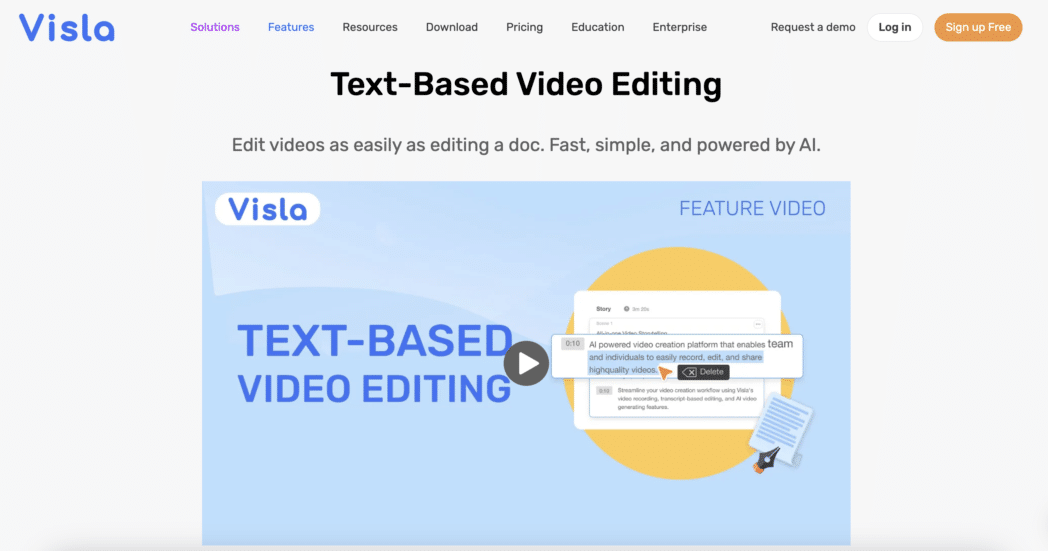
You remove sections by deleting text, search the transcript to jump to specific moments, and tighten the flow before sharing the video.
The transcript also supports captioning and subtitle translation, so the same text is used to prepare the video for distribution rather than acting only as an editing aid.
Key features
- Generate transcripts for long recordings and presentations
- Shorten videos by trimming sections through text
- Remove filler words and pauses at the transcript level
- Generate captions and translated subtitles from the same text
- Keep transcript and video aligned through multiple revisions
5. Vimeo
Vimeo’s text-based video editing is part of its video hosting and publishing system, and not a standalone editor.
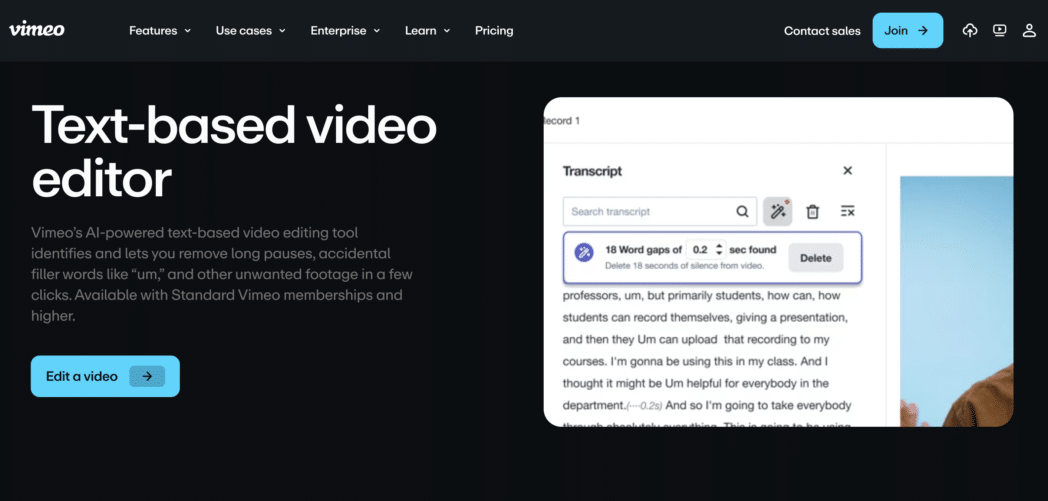
The transcript helps manage, update, and prepare hosted videos. After a video is uploaded, Vimeo generates a transcript that can be used to remove sections, adjust content, and create captions before the video is published or embedded.
Text-based editing in Vimeo supports post-upload refinement. It allows you to make changes without exporting files or rebuilding edits elsewhere, keeping content management, editing, and publishing in one place.
Key features
- Generate transcripts for uploaded, hosted videos
- Trim or adjust content after upload using transcript edits
- Create captions before publishing or embedding
- Update hosted videos without exporting or re-editing elsewhere
6. Wondershare Filmora
Wondershare Filmora approaches text-based video editing as a supporting feature inside a timeline-first editor.
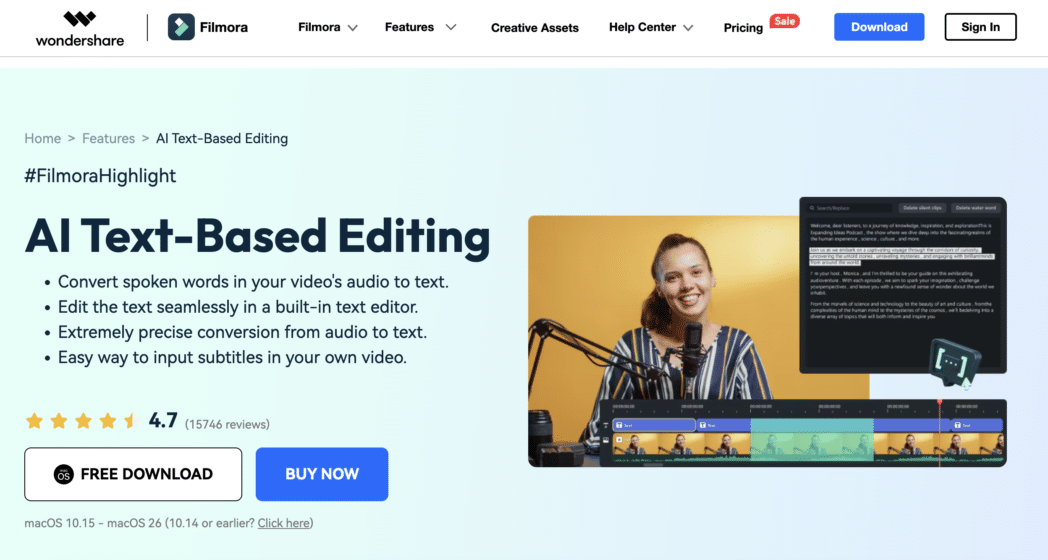
You import a video, generate a transcript, and use that transcript to remove or shorten spoken sections. After that, you continue editing on the timeline using Filmora’s standard visual tools.
Text-based editing in Filmora helps speed up dialogue cleanup, but the timeline remains the main editing surface. So, Filmora is relevant when you want transcript-driven cuts without leaving a traditional desktop editing workflow.
Key features
- Generate transcripts from imported footage
- Remove spoken sections by editing transcript text
- Apply transcript-based cuts before timeline refinement
- Continue detailed visual editing on the timeline
- Generate captions from the transcript
7. Kapwing
Kapwing uses text-based video editing as part of a collaborative, browser-based creation workflow.
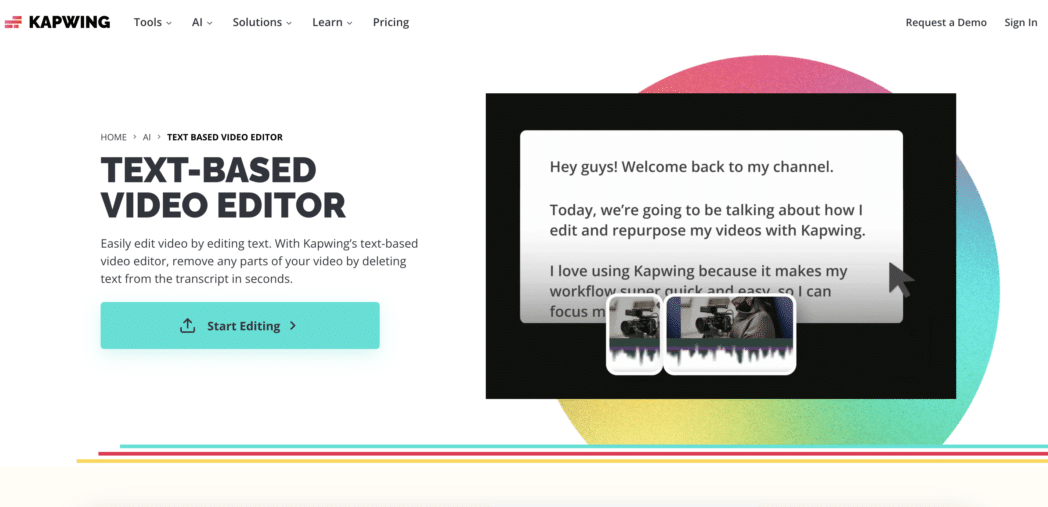
You upload a video, generate a transcript, and edit the video by deleting or adjusting text. Kapwing keeps the transcript linked to the video so text edits update the media immediately.
Text-based editing in Kapwing also supports fast collaboration. Multiple edits, caption updates, and revisions all happen in the browser without switching tools. This places transcript editing alongside visual edits, templates, and shared workspaces.
Key features
- Generate transcripts for uploaded videos
- Edit video by modifying transcript text
- Keep transcript and video synced during edits
- Generate and edit captions from the transcript
- Support browser-based collaboration on edits
8. Wistia
Wistia uses text-based editing to support marketing video management rather than full video production. You upload a video, generate a transcript, and use that transcript to trim content and create captions before publishing. Text-based edits apply directly to the hosted video.
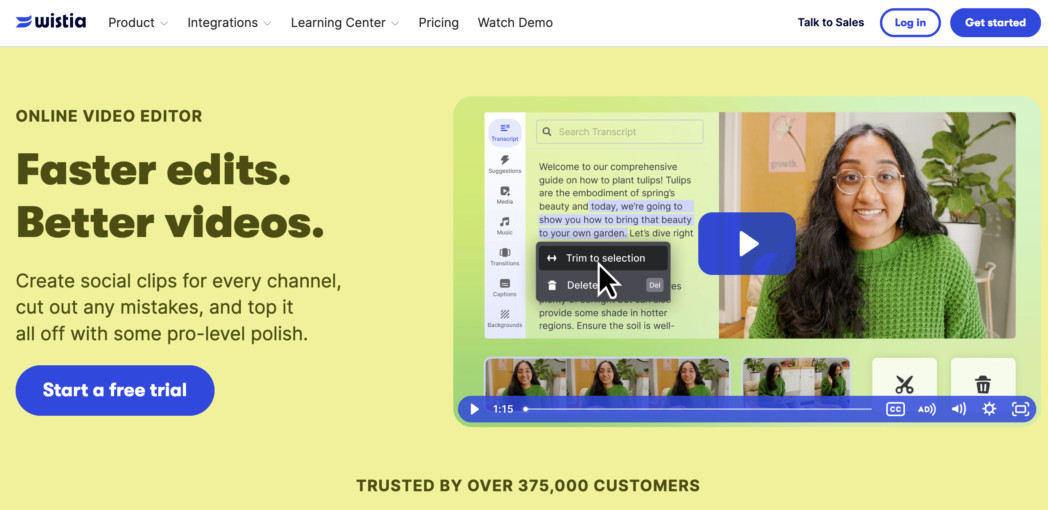
In Wistia, transcript editing supports distribution and optimisation. It allows you to adjust spoken content and captions without exporting files or rebuilding edits in another tool.
Key features
- Generate transcripts for marketing videos
- Trim spoken sections before publishing
- Create captions from the transcript
- Apply edits directly to hosted videos
- Publish videos after transcript-based updates
Conclusion
Text-based video editing changes how you approach video work when speech is the main input. Instead of scrubbing timelines and guessing cut points, you work from the transcript and let the video follow.
The difference between tools comes down to where that transcript sits in the workflow. Some tools treat the transcript as the main editing surface. Others use it to clean up edits and refine hosted videos.
Knowing where text-based editing sits in the product helps you choose a tool that fits how you already record, edit, and publish videos, rather than forcing you to change your process.
FAQs
What is text-based video editing ,and how does it work?
Text-based video editing lets you edit a video by editing its transcript. When you delete, move, or modify text, the corresponding audio and video sections are updated automatically.
How is text-based video editing different from traditional video editing?
Traditional editing relies on timelines and timestamps. Text-based editing uses the transcript as the editing layer, which makes it easier to cut spoken content without scrubbing through footage.
Who should use AI text-based video editing tools?
These tools work best for anyone creating speech-heavy videos, such as educators, marketers, sales teams, creators, and remote teams working with recordings, demos, or presentations.
Can I edit videos by deleting text from the transcript?
Yes. Most text-based video editors remove the corresponding video section when you delete text from the transcript.
Do text-based video editors support multiple languages?
Many tools support transcription in multiple languages and offer translation options, though language availability varies by platform.
Are AI text-based video editing tools suitable for beginners?
Yes. Because editing happens through text, these tools are often easier to use than timeline-based editors, especially for first-time video editors.
Can these tools handle long-form videos like podcasts or webinars?
Yes. Several tools are designed to work with long recordings and allow you to shorten, clean up, and restructure content through the transcript.
How accurate are AI-generated transcripts?
Accuracy depends on audio quality, accents, and language, but most tools provide a good starting point that you can edit directly in the transcript.
Can I remove filler words using text-based video editors?
Many tools include features that detect and remove filler words or pauses automatically, with the option to review changes before applying them.