Google Slides doesn’t let you record narration directly into a slide. That part doesn’t change.
But that doesn’t mean you can’t add a voiceover.
In practice, most people record audio outside the deck and attach it where it needs to play. It’s the normal flow. If you’ve ever shared a narrated deck asynchronously, this is almost certainly how it was done.
This guide covers the simplest ways to add voiceover to Google Slides, starting with what Slides supports natively and moving to recording-based workflows when slide-level audio becomes limiting.
Method 1: Add Voiceover Using Google Slides Built-In Audio
Google Slides does not record your voice for you. What it allows is playing audio files on slides. So the workflow is simple. You record audio first, then attach it to slides.
Step 1: Record Your Voice Outside Google Slides
Record your narration using any basic audio recorder. Phone recorder, or any other. Save the file as an MP3 or WAV file.
Record separate files for each slide that needs narration. Audio does not continue when slides change, so long recordings usually cause timing issues.
Step 2: Upload the Audio Files to Google Drive
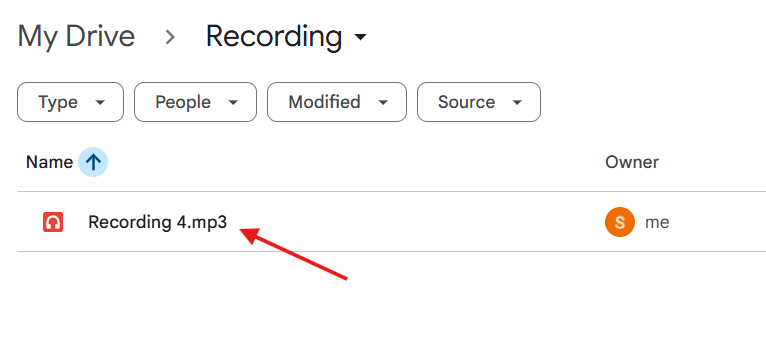
Upload the recorded files to Google Drive. Google Slides can only insert audio that already exists in Drive.
Step 3: Insert the Audio into a Slide
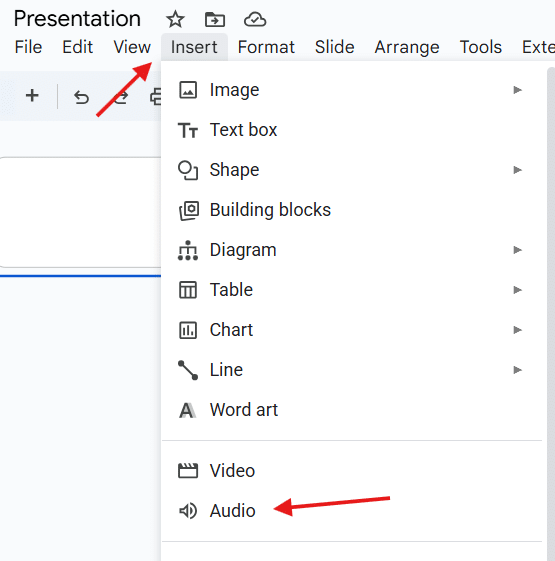
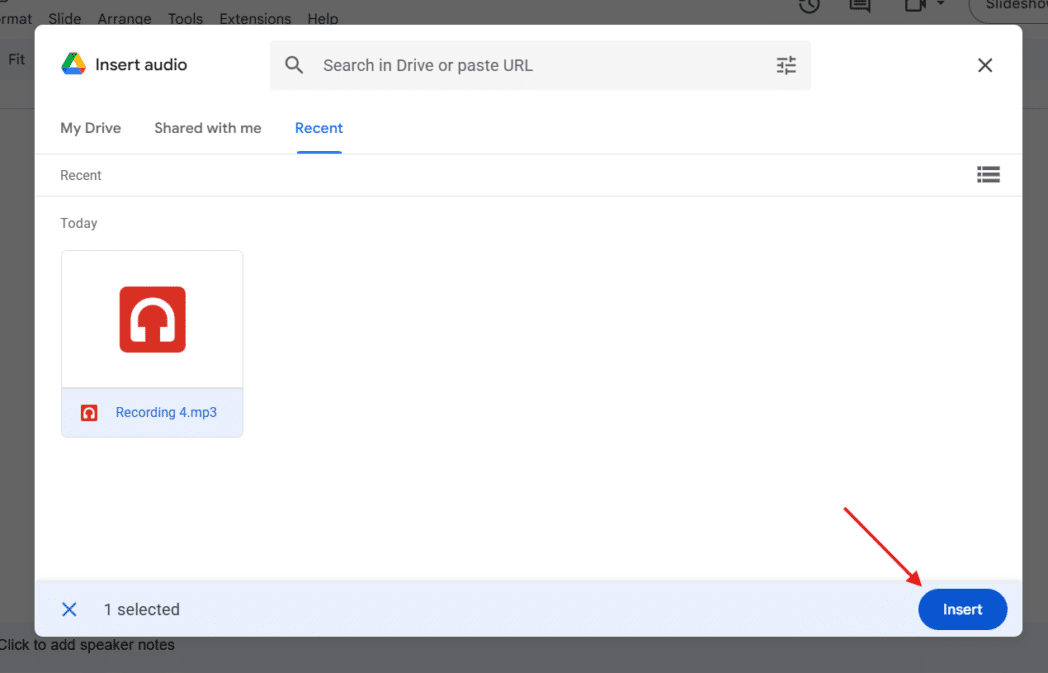
Open your presentation. Select the slide where the narration should play. Go to Insert → Audio and choose the file from Google Drive.
A speaker icon will appear on the slide. This represents the attached audio.
Step 4: Set Playback Options
Click the speaker icon to open the Format options automatically.
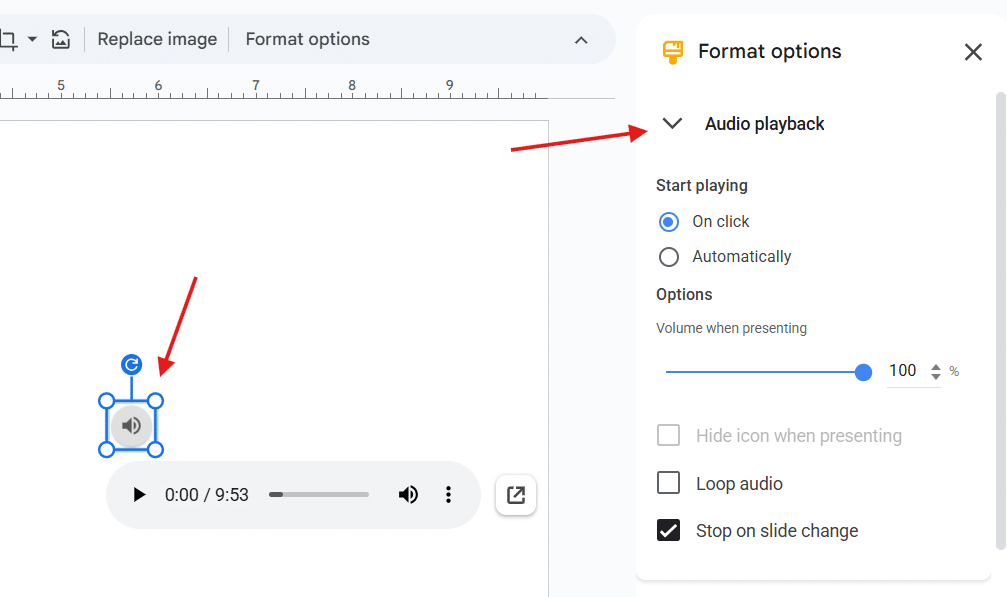
Set:
- Start automatically (if you want narration to play when the slide appears)
- Volume level
- Hide icon during presentation (so the icon isn’t visible)
These settings are applied per slide. There are no global controls.
Step 5: Repeat for Each Slide
If ten slides need narration, you repeat these steps ten times. There is no bulk upload and no presentation-level narration track.
Step 6: Test the Presentation
Run the slideshow from the beginning and listen for:
- Audio starting late
- Audio ending before you move slides
- Inconsistent volume
If narration needs changes, you need to re-record the audio file and replace it on that slide. Google Slides does not support editing or trimming audio internally.
Method 2: Record Voiceover Using Screen Recording Tools (Dadan)
But managing audio slide by slide can be cumbersome and also restrictive, so an alternative is to record the presentation and share the recording instead of the deck.
Dadan records what’s on your screen along with your voice. For Google Slides, that means presenting the deck normally while Dadan captures the slides and narration together as a single recording.
What you end up with is a video where the slides and the narration are already synced.
Step 1: Sign Up on Dadan
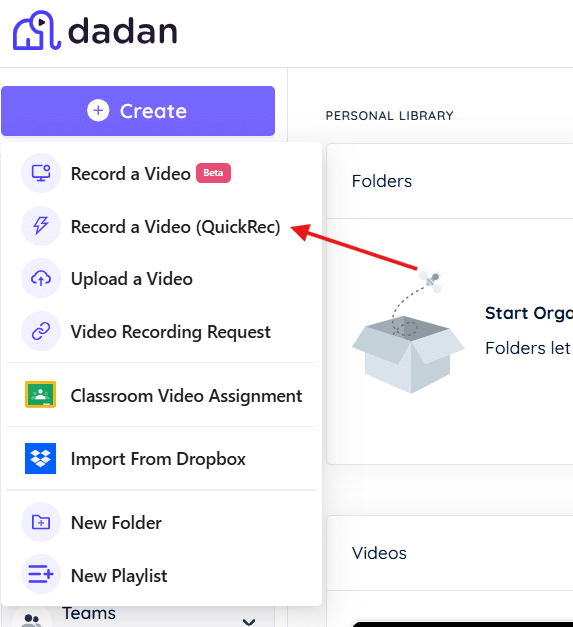
Sign up for Dadan using your email and start a recording from the browser, desktop app (Mac or Windows), or Chrome/Edge extension. You don’t need any setup inside Google Slides.
Step 2: Choose What to Record
Before starting, select:
- Screen + camera (choose this if you also want your headshot in the video)
- Screen only (else choose this only for Slides)
- Camera only
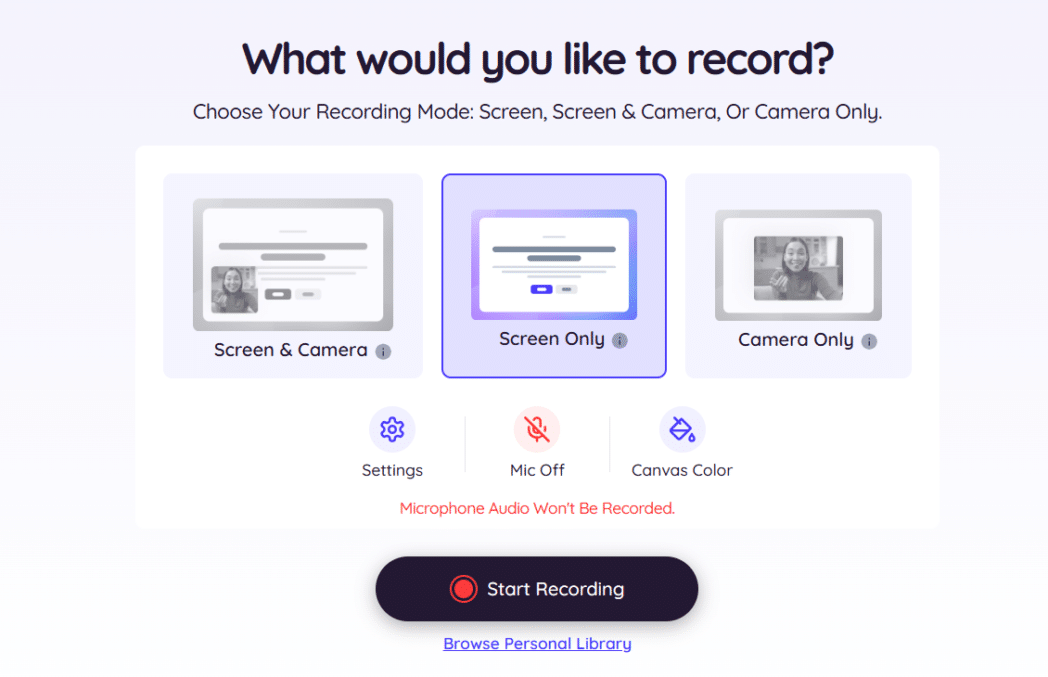
Allow microphone audio. This lets you record just the presentation, or the presentation plus your camera, depending on how you want the voiceover to feel.
Step 3: Present the Slides While Recording
Open your Google Slides deck in Present mode and speak through it as you would in a live walkthrough.
Your narration is recorded continuously. There’s no need to think about slide boundaries or audio clips. If you pause on a slide, the recording reflects that. If you move ahead, it records that too.
You can use on-screen annotations during recording to highlight specific parts of a slide.
Step 4: Review and Edit the Recording
When you stop recording, the video is automatically uploaded to your Dadan library. You can edit it inside Dadan’s built-in online video editor. You can:
- Trim sections
- Remove mistakes
- Blur sensitive information
- Add zooms or highlights
- Edit the video by editing the transcript (text-based editing)
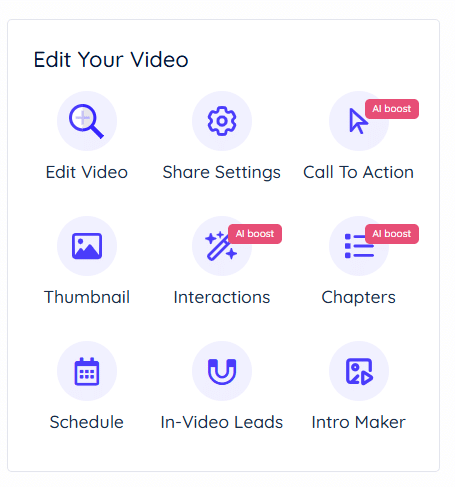
This is great because you don’t need to re-record the entire presentation just to fix a sentence.
Step 5: Share or Export
Once the recording is ready, share it using a link or export it as a video file. At this point, the slides and voiceover are already combined. There’s nothing to add back into Google Slides.

Many regular users prefer this method because recording the presentation works well when you want narration to sound natural and you don’t want to manage audio on every slide.

The only limitation is that you’re working with a video rather than a slide deck. Any updates to slides usually mean updating the recording as well.
Method 3: Use AI Tools for Voiceover and Presentation Recording
This method is when you don’t want to record your own voice for the voiceover or when you need narration that’s easy to update without re-recording.
With AI-generated voiceovers, you simply write what needs to be said, generate the audio, and then combine it with the slides.
Step 1: Prepare the Voiceover Text
Write the narration you want spoken. You can get this from the slide speaker notes or make a separate script.
Keep sentences short and direct. The audio will follow the text exactly.
Step 2: Generate the Voiceover Audio
Use an AI voice tool to convert the text into audio. Export the result as an MP3 or WAV file.
At this point, you have a finished voiceover as an audio file.
Step 3: Open Google Slides in Present Mode
Open the deck and click Present. You’re preparing to play the slides while the audio runs.
Step 4: Start a Recording in Dadan
Start a new recording in Dadan and select:
- Screen recording
- System audio
Do not enable microphone input unless you’re adding live commentary over the voiceover.
Step 5: Play the AI Voiceover
Play the generated audio as the slides advance. Let the narration control the timing.
Dadan records the slides and the audio together as a single video.
Step 6: Edit and Share
Stop the recording and review it in Dadan. Trim or cut sections if needed, then share the link or export the video.
The slides and voiceover are now combined. No changes are made inside Google Slides.
How to Choose the Right Method
The mistake most people make is picking a method based on what sounds easiest, then fighting it later when the presentation changes.
The best way to choose is to start with what the final output needs to look like and how often you expect to interact with it again.
If the Output Must Be a Google Slides File
If the final version has to stay as a Google Slides deck, then attaching recorded audio to slides is the only option you have.
This works when the content is stable, and the narration is unlikely to change. Setup takes time, but everything lives inside the deck.
When You Want to Explain the Slides
If the goal is to talk someone through the slides and let them watch it later, recording the presentation itself is usually the cleaner choice.
You explain the slides, and the output is a single video rather than a deck full of audio files. For this, you can use recording tools like Dadan, since recording and editing happen in a single place.
When Narration May/Needs to Change
If you expect to revise the narration often, reuse it across versions, generating audio from text is easier than re-recording speech. The only tradeoff is that the delivery is fixed. It won’t adapt to slides in real time the way a human presenter does.
If You’re Unsure
If none of the above applies, recording the presentation as a video is usually the safest starting point. That way, you avoid slide-level setup, don’t lock yourself into fragile configurations, and it’s easier to update without touching the deck itself.
Best Practices for Voiceover Presentations
Most voiceover issues have nothing to do with tools. They come from pacing, timing, and how the narration relates to what’s on screen.
Some points to keep in mind are:
- Speak slowly. Most people rush when recording alone, which makes the narration harder to follow than it feels while speaking.
- Pause between ideas and give the viewer time to look at the slide and connect it to what you’re saying.
- Record in a quiet space. Changing rooms, mic distance, or background noise mid-recording is distracting.
- Keep the narration aligned with what’s on screen. The voiceover should explain what the viewer is seeing now.
- Don’t read the slide word for word. Use the voiceover to add context.
- Test the full presentation once before sharing.
Common Issues and Fixes
Most problems with voiceover presentations usually fall into a few repeat patterns, regardless of whether you’re attaching audio to slides or recording the presentation as a video.
Audio Doesn’t Play When the Slide Opens
If narration doesn’t start automatically, check the playback setting on that specific slide. This is a per-slide setting, and not a global one.
Narration Gets Cut Off Mid-Sentence
If narration feels rushed or incomplete, the slide is advancing too early. Either shorten the narration or delay the transition.
Volume Changes Across Slides or Sections
Noticeable jumps in volume usually come from recording in different sessions or changing the mic distance. Once the audio is attached, Google Slides offers no audio-leveling tools.
Timing Is Off in Recorded Video
Staying too long on one slide or rushing another can make the narration feel disconnected.
Conclusion
Voiceover is one of those things that feels simple until you try to do it properly. Once you understand how Google Slides handles audio, the friction points are not surprising.
From there, it’s just a matter of deciding what you need the final output to be and how often it’s likely to change.
Most problems people run into with voiceovers are because they’re choosing a setup that doesn’t match how the presentation will actually be used. Getting that match right saves far more time than any tool choice later.
FAQs
Can you record voice directly in Google Slides?
No. Google Slides does not have a built-in way to record your voice. It only allows you to insert audio files that were recorded elsewhere.
Is voiceover supported on mobile?
You can play voiceovers on mobile, but creating or attaching audio to slides is limited. Recording and setup are much easier on a desktop.
Can viewers control audio playback?
For slide-level audio, playback behavior depends on its configuration. For recorded walkthroughs, viewers can pause, rewind, or skip like any other video.
What is the easiest way to update narration later?
Recording the presentation as a video or using text-based narration makes updates easier than replacing audio on individual slides.
Can I export Google Slides with voiceover as a video?
Google Slides does not export narrated decks as videos by default. Recording the presentation is the usual workaround.
How do you record yourself while presenting Google Slides?
You present the slides normally and use a screen recording tool to capture the screen and your voice at the same time.