Steps to quickly record a video in dadan
To quickly record a video in dadan:
- Access and select Quick Recording:
- Open the dadan app.
- On the main page, click the Create button on the left-hand sidebar:
- From the dropdown menu, select Record a Video (QuickRec).
- A new window will appear with the recording setup screen.

- Configure recording settings:
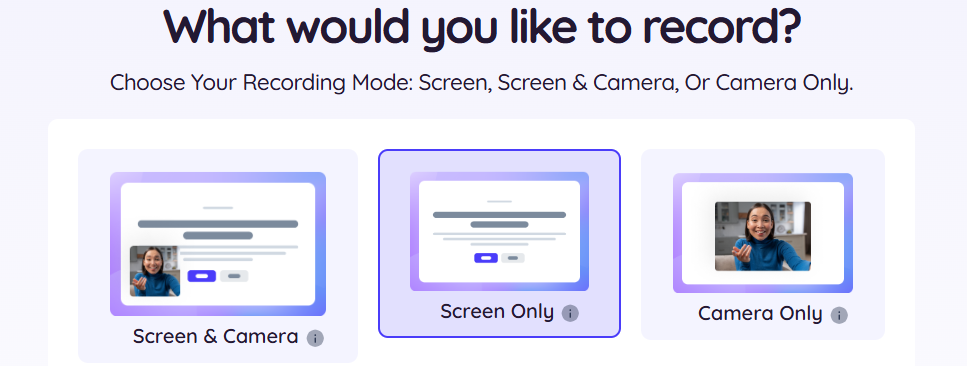
- Choose the Recording Mode based on the requester’s settings. If customization is allowed, adjust it as needed before starting:
- Screen Only: Record your screen without a camera.
- Camera Only: Record yourself using your webcam.
- Screen & Camera: Record both your screen and webcam.
- Configure camera, microphone, and audio settings (optional):
- If you select a mode that uses the camera (e.g., Screen & Camera or Camera Only), you can configure your camera settings.
- Click the Settings (gear icon) next to the recording mode options.

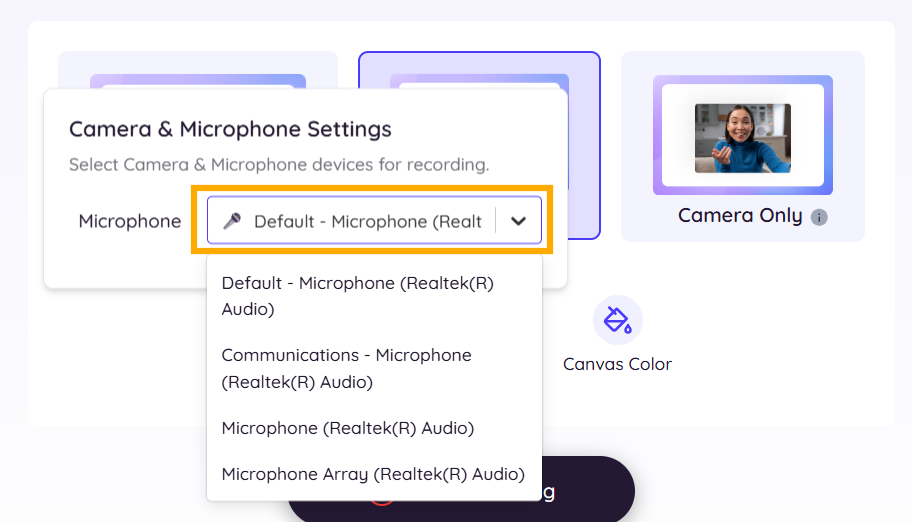
- Choose your preferred camera and microphone from the drop-down lists in the settings menu:
- Camera: Select your preferred camera.
- Microphone: Select your preferred microphone.
- Click outside the settings menu to close it.
- If you do not want to record audio, click the Mic button (microphone icon) to toggle it off.
- A red message will appear stating, Microphone audio won’t be recorded.

- Choose a Canvas Color (optional):
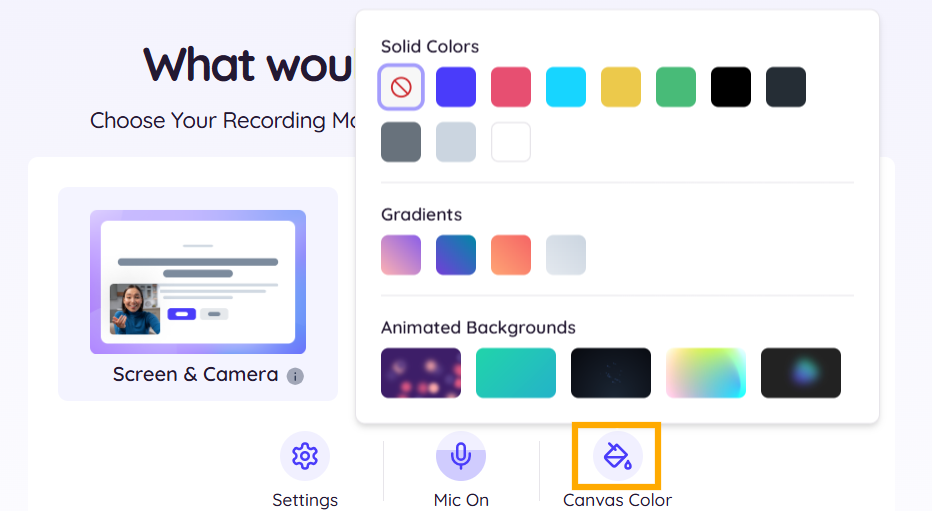
- To customize the background color of during recording, click the Canvas Color button (paint palette icon):
- A color selection menu will appear with options for Solid Colors, Gradients, and Animated Backgrounds.
- Select a color or background. For example, choose a solid color like peach.
- The background of your recording preview will update to reflect your selection.
- Start recording:
- Once you have configured your settings, click the Start Recording button at the bottom of the screen. The button is red with a timer indicating the maximum recording length.