How to create a Google Classroom video assignment
To create a Google Classroom video assignment via dadan:
- Access the Create menu:
- Open the dadan app and click Create on the left sidebar to open the dropdown menu.
- Select Classroom Video Assignment from the options.

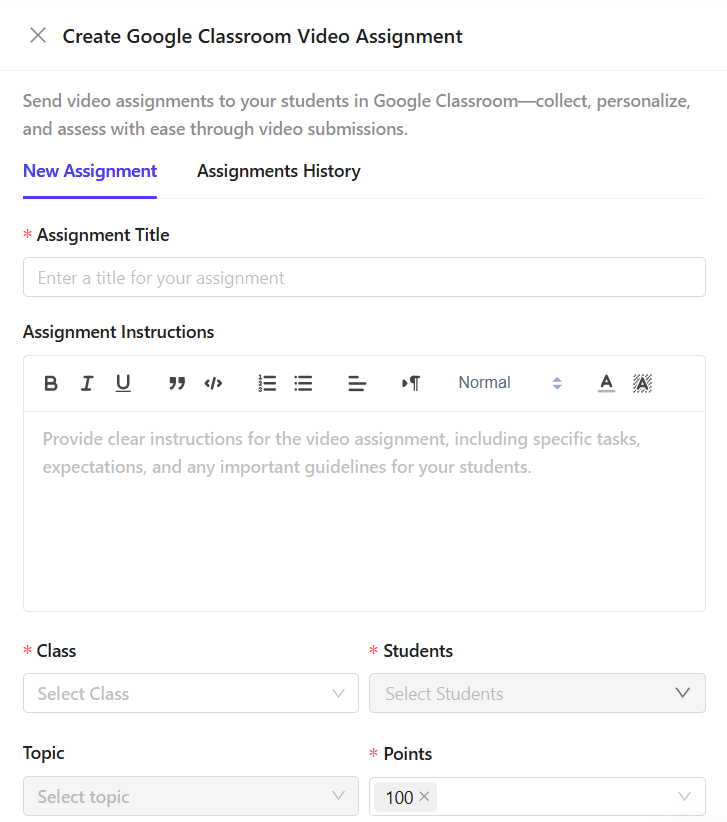
- The Create a Google Classroom Video Assignment panel will open.
- Enter assignment details:
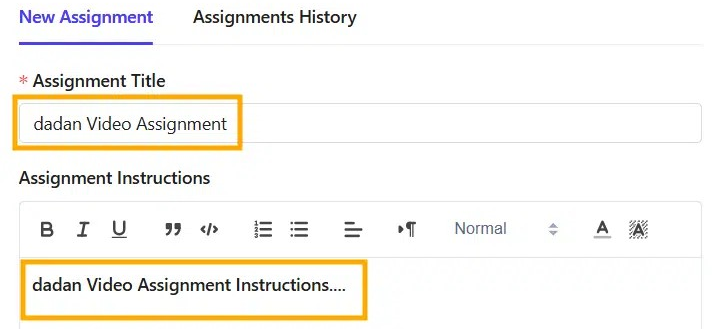
- In the Create a Google Classroom Video Assignment panel, fill in the Assignment Title field.
- Add your Assignment Instructions using the text box, which supports formatting options such as bold, lists, and more.
- Select Class and Students:
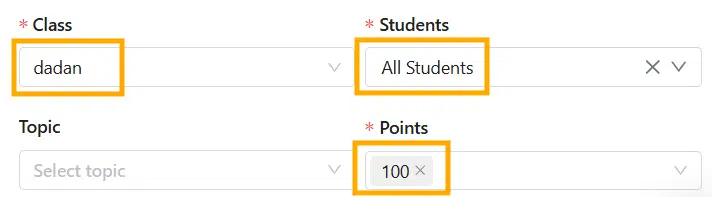
- Under the Class dropdown, choose the class you want to assign the video assignment to.
- Select the students who will receive the assignment in the Students dropdown menu.
- Set Points:
- In the Points section, assign a point value for the assignment (e.g., 100 points).
- Alternatively, select Ungraded if the assignment doesn’t require a grade.
- Set the Due Date:
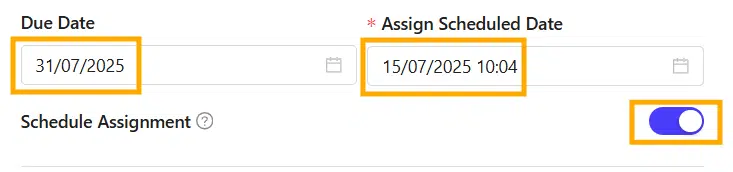
- In the Due Date field, click to open the calendar and select the date the assignment is due.
- Schedule the Assignment (optional):
- Toggle the Schedule Assignment option to On if you want to schedule it for a future date.
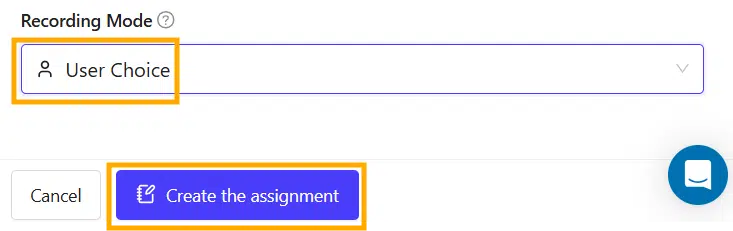
- Choose Recording Mode: Under Recording Mode, select the recording option for the assignment:
- (User Choice to allow flexibility, or specific modes Screen & Cam, Screen Only, and Cam Only).
- Finalize and create:
- Click Create the assignment to publish it to Google Classroom.