TechSmith now sells Camtasia as a yearly subscription with tiers that go up from about $100/year to higher plans. And Camtasia’s own system requirements tell you what it expects from your machine.
16GB RAM recommended, a capable GPU, and modern CPUs with AVX2 support. That’s fine if you’re on a newer setup. But it’s annoying if you’re not.
Then there’s the editing experience. If you’ve worked on longer tutorials, you’ve probably seen that the timeline playback gets choppy or out of sync, especially depending on where your media files are stored. And export settings can slow things down, too.
So when people look for Camtasia alternatives, it’s often for simple reasons like cost, performance, speed, and how quickly they can go from record to share.
This guide compares the alternatives that actually make sense in 2026. Some are lightweight record-and-send tools, some are full editors, and a few sit in the middle, so you can pick based on what you need.
Overview of Camtasia and Its Limitations
Even after two decades in the market, Camtasia still positions itself as the go-to record-and-polish suite for training videos and product walkthroughs. But the pivot to subscription-only pricing has many longtime customers re-examining the value equation.
Add reviews that flag high CPU usage and snail-paced exports on longer clips, and it’s easy to see why teams start exploring lighter options.
Camtasia Key Features
- All-in-one workflow: Capture screen, webcam, system audio, and mic in up to 4K/60 fps, then edit on a multi-track timeline.
- Drag-and-drop: Built-in call-outs, cursor effects, transitions, and motion graphics reduce the need for plug-ins.
- Interactive learning extras: Quizzes and hotspots export as SCORM packages for your LMS.
- Stock assets & themes: Ready-made intros, lower thirds, music, and SFX keep branding consistent without extra software.
- Direct publishing: Push finished videos to YouTube, Vimeo, or Screencast without leaving the app.
Limitations of Camtasia
- Subscription-based: Perpetual licences disappeared with the 2025 release.
- Resource-hungry renders: Long projects can max out CPU/RAM and take longer to export than to record.
- Solo, local workflow: No real-time co-editing or shared cloud timelines.
Top 8 Camtasia Alternatives
When screen-recording is a daily task, you don’t always need a full post-production suite. What you do need is a tool that captures video well, lets you trim mistakes easily, and produces a shareable link without a long render.
We tested 9 options against four basics, including recording quality, editing speed, sharing, and price.
1. Dadan
Dadan is a cloud-first screen recorder and lightweight editor built for people who record every day. You start in a browser tab or the lightweight desktop app (Windows, macOS, Chrome extensions).
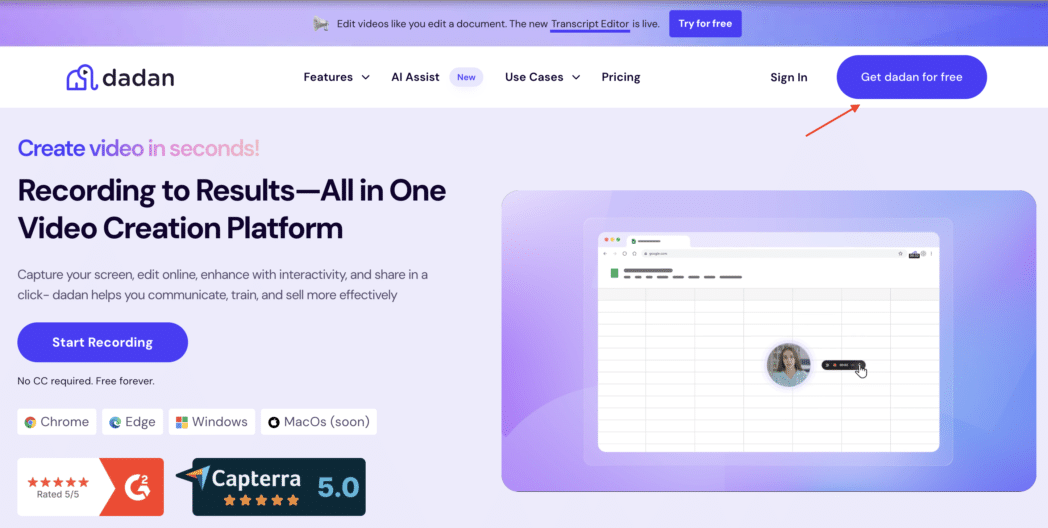
Once you’ve stopped the recording, a text-based video editor opens alongside an AI-generated transcript. Delete a sentence in the transcript, and the matching video segment is also edited out.
From there, you can add chapters, a summary, SEO tags, or even meeting notes with a single click through the platform’s AI Assist toolkit.
Sharing is equally easy. You get instantly generated links that support passwords, expiry dates, and folder-level permissions. Interactive layers like polls, forms, and simple quizzes can also be embedded without exporting to another editor.
Best For
- Remote or hybrid teams exchanging daily async updates
- Course creators
- Customer success or sales reps
Key Features
- Unlimited recordings on paid plans with 4K capture
- AI Assist offers auto-transcription, summaries, SEO tags, chapters, and even meeting notes in a single click
- Text-based editing
- Automatic meeting capture for Google Meet & Zoom
- Granular share controls like password protection, expiry dates, and folder-level permissions
Pros
- Screen + webcam capture up to 4K on paid tiers, 720p on the free plan
- AI Assist with transcripts, titles, summaries, chapters, quizzes, and meeting notes
- Text-based video editing
- Instant share links with privacy controls
- Windows, macOS apps, and Chrome extensions for quick capture
Cons
- No advanced motion graphics or key-frame animation
Pricing Overview
- Free plan
- Lite: $8 per user/month (unlimited videos, AI Assist, 4K capture, advanced analytics)
- Pro: $14 per use/month (up to 25gb video upload limit per file, password protection, account manager, AI Assist, and more)
- Enterprise: For larger teams and advanced business needs, check out Dadan for Enterprise.
If most of your videos are quick explanations rather than polished productions, Dadan’s cloud-native workflow removes steps you probably won’t miss.
2. Loom
Loom captures your screen or webcam and streams the footage to its cloud workspace in real time. When you click Stop, the video opens in a browser tab where you can trim it, generate an AI transcript, and copy a shareable link.

Best For
- Remote teams
- Sales/success reps
- Creators
Key Features
- Automatic transcript, optional removal of filler words/silences, chapter markers, call-to-action button based on the page you recorded
- Time-stamped comments, emoji reactions, and a heat-map of watch-time drops
- Workspace library with personal and shared folders.
- Password protection, domain-restricted sharing, and SSO on Enterprise
Pros
- Upload happens while you record, so share links are ready almost immediately
- Transcript makes every clip searchable and improves accessibility
- Generous free workspace size
Cons
- Free tier caps each video at 5 minutes and 25 stored clips
- Overlays or motion graphics require a separate editor
- Offline recording is limited to the temporary desktop-app cache
Pricing
- Starter/Free (5-min videos, 25 stored clips, 720p capture)
- Business: $18 (unlimited videos, 4K capture, basic AI toolkit)
- Business + AI: $24(AI summaries, chaptering, filler-word & silence removal)
- Enterprise: Custom (SSO, advanced admin controls, longer retention)
Use Loom when turnaround time is critical. If your workflow requires detailed motion graphics or multi-track audio work, you’ll need a heavier editor. For everyday explain-and-share videos, Loom’s cloud workflow covers the essentials.
3. ScreenFlow
ScreenFlow is a macOS-exclusive recording and editing tool from Telestream. It captures your display, app windows, iOS devices, and camera feeds at up to 5K, then drops the footage onto a familiar multi-track timeline.
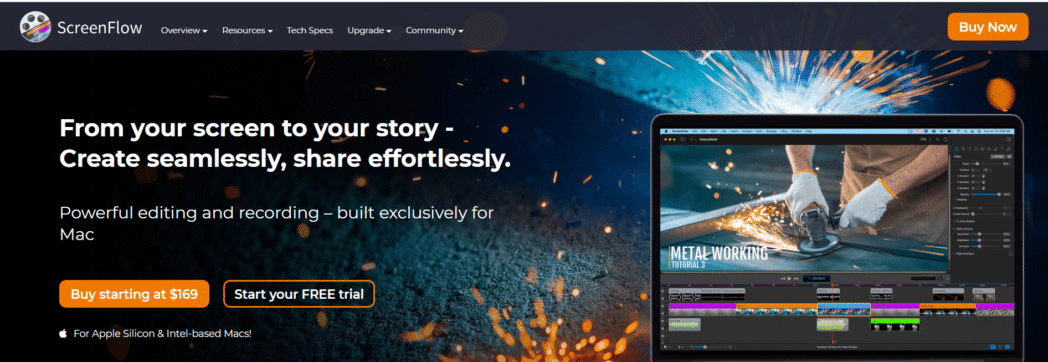
You can add text, motion effects, chroma-key, and animated annotations without leaving the app. Finished videos can be exported straight to MP4 or published to YouTube, Vimeo, or Telestream Cloud.
Best For
- Mac users who need tight editing
- Course creators
- Marketing teams
Key Features
- Up to 5K on M-series Macs, records multiple sources (screen, webcam, mic, system audio) at once
- Cut, ripple delete, key-frame animation, nested clips
- Built-in lower thirds, motion graphics, and 500,000-item stock media library (paid add-on)
- Plug an iPhone or iPad in and capture directly
- Export presets like H.264, HEVC, ProRes, or direct upload to YouTube, Vimeo, Wistia
Pros
- Sharp capture quality and precise editing tools in one package
- Mac-optimized hardware acceleration keeps scrubbing and exports fast on Apple Silicon
- One-time licence, no annual subscription required
Cons
- macOS only, Windows, and Linux users need a different tool
- Steeper learning curve than browser recorders
- UI feels closer to a video editor than a quick recorder
- No built-in team library or real-time collaboration features
Pricing
- ScreenFlow: $169
- ScreenFlow SuperPak: $229 (adds Stock Media Library for first year)
- ScreenFlow SuperPak+: $259 (adds premium support)
Choose ScreenFlow if you work on a Mac and need precise timeline control like cursor zooms, call-outs, and layered effects without stepping up to heavy NLEs like Final Cut.
For quick, link-ready clips, it’s overkill, but for polished instructional videos, it delivers pro-level results without leaving the Mac ecosystem.
4. Snagit
Snagit is TechSmith’s lighter, capture-first product. Instead of a full timeline editor, it focuses on grabbing screenshots or short videos, adding quick annotations, and sharing the file or link with as little friction as possible.
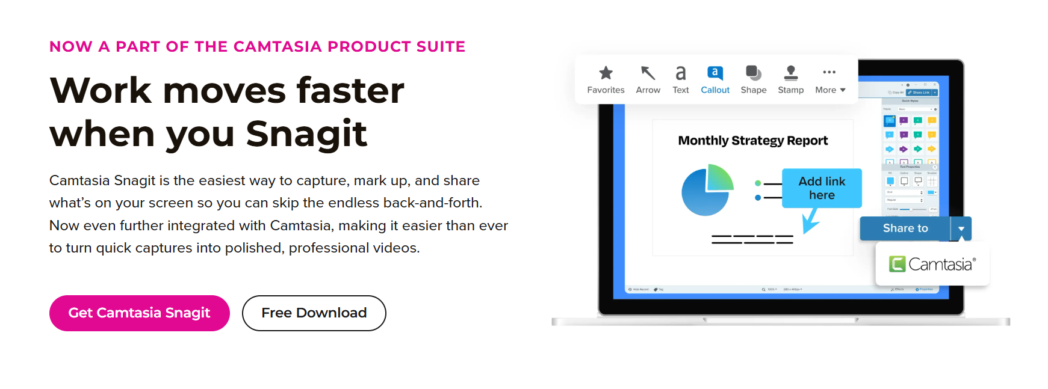
The desktop app (Windows and macOS) records your screen or webcam at up to 1080p, saves to MP4, and gives you a built-in Image/Video Library so you can find past captures by thumbnail or tag.
Best For
- Product and QA teams
- Customer-support reps
- Trainers who rely on annotated screenshots
Key Features
- Full screen, region, scrolling webpage, webcam, or a combination
- Cut mistakes before exporting; no multi-track timeline required
- Drop a series of screenshots into a pre-formatted “step-by-step” document
- Find old captures by keyword or application name
Pros
- Very low learning curve, hotkeys make repeated captures fast
- One-time licence, no annual subscription required
- Built-in presets for email, Slack, Word, and PowerPoint export
Cons
- Video capture tops out at 1080p and 30 fps
- No real-time collaboration or cloud storage
- Lacks advanced audio filters, transitions, and motion graphics
Pricing
- Individuals: ₹1,499 per year (billed annually)
- Teams & Business:
- Business: ₹4855.19 per user/year( billed annually)
- Enterprise: Custom
- Education:
- Educators: ₹4062.51 per user/year( billed annually)
- Students: ₹1499 per user/year( billed annually)
If most of your output is screenshots, GIFs, or short clips that need a few arrows and a quick trim, Snagit delivers that with almost no setup time. For longer recordings or projects that need layered edits, you’ll still want a full editor.
5. Vimeo
Vimeo combines recording, editing, hosting, and audience tools in one cloud workspace. A Chrome-based recorder captures your screen or webcam at 1080p, saves directly to your library, and opens a text-style editor for quick trims or chapter markers.

Because the file never leaves Vimeo’s platform, you can update a clip without changing its URL, useful for evergreen embeds and gated content.
Once a video is in your library, you can overlay lead-capture forms, CTAs, or polls, then track conversion and watch-time analytics from the same dashboard. Higher tiers unlock live streaming, multi-destination broadcasts, and full webinar toolkits (registration pages, chat, Q&A, and replay hosting).
Best For
- Marketing and comms teams
- Virtual-event hosts
- Creators selling subscription or pay-per-view content without a separate OTT vendor
Key Features
- Cloud recorder for screen, window, or webcam (1080p across paid plans)
- Text-based editor, teleprompter overlay, automatic captions in 60+ languages
- Interactive layers like lead forms, chapter markers, CTAs, and polls
- Replace-media feature keeps the same URL and analytics after an update
- Workspace roles, shared folders, and domain-restricted embeds for team control
Pros
- Ad-free playback and player customisation match corporate branding
- A centralized library means no juggling uploads across tools
- Live-event suite (Advanced and above) removes the need for third-party webinar software
Cons
- Storage allowances are tiered, large libraries may need an Advanced or Enterprise contract
- 4K downloads are restricted to higher plans
- Live-streaming and multi-destination output are locked behind the Advanced tier
Pricing
- Starter: ₹720 per month (billed annually)
- Standard – ₹1500 per month (billed annually)
- Advanced – ₹4500 per month (billed annually)
- Enterprise: Custom
If you’re looking for an all-in-one hub including recording, light editing, interactive playback, and robust analytics, Vimeo covers the workflow without sending viewers to a public platform.
6. Filmora
Filmora is Wondershare’s entry-level video editor that adds a built-in screen recorder. You launch the capture tool from inside the app, grab your screen or a specific window, and the take appears on a drag-and-drop timeline ready for titles, effects, and audio filters.

The interface leans on large icons, guided pop-ups, and preset templates, so non-editors can polish a clip without diving into key-frame menus.
The recorder itself is up to 4K on supported GPUs. Finished videos can be exported directly to YouTube, Vimeo, or TikTok, or saved as H.264/H.265 files up to 200 Mbps.
Best For
- Educators and trainers
- YouTubers and social creators
- Small businesses
Key Features
- Screen + webcam capture up to 4K at 60 fps
- Drag-and-drop timeline with magnetic snapping and ripple delete
- Large effects library, like titles, LUTs, motion elements, green-screen keying
- Audio tools like auto ducking, noise removal, and voice-changer presets
- Direct upload to YouTube, Vimeo, and TikTok with account linking
Pros
- Beginner-friendly UI, most edits are point-and-click
- Effects library reduces time spent in After Effects or Canva
- One-click social exports keep bitrate and aspect ratios correct
Cons
- Heavier install than browser-based recorders
- Screen recorder is locked to the desktop app
- Team collaboration is limited to exporting project files
Pricing
- Basic: $9.99 per month
- Advanced: $34.99 per year
- Perpetual: $49.99 one time payment
If you need a friendly timeline editor with plenty of visual flair, Filmora gives you those tools without the complexity of a pro NLE. For pure speed of sharing, lighter recorders win.
7. Movavi
Movavi’s recorder is part of a wider editing line-up but can run on its own if you just need capture, trim, and export.
When you stop the recording, the take appears on a timeline where you can cut errors, crop the frame, or draw quick arrows and highlights. Export options cover MP4, MOV, GIF, and MKV and include GPU-accelerated H.264/H.265, so renders finish quickly on modern laptops.
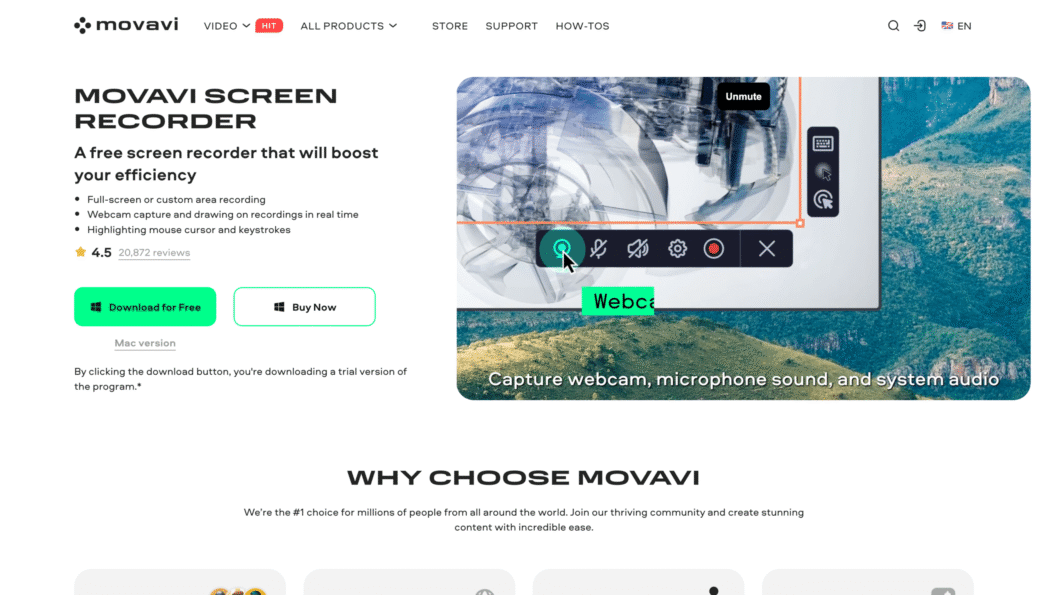
If you also install Movavi Video Editor Plus (optional), the recorder hands clips straight to a richer timeline with motion titles, colour LUTs, and key-framed effects, which is handy for creators who start simple but sometimes need more polish.
Best For
- Solo educators
- Freelancers
- Windows users on mid-range hardware
Key Features
- Screen and webcam capture up to 4K/60 fps
- System-audio and microphone tracks saved separately for easier mixing
- On-screen drawing tools while you record
- Scheduled recordings for webinars you can’t attend live
- Direct export presets for YouTube and Google Drive
Pros
- Small installer and low CPU demand, works on older laptops
- Lifetime licence option available
- Separate audio tracks simplify noise clean-up in post
Cons
- No cloud library or instant share links
- Collaboration means sending project files; no multi-user workspace
- Advanced motion graphics require the separate Video Editor module
Pricing
- Video Suite: Starter: ₹3590 (lifetime)
- Video Suite Plus: ₹3999 (lifetime)
- Video Suite + Photo Editor: ₹4499 (lifetime)
If you need reliable capture with light editing and you prefer paying once instead of every year, Movavi gets you there without taxing the CPU or the wallet. For link-ready sharing or real-time collaboration, you’ll still need an external host.
8. ScreenPal
ScreenPal keeps recording, trimming, hosting, and basic analytics under one login. You capture from the browser launcher or desktop app (Windows, macOS, Chromebook).
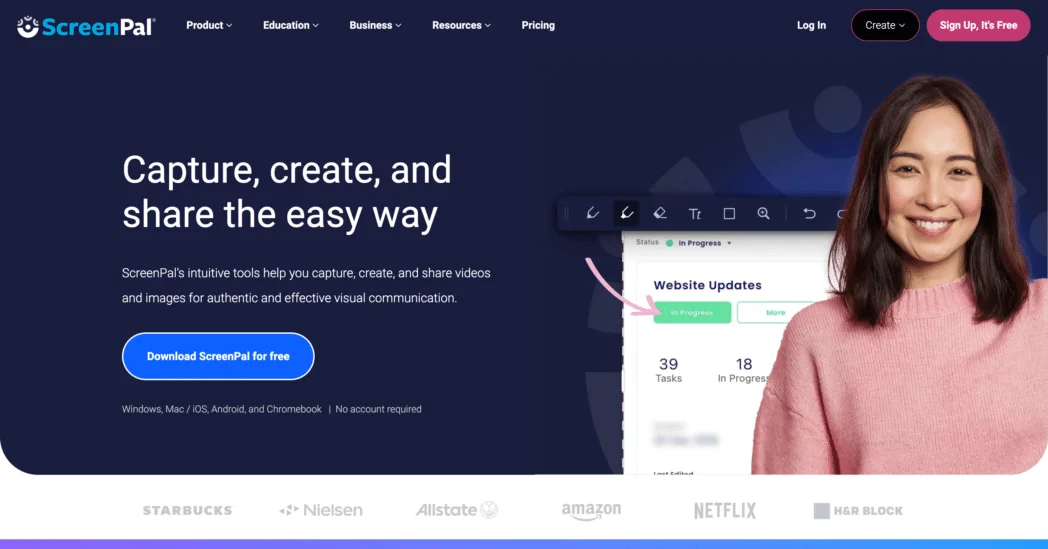
Footage uploads to your ScreenPal cloud space as soon as you stop, so short videos are ready to share in under a minute. A built-in editor lets you cut, blur, or add simple call-outs, but longer projects can move to the separate ScreenPal Video Editor for multi-track work.
Because everything sits on ScreenPal’s servers, you can replace a video without breaking its embed link, which is useful for tutorials that change with product updates.
Best For
- Schools and universities that need FERPA-friendly hosting
- Support teams creating quick answer clips
- Small businesses that want recorder + storage without YouTube ads
Key Features
- Screen, region, or webcam capture up to 1080p on paid tiers
- Drawing tools and click-highlight while recording
- Cloud library with folders, version history, and password-protected links
- Automatic speech-to-text captions (English plus 10 other languages)
- Basic analytics like views, watch-time heat maps, geographic data
Pros
- Works on Chromebooks, handy for K-12 districts
- Replace-media keeps the same URL when you update a clip
- Caption engine saves time on accessibility compliance
Cons
- Free tier records at 720p and watermarks videos
- 4K capture not supported, max output 1080p
- The effects library is limited
Pricing
- Free (15-minute recordings)
- Deluxe: $4 per user/month (annual billing)
- Max: $10 per user/month (annual billing)
- Max Team/Business: Custom
Pick ScreenPal if you need a recorder that also hosts and protects the video for you, especially in education or customer-support settings where linking from a private library is simpler than wrestling with public platforms.
Conclusion
Camtasia still handles long-form training videos well, but the day-to-day work of remote teams, educators, and content creators often demands something faster or lighter on the budget.
If you only need to show a process and send a link within minutes, cloud-first tools such as Dadan minimize steps.
Match the tool to your real workload rather than hunting for the longest feature list. The right alternative is the one that reduces friction in your current process while maintaining quality where you need it.
FAQs
What is the best free alternative to Camtasia?
Dadan’s free tier lets you record in 720p, edit by transcript, and share private links, enough for most short demos without paying a cent.
Is Camtasia still worth it in 2026?
Only if you regularly build long, interactive training videos that need cursor effects and quizzes. For everyday clips, faster cloud tools are more practical.
Which Camtasia alternative is easiest for beginners?
Dadan. The capture button lives in your browser, edits happen in plain text, and the link is ready the moment you hit Stop.
Are there browser-based alternatives to Camtasia?
Yes. Dadan, Loom, Vimeo’s recorder, and ScreenPal all capture and edit inside Chrome or Edge, no heavy desktop install.
Which tool supports interactive video elements?
Vimeo’s Standard plan and above support lead forms and polls. Dadan focuses on rapid capture and sharing, you can embed the finished video in any form platform you already use.