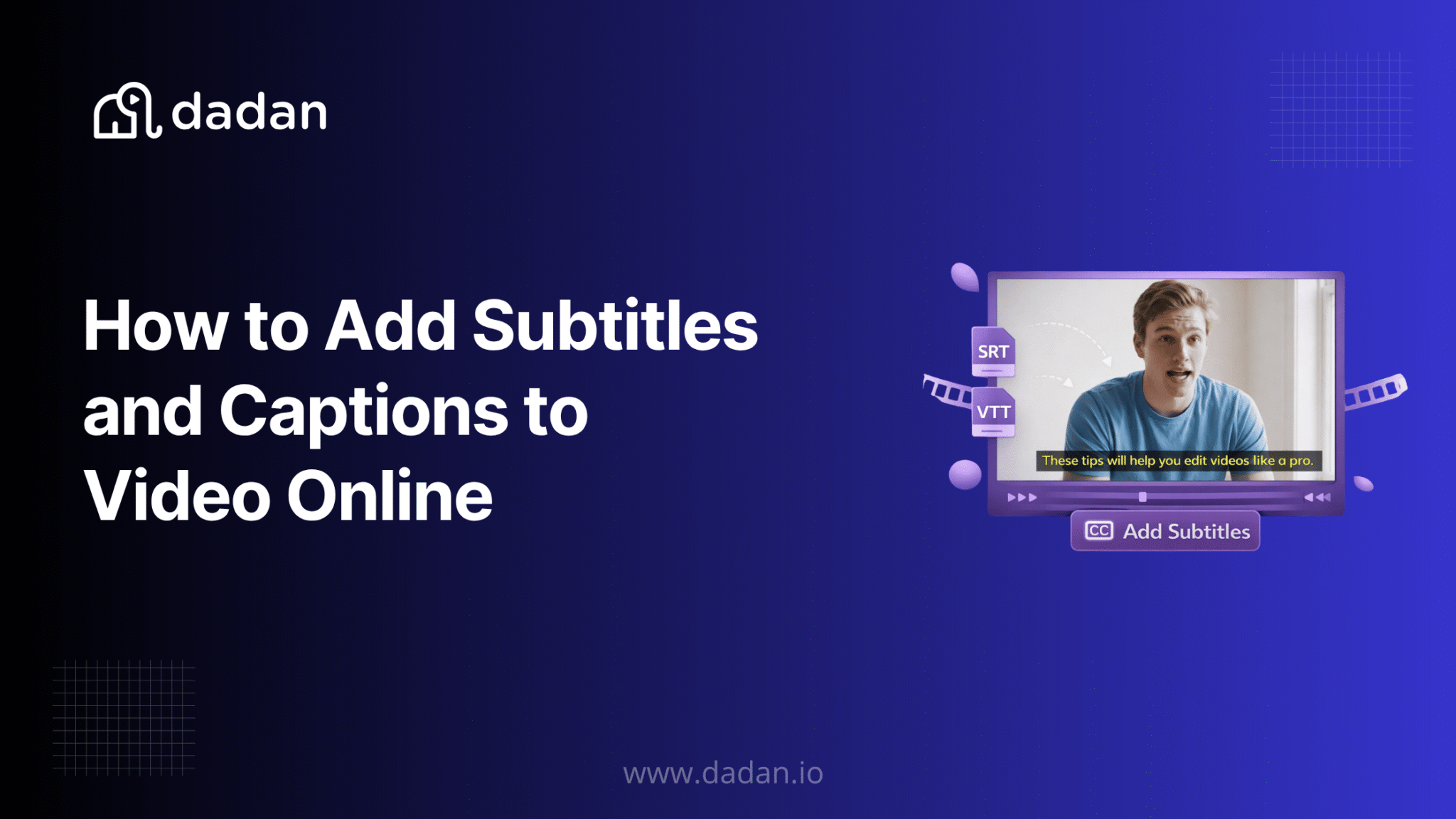
Most social media videos are watched on mute. If your video has no subtitles, the majority of your audience scrolls past without catching a word of it.
Adding subtitles used to mean typing every line manually and syncing timestamps by hand, a process that could take hours for a five-minute recording.
AI transcription has changed the math entirely. Tools like Dadan now auto-generate captions from your video’s audio, with accuracy rates reaching up to 99%, and place them on the timeline in seconds.
This guide walks through the difference between subtitles and captions, why they matter for reach and accessibility, and how to add subtitles to a video for free using a browser-based editor.
Subtitles vs Captions
The terms “subtitles” and “captions” are used interchangeably in casual conversation, but they serve different purposes and different audiences.
Subtitles
Subtitles are a text version of the spoken dialogue. They assume the viewer can hear the video but may not understand the language being spoken.
A Spanish-language film with English subtitles is the classic example. Subtitles translate or transcribe dialogue, but they do not describe non-speech audio.
Captions
Captions include everything subtitles cover, plus non-speech audio cues like background music, sound effects, speaker identification, and environmental sounds like [door slams] or [phone ringing].
Captions are designed for viewers who are deaf or hard of hearing and need the full audio context represented in text.
Within captions, there are two types.
- Open captions (also called hardcoded or burned-in captions) are embedded permanently into the video frames. They cannot be turned off.
- Closed captions are stored as a separate text file (SRT, VTT, or similar format) and can be toggled on or off by the viewer. YouTube’s CC button, for example, toggles a closed caption track.
For most online video creators, the practical distinction comes down to this that if your audience is primarily watching in their own language but with the sound off (the majority case on social media), subtitles handle the job.
If your content needs to be accessible to deaf and hard-of-hearing viewers, or if you’re publishing to platforms with accessibility compliance requirements, captions with non-speech audio descriptions are the standard to aim for.
Why Subtitles Matter
Adding subtitles to your video directly affects how many people watch your content, how long they stay, and whether search engines can find it at all.
Viewers Watch Without Sound
Most videos on social media autoplays on mute. A viewer on a commute, in an open-plan office, or simply scrolling through a feed will not turn the sound on unless something pulls them in.
Without subtitles, they get nothing from your video and move on. With subtitles, the content works regardless of where they are watching or whether the sound is on.
Search Engines Index Text, Not Audio
A video file on its own gives search engines almost nothing to work with. Subtitles and transcripts convert your spoken content into indexable text, which means the keywords and topics you cover become discoverable through search.
Platforms like YouTube use caption tracks as ranking signals, so videos with accurate captions tend to surface more frequently in both platform search and Google video results.
Accessibility Reaches a Wider Audience
Hundreds of millions of people worldwide have some degree of hearing loss. Captions ensure your content is usable by viewers who are deaf or hard of hearing, and they also help viewers who are watching in a second language or in a noisy environment where audio is unreliable.
Beyond the audience benefit, captioning is a legal requirement in many industries and geographies under standards like the ADA, the European Accessibility Act, and WCAG 2.1.
Comprehension Improves Even With the Sound On
Viewers who can both hear and read the content retain more of it. For product walkthroughs, training modules, and tutorials where you need the audience to absorb and act on specific information, captions reinforce the message and reduce the chance of a key point being missed.
How to Add Subtitles To a Video – Step-by-Step
Dadan’s add subtitles tool works with any SRT or VTT subtitle file you already have. Upload your video, attach the subtitle file, preview the result, and export. No account required, no time limit, no export restrictions.
Step 1: Upload Your Video and Subtitle File
Go to Dadan’s Free Video Subtitle Tools. Start by dragging and dropping your video into the uploader or click Browse to select a file from your device. Dadan supports popular formats including MP4, MOV, WEBM, MKV, and AVI.
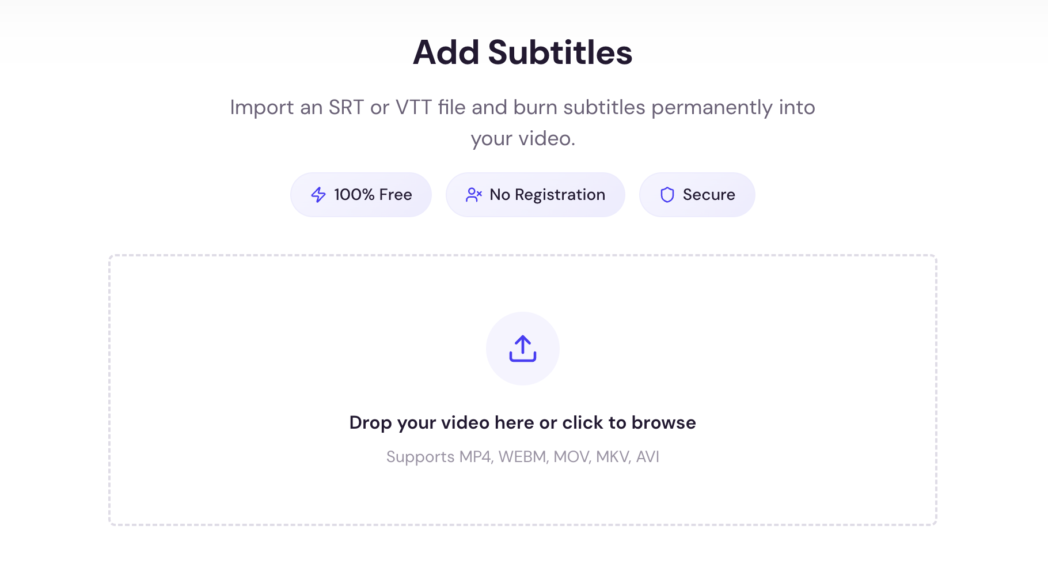
No format conversion needed before you start.
Import your subtitle file in SRT or VTT format. Once uploaded, Dadan automatically processes the file and prepares it for editing and customization.

Step 2: Customize Your Subtitles
Before adding subtitles to your video, you can personalize their appearance:
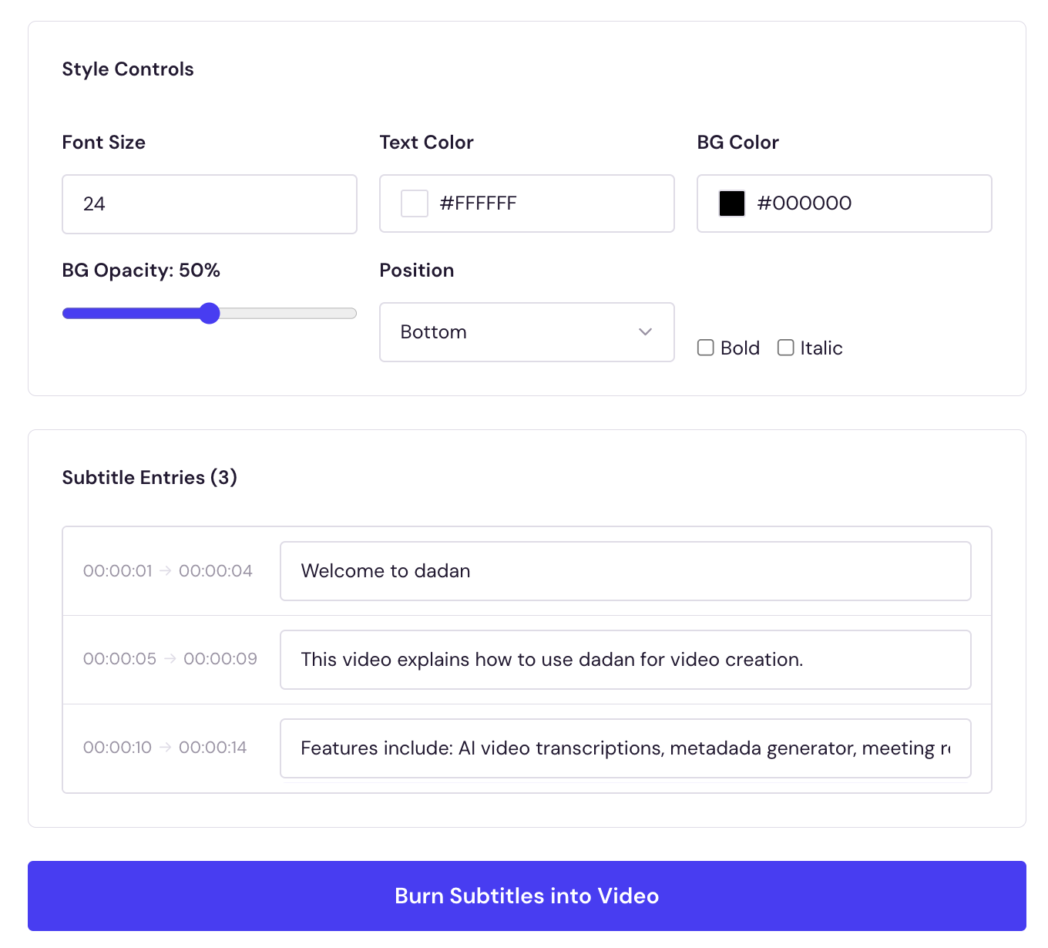
- Adjust font size
- Change text color
- Customize background color
- Control background opacity
- Position subtitles on the screen
- Apply bold or italic styling
You can also review and edit individual subtitle entries directly within the editor.
Step 3: Burn Subtitles Into Your Video
After reviewing your settings, click Burn Subtitles into Video. Dadan will process the video and permanently embed the subtitles so they remain visible on any platform or device.
Step 4: Preview and Download
Once processing is complete, preview your video to ensure everything looks correct. If you’re happy with the result, click Download to save the final video with subtitles permanently embedded.
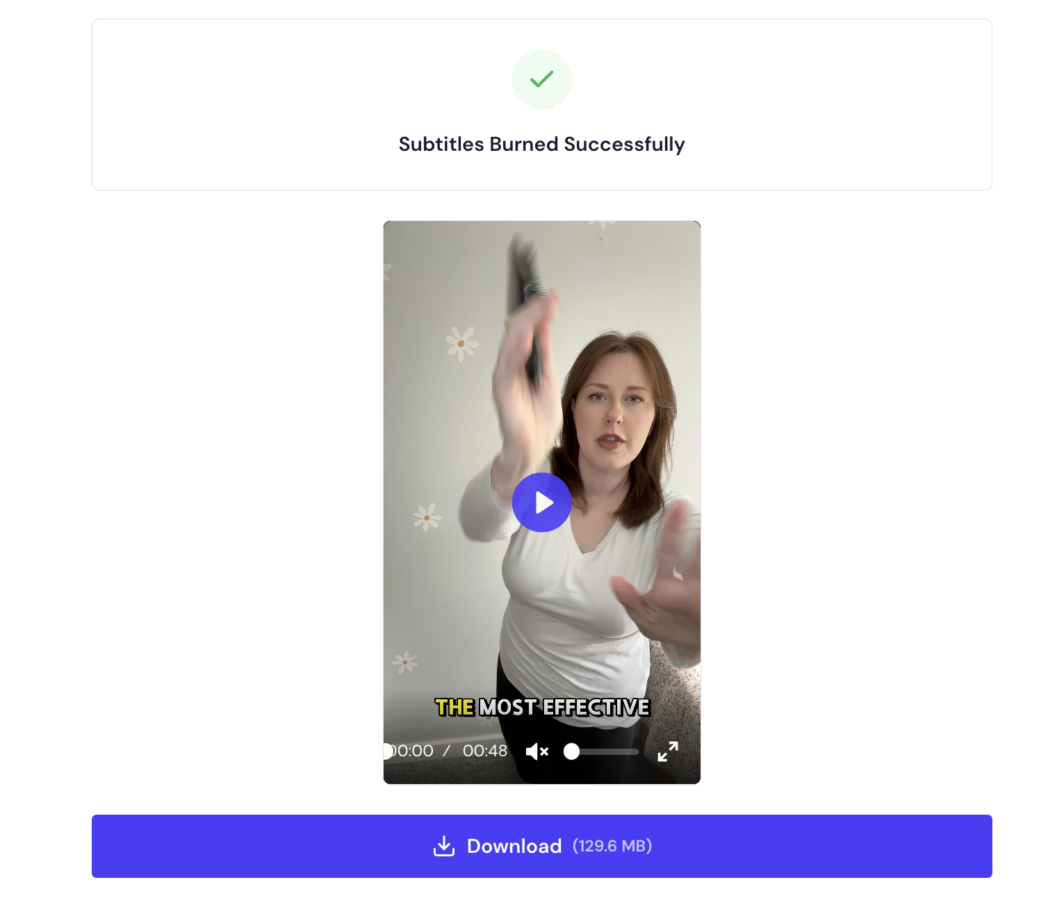
Download the finished file and it is ready to upload or share wherever you need it.
How to Add Captions to a Video: Step-by-Step
Step 1: Upload Your Video
Start by uploading your video file to Dadan. Simply drag and drop your video into the uploader or click Browse to select a file from your device.
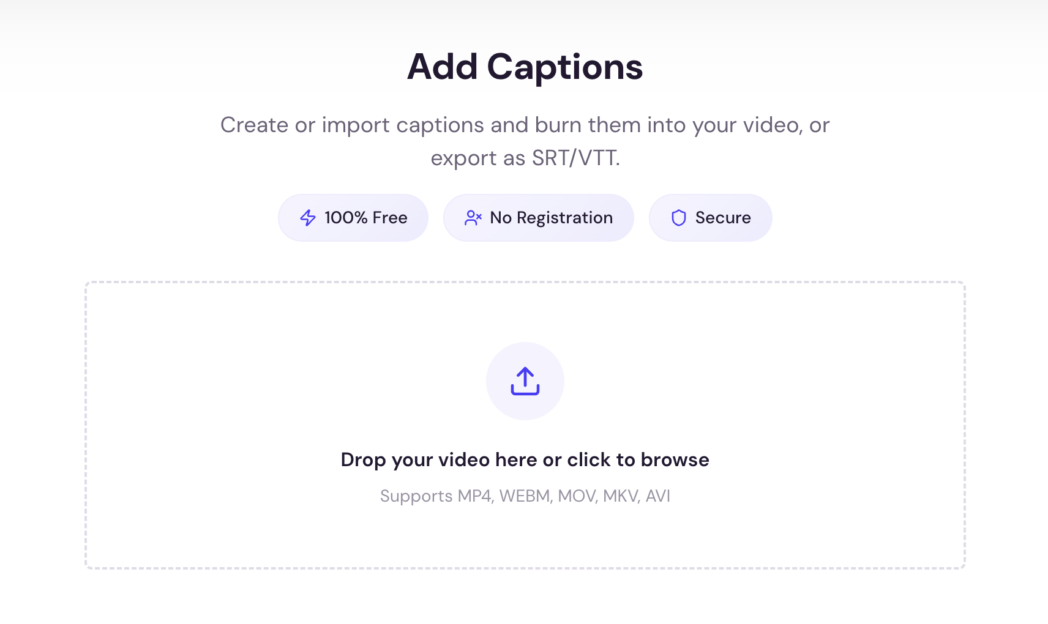
Dadan supports popular video formats including MP4, WEBM, MOV, MKV, and AVI, making it easy to add captions to almost any video.
Step 2: Add Your Captions
You can create captions in two ways:
- Manual Entry: Add captions one by one and set custom start and end timestamps.
- Import File: Upload an existing SRT or VTT caption file.
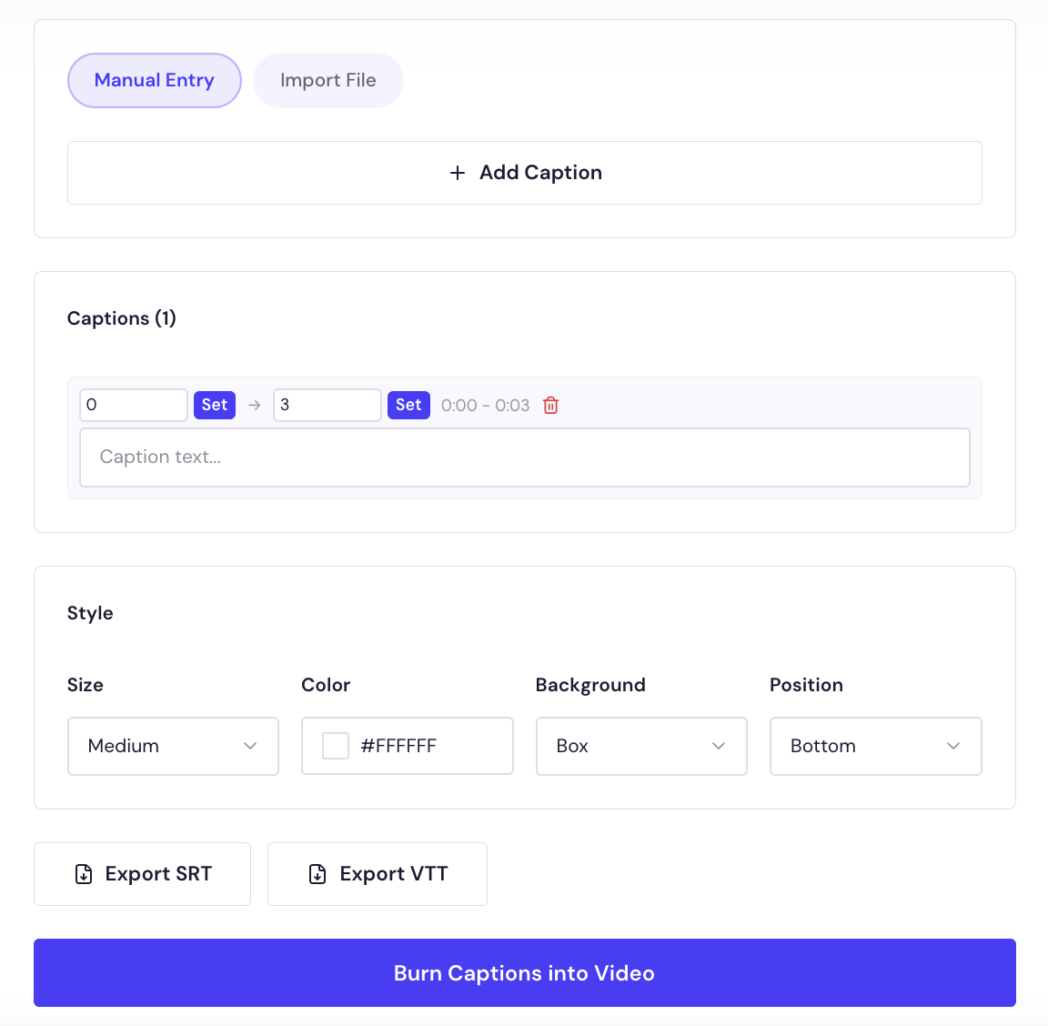
Simply click Add Caption to create a new caption entry and enter the text you want displayed on screen.
Step 3: Customize Caption Style
Personalize your captions to match your content and branding.
Customize:
- Caption size
- Text color
- Background style
- Caption position
- Timing and duration
You can preview and edit individual captions before exporting the final video.
Step 4: Preview and Download
After processing is complete, preview your video to verify that captions appear correctly.
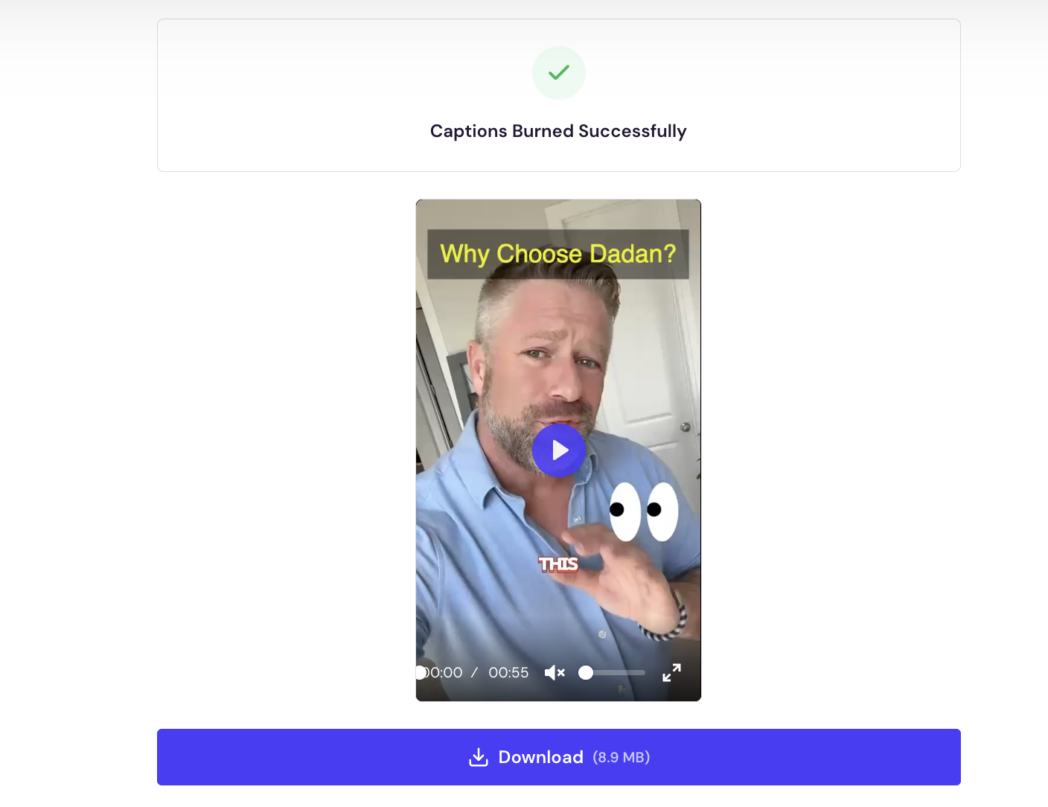
When everything looks good, click Download to save your captioned video and share it anywhere.
Benefits of Adding Subtitles and Caption to a Video
Subtitles do a lot more than accessibility. Here are a few benefits:
Higher Engagement on Every Platform
When viewers can read along with your content, they are less likely to scroll away mid-video. Higher average watch time follows, and that is the metric most platform algorithms use to determine distribution.
A video that retains viewers longer will be shown to more people. If your video content has been getting low reach, missing captions may be part of the reason.
Broader Audience Reach
Subtitles remove the language barrier for international viewers and the audio barrier for anyone in a sound-restricted environment.
A training video created for one team becomes usable by a multilingual workforce once translated captions are added. A product demo built for one market becomes relevant to several.
If you are creating content that needs to be accessible across regions, teams, or time zones, subtitles are what make that scalable.
Better SEO and Discoverability
Every keyword and topic you cover in your spoken content becomes searchable once subtitles are in place. For YouTube in particular, where captioned videos are indexed more thoroughly, this has a direct effect on how often your content appears in search results.
Adding subtitles is one of the lowest-effort ways to extend the reach of content you have already produced.
Accessibility Compliance
For anyone creating content in education, healthcare, government, or enterprise contexts, captioning is a legal requirement, not a choice.
Even outside regulated industries, captions signal to your audience that you have considered who is watching and how they are watching.
Content Repurposing
A transcript generated for captions doubles as source material for blog posts, social media quotes, email newsletters, and documentation. One recording becomes multiple content assets without additional production time.
Dadan’s transcripts are fully exportable, which makes this a practical workflow rather than a theoretical one.
Conclusion
Without subtitles, most of your audience on social media will never engage with what your video actually says. Captions give you higher clickthrough rates, broader reach, stronger search visibility, and accessibility coverage in one step.
Dadan’s add subtitles tool handles it in the most effortless manner. No account required. If you do not have a subtitle file yet, Dadan’s AI transcription can generate one from your video’s audio with accuracy up to 99% across 100+ languages.
FAQs
How do I add subtitles to a video for free?
Go to subtitle generator, upload your video and your SRT or VTT subtitle file, preview the result, and export. No account required.
What is the difference between captions and subtitles?
Subtitles transcribe spoken dialogue for viewers who can hear but may not understand the language. Captions include dialogue plus non-speech audio cues like music, sound effects, and speaker labels, and are designed for deaf or hard-of-hearing viewers.
Can I auto-generate subtitles from video?
Yes. Dadan’s AI transcription converts spoken audio into timestamped text with accuracy up to 99% on clear recordings, supporting 100+ languages. The transcript can then be exported and used as your subtitle file.
What is SRT and VTT format?
SRT (SubRip Subtitle) and VTT (WebVTT) are text-based subtitle file formats that store caption text alongside timestamp data. SRT is the most widely supported format across video platforms and desktop players. VTT is the web standard used by HTML5 video players and supports additional styling. Dadan’s add subtitles tool accepts both formats.
Do captions improve engagement?
Yes. Captions allow viewers to follow your content on mute, which is how most social media video is watched. Viewers who can read along are more likely to stay through the full video, which improves watch time and platform distribution.
How accurate are auto subtitles?
Accuracy depends on audio quality. Dadan’s AI transcription reaches up to 99% on clear recordings with a single speaker and minimal background noise. Heavy accents, overlapping dialogue, or noisy environments lower accuracy. Transcripts are fully editable before you export them as a subtitle file.